SAM L21
AT14973: Wearable Demo Reference Design
USER GUIDE
Preface
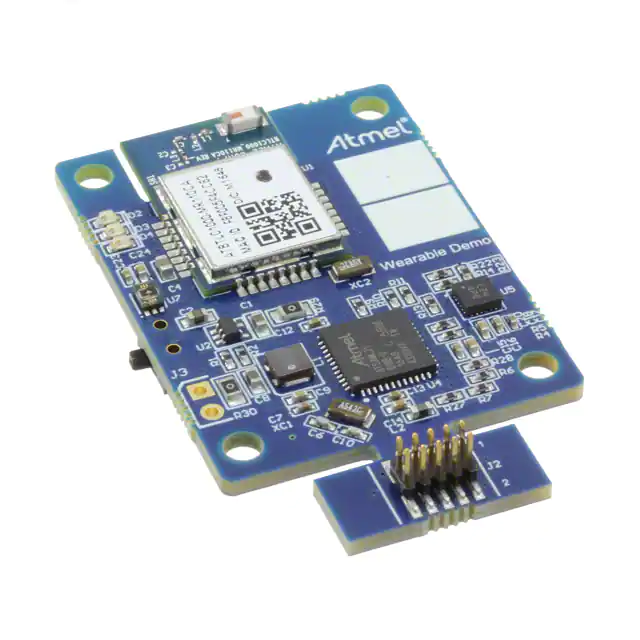
The Wearable Demo (Ordering code: ATULPC-DEMO) Reference Design
evaluation kit is a hardware platform to address the wearable and IOT
markets.
The Wearable Demo Reference Design incorporates Atmel® SAM L21
microcontroller and ATBTLC1000 fully certified module with sensors to
demonstrate a complete solution needed for the IOT.
Supported by the Atmel Studio integrated development platform, the kit
provides easy access to the features that can be custom integrated in a
design which will significantly reduce the time-to-market.
Atmel-42750A-SAM-L21-Wearable-Demo-Reference-Design_AT14973_User Guide-08/2016
�Table of Contents
Preface............................................................................................................................ 1
1. Introduction................................................................................................................ 3
1.1.
1.2.
Features and Overview................................................................................................................ 3
Kit Overview................................................................................................................................. 4
2. Getting Started...........................................................................................................6
2.1.
2.2.
2.3.
Quick Start ...................................................................................................................................6
Sensor Network............................................................................................................................6
Design Documentation and Related Links................................................................................... 6
3. User Guide.................................................................................................................8
3.1.
3.2.
3.3.
3.4.
Kit Operation.................................................................................................................................8
Android Application Operation....................................................................................................16
Testing and Known Issues..........................................................................................................27
Wearable Demo on the Public Domain...................................................................................... 27
4. Revision history....................................................................................................... 28
Atmel AT14973: Wearable Demo Reference Design [USER GUIDE]
Atmel-42750A-SAM-L21-Wearable-Demo-Reference-Design_AT14973_User Guide-08/2016
2
�1.
Introduction
This document helps the user to understand the underlying technical details and the steps to operate
SAM L21 Wearable Demo.
1.1.
Features and Overview
Figure 1-1. Functional Block Diagram
Figure 1-2. Wearable Demo Kit
Atmel AT14973: Wearable Demo Reference Design [USER GUIDE]
Atmel-42750A-SAM-L21-Wearable-Demo-Reference-Design_AT14973_User Guide-08/2016
3
�1.2.
Kit Overview
Figure 1-3. Top Side
Figure 1-4. Bottom Side
•
•
Processor
– SAML21G18B
Sensors
– Physical Sensors
• Motion Sensors (6-axis motion BHI160)
– Accelerometer
– Gyro
•
Environmental Sensors (BME280)
– Pressure
– Humidity
– Temperature
•
Light Sensor (VEML 6080)
Atmel AT14973: Wearable Demo Reference Design [USER GUIDE]
Atmel-42750A-SAM-L21-Wearable-Demo-Reference-Design_AT14973_User Guide-08/2016
4
�–
–
Ambient Light
Virtual Sensors: The integrated Fuser Core of BHI160 receives raw sensor data from the
connected sensors and provides virtual sensor data. Following virtual sensor data are
supported in this Reference Design.
• Game Rotation Vector
• Step Detector
• Gravity
• Accelerometer
•
Gyroscope
•
Crypto
– ATECC508A
•
Display
– LED indicators for operational status
•
Connectivity
– ATBTLC1000 (an ultra-low power Bluetooth® SMART (BLE 4.1) System on a Chip)
•
Power
– CR2032 Coin Cell
•
Programming Header
– Atmel-ICE ARM 10-pin interface for programming
•
CE/FCC certified
•
Mechanical Dimension
– 40mm x 30mm (excluding the programming header extension)
Atmel AT14973: Wearable Demo Reference Design [USER GUIDE]
Atmel-42750A-SAM-L21-Wearable-Demo-Reference-Design_AT14973_User Guide-08/2016
5
�2.
Getting Started
2.1.
Quick Start
Figure 2-1. Functional Overview
The Atmel SMART SAM L21 MCU based on Cortex – M0+ and the Atmel SMART Bluetooth solution are
the key components of the Wearable Demo platform. The ATBTLC1000 is an ultra-low power Bluetooth
SMART System on a Chip with Integrated Cortex – M0 MCU, Transceiver, Modem, MAC, PA, TR Switch,
and Power Management Unit (PMU). It can be used as a Bluetooth Low Energy link controller or data
pump with external host MCU or as a standalone applications processor with embedded BLE connectivity
and external memory.
The qualified Bluetooth Smart protocol stack is stored in dedicated ROM. The firmware includes L2CAP
service layer protocols, Security Manager, Attribute protocol (ATT), Generic Attribute Profile (GATT) and
the Generic Access Profile (GAP). Additionally, application profiles such as Proximity, Thermometer,
Heart Rate, Blood Pressure, and many others are supported and included in the protocol stack. The
ATBTLC1000 exchanges data with SAM L21 MCU through UART interface.
A BHI160 6-axis Smart Hub motion sensor and a BME280 environmental sensor from Bosch Sensortec,
Vishay’s VEML 6080 light/UV sensors form a network of Sensors proving periodic motion, environmental
and light sense data to SAM L21 MCU through Two-Wire interface. The entire Wearable platform is
powered by a simple coin cell. The Wearable Demo reference design is powered by CR2032.
2.2.
Sensor Network
The organs of the Wearable Demo are its sensors. The BHI160 integrates a 6-axis IMU with the Bosch
Sensortec Fuser core. It provides a flexible, low power solution for motion sensing and sensor data
processing.
The BME280 is as combined digital humidity, pressure, and temperature sensor based on proven sensing
principles.
The humidity sensor provides an extremely fast response time for fast context awareness applications
and high overall accuracy over a wide temperature range. The pressure sensor is an absolute barometric
pressure sensor with extremely high accuracy and resolution and drastically lower noise.
The integrated temperature sensor has been optimized for lowest noise and highest resolution. Its output
is used for temperature compensation of the pressure and humidity sensors and can also be used for
estimation of the ambient temperature. VEML6080 is an advanced ultraviolet (UV) and ambient light
sensor. The whole sensor network is connected to SAM L21 through SERCOM I2C interface.
2.3.
Design Documentation and Related Links
•
SAM L21 datasheet: http://www.atmel.com/products/microcontrollers/arm/sam-l.aspx?
tab=documents
Atmel AT14973: Wearable Demo Reference Design [USER GUIDE]
Atmel-42750A-SAM-L21-Wearable-Demo-Reference-Design_AT14973_User Guide-08/2016
6
�•
•
•
•
•
ATBTLC1000 fully certified module: http://www.atmel.com/devices/ATBTLC1000.aspx
BHI160: https://www.bosch-sensortec.com/bst/products/all_products/bhi160
BME280: https://www.bosch-sensortec.com/bst/products/all_products/bme280
Wearable Demo Android App: https://play.google.com/store/apps/details?id=com.atmel.wearables
Store: http://www.atmel.com/tools/ATULPC-DEMO.aspx
Atmel AT14973: Wearable Demo Reference Design [USER GUIDE]
Atmel-42750A-SAM-L21-Wearable-Demo-Reference-Design_AT14973_User Guide-08/2016
7
�3.
User Guide
3.1.
Kit Operation
The Wearable Demo is powered using a CR2032 coin cell. A switch controls the Power Supply to the
entire system. After Power is ON, the Wearable goes through the initialization phase where the MCU’s
internal system, BTLC1000 and all the connected sensors are initialized. The end of the initialization
phase is indicated by the ON to OFF transition of Power LED. After this phase, the user can enable BLE
communication by “Touch and Hold” any one of the PTC button for about 1 second. When it is enabled,
the BLE LED start to blink for 1sec OFF + 1 sec ON. At this time, the user can connect the Wearable from
Wearable Android App using “Connect” button.
When the connection is established, the BLE LED start to blink at faster rate. Now the user can navigate
to different Android App screens to check the sensor values, 2-D graphs and 3-D plots. For the list of
Android app screens supported, refer to section Android Application Operation in this document. If no
user input is received after the BLE is enabled or if the active session is disconnected from the Android
app, the Wearable enters to Low Power mode thus saving the system power consumption.
Refer to the Functional Flow for the details.
Figure 3-1. Functional Flow
3.1.1.
Status LED(s)
The Wearable Demo supports 3 user interface LED(s).
1) Power LED: The Power status LED blinks every 60 seconds. The reset status is ON to keep the user
informed about the wearable initialization phase which approximately takes 15 to 16 seconds.
2) Touch LED: The Touch LED blinks when user swipe across the 2-channel touch surface is detected in
either right or left direction. The reset status is OFF.
3) BLE connection status LED: The BLE status LED blinks at the rate of 50% duty cycle with period
equal to 2sec when there is no active BLE connection. During active BLE connection, the LED is blinks at
the rate of 980msec (OFF) + 20msec (ON). The reset status is OFF.
Atmel AT14973: Wearable Demo Reference Design [USER GUIDE]
Atmel-42750A-SAM-L21-Wearable-Demo-Reference-Design_AT14973_User Guide-08/2016
8
�Figure 3-2. Status LEDs
3.1.2.
PTC Buttons
The Touch plays a major role for the user interface. The 2-channel PTC on the top side of the Wearable
has three different functionalities.
1) Enable BLE connection: After the Wearable Power ON initialization, device is in low power mode.
The user has to touch and hold anywhere in PTC buttons for about 1 second to enable BLE connection.
Both touch buttons act as single button for waking up the device.
2) Wakeup from Low power mode: Touch and hold any one of the PTC button for 1 seconds to wake-up
the Wearable from low power mode. Exiting from low power mode puts the BLE in advertising mode. If no
connection is established within 60 seconds, the Wearable re-enters the low power mode for power
saving.
3) Swipe the Android App screen(s): When the BLE connection is established with the Android phone
and the app is active, swiping across the 2-channel PTC button from bottom to top or vice-versa
equivalently swipe the app screen left to right or from right to left accordingly.
Figure 3-3. PTC Buttons
3.1.3.
Bluetooth LE Operation
This design incorporates Atmel Bluetooth SMART (BLE) technology using ATBTLC1000 BluSDK version
4.0.
In this design, Wearable Demo acts as GAP Peripheral which can advertise (to let other devices know
that it's there) and Mobile Application acts as GAP Central which scans for other devices and sends a
connection request to establish a connection.
To exchange data between two connected devices, it uses GATT (Generic Attribute Profile) of BLE stack.
It defines the way that two BLE devices transfer data back and forth using concepts called Services and
Characteristics. GATT comes into play once a dedicated connection is established between two devices.
Services are used to break data up into logic entities, and contain specific chunks of data called
characteristics. A characteristic is a value used in a service along with properties and configuration
information about how the value is accessed. A characteristic definition contains a characteristic
declaration, characteristic properties, and a value.
Atmel AT14973: Wearable Demo Reference Design [USER GUIDE]
Atmel-42750A-SAM-L21-Wearable-Demo-Reference-Design_AT14973_User Guide-08/2016
9
�A service can have one or more characteristics, and each service distinguishes itself from other services
by means of a unique numeric ID called a UUID, which can be either 16-bit (for standard BLE Services)
or 128-bit (for custom services).
The Wearable Demo kit uses custom profile with 128 bit unique UUIDs. It uses base 128-bit UUID:
F05A0000-3936-11E5-87A6-0002A5D5C51B. All services use 128-bit UUIDs, but for easy documentation
reason the 16-bit part is listed in this document. It is embedded in the 128-bit UUID as shown in the below
example.
Example: 0xBAD0 maps as F05ABAD0-3936-11E5-87A6-0002A5D5C51B. All UUIDs that are mapped to
128-bit values are marked *.
In this design, Wearable Demo acts as GATT Server which stores data locally and provides data access
methods to a remote GATT client. Mobile Application acts as GATT client which accesses data on the
remote GATT server via read, write or notify operations.
The custom profile uses following functions:
•
•
•
•
Enable\disable sensor data from mobile application
Configure sensor ODR(Output Data Rate) from mobile application
Send data for enabled sensors at set output data rate to mobile application
Send notifications for events like drop detection, low battery, step count, and touch gesture to
mobile application
Table 3-1. Environment Service
Characterics
UUID
Properties
Data
Environment Data
BAD0 *
Read/Notify
(9 Bytes)
Byte0 = Temp LSB
Byte1 = Temp MSB
Byte2 = Pressure LSB
Byte3 = Pressure MSB
Byte4 = UV LSB0
Byte5 = UV LSB1
Byte6 = UV MSB0
Byte7 = UV MSB1
Byte8 = Humidity
ODR
BAD1 *
Read/Write
1 Byte
When Environment Data Characteristics notification is enabled from application, the sensors (BME280
and VEML6080) starts to perform measurements at set ODR. The data is updated in the Environment
Characteristics and notification is sent to application. This data is used to display environment data in
mobile application. When Environment Data Characteristics notification is disabled from application, the
sensor is put in stand-by mode.
Output Data Rate can be set by application. It uses ODR Characteristics. The following ODR settings are
allowed for Environment sensors
•
1Hz
Atmel AT14973: Wearable Demo Reference Design [USER GUIDE]
Atmel-42750A-SAM-L21-Wearable-Demo-Reference-Design_AT14973_User Guide-08/2016
10
�•
•
•
•
2Hz
4Hz
8Hz
10Hz
ODR settings can be configured using mobile application settings screen.
Table 3-2. Environment Service Protocol
User Action
From Wearable
User enters to Environment
Screen
Environment Screen
From Android Phone
Enable Environment Characteristics
Notification
Update Environment
Characteristics with
sensor data and send
notification to application
at set ODR
When user moves out of
Environment Screen
Disable Environment Characteristics
Notification
User Opens settings screen
Read ODR Characteristics to get the
current Output Data Rate for
environment sensors
User sets new ODR value for
environment sensors in Settings
Screen
Write ODR Characteristics to set the
new Output Data Rate for environment
sensors
Atmel AT14973: Wearable Demo Reference Design [USER GUIDE]
Atmel-42750A-SAM-L21-Wearable-Demo-Reference-Design_AT14973_User Guide-08/2016
11
�Table 3-3. Device Orientation Service
Characteristics
UUID
Properties
Data
Device Rotation Vector
BAD8 *
Read/Notify
(8 Bytes)
Byte0 = X LSB
Byte1 = X MSB
Byte2 = Y LSB
Byte3 = Y MSB
Byte4 = Z LSB
Byte5 = Z MSB
Byte6 = W LSB
Byte7 = W MSB
Gyro-Positions
BAD4 *
Read/Notify
(6 Bytes)
Byte0 = X LSB
Byte1 = X MSB
Byte2 = Y LSB
Byte3 = Y MSB
Byte4 = Z LSB
Byte5 = Z MSB
Accelero-Positions
BAD7 *
Read/Notify
(6 Bytes)
Byte0 = X LSB
Byte1 = X MSB
Byte2 = Y LSB
Byte3 = Y MSB
Byte4 = Z LSB
Byte5 = Z MSB
Drop Detection
BADA *
Notify
1 Byte
Step Increment
BADB *
Notify
1 Byte
ODR
BAD9 *
Read/Write
1 Byte
If even one of the Characteristics notification of this service is enabled from application, the sensor starts
to perform measurements at set ODR. The rotation vector data is updated in the Device Rotation Vector
Characteristics and the accelerometer position data is updated in the Accelerometer-Positions
Characteristics.
After updating the data, Wearable Demo sends notification to application. Wearable Demo uses Game
Rotation Vector (Quaternion+) data from BHI160 sensor for device orientation (3D image) plotting.
Accelerometer data is used for 2D plotting graph in mobile application.
Atmel AT14973: Wearable Demo Reference Design [USER GUIDE]
Atmel-42750A-SAM-L21-Wearable-Demo-Reference-Design_AT14973_User Guide-08/2016
12
�If Step Increment Characteristics notification is enabled by application, Wearable Demo sends Step
Increment notification to application for each step detection. This data is used for Step Count Screen in
mobile application.
If Drop Detection Characteristics notification is enabled by application, Wearable Demo sends Drop
notification to application when it detects a device drop. This data is used for ‘Wearable Drop Detected’
popup in mobile application.
The BHI160 sensor is put in stand-by mode, when all Device Orientation Characteristics notifications are
disabled from application. In other words, if the user navigates to environmental screen, BHI160 will be
put in standby mode.
Output Data Rate can be set by application. It uses ODR Characteristics. The following ODR settings are
allowed for Motion sensors (Accelerometer and Gyroscope sensors).
•
•
•
•
•
12.5Hz
25Hz
50Hz
100Hz
200Hz
Table 3-4. Device Orientation Service Protocol
User Action
From Wearable
User enters to 3D Plot Screen
From Android Phone
Enable Device Rotation Vector
Characteristics Notification
3D Plot Screen
Update Device Rotation
Vector Characteristics with
Quaternion+ data and send
notification to application at
set ODR
When user moves out of 3D Plot Screen
Disable Device Rotation Vector
Characteristics Notification
User enters to Step Count Screeen and
starts step count.
Enable Device Step Increment
Characteristics Notification
Step Count Screen or any other screen
Send Step Increment
Characteristics notification
for each step detection
Stops step count in Step Count Screen
Disable Device Step Increment
Characteristics Notification
User enters to 2D Plot Screen
(Accelerometer graph) and start the
plot.
Enable Accelero-Positions
Characteristics Notification
2D Plot screen
Update Accelero-Positions
Characteristics with
accelerometer data and
send notification to app
Atmel AT14973: Wearable Demo Reference Design [USER GUIDE]
Atmel-42750A-SAM-L21-Wearable-Demo-Reference-Design_AT14973_User Guide-08/2016
13
�User Action
From Wearable
From Android Phone
When user moves out of 2D Plot Screen
Disable Accelero-Positions
Characteristics Notification
User enters to 2D Plot Screen
(Gyroscope graph) and start the plot.
Enable Gyro-Positions
Characteristics Notification
2D Plot screen
Update Gyro-Positions
Characteristics with Gyro
data and send notification to
app
When user moves out of 2D Plot Screen
Disable Gyro-Positions
Characteristics Notification
User Opens settings screen
Read ODR Characteristics to
get the current Output Data
Rate for motion sensors
User sets new ODR value for
environment sensors in Settings Screen
Write ODR Characteristics to set
the new Output Data Rate for
motion sensors
User enables Drop Detection in Settings
Screen
Enable Drop Detection
Characteristics Notification
User drops device
Send Drop Detection
Characteristics notification
Table 3-5. Battery Service
Characteristics
UUID
Properties
Data
Low Battery
BADC *
Notify
1 Byte
This service is used to send low battery notification to mobile application. It has one characteristics Low
Battery. Notification for this characteristics is enabled by the application once connection is established.
When Wearable Demo detects low battery voltage, it sends notification to mobile application. Mobile
application displays ‘Wearable Low Battery’ popup, when it receives low battery notification from
Wearable Demo.
Table 3-6. Battery Service Protocol
User Action
From Wearable
BLE connection established
between mobile application and
Wearable Demo
Any Screen
From Android Phone
Enable Low Battery
Characteristics Notification
Send Low Battery Characteristics
notification when low battery voltage
is detected.
Atmel AT14973: Wearable Demo Reference Design [USER GUIDE]
Atmel-42750A-SAM-L21-Wearable-Demo-Reference-Design_AT14973_User Guide-08/2016
14
�Table 3-7. Touch Service
Characteristics
UUID
Properties
Data
Touch Gesture
BADD *
Notify
1 Byte
This service is used to send left/right swipe notification to mobile application. It has one characteristics
Touch Gesture. Notification for this characteristics is enabled by the application once connection is
established. When Wearable Demo detects left/right swipe, it sends notification to mobile application.
Mobile application navigates screen based on touch gesture received from Wearable Demo.
Table 3-8. Touch Service Protocol
User Action
From Wearable
BLE connection established
between mobile application and
Wearable Demo
Any Screen
3.1.4.
From Android Phone
Enable Touch Gesture
Characteristics Notification
Update Touch Gesture Characteristics
with gesture data and send
notification to app.
Debug/Programming Interface
The Wearable Demo kit supports SWD debugging/programming interface through 10-pin Atmel-ICE ARM
standard header. SAM-ICE can also be used with compatible 10-pin cable. Refer to Debugger pin
assignments in the hardware schematic diagram.
Debug/Programmer: Atmel-ICE
IDE: Atmel Studio 7
ATBTLC1000: eFuse bits programmed to 4-wire mode
ATBTLC1000 has separate SWD interface which can be connected to SAM-ICE for eFUSE programming.
CAUTION: The eFuse bits on ATBTLC1000 module mounted on the Wearable Demo kit are preprogrammed before shipping. Re-programming the ATBTLC1000 module is not recommended as this will
cause the Wearable Demo to stop functioning.
Atmel AT14973: Wearable Demo Reference Design [USER GUIDE]
Atmel-42750A-SAM-L21-Wearable-Demo-Reference-Design_AT14973_User Guide-08/2016
15
�Figure 3-4. Atmel-ICE 10-pin Header Orientation
3.2.
Android Application Operation
The Wearable Android App is supported on Android phones/tabs running Android Kitkat, Lollipop and
Marshmallow with Bluetooth BLE support.
3.2.1.
3.2.1.1.
App Screens
Main Screen
The Main or Home Screen lists the available Wearable devices in the vicinity.
When this page launches, the app should automatically start scanning for available Wearable(s). The list
should show all the available Wearable(s) within the range, by the device name, device address and
signal strength (in dB). Next to the name of each Wearable(s), there is a button “CONNECT”.
The user should be able to select a Wearable in the list and connect by tapping on the “CONNECT”
button. When connected, the app should automatically navigates to the proximity screen. If the Wearable
kit is already connected to the App, then the Main Screen will list the connected Wearable with
“DISCONNECT” button. When disconnect button is pressed, the App should again scan the available
Wearable(s) in the vicinity.
The scan should be stopped as soon as the user press the “STOP SCAN” button. There should be a
Navigation drawer button in the Main Screen. Pressing the Back button should exit from the application.
There should be no action corresponding to a swipe to the right or to the left on the App screen or on the
touch buttons on the Wearable.
Atmel AT14973: Wearable Demo Reference Design [USER GUIDE]
Atmel-42750A-SAM-L21-Wearable-Demo-Reference-Design_AT14973_User Guide-08/2016
16
�Figure 3-5. Main Screen before Scanning
Figure 3-6. Main Screen while Scanning
Atmel AT14973: Wearable Demo Reference Design [USER GUIDE]
Atmel-42750A-SAM-L21-Wearable-Demo-Reference-Design_AT14973_User Guide-08/2016
17
�Figure 3-7. Connection In-progress
3.2.1.2.
Proximity Screen
The page display the Status of the Bluetooth link and using RSSI, the approximate range between the
Android Host and the Wearable can be located with a location icon. There is a Navigation Drawer button
on the top left of the screen and a “DISCONNECT” button on the top right of the screen. When the user
taps on this button, the Wearable gets disconnected from the app and displays the Main Screen.
Figure 3-8. RSSI plot
3.2.1.3.
Environmental Sensor Screen
The Environment App screen includes the following parameters with a graph button against each of them:
•
•
•
•
Temperature (deg C or F)
Humidity (%RH)
Pressure (mbar)
Light (lx)
Atmel AT14973: Wearable Demo Reference Design [USER GUIDE]
Atmel-42750A-SAM-L21-Wearable-Demo-Reference-Design_AT14973_User Guide-08/2016
18
�The user is re-directed to the corresponding graph when the user presses the Graph button. There is
Navigation Drawer button on the top left of the screen and a “DISCONNECT” button on the top right of
the screen. When the user taps on this button, the Wearable gets disconnected from the app and displays
the Main Screen. The graph plot against each parameters has the ability to hold the last 5 minutes to 1
hour data.
Figure 3-9. Environmental Sensor Screen
Figure 3-10. Temperature Plot
Atmel AT14973: Wearable Demo Reference Design [USER GUIDE]
Atmel-42750A-SAM-L21-Wearable-Demo-Reference-Design_AT14973_User Guide-08/2016
19
�Figure 3-11. Humidity Plot
Figure 3-12. Pressure Plot
Atmel AT14973: Wearable Demo Reference Design [USER GUIDE]
Atmel-42750A-SAM-L21-Wearable-Demo-Reference-Design_AT14973_User Guide-08/2016
20
�Figure 3-13. Light Plot
The user can slide the graph to the right or left as well as Zoom in or out. When the user zooms out the
graph, the graph should show the data of the last 1 hour.
3.2.1.4.
Step Counter
The Step Counter Plot is a 24 hour plot (12 A.M to 12 P.M) with one hour resolution points on the X-axis
and step counts on the Y-axis. Y-axis is auto scalable. Y axis scale is auto-adjusted based on maximum
step count for the available data. When the slider on the right bottom is flipped to ON state, Irrespective of
screen, the counter increment for every step count is detected until the slider is flipped to OFF state. At
the stop condition, the latest value of the step count is retained till the end of the plot time period. The
latest value of the step count is shown on the top screen. When no step is detected, count will be taken
as zero. When the “RESET” button is pressed, the value of the step count reset back to zero. The Step
Count plot once started, irrespective of screen, the available step count data is plotted in the graph if the
step count is detected. After every 24 hours, the plot resets itself.
Figure 3-14. Step Count Value and Plot
Atmel AT14973: Wearable Demo Reference Design [USER GUIDE]
Atmel-42750A-SAM-L21-Wearable-Demo-Reference-Design_AT14973_User Guide-08/2016
21
�There is a Navigation Drawer button on the top left of the screen and a “DISCONNECT” button on the top
right of the screen. When the user taps on this button, the Wearable gets disconnected from the app and
displays the Main Screen. Step count graph history can be cleared from the Setting Screen. Swiping the
screen to the left displays the Environment Screen. Swiping the screen to the right displays the
Accelerometer Screen.
3.2.1.5.
Motion Sense Screen
This screen and the next app screen shows the Accelerometer plot and the Gyroscope plot respectively
The Accelerometer plot is a 2D plot of accelerometer against time from the data output from 6X sensor
fusion algorithm. The 2D Plot of Accelerometer has time plot on X axis and acceleration (g) on the Y Axis.
The 2D Plot of Gyroscope has time plot on X axis and rotational speed (deg/sec) on the Y Axis. The user
at any instance can “START” or “STOP” the plot using the button on the Left bottom screen.
Figure 3-15. Accelerometer Plot
There is Navigation Drawer button on the top left of the screen and a “DISCONNECT” button on the top
right of the screen. When the user taps on this button, the Wearable gets disconnected from the app and
displays the Main Screen.
Swiping the screen to the left outside the plot take the user to the Step count Screen whereas, swiping
the screen to the left from within the plot, allows the user to traverse along x-axis.
Swiping the screen to the right outside the plot take the user to the Gyroscope Screen whereas, swiping
the screen to the right from within the plot, allows the user to traverse along x-axis.
Atmel AT14973: Wearable Demo Reference Design [USER GUIDE]
Atmel-42750A-SAM-L21-Wearable-Demo-Reference-Design_AT14973_User Guide-08/2016
22
�Figure 3-16. Gyroscope Plot
There is Navigation Drawer button on the top left of the screen and a “DISCONNECT” button on the top
right of the screen. When the user taps on this button, the Wearable gets disconnected from the app and
displays the Main Screen.
Swiping the screen to the left outside the plot take the user to the Accelerometer Screen whereas,
swiping the screen to the left from within the plot, allows the user to traverse along x-axis.
Swiping the screen to the right outside the plot take the user to the 3-D plot Screen whereas, swiping the
screen to the right from within the plot, allows the user to traverse along x-axis.
3.2.1.6.
3-D Plot
This screen presents the 3D plot of the Wearable, thanks to the Quaternion Game Rotation Vector Data
from BHI160 Sensor Fusion Core. There should be Navigation Drawer button on the top left of the
screen. There is Navigation Drawer button on the top left of the screen and a “DISCONNECT” button on
the top right of the screen. When the user taps on this button, the Wearable gets disconnected from the
app and displays the Main Screen.
Atmel AT14973: Wearable Demo Reference Design [USER GUIDE]
Atmel-42750A-SAM-L21-Wearable-Demo-Reference-Design_AT14973_User Guide-08/2016
23
�Figure 3-17. 3D-Plots
Pressing the Back button displays the Main Screen. Swiping the screen to the left displays the Gyroscope
Screen. Swiping the screen to the right has no action.
3.2.2.
Alert Messages
The Wearable App displays alert messages, irrespective of the screen in which the user is currently at.
1) In-Case of Wearable out of Range, “Wearable Out of Range” alert message screen appears.
2) In-Case of Wearable being dropped on the floor, “Wearable Drop Detected” alert message screen
appears.
3) “Wearable Low Battery” alert message appears, if the battery voltage of the Wearable coin cell is below
threshold (~2.4V).
Among the three alert notifications, (3) has the highest priority in a scenario of simultaneous occurrence
of all the three notifications. In case condition (3) happens, the alert message will be displayed and
alarmed continuously until the Wearable is brought back to range and the Wearable re-connects. If the
user wishes, he can only silence the alarm but not able to discard the notification but user can exit from
Atmel AT14973: Wearable Demo Reference Design [USER GUIDE]
Atmel-42750A-SAM-L21-Wearable-Demo-Reference-Design_AT14973_User Guide-08/2016
24
�the application by pressing ‘EXIT’. If (2) and (3) occur simultaneously, then the alert messages alter
among the two for a time period of 3 seconds each, until the user acknowledges the message by tapping
the OK button on the message, however there is no corresponding acknowledgement action from the
android app side. Pressing OK will exit the alert message.
Figure 3-18. Out of Range
Figure 3-19. Drop Detection
Atmel AT14973: Wearable Demo Reference Design [USER GUIDE]
Atmel-42750A-SAM-L21-Wearable-Demo-Reference-Design_AT14973_User Guide-08/2016
25
�Figure 3-20. Low Battery
3.2.3.
Settings Screen
In Settings menu, the user can manually turn on or off, the alert notifications and configure the ODR of
sensors.
•
•
•
•
•
•
•
Wearable Drop Detection
Wearable Low Battery
Wearable Out of Range
Temperature unit selection (degree C or F)
Option to clear Step Count Graph History
Option to modify the Output Data Rate (ODR) for Environmental sensor
Option to modify the Output Data Rate (ODR) for Motion sensor
There is a Navigation Drawer button on the top left of the screen.
Figure 3-21. Setting screen
Atmel AT14973: Wearable Demo Reference Design [USER GUIDE]
Atmel-42750A-SAM-L21-Wearable-Demo-Reference-Design_AT14973_User Guide-08/2016
26
�3.3.
Testing and Known Issues
The Wearable Demo kit and Android App has been tested on different Android OS versions running on
different Android Phones/Tabs.
KitKat - Samsung galaxy tab, Lenovo A6000, Lenovo K3 Note, Redmi Note 2 prime
Lollipop - Nexus9, Lenovo A6000
Marshmallow - Nexus6, Lenovo K3 Note
3.3.1.
Errata(s)
1) The “Out-Of-Range” alert goes off automatically and the sensor values on-screen are frozen to the last
known values. There is no auto re-connection during this time even if BLE advertising is active. This issue
is observed with Android One running KitKat 4.4.4 version. After around 30 seconds, the OS informs the
App incorrectly that the connection has been re-established again.
3.4.
Wearable Demo on the Public Domain
1) http://www.atmel.com/about/news/release.aspx?reference=tcm:26-79357
2) https://www.youtube.com/watch?v=blb4XynMWkc
Atmel AT14973: Wearable Demo Reference Design [USER GUIDE]
Atmel-42750A-SAM-L21-Wearable-Demo-Reference-Design_AT14973_User Guide-08/2016
27
�4.
Revision history
Doc. Rev
Date
Comments
42750A
08/2016
Initial document release
Atmel AT14973: Wearable Demo Reference Design [USER GUIDE]
Atmel-42750A-SAM-L21-Wearable-Demo-Reference-Design_AT14973_User Guide-08/2016
28
�Atmel Corporation
©
1600 Technology Drive, San Jose, CA 95110 USA
T: (+1)(408) 441.0311
F: (+1)(408) 436.4200
|
www.atmel.com
2016 Atmel Corporation. / Rev.: Atmel-42750A-SAM-L21-Wearable-Demo-Reference-Design_AT14973_User Guide-08/2016
®
®
Atmel , Atmel logo and combinations thereof, Enabling Unlimited Possibilities , and others are registered trademarks or trademarks of Atmel Corporation in U.S. and
®
®
other countries. ARM , ARM Connected , and others are registered trademarks of ARM Ltd. Other terms and product names may be trademarks of others.
DISCLAIMER: The information in this document is provided in connection with Atmel products. No license, express or implied, by estoppel or otherwise, to any
intellectual property right is granted by this document or in connection with the sale of Atmel products. EXCEPT AS SET FORTH IN THE ATMEL TERMS AND
CONDITIONS OF SALES LOCATED ON THE ATMEL WEBSITE, ATMEL ASSUMES NO LIABILITY WHATSOEVER AND DISCLAIMS ANY EXPRESS, IMPLIED
OR STATUTORY WARRANTY RELATING TO ITS PRODUCTS INCLUDING, BUT NOT LIMITED TO, THE IMPLIED WARRANTY OF MERCHANTABILITY,
FITNESS FOR A PARTICULAR PURPOSE, OR NON-INFRINGEMENT. IN NO EVENT SHALL ATMEL BE LIABLE FOR ANY DIRECT, INDIRECT,
CONSEQUENTIAL, PUNITIVE, SPECIAL OR INCIDENTAL DAMAGES (INCLUDING, WITHOUT LIMITATION, DAMAGES FOR LOSS AND PROFITS, BUSINESS
INTERRUPTION, OR LOSS OF INFORMATION) ARISING OUT OF THE USE OR INABILITY TO USE THIS DOCUMENT, EVEN IF ATMEL HAS BEEN ADVISED
OF THE POSSIBILITY OF SUCH DAMAGES. Atmel makes no representations or warranties with respect to the accuracy or completeness of the contents of this
document and reserves the right to make changes to specifications and products descriptions at any time without notice. Atmel does not make any commitment to
update the information contained herein. Unless specifically provided otherwise, Atmel products are not suitable for, and shall not be used in, automotive
applications. Atmel products are not intended, authorized, or warranted for use as components in applications intended to support or sustain life.
SAFETY-CRITICAL, MILITARY, AND AUTOMOTIVE APPLICATIONS DISCLAIMER: Atmel products are not designed for and will not be used in connection with any
applications where the failure of such products would reasonably be expected to result in significant personal injury or death (“Safety-Critical Applications”) without
an Atmel officer's specific written consent. Safety-Critical Applications include, without limitation, life support devices and systems, equipment or systems for the
operation of nuclear facilities and weapons systems. Atmel products are not designed nor intended for use in military or aerospace applications or environments
unless specifically designated by Atmel as military-grade. Atmel products are not designed nor intended for use in automotive applications unless specifically
designated by Atmel as automotive-grade.
�










 工商网监
湘ICP备2023018690号
工商网监
湘ICP备2023018690号