User's Guide
SLUUAH1 – June 2013
bq27741EVM Single-Cell Impedance Track™ Technology
Evaluation Module
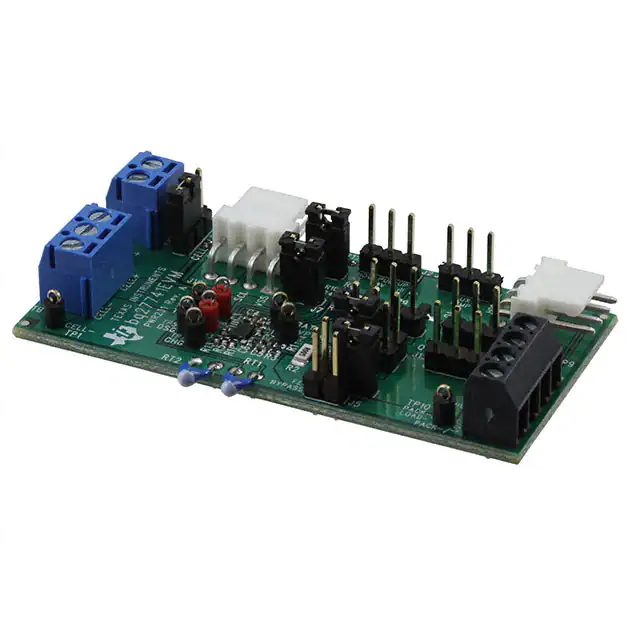
This evaluation module (EVM) is a complete evaluation system for the bq27741-G1. The EVM includes
one bq27741 circuit module, a current sense resistor, two thermistors, and two protection N-FETs. An
EV2400 PC interface board and a PC USB cable are required for gas gauge interface, but must be
ordered separately. The circuit module includes one bq27741 integrated circuit and all other onboard
components necessary to monitor and predict capacity for a pack-side fuel gauge solution and to perform
the protection. The circuit module connects directly across the battery cell. With the EV2400 interface
board and software, the user can read the bq27741 data registers, program the chipset for different pack
configurations, log cycling data for further evaluation, and evaluate the overall functionality of the bq27741
solution under different charge and discharge conditions. The latest Windows™-based PC software can
be downloaded from the product folder on the Texas Instruments Web site.
1
2
3
4
5
6
7
8
9
10
11
12
Contents
Features ...................................................................................................................... 2
bq27741-Based Circuit Module ........................................................................................... 2
Circuit Module Physical Layouts, Bill of Materials, and Schematic ................................................... 3
EVM Hardware and Software Setup ..................................................................................... 8
Troubleshooting Unexpected Dialog Boxes ............................................................................. 8
Hardware Connection ...................................................................................................... 8
Operation ................................................................................................................... 11
Calibrate Screen ........................................................................................................... 14
Firmware Screen .......................................................................................................... 16
Preparing the Mass Production File ..................................................................................... 17
Send HDQ Screen ........................................................................................................ 23
Related Documentation From Texas Instruments ..................................................................... 23
List of Figures
1
bq27741EVM Layout, Silk Screen ........................................................................................ 3
2
Top Assembly ............................................................................................................... 4
3
Top Layer .................................................................................................................... 4
4
Bottom Layer
5
Schematic .................................................................................................................... 7
6
bq27741 Circuit Module Connection to Cell and System Load/Charger
7
GaugeStudio Screen ...................................................................................................... 11
8
DataMemory Screen ...................................................................................................... 12
9
Calibration Screen ......................................................................................................... 14
10
Firmware Screen
11
12
13
14
15
16
................................................................................................................
............................................
..........................................................................................................
bqCONFIG Screen ........................................................................................................
Configuration Parameters Screen .......................................................................................
Calibration Averaging Tool Screen ......................................................................................
Chemistry Screen .........................................................................................................
Learning Cycle Screen....................................................................................................
Create Image Files Screen ...............................................................................................
SLUUAH1 – June 2013
Submit Documentation Feedback
bq27741EVM Single-Cell Impedance Track™ Technology Evaluation Module
Copyright © 2013, Texas Instruments Incorporated
4
9
16
17
18
19
20
21
22
1
�Features
www.ti.com
List of Tables
1
1
Ordering Information ........................................................................................................ 2
2
Bill of Materials .............................................................................................................. 5
3
Performance Specification Summary..................................................................................... 8
4
Circuit Module to EV2300 Connections – I2C .......................................................................... 10
5
Circuit Module to EV2300 Connections – HDQ ....................................................................... 10
Features
•
•
•
•
•
1.1
Complete evaluation system for the bq27741 gas gauge with Impedance Track™ Technology
Populated circuit module for quick setup
Personal computer (PC) software and interface board for easy evaluation
Software that allows data logging for system analysis
Ability to upgrade to the latest firmware version by flash reprogramming
Kit Contents
•
bq27741 circuit module
This EVM is used for the evaluation of different bq27741-based products. Please ensure that you visit the
product Web folder at http://www.ti.com to download the latest firmware version, evaluation software, and
documentation for the associated product to be evaluated.
1.2
Ordering Information
Table 1. Ordering Information
2
EVM Part Number
Chemistry
Configuration
Capacity
bq27741EVM
Li-Ion
1 cell
Any
bq27741-Based Circuit Module
The bq27741-based circuit module is a complete and compact example solution of a bq27741 circuit for
battery management. The circuit module incorporates a bq27741 battery gas gauge IC, dual N-FETs for
high-side protection, and all other components necessary to protect and accurately predict the capacity of
a 1-series Li-Ion cell.
2.1
Circuit Module Connections
Contacts on the circuit module provide the following connections:
• Direct connection to the battery cell (TB1 or TP1/TP2): CELL+ and CELL–
• Connect a charger power to TB2: PACK+ and PACK–, or short the PACK+ and CELL+ to wake up the
gauge, then remove the connection of PACK+ and CELL+ or the charger
• To the serial communications port: SDA, SCL, and VSS (J10) or HDQ and VSS (J8)
• The system load and charger connect across charger and load (TB2 or TP9/TP10): PACK–/LOAD–
and PACK+/LOAD+.
Impedance Track is a trademark of Texas Instruments.
Windows is a trademark of Microsoft Corporation.
Microsoft is a registered trademark of Microsoft Corporation.
I2C is a trademark of NXP B.V Corporation.
2
bq27741EVM Single-Cell Impedance Track™ Technology Evaluation Module
Copyright © 2013, Texas Instruments Incorporated
SLUUAH1 – June 2013
Submit Documentation Feedback
�Circuit Module Physical Layouts, Bill of Materials, and Schematic
www.ti.com
2.2
Pin Descriptions
Pin Name
PACK+
PACK–
CELL+
CELL–
TERM
SDA
SCL
HDQ
VSS
3
Description
Pack positive terminal
Pack negative terminal
Cell positive terminal
Cell negative terminal
Thermistor input that leads to IC TS pin
I2C communication data line
I2C communication clock line
Single-wire communication line
Signal return for communication line
Circuit Module Physical Layouts, Bill of Materials, and Schematic
This section contains the printed-circuit board (PCB) layout, bill of materials, assembly drawings, and
schematic for the bq27741 circuit module.
3.1
Board Layout
This section shows the printed-circuit board (PCB) layers (Figure 1 through Figure 4), assembly drawing,
and schematic for the bq27741 module.
RT2
C5 R3
RT1
HDQ
J11
Q3
TB2
HDQ
Q1
THERM
R2 J6
FET
BYPASS
PACK+/
LOAD+
Q4
J13
J12
TP9
TP10
J5
LOAD-
DSG
TP7
CHG
TP3
VPWR
C1
C7
R1 TP4
U1C3
RA0
TP5
Q2
TP11 BAT
C2
R13
R5
R11
C6
TS
C8
TP8
J15
VSS
R14R15
C4
R6
R7 D2
J14
J7
VSS
SCL
SDA
TP6
REG25
D1
Ext.
CELL
+
PWR231 Rev. A
bq27741EVM
VSS Ext.
CELL+
CELLTEXAS INSTRUMENTS
J10
R9
1
CELLTP1
R8
R10
R4
AUX
TEMP
1
TB1
HDQ PULLUP
INT. 1.8V Pull up
1
CELL+
TP2
J8
J2 J3
R18
J9
1
J4
J1
PACK-/
LOADPACK-/
Figure 1. bq27741EVM Layout, Silk Screen
SLUUAH1 – June 2013
Submit Documentation Feedback
bq27741EVM Single-Cell Impedance Track™ Technology Evaluation Module
Copyright © 2013, Texas Instruments Incorporated
3
�Circuit Module Physical Layouts, Bill of Materials, and Schematic
www.ti.com
Figure 2. Top Assembly
Figure 3. Top Layer
Figure 4. Bottom Layer
4
bq27741EVM Single-Cell Impedance Track™ Technology Evaluation Module
Copyright © 2013, Texas Instruments Incorporated
SLUUAH1 – June 2013
Submit Documentation Feedback
�Circuit Module Physical Layouts, Bill of Materials, and Schematic
www.ti.com
3.2
Bill of Materials and Schematic
Table 2. Bill of Materials
Count
Reference
Designator
Value
6
C1, C2, C5,
C6, C7, C8
0.1 µF
1
C3
1 µF
1
C4
2
Description
Size
Part Number
MFR
Capacitor, Ceramic, 10 V,
X5R, 10%
0402
GRM155R61A104KA01D
Murata
Capacitor, Ceramic, 6.3 V,
X5R, 10%
0402
GRM155R60J105KE19D
Murata
0.47 µF
Capacitor, Ceramic, 0.47
µF, 6.3 V, X5R, 10%
0402
GRM155R60J474KE19D
Murata
D1, D2
AZ23C5V6-7
Diode, Dual, Zener, 5.6 V,
300 mW
SOT23
AZ23C5V6-7-F
Diodes
1
J1
ED555/2DS
Terminal Block, 2-pin, 6-A,
3.5 mm
0.27 x 0.25
inch
ED555/2DS
OST
9
J2, J3, J4,
J6, J11,
J12, J13,
J14, J15
PEC03SAAN
Header, Male 3-pin, 100mil 0.100 inch x
spacing
3
PEC03SAAN
Sullins
3
J5, J7, J9
PEC02SAAN
Header, Male 2-pin, 100mil 0.100 inch x
spacing
2
PEC02SAAN
Sullins
2
J8, J10
22-05-3041
1
Q1
0
Q2, Q3, Q4
2
1
Header, Friction Lock
Ass'y, 4-pin Right Angle,
0.400 x
0.500
22-05-3041
Molex
UPA2375T1P-E1A
MOSFET, Dual N-Channel
NexFET, 12 V 3.2 A
WSCP
UPA2375T1P-E1-A
Renesas
Electronics
America
DNP
MOSFET, Dual N-Channel
NexFET, 12 V 3.2 A
WSCP
UPA2375T1P-E1-A
Renesas
Electronics
America
R1, R3
200 Ω
Resistor, Chip, 1/16-W, 5%
0402
CRCW0402200RJNED
Vishay Dale
R12
4.7 kΩ
Resistor, Chip, 1/16-W, 5%
0402
CRCW04024K70JNED
Vishay Dale
1
R13
2 kΩ
Resistor, Chip, 1/16-W, 5%
0402
CRCW04022K00JNED
Vishay Dale
2
R14, R15
10 kΩ
Resistor, Chip, 1/16-W, 5%
0402
CRCW040210K0JNED
Vishay Dale
2
R16, R17
10 Ω
Resistor, Chip, 1/16-W, 5%
0402
CRCW040210R0JNED
Vishay Dale
1
R2
5 mΩ
Res, Metal Current sense,
1W, ±1%, 50 ppm
1632
MCS1632R005FER
Ohmite
6
R4, R6, R7,
R8, R9 R10
100 Ω
Resistor, Chip, 1/16-W, 5%
0402
CRCW0402100RJNED
Vishay Dale
2
R5, R11
1 kΩ
Resistor, Chip, 1/16-W, 5%
0402
CRCW04021K00JNED
Vishay Dale
2
RT1, RT2
10 kΩ
Thermistor, 10 kΩ
0.095 x
0.150 inch
103AT-2
Semitec
1
TB1
ED1515
Terminal Block, 3-pin, 6-A,
3.5 mm
0.41 x 0.25
inch
ED555/3DS
OST
1
TB2
ED555/4DS
Terminal Block, 4-pin, 6-A,
3.5 mm
0.55 x 0.25
inch
ED555/4DS
OST
7
TP1, TP4,
TP5, TP7,
TP8, TP10,
TP11
5001
Test Point, Black, Thru
Hole Color Keyed
0.100 x
0.100 inch
5001
Keystone
4
TP2, TP3,
TP6, TP9
5000
Test Point, Red, Thru Hole
Color Keyed
0.100 x
0.100 inch
5000
Keystone
1
U1
bq27741YZFR-G1 IC, Single Cell Li-Ion Pack
Side Fuel Gauge with
Integrated Protection
BGA-15
bq27741YZFR-G1
TI
1
--
PCB
PWR231
Any
SLUUAH1 – June 2013
Submit Documentation Feedback
bq27741EVM Single-Cell Impedance Track™ Technology Evaluation Module
Copyright © 2013, Texas Instruments Incorporated
5
�Circuit Module Physical Layouts, Bill of Materials, and Schematic
www.ti.com
(1) These assemblies are ESD sensitive, ESD precautions should be observed.
(2) These assemblies must be clean and free from flux and all contaminants.
Use of no clean flux is not acceptable.
(3) These assemblies must comply with workmanship standards IPC-A-610 Class 2.
(4) Ref designators marked with an asterisk ('**') cannot be substituted.
All other components can be substituted with equivalent manufacturer's components.
6
bq27741EVM Single-Cell Impedance Track™ Technology Evaluation Module
Copyright © 2013, Texas Instruments Incorporated
SLUUAH1 – June 2013
Submit Documentation Feedback
�Circuit Module Physical Layouts, Bill of Materials, and Schematic
www.ti.com
Figure 5. Schematic
SLUUAH1 – June 2013
Submit Documentation Feedback
bq27741EVM Single-Cell Impedance Track™ Technology Evaluation Module
Copyright © 2013, Texas Instruments Incorporated
7
�EVM Hardware and Software Setup
3.3
www.ti.com
bq27741 Circuit Module Performance Specification Summary
This section summarizes the performance specifications of the bq27741 circuit module.
Table 3. Performance Specification Summary
Specification
4
Min
Typ
Max
Unit
Input voltage Pack+ to Pack–
2.7
3.6
4.35
V
Charge and discharge current
0
1
2
A
EVM Hardware and Software Setup
This section describes how to install the bq27741EVM PC software, and how to connect the different
components of the EVM.
4.1
System Requirements
The GaugeStudio software requires Windows XP or later. Using later versions of Windows operating
system can have issues with the USB driver support. The EV2300 USB drivers have been tested for
Windows 98SE, but no assurance is made for problem-free operation with specific system configurations.
EV2300 is not officially supported for 64-bit versions of Windows and typically does not work with
Windows 7 or newer. EV2400 is the recommended USB-I2C interface for Windows 7 and other 64-bit
versions.
4.2
Software Installation
Find the latest software version in the bq27741 tool folder on power.ti.com. Make a search by Part
Number for bq27741 to access the tool folder. Currently the most recent firmware version is bq27741-G1.
Use the following steps to install the bq27741 GaugeStudio software:
1. Ensure that the EV2300 or EV2400 is not connected to the personal computer (PC) through the USB
cable before starting this procedure.
2. Open the archive containing the installation package, and copy its contents into a temporary directory.
3. Open the software file that was downloaded from the TI Web site.
4. Follow the instructions on screen until completing the software installation.
5. Before starting the evaluation software, connect the EV2300 or EV2400 to the computer using the USB
cable.
6. If EV2300 is connected, wait until system prompt New Hardware Found appears. Choose Select
Location Manually, and use the Browse button to point to subdirectory TIUSBWin2K-XP-1.
7. Answer Continue to the warning that drivers are not certified with Microsoft®
8. If the EV2300 is connected, after the previous installation finishes, another system prompt New
Hardware Found appears. Repeat steps through , but specify the directory as TIUSBWin2K-XP-2.
9. Answer Continue to the warning that drivers are not certified with Microsoft. Driver installation is now
finished.
10. For the EV2400, the driver should be installed along with software installation.
5
Troubleshooting Unexpected Dialog Boxes
The user who is downloading the files must be logged in as the administrator. The driver is not signed, so
the administrator must allow installation of unsigned drivers in the operating system. If using Windows 7,
install the software with administrator privileges.
6
Hardware Connection
The bq27741EVM-001 comprises three hardware components:
• bq27741 circuit module
• EV2300 PC interface board
8
bq27741EVM Single-Cell Impedance Track™ Technology Evaluation Module
Copyright © 2013, Texas Instruments Incorporated
SLUUAH1 – June 2013
Submit Documentation Feedback
�Hardware Connection
www.ti.com
•
.
6.1
PC
Connecting the bq27741 Circuit Module to a Battery Cell
SMB I2C HDQ
Figure 6 shows how to connect the bq27741 circuit module to the cell and system load/charger.
USB
EV2300
C2
RT2
R1 TP4
VPWR
C1
C7
R13
R5
R11
C6
TP3
DSG
TP7
CHG
C5 R3
RT1
Q4
J13
J12
HDQ
Q3
TB2
Load
J11
Charger
HDQ
Q1
THERM
R2 J6
FET
BYPASS
PACK+/
LOAD+
Q2
TP11 BAT
TP9
TP10
J5
LOAD-
TP5
J15
VSS
R14R15
RA0
U1C3
TS
C8
TP8
C4
R6
R7 D2
J14
J7
VSS
SCL
SDA
TP6
REG25
D1
Ext.
CELL
+
PWR231 Rev. A
bq27741EVM
VSS Ext.
CELL+
CELLTEXAS INSTRUMENTS
CELLTP1
J10
R9
1
TB1
R8
R10
R4
AUX
TEMP
1
Power
Supply
3.6V
HDQ PULLUP
INT. 1.8V Pull up
1
CELL+
TP2
J9
J8
J2 J3
R18
1
J4
J1
PACK-/
LOADPACK-/
bq27741 EVM
Figure 6. bq27741 Circuit Module Connection to Cell and System Load/Charger
6.2
PC Interface Connection
The bq27741 can be configured as an HDQ communication device or left in default as an I2C™ device.
Once the bq27741 is configured for HDQ communication, it cannot be reverted to I2C mode. See
Section 11 for information on configuring the bq27741 to HDQ mode.
The following steps configure the hardware for interfacing to the PC:
1. Connect the bq27741-based EVM to the EV2300 using wire leads as shown in Table 4 and Table 5.
SLUUAH1 – June 2013
Submit Documentation Feedback
bq27741EVM Single-Cell Impedance Track™ Technology Evaluation Module
Copyright © 2013, Texas Instruments Incorporated
9
�Hardware Connection
www.ti.com
2
Table 4. Circuit Module to EV2300 Connections – I C
bq27741-Based Battery (I2C Mode)
EV2300 (I2C Port)
SDA
SDA
SCL
SCL
VSS
GND
Table 5. Circuit Module to EV2300 Connections – HDQ
bq27741-Based Battery (HDQ Mode)
EV2300 (HDQ Port)
HDQ
HDQ
VSS
GND
2. Connect a charger to wake-up the gauge, can use a power supply between PACK+ and PACK– or
short CELL+ and PACK+. After wake-up, the charger can be removed.
3. Connect the PC USB cable to the EV2300 and the PC USB port.
The bq27741EVM is now set up for operation.
10
bq27741EVM Single-Cell Impedance Track™ Technology Evaluation Module
Copyright © 2013, Texas Instruments Incorporated
SLUUAH1 – June 2013
Submit Documentation Feedback
�Operation
www.ti.com
7
Operation
This section details the operation of the GaugeStudio software.
7.1
Starting the Program
Run GaugeStudio from the Start → Programs → Texas Instruments → GaugeStudio menu sequence. The
main GaugeStudio window (see Figure 7) appears. The window consists of a tools panel at the top, and
other child windows that can be hidden, docked in various positions or allowed to float as separate
windows.
When GaugeStudio first starts up the Gauge Dashboard window, the Registers window, and DataMemory
window should be seen in the main window. Registers, DataMemory, Commands, and other windows can
be added to the main window by clicking on the corresponding icon in the tools panel at the top of the
main window.
Data should appear initially in the Gauge Dashboard, Registers, and DataMemory sections. The Refresh
(single-time scan) or the Scan (continuous scan) buttons can be clicked to update the data in the
Registers and DataMemory windows. The continuous scan is enabled when the Scan checkbox is
highlighted green and disabled when the Scan checkbox is not highlighted.
The continuous scanning interval can be set with the stopwatch icon next to the Scan button. When the
stopwatch icon is clicked, a drop-down menu appears and the desired scanning interval can be selected.
The scan interval value shows up next to the stopwatch icon.
Figure 7. GaugeStudio Screen
SLUUAH1 – June 2013
Submit Documentation Feedback
bq27741EVM Single-Cell Impedance Track™ Technology Evaluation Module
Copyright © 2013, Texas Instruments Incorporated
11
�Operation
www.ti.com
GaugeStudio provides a logging function which logs selected Data Registers and Data Memory values last
received from the bq27741. To enable this function, click the DataLog icon in the Tools panel. The
DataLog window will appear below the Registers and DataMemory windows. Registers and DataMemory
parameters can be added to the log by clicking on the Add Register and Add DataMemory Parameter
drop-down menus in the DataLog window and then selected the desired Registers or DataMemory
parameters to be added to the log. After all the desired Registers and DataMemory parameters have been
added to the log, click the Play button in order to begin logging. A Stop button will replace the Play button
once logging starts, the Stop button can be clicked to stop logging. The log can be saved by clicking on
the Save icon and specifying a file name.
The logging intervals are specified by the value next to the stopwatch icon in the DataLog window. In
order to change the logging intervals, click the stopwatch icon and choose one of the intervals provided in
the menu selections that appear. Logging interval values will show up next to the stopwatch icon.
Figure 7 shows the main GaugeStudio window. Additional Flag and Status data can be viewed at the
bottom of the Registers window.
Each window can be resized and docked in various positions within the main GaugeStudio window. Each
window can also be pulled out from the main window and allowed its own floating window. Also, the
Gauge Dashboard window and all windows that are enabled in the Tools panel in the Communication and
Debug sections can be set to autohide.
7.2
Setting Programmable bq27741 Options
The bq27741 data flash comes configured per the default settings detailed in the bq27741 data sheet
(SLUSBF2). Ensure that the settings are correctly changed to match the pack and application for the
bq27741 solution being evaluated.
IMPORTANT: The correct setting of these options is essential to get the best performance. The settings
can be configured using the DataMemory window seen in the main GaugeStudio window (see Figure 8).
Figure 8. DataMemory Screen
To read all the data flash from the bq27741, click on the Refresh button in the DataMemory window.
12
bq27741EVM Single-Cell Impedance Track™ Technology Evaluation Module
Copyright © 2013, Texas Instruments Incorporated
SLUUAH1 – June 2013
Submit Documentation Feedback
�Operation
www.ti.com
To write to a data flash location, click on the desired location, enter the data in dialog box and click “OK”
or hit the Enter key. The data flash must be read before any writes are performed to avoid any incorrect
data being written to the device. Reading the data after any writes is also recommended.
The data-flash configuration can be saved to a file by clicking the Export button and entering a file name.
A data-flash file also can be retrieved in this way by clicking the Import button. The exported file has a .gg
extension and can be opened and edited with a text editor. It does not contain all of the data flash. It only
contains the public volatile parameters and should not be used for production programming. The .senc,
.dfi, .dffs, .bqfs, or .dmi file should be used for production as these contain the entire data flash image,
including hidden static parameters such as the battery profile.
The module calibration data is also stored in the bq27741 data flash.
SLUUAH1 – June 2013
Submit Documentation Feedback
bq27741EVM Single-Cell Impedance Track™ Technology Evaluation Module
Copyright © 2013, Texas Instruments Incorporated
13
�Calibrate Screen
8
www.ti.com
Calibrate Screen
To ensure proper calibration, perform the following steps. These steps may or may not be required,
depending on the type of calibration being performed. Only one calibration item can be selected and
calibrated at a time.
8.1
To Calibrate the bq27741
Calibrate each item one at a time in the order presented in this document. Select the types of calibration
to be performed by clicking the corresponding button (see Figure 9).
Enter the measured values for the types selected, if necessary.
Then press the “Calibrate” button. After all calibration is complete, close the Calibrate screen.
Figure 9. Calibration Screen
8.2
Temperature Calibration
•
•
•
•
8.3
Pack Voltage Calibration
•
•
•
14
Select if the temperature sensor to calibrate is the internal or the external.
Measure the temperature for PACK.
Type the temperature value into Enter measured value.
Press the Calibrate button.
Measure the voltage across Pack+ and Pack– with a calibrated meter.
Type the voltage value in mV into Enter measured value.
Press the Calibrate button.
bq27741EVM Single-Cell Impedance Track™ Technology Evaluation Module
Copyright © 2013, Texas Instruments Incorporated
SLUUAH1 – June 2013
Submit Documentation Feedback
�Calibrate Screen
www.ti.com
8.4
Coulomb Counter Offset Calibration
This performs the internal calibration of the coulomb counter input offset. Press the Calibrate Part as
indicated below button.
8.5
Board Offset Calibration
This performs the offset calibration for the current offset of the board. It takes approximately 35 seconds to
complete.
It is expected that no current is flowing through the sense resistor while performing this calibration step.
Remove load and short PACK– to LOAD–.
Press the “Calibrate” button.
Remember to calibrate board offset after coulomb counter calibration.
8.6
Current Calibration
•
•
•
•
Connect a load to LOAD– and LOAD+ that draws approximately 1 A, or connect a current source to
PACK+ and Cell+. Ensure that the Measured Current reported is negative, or else reverse the
connections.
Measure the current with a calibrated meter, and type the value into Enter measured Current using (–)
for current in discharge direction.
Press the “Calibrate” button.
Disconnect or stop the load current after calibration.
SLUUAH1 – June 2013
Submit Documentation Feedback
bq27741EVM Single-Cell Impedance Track™ Technology Evaluation Module
Copyright © 2013, Texas Instruments Incorporated
15
�Firmware Screen
9
www.ti.com
Firmware Screen
Firmware screen is used to save or program a complete flash image from or to the gauge. This is done
using a .senc file, which contains the instruction flash image (firmware) and the data flash image. (Figure
10) The bq27741EVM may or may not be shipped with the latest firmware version (currently bq27741-G1
v1.05).
Figure 10. Firmware Screen
16
bq27741EVM Single-Cell Impedance Track™ Technology Evaluation Module
Copyright © 2013, Texas Instruments Incorporated
SLUUAH1 – June 2013
Submit Documentation Feedback
�Preparing the Mass Production File
www.ti.com
10
Preparing the Mass Production File
BqCONFIG is a tool which allows user to configure the gauge. It is based on Q&A and can help user to
generate mass production files step by step.
Download the bqCONFIG from the bq27741 tool folder and install. Run GaugeStudio from the Start →
Programs → Texas Instruments → bqCONFIG menu sequence. The main GaugeStudio window
(Figure 11) appears.
All sections of preparing the mass production files are shown as a tools panel at the top.
Figure 11. bqCONFIG Screen
SLUUAH1 – June 2013
Submit Documentation Feedback
bq27741EVM Single-Cell Impedance Track™ Technology Evaluation Module
Copyright © 2013, Texas Instruments Incorporated
17
�Preparing the Mass Production File
www.ti.com
10.1 Initial Update and Configuration Parameters
Initial Update section can initialize BQ27741 with an existing configuration. It is recommended to update a
new version default firmware for a new project. Download the .senc file from the bq27741 tool folder and
use “Tools→ Update Device Firmware” menu to program a .senc file into the EVM.
Configuration Parameters section allows user to set appropriate parameters for the gauge. All the settings
must be programmed based on the cell characteristics, the end-system and charger requirements.
Remember the bqCONFIG has two screens in this section (Figure 12), user must check both System
Characteristics and Gauging Characteristics before clicking the “Save to Gauge” button.
Figure 12. Configuration Parameters Screen
18
bq27741EVM Single-Cell Impedance Track™ Technology Evaluation Module
Copyright © 2013, Texas Instruments Incorporated
SLUUAH1 – June 2013
Submit Documentation Feedback
�Preparing the Mass Production File
www.ti.com
10.2 Calibration
Ensure calibration is finished before chemistry test and learning cycle. Calibration section can be finished
in the GaugeStudio. However, the bqCONFIG has a Calibration Averaging Tool (Figure 13).
This tool can generate an average calibration value to be used in mass production instead of individually
calibrating each board. User may calibrate 20 boards or more to have a sufficient sample size and include
the average result of the calibration into the mass production file. This tool can be accessed through the
Tools menu. It keeps track of the calibration values for each board and determines the average value to
be included in the mass production file.
Figure 13. Calibration Averaging Tool Screen
SLUUAH1 – June 2013
Submit Documentation Feedback
bq27741EVM Single-Cell Impedance Track™ Technology Evaluation Module
Copyright © 2013, Texas Instruments Incorporated
19
�Preparing the Mass Production File
www.ti.com
10.3 Chemistry
This section allows user to select and program the chemistry to match specific cell. TI provides a lot of
chemID which contains cell profile to match different cells.
1. Start GaugeStudio or use other equipment to log time, voltage, current, and temperature. Voltage must
be measured with better than 1-mV error.
2. Charge cell to the manufacturer specified voltage, until taper current reaches C/100.
3. Wait 2 hrs
4. Discharge at C/10 rate to manufacturer specified termination voltage (use 3 V if unknown)
5. Wait 5 hrs
6. Use chemselect_cont.mcd worksheet to find chemical ID
7. Select the correct chemical ID in bqCONFIG and clicking Update Chemistry button.
Figure 14. Chemistry Screen
20
bq27741EVM Single-Cell Impedance Track™ Technology Evaluation Module
Copyright © 2013, Texas Instruments Incorporated
SLUUAH1 – June 2013
Submit Documentation Feedback
�Preparing the Mass Production File
www.ti.com
10.4 Learning Cycle
Learning Cycle section (Figure 15) shows the information about how to do a learning cycle. After learning
cycle, the gauge will update the capacity and the impedance. The learning cycle need a fully charge and
discharge cycle to finish. For detailed instructions on how to perform a learning cycle and troubleshoot
common issues, please refer to SLUA587.
Figure 15. Learning Cycle Screen
SLUUAH1 – June 2013
Submit Documentation Feedback
bq27741EVM Single-Cell Impedance Track™ Technology Evaluation Module
Copyright © 2013, Texas Instruments Incorporated
21
�Preparing the Mass Production File
www.ti.com
10.5 Create Image Files
This section (Figure 16) allows user to export the image files for mass production. Please check every
section before create image files has not problems. After creating image files, the details of how to update
image files at production, please see SLUA541, Updating bq275xx Firmware at Production.
Figure 16. Create Image Files Screen
22
bq27741EVM Single-Cell Impedance Track™ Technology Evaluation Module
Copyright © 2013, Texas Instruments Incorporated
SLUUAH1 – June 2013
Submit Documentation Feedback
�Send HDQ Screen
www.ti.com
11
Send HDQ Screen
To configure a bq27741 into HDQ mode, navigate to the Send HDQ screen. It is possible that all the
screen options on the left are not visible depending on screen resolution. If needed scroll within the left
menu to access the Send HDQ link. Click on the "Change comm to HDQ8" button while having the
bq27741 connected to the EV2300 via I2C. Clicking on the button causes a message to appear indicating
that the process is not reversible and to confirm if the actions are desired. Also, it explains what to do
once the HDQ mode has been activated.
Once converting the bq27741 into HDQ mode, it is required that you connect the HDQ terminal of the
EV2300 with the HDQ connector (J4) of the bq27741 EVM, then restart the EVSW, and select the
"bq27741HDQR1" with the proper firmware version from the list of supported devices within the EVSW.
12
Related Documentation From Texas Instruments
To obtain a copy of any of the following TI documents, call the Texas Instruments Literature Response
Center at (800) 477-8924 or the Product Information Center (PIC) at (972) 644-5580. When ordering,
identify this document by its title and literature number. Updated documents also can be obtained through
the TI Web site at www.ti.com.
1. bq27741-G1, Single Cell Li-Ion Battery Fuel Gauge with Integrated Protection Data Sheet (SLUSBF2)
2. bq27741-G1, Pack-Side Impedance Track™ Battery Fuel Gauge With Integrated Protector and LDO
User's Guide (SLUUAA3)
SLUUAH1 – June 2013
Submit Documentation Feedback
bq27741EVM Single-Cell Impedance Track™ Technology Evaluation Module
Copyright © 2013, Texas Instruments Incorporated
23
�EVALUATION BOARD/KIT IMPORTANT NOTICE
Texas Instruments (TI) provides the enclosed product(s) under the following conditions:
This evaluation board/kit is intended for use for ENGINEERING DEVELOPMENT, DEMONSTRATION, OR EVALUATION PURPOSES
ONLY and is not considered by TI to be a finished end-product fit for general consumer use. Persons handling the product(s) must have
electronics training and observe good engineering practice standards. As such, the goods being provided are not intended to be complete
in terms of required design-, marketing-, and/or manufacturing-related protective considerations, including product safety and environmental
measures typically found in end products that incorporate such semiconductor components or circuit boards. This evaluation board/kit does
not fall within the scope of the European Union directives regarding electromagnetic compatibility, restricted substances (RoHS), recycling
(WEEE), FCC, CE or UL, and therefore may not meet the technical requirements of these directives or other related directives.
Should this evaluation board/kit not meet the specifications indicated in the User’s Guide, the board/kit may be returned within 30 days from
the date of delivery for a full refund. THE FOREGOING WARRANTY IS THE EXCLUSIVE WARRANTY MADE BY SELLER TO BUYER
AND IS IN LIEU OF ALL OTHER WARRANTIES, EXPRESSED, IMPLIED, OR STATUTORY, INCLUDING ANY WARRANTY OF
MERCHANTABILITY OR FITNESS FOR ANY PARTICULAR PURPOSE.
The user assumes all responsibility and liability for proper and safe handling of the goods. Further, the user indemnifies TI from all claims
arising from the handling or use of the goods. Due to the open construction of the product, it is the user’s responsibility to take any and all
appropriate precautions with regard to electrostatic discharge.
EXCEPT TO THE EXTENT OF THE INDEMNITY SET FORTH ABOVE, NEITHER PARTY SHALL BE LIABLE TO THE OTHER FOR ANY
INDIRECT, SPECIAL, INCIDENTAL, OR CONSEQUENTIAL DAMAGES.
TI currently deals with a variety of customers for products, and therefore our arrangement with the user is not exclusive.
TI assumes no liability for applications assistance, customer product design, software performance, or infringement of patents or
services described herein.
Please read the User’s Guide and, specifically, the Warnings and Restrictions notice in the User’s Guide prior to handling the product. This
notice contains important safety information about temperatures and voltages. For additional information on TI’s environmental and/or
safety programs, please contact the TI application engineer or visit www.ti.com/esh.
No license is granted under any patent right or other intellectual property right of TI covering or relating to any machine, process, or
combination in which such TI products or services might be or are used.
FCC Warning
This evaluation board/kit is intended for use for ENGINEERING DEVELOPMENT, DEMONSTRATION, OR EVALUATION PURPOSES
ONLY and is not considered by TI to be a finished end-product fit for general consumer use. It generates, uses, and can radiate radio
frequency energy and has not been tested for compliance with the limits of computing devices pursuant to part 15 of FCC rules, which are
designed to provide reasonable protection against radio frequency interference. Operation of this equipment in other environments may
cause interference with radio communications, in which case the user at his own expense will be required to take whatever measures may
be required to correct this interference.
EVM WARNINGS AND RESTRICTIONS
It is important to operate this EVM within the input voltage range of 6 V to 25 V and the output voltage range of 0 V to 16.4 V.
Exceeding the specified input range may cause unexpected operation and/or irreversible damage to the EVM. If there are questions
concerning the input range, please contact a TI field representative prior to connecting the input power.
Applying loads outside of the specified output range may result in unintended operation and/or possible permanent damage to the EVM.
Please consult the EVM User's Guide prior to connecting any load to the EVM output. If there is uncertainty as to the load specification,
please contact a TI field representative.
During normal operation, some circuit components may have case temperatures greater than 60°C. The EVM is designed to operate
properly with certain components above 60°C as long as the input and output ranges are maintained. These components include but are
not limited to linear regulators, switching transistors, pass transistors, and current sense resistors. These types of devices can be identified
using the EVM schematic located in the EVM User's Guide. When placing measurement probes near these devices during operation,
please be aware that these devices may be very warm to the touch.
Mailing Address: Texas Instruments, Post Office Box 655303, Dallas, Texas 75265
Copyright © 2013, Texas Instruments Incorporated
�IMPORTANT NOTICE
Texas Instruments Incorporated and its subsidiaries (TI) reserve the right to make corrections, enhancements, improvements and other
changes to its semiconductor products and services per JESD46, latest issue, and to discontinue any product or service per JESD48, latest
issue. Buyers should obtain the latest relevant information before placing orders and should verify that such information is current and
complete. All semiconductor products (also referred to herein as “components”) are sold subject to TI’s terms and conditions of sale
supplied at the time of order acknowledgment.
TI warrants performance of its components to the specifications applicable at the time of sale, in accordance with the warranty in TI’s terms
and conditions of sale of semiconductor products. Testing and other quality control techniques are used to the extent TI deems necessary
to support this warranty. Except where mandated by applicable law, testing of all parameters of each component is not necessarily
performed.
TI assumes no liability for applications assistance or the design of Buyers’ products. Buyers are responsible for their products and
applications using TI components. To minimize the risks associated with Buyers’ products and applications, Buyers should provide
adequate design and operating safeguards.
TI does not warrant or represent that any license, either express or implied, is granted under any patent right, copyright, mask work right, or
other intellectual property right relating to any combination, machine, or process in which TI components or services are used. Information
published by TI regarding third-party products or services does not constitute a license to use such products or services or a warranty or
endorsement thereof. Use of such information may require a license from a third party under the patents or other intellectual property of the
third party, or a license from TI under the patents or other intellectual property of TI.
Reproduction of significant portions of TI information in TI data books or data sheets is permissible only if reproduction is without alteration
and is accompanied by all associated warranties, conditions, limitations, and notices. TI is not responsible or liable for such altered
documentation. Information of third parties may be subject to additional restrictions.
Resale of TI components or services with statements different from or beyond the parameters stated by TI for that component or service
voids all express and any implied warranties for the associated TI component or service and is an unfair and deceptive business practice.
TI is not responsible or liable for any such statements.
Buyer acknowledges and agrees that it is solely responsible for compliance with all legal, regulatory and safety-related requirements
concerning its products, and any use of TI components in its applications, notwithstanding any applications-related information or support
that may be provided by TI. Buyer represents and agrees that it has all the necessary expertise to create and implement safeguards which
anticipate dangerous consequences of failures, monitor failures and their consequences, lessen the likelihood of failures that might cause
harm and take appropriate remedial actions. Buyer will fully indemnify TI and its representatives against any damages arising out of the use
of any TI components in safety-critical applications.
In some cases, TI components may be promoted specifically to facilitate safety-related applications. With such components, TI’s goal is to
help enable customers to design and create their own end-product solutions that meet applicable functional safety standards and
requirements. Nonetheless, such components are subject to these terms.
No TI components are authorized for use in FDA Class III (or similar life-critical medical equipment) unless authorized officers of the parties
have executed a special agreement specifically governing such use.
Only those TI components which TI has specifically designated as military grade or “enhanced plastic” are designed and intended for use in
military/aerospace applications or environments. Buyer acknowledges and agrees that any military or aerospace use of TI components
which have not been so designated is solely at the Buyer's risk, and that Buyer is solely responsible for compliance with all legal and
regulatory requirements in connection with such use.
TI has specifically designated certain components as meeting ISO/TS16949 requirements, mainly for automotive use. In any case of use of
non-designated products, TI will not be responsible for any failure to meet ISO/TS16949.
Products
Applications
Audio
www.ti.com/audio
Automotive and Transportation
www.ti.com/automotive
Amplifiers
amplifier.ti.com
Communications and Telecom
www.ti.com/communications
Data Converters
dataconverter.ti.com
Computers and Peripherals
www.ti.com/computers
DLP® Products
www.dlp.com
Consumer Electronics
www.ti.com/consumer-apps
DSP
dsp.ti.com
Energy and Lighting
www.ti.com/energy
Clocks and Timers
www.ti.com/clocks
Industrial
www.ti.com/industrial
Interface
interface.ti.com
Medical
www.ti.com/medical
Logic
logic.ti.com
Security
www.ti.com/security
Power Mgmt
power.ti.com
Space, Avionics and Defense
www.ti.com/space-avionics-defense
Microcontrollers
microcontroller.ti.com
Video and Imaging
www.ti.com/video
RFID
www.ti-rfid.com
OMAP Applications Processors
www.ti.com/omap
TI E2E Community
e2e.ti.com
Wireless Connectivity
www.ti.com/wirelessconnectivity
Mailing Address: Texas Instruments, Post Office Box 655303, Dallas, Texas 75265
Copyright © 2013, Texas Instruments Incorporated
�