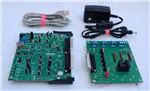
User's Guide
SBOU095A – March 2011 – Revised August 2016
BUF08821EVM-USB User Guide and Software Tutorial
This user's guide describes the characteristics, operation, and use of the BUF08821EVM-USB evaluation
board. It discusses how to set up and configure the software and hardware, and reviews various aspects
of the program operation. Throughout this document, the terms evaluation board, evaluation module, and
EVM are synonymous with the BUF08821EVM-USB. This document also includes information regarding
operating procedures and input/output connections, an electrical schematic, printed circuit board (PCB)
layout drawings, and a parts list for the EVM.
1
2
3
4
5
6
Contents
Overview ..................................................................................................................... 2
BUF08821EVM-USB Hardware Setup .................................................................................... 3
BUF08821EVM-USB Hardware Overview................................................................................ 5
BUF08821EVM-USB Software ........................................................................................... 13
BUF08821EVM-USB Software Overview ............................................................................... 15
BUF08821EVM-USB Documentation .................................................................................... 22
List of Figures
1
BUF08821EVM-USB Hardware Setup .................................................................................... 3
2
BUF08821EVM-USB Board Block Diagram.............................................................................. 3
3
USB_DIG_Platform Block Diagram
4
Typical Hardware Connections for BUF08821EVM-USB
5
6
7
8
9
10
11
12
13
14
15
16
17
18
19
20
21
22
23
....................................................................................... 5
.............................................................. 6
Connecting External Power to the EVM .................................................................................. 7
Connecting the USB Cable to the USB_DIG_Platform ................................................................. 8
Confirmation of USB_DIG_Platform Driver Installation ................................................................. 8
BUF08821EVM-USB Default Jumper Settings .......................................................................... 9
BUF08821EVM-USB Software Installation ............................................................................. 13
BUF08821EVM-USB License Agreements ............................................................................. 14
BUF08821EVM-USB Software Installation Progress .................................................................. 14
BUF08821EVM-USB Software About Button........................................................................... 15
BUF08821EVM-USB Software: Communication Error with the USB_DIG_Platform.............................. 15
JMP5 Setting For Logic ‘0’ ................................................................................................ 16
Measuring and Entering Power-Supply Voltage ....................................................................... 16
Auto Write Feature Enabled .............................................................................................. 17
Save to File Dialog Box Button and Window ........................................................................... 18
File Format of Saved Data ................................................................................................ 18
Load From File Button and Window ..................................................................................... 19
Run Batch Dialog Button and Window .................................................................................. 20
Control Panel Button and Window ....................................................................................... 21
BUF08821EVM-USB Schematic ......................................................................................... 22
BUF08821EVM-USB PCB Top Layer (Component Side) ............................................................ 23
PowerPAD is a trademark of Texas Instruments.
Microsoft, Windows are registered trademarks of Microsoft Corporation.
WinZIP is a registered trademark of WinZip International LLC.
All other trademarks are the property of their respective owners.
SBOU095A – March 2011 – Revised August 2016
Submit Documentation Feedback
BUF08821EVM-USB User Guide and Software Tutorial
Copyright © 2011–2016, Texas Instruments Incorporated
1
�Overview
1
www.ti.com
Overview
The BUF08821 is a programmable gamma-voltage generator and VCOM calibrator. This device offers two
banks of eight programmable gamma channels and one programmable VCOM channel, making it ideal for
10-bit source TFT-LCD reference drivers. The BUF08821EVM-USB is a platform for evaluating the
performance of the BUF08821 under various signal, reference, and supply conditions. This document
gives a general overview of the BUF08821EVM-USB, and provides a general description of the features
and functions to be considered while using this evaluation module.
1.1
BUF08821EVM-USB Kit Contents
Table 1 summarizes the contents of the BUF08821EVM-USB kit. Contact the Texas Instruments Product
Information Center nearest you if any component is missing. It is highly recommended that you also check
the BUF08821 product folder on the TI web site at www.ti.com to verify that you have the latest versions
of the related software.
Table 1. BUF08821EVM-USB Kit Contents
1.2
Item
Quantity
BUF08821 PCB Test Board
1
USB_DIG_Platform PCB
1
USB Cable
1
Barrel plug cable assembly (part # 10-01935 Tensility International Corporation) for external power supply
1
User’s Guide CD-ROM
1
Related Documentation from Texas Instruments
The following documents provide information regarding Texas Instruments' integrated circuits used in the
assembly of the BUF08821EVM-USB. This user's guide is available from the TI web site under literature
number SBOU095. Any letter appended to the literature number corresponds to the document revision
that is current at the time of the writing of this document. Newer revisions may be available from the TI
web site, or call the Texas Instruments' Literature Response Center at (800) 477-8924 or the Product
Information Center at (972) 644-5580. When ordering, identify the document by both title and literature
number.
Related Documentation
Document
2
Literature Number
BUF08821 Product Data Sheet
SBOS438
USB_DIG_Platform User Guide
SBOU058
BUF08821EVM-USB User Guide and Software Tutorial
SBOU095A – March 2011 – Revised August 2016
Submit Documentation Feedback
Copyright © 2011–2016, Texas Instruments Incorporated
�BUF08821EVM-USB Hardware Setup
www.ti.com
2
BUF08821EVM-USB Hardware Setup
Figure 1 shows the system setup for the BUF08821EVM-USB. The PC runs software that communicates
with the USB_DIG_Platform. The USB_DIG_Platform generates the analog and digital signals used to
communicate with the BUF088821. Connectors on the BUF08821 allow the user to connect to the device
under test (DUT), in order to monitor the power, current, and voltage of the DUT.
Analog Supply
+6V dc wall
supply
Outputs
BUF08821
Test Board
Measurement
Device
USB Dig Platform
Figure 1. BUF08821EVM-USB Hardware Setup
2.1
Theory of Operation for BUF08821 Hardware
A block diagram of the BUF08821 test board hardware setup is shown in Figure 2. The functionality of the
PCB is such that it provides connections to the I2C interface and general-purpose inputs/outputs (GPIOs)
on the USB_DIG_Platform board. It also provides connection points for external connections of the shunt
voltage, bus voltage, and ground.
External Analog
Power Supply
T1
VSD (VDUT) Supply
2
Test Outputs
I C Interface
J1
TPG1
BUF08821
2
I C Address and
Bank Selection
Figure 2. BUF08821EVM-USB Board Block Diagram
SBOU095A – March 2011 – Revised August 2016
Submit Documentation Feedback
BUF08821EVM-USB User Guide and Software Tutorial
Copyright © 2011–2016, Texas Instruments Incorporated
3
�BUF08821EVM-USB Hardware Setup
2.2
www.ti.com
Signal Definitions of J1 (25-Pin Male DSUB)
Table 2 lists the different signals connected to J1 on the BUF08821EVM-USB test board.
Table 2. Signal Definition of J1 (25-Pin Male DSUB) on BUF08821EVM-USB
Board
4
PIN on J1
Signal
1
N/C
No connection
2
N/C
No connection
3
N/C
No connection
4
N/C
No connection
5
N/C
No connection
6
N/C
No connection
7
N/C
No connection
8
N/C
No connection
9
I2C_SCK
No connection
10
I2C_SDA2
No connection
11
N/C
No connection
12
I2C_SCK_ISO
I2C clock signal (SCL) channel 1; can be
disconnected using a switch
13
I2C_SDA_ISO
I2C data signal (SDA) channel 1; can be
disconnected using a switch
14
N/C
No connection
15
N/C
No connection
16
N/C
No connection
17
VDUT
Switched 3V/5V power. Note that when
power is switched off, digital I/O is also
switched off.
18
VCC
No connection
19
N/C
No connection
20
N/C
No connection
21
GND
Common ground connection
22
SPI_SCK
No connection
23
SPI_CS1
No connection
24
SPI_DOUT1
No connection
25
SPI_DIN1
No connection
BUF08821EVM-USB User Guide and Software Tutorial
BUF08821 Pin
SBOU095A – March 2011 – Revised August 2016
Submit Documentation Feedback
Copyright © 2011–2016, Texas Instruments Incorporated
�BUF08821EVM-USB Hardware Overview
www.ti.com
2.2.1
Theory of Operation for USB_DIG_Platform
Figure 3 shows the block diagram for the USB_DIG_Platform. This platform is a general-purpose data
acquisition system that is used on several different Texas Instruments evaluation modules. The details of
its operation are included in a separate document, SBOU058 (available for download at www.ti.com). The
block diagram shown in Figure 3 gives a brief overview of the platform. The primary control device on the
USB_DIG_Platform is the TUSB3210.
3.3V
Regulator
VS mC
3.3V
VUSB
5V
Buffers and
Latches
TUSB3210
8052 mC
with USB Interface
and UART
USB Bus
from
Computer
Adjustable
Regulator
External
Power
(6V dc)
Calibration
EEPROM
USB DIG Platform
8K byte
EEPROM
Reset Button and
Power-On Reset
I2C/SPI
Control and
Measure Bits
VCC
(2.7V to 5.5V)
Power
Switching
VDUT
(2.7V to 5.5V)
Switched
Power
Figure 3. USB_DIG_Platform Block Diagram
3
BUF08821EVM-USB Hardware Overview
The BUF08821EVM-USB hardware overview involves connecting the two PCBs of the EVM together,
applying power, connecting the USB cable, and setting the jumpers. This section presents the details of
this procedure.
3.1
Electrostatic Discharge Warning
CAUTION
Many of the components on the BUF08821EVM-USB are susceptible to
damage by electrostatic discharge (ESD). Customers are advised to observe
proper ESD handling precautions when unpacking and handling the EVM,
including the use of a grounded wrist strap at an approved ESD workstation.
SBOU095A – March 2011 – Revised August 2016
Submit Documentation Feedback
BUF08821EVM-USB User Guide and Software Tutorial
Copyright © 2011–2016, Texas Instruments Incorporated
5
�BUF08821EVM-USB Hardware Overview
3.2
www.ti.com
Typical Hardware Connections
To set up the BUF08821EVM-USB hardware, connect the two PCBs of the EVM together, and apply a
power source to the BUF08821EVM-USB test board. The external connections may be the real-world
system that the BUF08821 will be incorporated into. Figure 4 illustrates the typical hardware connections.
Supply
Max = 20V
Required External
Connections
DC Power for
USB Dig Platform
9V
GND
USB Cable
Figure 4. Typical Hardware Connections for BUF08821EVM-USB
6
BUF08821EVM-USB User Guide and Software Tutorial
SBOU095A – March 2011 – Revised August 2016
Submit Documentation Feedback
Copyright © 2011–2016, Texas Instruments Incorporated
�BUF08821EVM-USB Hardware Overview
www.ti.com
3.3
Connecting the Hardware
To connect the two PCBs of the BUF08821EVM-USB together, gently push on both sides of the DSUB
connectors (as shown in Figure 5). Note that the USB_DIG_Platform board has two DSUB connectors;
either may be used. Make sure that the two connectors are completely pushed together; loose
connections may cause intermittent operation.
3.4
Connecting Power
After the two parts of the BUF08821EVM-USB are conjoined, connect a +9V wall supply to the
USB_DIG_Platform board, as Figure 5 shows. Always connect power before connecting the USB cable. If
you connect the USB cable before connecting the power, the computer will attempt to communicate with
an unpowered device that will not be able to respond.
In addition, the BUF08821EVM-USB also requires an external power source. This source is not included
with the kit. Its voltage may differ depending on your testing needs, and it will be connected to the terminal
T1.
Figure 5. Connecting External Power to the EVM
SBOU095A – March 2011 – Revised August 2016
Submit Documentation Feedback
BUF08821EVM-USB User Guide and Software Tutorial
Copyright © 2011–2016, Texas Instruments Incorporated
7
�BUF08821EVM-USB Hardware Overview
3.5
www.ti.com
Connecting the USB Cable to the BUF08821EVM
Once power is connected, the USB cable must be connected to the USB_DIG_Platform, as shown in
Figure 6. Note that the BUF08821EVM-USB test board and the USB_DIG_Platform board must each be
powered on before connecting the USB cable. Typically, the computer will respond with a Found New
Hardware, USB Device pop-up dialog. The pop-up window typically changes to Found New Hardware,
USB Human Interface Device. This pop-up indicates that the device is ready to be used. The
USB_DIG_Platform uses the human interface device drivers that are part of the Microsoft® Windows®
operating system.
Figure 6. Connecting the USB Cable to the USB_DIG_Platform
In some cases, the Windows Add Hardware Wizard may pop up. If this prompt appears, allow the system
device manager to install the human interface drivers by clicking Yes when requested to install drivers.
Windows will confirm installation of the drivers with the message shown in Figure 7.
Figure 7. Confirmation of USB_DIG_Platform Driver Installation
8
BUF08821EVM-USB User Guide and Software Tutorial
SBOU095A – March 2011 – Revised August 2016
Submit Documentation Feedback
Copyright © 2011–2016, Texas Instruments Incorporated
�BUF08821EVM-USB Hardware Overview
www.ti.com
3.6
BUF08821EVM-USB Default Jumper Settings
Figure 8 shows the default jumpers configuration for the BUF08821EVM-USB. In general, the jumper
settings of the USB_DIG_Platform will not need to be changed. You may want to change some of the
jumpers on the BUF08821EVM-USB board to match your specific configuration. For instance, you may
wish to set a specific I2C address on the DUT.
Figure 8. BUF08821EVM-USB Default Jumper Settings
Jumpers 1 through 5 on the BUF08821EVM-USB are all typically set to the same position. When set to
the INT position, the signals from the digital supply, bank select, and the digital communication lines are
generated and controlled from the USB_DIG_Platform or by the onboard bank select switch. When these
jumpers are set to the EXT position, the previously described signals connect to the terminal strips T2, T3,
and T4. Jumper 5 controls the I2C address pin for the BUF08821. This jumper can set the address for A0
to either high or low.
SBOU095A – March 2011 – Revised August 2016
Submit Documentation Feedback
BUF08821EVM-USB User Guide and Software Tutorial
Copyright © 2011–2016, Texas Instruments Incorporated
9
�BUF08821EVM-USB Hardware Overview
www.ti.com
Table 3 summarizes the function of the BUF08821EVM-USB board jumpers. For most application,
Jumpers 1 through 5 are all set to the default positions.
Table 3. BUF08821EVM-USB Test Board Jumper Functions
Jumper
10
Default
Purpose
JMP1
This jumper selects whether the SCL pin on the BUF08821 is
connected to the I2C_SCK_ISO signal generated from the
USB_DIG_Platform or whether the SCL pin is connected to
terminal T4, allowing for an external source to control the I2C
clock line. The default INT position connects the SCL pin to the
I2C_SCK_ISO control signal.
JMP2
This jumper selects whether the VSD pin on the BUF08821 is
connected to the VDUT signal generated from the
USB_DIG_Platform or whether the digital supply pin is
connected to terminal T2, allowing for an external supply to
power the digital circuitry. The default INT position connects the
VSD pin to the VDUT control signal.
JMP3
This jumper selects whether the BKSEL pin on the BUF08821 is
controlled by the manual switch located on the BUF08821EVMUSB or whether the BKSEL can be controlled by an external
source connected to terminal T3. The default INT position allows
the BKSEL pin to be controlled by the manual switch.
JMP4
This jumper selects whether the SDA pin on the BUF08821 is
connected to the I2C_SDA_ISO signal generated from the
USB_DIG_Platform or whether the SDA pin is connected to
terminal T4, allowing for an external source to control the I2C
data line. The default INT position connects the SDA pin to the
I2C_SDA_ISO control signal.
JMP5
This jumper sets the I2C A0 address selection. Two separate I2C
addresses can be selected, depending upon whether JMP1 is
set to high or low.
BUF08821EVM-USB User Guide and Software Tutorial
SBOU095A – March 2011 – Revised August 2016
Submit Documentation Feedback
Copyright © 2011–2016, Texas Instruments Incorporated
�BUF08821EVM-USB Hardware Overview
www.ti.com
Table 4 summarizes the function of the USB_DIG_Platform jumpers. For most applications, the default
jumper position should be used. A separate document (SBOU058) gives details regarding the operation
and design of the USB_DIG_Platform.
Table 4. USB_DIG_Platform Jumper Functions
Jumper
(1)
3.7
Default
Purpose
JUMP1
EXT
This jumper selects external power or bus power.
External power is applied on J5 or T3 (9V dc). Bus
power is 5V from the USB bus. External power is
typically used because the USB Bus power is noisy.
JUMP2
EXT
Same as JUMP1.
JUMP3
EE ON
This jumper determines where the TUSB3210 will
load the USB_DIG_Platform firmware upon powerup or reset. The EE Off position is used for
development for development or firmware update.
JUMP4, JUMP5
L, L
This jumper sets the address for the USB board.
The only reason to change from the default setting
is if multiple boards are being used.
JUMP9
5V
This jumper selects the voltage of the device under
test supply (VDUT = 5V or 3V). This jumper is
typically the only jumper that is changed for most
applications.
JUMP10
WP ON
This write protects the firmware EEPROM.
JUMP11
WP ON
This write protects the calibration EEPROM
JUMP13
REG
Uses the regulator output to generate the VDUT
supply. The USB bus can be used as the VDUT
supply.
JUMP14
9V
Uses the external power (9V as opposed to the
bus)
JUMP17
BUS
While in the BUS position VDUT operation is normal.
While in the VRAW position the VDUT supply is
connected to an external source. This configuration
allows for any value of VDUT between 3V and 5V. (1)
JUMP18
VDUT
Connects the pull-up on GPIO to the VDUT supply or
the VCC supply.
CAUTION: Adjusting outside of this range will damage the EVM.
BUF08821EVM-USB Features
This section describes some of the hardware features present on the BUF08821EVM-USB board.
3.7.1
BKSEL: OTP Bank Selection Switch
The BKSEL switch located on the BUF08821EVM-USB board selects the memory bank to be used when
operating the EVM. Bank 0 selects the gamma curve that is stored in Bank_0 of the BUF08821. Bank 1
selects the gamma curve that is stored in Bank_1 of the BUF08821. This switch also determines the OTP
bank that is written to by the BUF08821EVM-USB software. Note that this switch is not active if JMP3 is
set to EXT.
3.7.2
JMP1: I2C SCK Control Setting
Jumper JMP1 selects where the BUF08821 I2C SCL pin is connected. If JMP1 is set in the INT position,
the I2C clock signal is generated from the I2C_SCK_ISO signal from the USB_DIG_Platform.
When JMP1 is set in the EXT position, an external source connected to SCL pin of terminal T4 can be
used to provide the I2C SCK signal for the BUF08821.
SBOU095A – March 2011 – Revised August 2016
Submit Documentation Feedback
BUF08821EVM-USB User Guide and Software Tutorial
Copyright © 2011–2016, Texas Instruments Incorporated
11
�BUF08821EVM-USB Hardware Overview
3.7.3
www.ti.com
JMP2: VSD Control Setting
Jumper JMP2 selects where the BUF08821 digital supply pin is connected. If JMP2 is set in the INT
position, the VSD pin is connected to the switchable VDUT signal generated from the USB_DIG_Platform.
This voltage can be set to either 3.3V or 5V, depending on how JUMP9 on the USB_DIG_Platform is set.
While JMP2 is set to the INT position, the VSD Power button on the BUF08821 software is able to control
whether the VDUT supply voltage is turned on or off.
When JMP2 is set in the EXT position, an external supply connected to terminal T2 can be used to
provide the digital supply voltage for the BUF08821.
3.7.4
JMP3: BKSEL Control Setting
Jumper JMP3 determines how the OTP memory bank selection is controlled. There are two settings for
JMP3. The INT position specifies that control of the BKSEL pin is handled on the BUF08821EVM-USB
board by the BKSEL switch. The EXT position for JMP3 allows for an external control signal connected to
terminal T3 to determine the selection of which OTP bank to be used.
3.7.5
JMP4: I2C SDA Control Setting
Jumper JMP4 selects where the BUF08821 I2C SDA pin is connected. If JMP4 is set in the INT position,
the I2C data signal is generated from the I2C_SDA_ISO signal from the USB_DIG_Platform.
When JMP4 is set in the EXT position, an external source connected to SDA pin of terminal T4 can be
used to provide the I2C SDA signal for the BUF08821.
3.7.6
JMP5: I2C Address Hardware Setting
Jumper JMP5 is used to set the hardware setting for the A0 I2C address pin on the BUF08821. Using
JMP5, the A0 address can be set to either logic '1' or logic '0' to allow for two unique I2C addresses. See
Section 5.2.1xx on how to configure the BUF08821EVM-USB software to match the JMP1 hardware
setting.
3.7.7
BUF08821 Device Placement
The BUF08821EVM-USB offers the user two separate locations on the PCB where the BUF08821 test
device can be installed. Location U2 allows for a BUF08821 device that is soldered down on a DIP
adaptor board to be installed on the BUF08821EVM-USB. The output capability of the BUF08821 device
that is soldered on this adaptor board can be fully evaluated. The PowerPAD™ of this soldered BUF08821
is connected correctly, allowing the device to dissipate the necessary power while being evaluated.
The U1 location on the BUF08821EVM-USB is a 20-pin test socket that allows the user to evaluate and
program many devices very quickly. One drawback to this socket is that there is no connection to the
PowerPAD of the BUF08821. Because of this limitation, while in this socket, the BUF08821 device cannot
operate at its full output capability as a result of thermal dissipation restrictions.
CAUTION
Only one location should be populated at a time. The use of both locations
simultaneously will damage one or both of the devices being tested.
3.7.8
Terminal Strip TPG1
Terminal strip TPG1 provides the individual output signals on a single row of headers as well as a row of
test points. This footprint provides the user with multiple options regarding how to interface the output
signals of the BUF08821 with the available display panel. Users can develop a custom cable to connect
the headers to their respective panels directly, or to solder directly to the individual test points.
12
BUF08821EVM-USB User Guide and Software Tutorial
SBOU095A – March 2011 – Revised August 2016
Submit Documentation Feedback
Copyright © 2011–2016, Texas Instruments Incorporated
�BUF08821EVM-USB Software
www.ti.com
4
BUF08821EVM-USB Software
4.1
Hardware Requirements
The BUF08821EVM-USB software has been tested on Microsoft® Windows® XP, Vista, and Windows 7
operating systems (OS) with United States and European regional settings.
4.2
Software Installation
The BUF08821EVM-USB software is included on the CD that is shipped with the EVM kit. It is also
available through the BUF08821EVM product folder on the TI web site. To install the software to a
computer, insert the disc into an available CD-ROM drive. Navigate to the drive contents and open the
BUF08821EVM software folder. Locate the compressed file (BUF08821EVM.zip) and open it using
WinZIP® or a similar file compression program; extract the BUF08821EVM files into a specific
BUF08821EVM folder (for example, C:\BUF08821EVM) on your hard drive.
Once the files are extracted, navigate to the BUF08821EVM folder you created on the hard driver. Locate
the setup.exe file and execute it to start the installation, as shown in Figure 9.
Figure 9. BUF08821EVM-USB Software Installation
After the installation process initializes, the user is given the choice of selecting the directory in which to
install the program; the default location is C:\Program Files\BUF08821\ and C:\Program Files\National
Instruments\ as shown in Figure 9. Following this option, two license agreements are presented that must
be accepted, as shown in Figure 10. After accepting the Texas Instruments and National Instruments
license agreements, the progress bar opens and shows the installation of the software, as Figure 11
illustrates. Once the installation process is completed, click Finish.
SBOU095A – March 2011 – Revised August 2016
Submit Documentation Feedback
BUF08821EVM-USB User Guide and Software Tutorial
Copyright © 2011–2016, Texas Instruments Incorporated
13
�BUF08821EVM-USB Software
www.ti.com
Figure 10. BUF08821EVM-USB License Agreements
Figure 11. BUF08821EVM-USB Software Installation Progress
14
BUF08821EVM-USB User Guide and Software Tutorial
SBOU095A – March 2011 – Revised August 2016
Submit Documentation Feedback
Copyright © 2011–2016, Texas Instruments Incorporated
�BUF08821EVM-USB Software
www.ti.com
4.3
Software Description and Set-Up
The BUF08821EVM-USB software allows the user to read and write to all registers in the BUF08821
gamma correction buffer. Furthermore, it allows programming of the OTP register on the BUF08821. The
software also permits the user to select either I2C address. Press the About button, as shown in
Figure 12, to verify that you have the latest version of the software.
The EVM software is controlled through a graphical user interface (GUI). The software communicates with
the EVM through an available COM or other serial port on the PC. Pressing the COM Setting button
brings up a panel that allows you to change the serial port number through which the PC communicates
with the BUF08821EVM, as shown in Figure 12. COM1 is an appropriate choice for most PCs. You can
also set the appropriate baud rate through the same dialog box.
Figure 12. BUF08821EVM-USB Software About Button
5
BUF08821EVM-USB Software Overview
This section discusses how to use the BUF08821EVM-USB software.
5.1
Starting the BUF08821EVM-USB Software
The BUF08821 software can be operated through the Windows Start menu. From Start, select All
Programs; then select the BUF08821EVM program.
Figure 13 shows an error that pops up if the computer cannot communicate with the EVM. If you receive
this error, first check to see that the USB cable is properly connected on both ends. This error can also
occur if you connect the USB cable before the USB_DIG_Platform power source. Another possible source
for this error is a problem with your PC USB Human Interface Device driver. Make sure that the device is
recognized when the USB cable is plugged in; recognition is indicated by a Windows-generated
confirmation sound.
Figure 13. BUF08821EVM-USB Software: Communication Error with the USB_DIG_Platform
SBOU095A – March 2011 – Revised August 2016
Submit Documentation Feedback
BUF08821EVM-USB User Guide and Software Tutorial
Copyright © 2011–2016, Texas Instruments Incorporated
15
�BUF08821EVM-USB Software Overview
5.2
5.2.1
www.ti.com
Using the BUF08821 Software
I2C Address Selection
As mentioned previously in the BUF08821EVM-USB Features section (see Section 3.7), jumper JMP5 is
used to set the I2C address pin of the BUF08821. Figure 14 shows how the hardware and software must
both be set to allow for communication between the BUF08821EVM-USB and the software. Without
jumper JMP5 and the software address button configured correctly, the software will not be able to
communicate with the BUF08821 device.
Figure 14. JMP5 Setting For Logic ‘0’
5.2.2
Measuring the Power Supply
You must measure the power supply (VS) with respect to the GND on the BUF08821EVM-USB board and
enter it in the VSUP field located in the top section of the software interface, as shown in Figure 15.
Figure 15. Measuring and Entering Power-Supply Voltage
The voltages calculated for each channel are based on the value entered as VSUP, as shown in Equation 1.
Note that Code is the value found in the channel registry converted to a decimal value.
V
´ Code
VCHANNEL = SUP
1024
(1)
5.2.3
Read DAC Button
By pressing the Read DAC button in the BUF08821EVM-USB software, all of the BUF08821 DAC/VCOM
registers are read to obtain the respective current register contents. Once the read procedure is complete,
all of the corresponding text boxes are updated to show the current values present in the DAC/VCOM
registers.
16
BUF08821EVM-USB User Guide and Software Tutorial
SBOU095A – March 2011 – Revised August 2016
Submit Documentation Feedback
Copyright © 2011–2016, Texas Instruments Incorporated
�BUF08821EVM-USB Software Overview
www.ti.com
5.2.4
Write DAC Button
The method used to write the values in the DAC/VCOM registers is based on whether or not the Auto Write
feature is enabled. The BUF08821 has two methods of writing information into the DAC/VCOM registers.
The first method allows for the output voltage to change immediately after the writing to the DAC register.
In the BUF08821EVM-USB software, this mode is configured by enabling the Auto Write feature found in
the Buffer Menu dropdown menu. In this mode, as an individual channel is written to, the output voltage
changes as soon as the user moves to a different text box in the software. The second method of writing
to the DAC/VCOM registers allows for the user to write multiple channels and then have all of the output
voltages change at the same time, rather than each channel voltage changing as soon as it is written to.
Disabling the Auto Write feature in the software allows the user to enter all of the values desired for all of
the channels and then press the Write DAC button to change all of the output voltage of all of the
channels at one time. When the Auto Write feature is enabled, no change occurs to the output voltages
when the Write DAC button is pressed. No change occurs because after the text box for a given channel
has been updated, as soon as another item in the software is clicked, the Auto Write feature automatically
performs a write command to the updated channel that then updates the output voltage. When in the Auto
Write enabled mode, the Write DAC button cannot be pressed with different data in the corresponding
channel text boxes than the values already stored in the DAC/VCOM register; thus, no change occurs.
Figure 16 shows the location in the Buffer Menu showing the Auto Write feature enabled. Clicking on the
Auto Write feature again enables/disables the feature, depending on its current state.
Figure 16. Auto Write Feature Enabled
5.2.5
Reset Button
Pressing the Reset button in the BUF08821EVM-USB software performs two functions. The first function
is to call a General-Call Reset for the BUF08821. The status of the DAC/VCOM registers after this GeneralCall Reset has been called depends upon whether the OTP has been programmed or not. If the OTP has
been programmed, the channel registers will be loaded with the last values programmed into the OTP
memory. If the OTP memory has not been programmed, the channel registers will default to 1000000000,
or mid-supply. The second function performed after the Reset button is pressed is that a Read DAC call is
made to update the corresponding channel text boxes to the current value for each channel.
SBOU095A – March 2011 – Revised August 2016
Submit Documentation Feedback
BUF08821EVM-USB User Guide and Software Tutorial
Copyright © 2011–2016, Texas Instruments Incorporated
17
�BUF08821EVM-USB Software Overview
5.2.6
www.ti.com
Save to File Button
The register configurations of the BUF08821 DACs are displayed in both analog voltage and in
hexadecimal. The DAC codes (that is, gamma voltages) can be saved into a text file using the Save to
File button.
Pressing the Save to File button opens a file-save dialog box similar to that shown in Figure 17. Pressing
the folder icon creates a new folder on your PC. It is a good idea to create a directory exclusively for
BUF08821 DAC code (that is, gamma voltage) files. Enter a unique file name in the File name field to
store your BUF08821 register information. Press the OK button to save the file.
Figure 17. Save to File Dialog Box Button and Window
Saved BUF08821 DAC codes (gamma voltages) exist in a text file that can be opened in a text editor, as
Figure 18 illustrates.
Figure 18. File Format of Saved Data
18
BUF08821EVM-USB User Guide and Software Tutorial
SBOU095A – March 2011 – Revised August 2016
Submit Documentation Feedback
Copyright © 2011–2016, Texas Instruments Incorporated
�BUF08821EVM-USB Software Overview
www.ti.com
5.2.7
Load From File Button
The BUF08821EVM-USB software is also able to load data saved from previous evaluations. A saved
register configuration can be loaded into the BUF08821 using the Load From File button, as shown in
Figure 19. The program remembers where you saved the last register configuration. Simply select the
desired configuration and press Open.
Figure 19. Load From File Button and Window
5.2.8
Changing the DAC/VCOM Analog Voltage
The voltage of any of the DAC or VCOM channels can be adjusted in several ways. First, you can change
the voltage by entering the desired voltage directly in the voltage text box. In order to be able to manually
type the voltage into the text box, you must first click on the cell to be edited. Click a second time and the
cell turns from blue to black, and allows the user to type the updated voltage in the cell. The hexadecimal
DAC codes can be entered in the Code column in the same manner.
Another method of changing the voltage of a DAC or VCOM channel is through the use of the slider on the
main software window. There is only a single slider that is used for all channels. In order to use the slider
to adjust the voltage of a particular channel, that channel must first be selected. To select a channel, click
on either the channel number, voltage, or code of a particular channel. The entire channel row highlights
in blue to show the user that the channel is selected. Adjusting the slider bar then only updates the
highlighted channel.
The final method to change DAC/VCOM voltages is through the ±1 Code and ±5 Code buttons on the main
software window. These buttons allow for fine and coarse adjustments, respectively, to the highlighted
channel, giving the user the ability to quickly step the channel output up or down as needed without
having to manually enter the changes in the Code column.
SBOU095A – March 2011 – Revised August 2016
Submit Documentation Feedback
BUF08821EVM-USB User Guide and Software Tutorial
Copyright © 2011–2016, Texas Instruments Incorporated
19
�BUF08821EVM-USB Software Overview
5.2.9
www.ti.com
Run Batch Button
The Run Batch button (as highlighted in Figure 20) enables the user to configure the BUF08821 to cycle
through different register configurations in a continuous loop. When connected to the end application, this
feature can be used to cycle through different gamma settings to determine what the optimal settings must
be for a given application.
When the Run Batch button is pressed, a new dialog box displays as Figure 20 shows. The delay time is
the amount of time allowed between loading new configurations into the BUF08821 DUT.
Use the Single Step Up and Single Step Down buttons to step through the selected files manually. The
currently-selected file name is displayed in the lower left corner area of the dialog box. Double-click on the
file names to select them. Once a series of filenames have been selected, the check box turns dark.
Double-click on a filename again to unselect it from the batch run.
Figure 20. Run Batch Dialog Button and Window
20
BUF08821EVM-USB User Guide and Software Tutorial
SBOU095A – March 2011 – Revised August 2016
Submit Documentation Feedback
Copyright © 2011–2016, Texas Instruments Incorporated
�BUF08821EVM-USB Software Overview
www.ti.com
5.2.10
Control Panel Button
Pressing the Control Panel button brings up a display panel that allows you to adjust each channel using
a set of graphical sliders, as shown in Figure 21. Simply drag the slider to adjust the desired channel
output. The DAC code and corresponding output value of each channel change automatically. This
function is similar to the slider present on the primary BUF08821EVM-USB software window that changes
based on the channel that highlighted (as discussed in the above section).
Figure 21. Control Panel Button and Window
SBOU095A – March 2011 – Revised August 2016
Submit Documentation Feedback
BUF08821EVM-USB User Guide and Software Tutorial
Copyright © 2011–2016, Texas Instruments Incorporated
21
�BUF08821EVM-USB Documentation
6
www.ti.com
BUF08821EVM-USB Documentation
This section contains the complete bill of materials and schematic diagram for the BUF08821EVM-USB.
Documentation information for the USB_DIG_Platform can be found in the USB_DIG_Platform User’s
Guide, SBOU058, available at the TI web site at http://www.ti.com.
6.1
Schematic
Figure 22 shows the schematic for the BUF08821EVM-USB.
Figure 22. BUF08821EVM-USB Schematic
22
BUF08821EVM-USB User Guide and Software Tutorial
SBOU095A – March 2011 – Revised August 2016
Submit Documentation Feedback
Copyright © 2011–2016, Texas Instruments Incorporated
�BUF08821EVM-USB Documentation
www.ti.com
6.2
PCB Layouts
Figure 23 shows the PCB component layout of the BUF08821EVM-USB.
Figure 23. BUF08821EVM-USB PCB Top Layer (Component Side)
SBOU095A – March 2011 – Revised August 2016
Submit Documentation Feedback
BUF08821EVM-USB User Guide and Software Tutorial
Copyright © 2011–2016, Texas Instruments Incorporated
23
�BUF08821EVM-USB Documentation
6.3
www.ti.com
Bill of Materials
Table 5 lists the bill of materials for this EVM.
Table 5. Bill of Materials
Count
Value
RefDes
1
249kΩ
R1
2
4.7μF
2
1μF
8
0.1μF
Description
Part Number
Mfr
Resistor, 249kΩ 1/16W .5% 0603 SMD
RR0816P-2493-D-39D
Susumu Co Ltd
C1, C2
Capacitor, Tantalum 4.7μF 35V 10% SMD
293D475X9035C2TE3
Vishay/Sprague
C3, C4
Capacitor, Ceramic 1μF 25V Y5V 0603
GRM188F51E105ZA12D
Murata Electronics
North America
C5-C12
Capacitor, .10μF 25V Ceramic Y5V 0603
C0603C104Z3VACTU
Kemet
1
U1
Socket, TSSOP 20 Pin ZIF
OTS-20(28)-0.65-01
ENPLAS
2
U2
Connector, Rcpt .100" 10-Position GOLD
T/H
SS-110-G-2
Samtec
U3
IC Buffer Schmit Trig SOT235
SN74LVC1G17DBVR
Texas Instruments
J1
Connector, D-SUB plug R/A 25-Position 30
GOLD (With Threaded Inserts and Board
locks)
5747842-4
AMP/Tyco Electronics
1
1
DSUB25M
1
SW1
Switch Toggle SPDT .4VA PC MNT
200AWMSP1T1A1M2RE
E-Switch
3
T1-T3
Terminal Block 5MM 2-Position
ED300/2
On-Shore Technology
Inc
1
T4
Terminal Block 5MM 3-Position
ED300/3
On-Shore Technology
Inc
1
TPG1
Connector, Header 9-Position .100" SGL
Gold
TSW-109-07-G-S
Samtec
8
Test Points, All
Connector, Header 1-Position .100" SGL
Gold
TSW-101-07-G-S
Samtec
4
Standoff
None
Standoffs, Hex , 4-40 Threaded, 0.500"
length, 0.250" OD, Aluminum Iridite Finish
2203
Keystone
4
Screw
None
Screw Machine Phillips 4-40X1/4 SS
PMSSS 440 0025 PH
B & F Fastener
Supply
JMP1-JMP5
Connector, Header 3-Position .100" SGL
Gold
TSW-103-07-G-S
Samtec
JMP1-JMP5
Shunt LP W/Handle 2-Position 30AU
881545-2
AMP/Tyco Electronics
Connector, Header 10 Position .100’’ SGL
Gold
TSW-110-07-G-S
Samtec
5
5
Jumper
2
Located on DIP
Adapter
Revision History
NOTE: Page numbers for previous revisions may differ from page numbers in the current version.
Changes from Original (March 2011) to A Revision ....................................................................................................... Page
•
24
Changed power supply in the BUF08821EVM-USB Kit Contents section. ........................................................ 2
Revision History
SBOU095A – March 2011 – Revised August 2016
Submit Documentation Feedback
Copyright © 2011–2016, Texas Instruments Incorporated
�STANDARD TERMS AND CONDITIONS FOR EVALUATION MODULES
1.
Delivery: TI delivers TI evaluation boards, kits, or modules, including any accompanying demonstration software, components, or
documentation (collectively, an “EVM” or “EVMs”) to the User (“User”) in accordance with the terms and conditions set forth herein.
Acceptance of the EVM is expressly subject to the following terms and conditions.
1.1 EVMs are intended solely for product or software developers for use in a research and development setting to facilitate feasibility
evaluation, experimentation, or scientific analysis of TI semiconductors products. EVMs have no direct function and are not
finished products. EVMs shall not be directly or indirectly assembled as a part or subassembly in any finished product. For
clarification, any software or software tools provided with the EVM (“Software”) shall not be subject to the terms and conditions
set forth herein but rather shall be subject to the applicable terms and conditions that accompany such Software
1.2 EVMs are not intended for consumer or household use. EVMs may not be sold, sublicensed, leased, rented, loaned, assigned,
or otherwise distributed for commercial purposes by Users, in whole or in part, or used in any finished product or production
system.
2
Limited Warranty and Related Remedies/Disclaimers:
2.1 These terms and conditions do not apply to Software. The warranty, if any, for Software is covered in the applicable Software
License Agreement.
2.2 TI warrants that the TI EVM will conform to TI's published specifications for ninety (90) days after the date TI delivers such EVM
to User. Notwithstanding the foregoing, TI shall not be liable for any defects that are caused by neglect, misuse or mistreatment
by an entity other than TI, including improper installation or testing, or for any EVMs that have been altered or modified in any
way by an entity other than TI. Moreover, TI shall not be liable for any defects that result from User's design, specifications or
instructions for such EVMs. Testing and other quality control techniques are used to the extent TI deems necessary or as
mandated by government requirements. TI does not test all parameters of each EVM.
2.3 If any EVM fails to conform to the warranty set forth above, TI's sole liability shall be at its option to repair or replace such EVM,
or credit User's account for such EVM. TI's liability under this warranty shall be limited to EVMs that are returned during the
warranty period to the address designated by TI and that are determined by TI not to conform to such warranty. If TI elects to
repair or replace such EVM, TI shall have a reasonable time to repair such EVM or provide replacements. Repaired EVMs shall
be warranted for the remainder of the original warranty period. Replaced EVMs shall be warranted for a new full ninety (90) day
warranty period.
3
Regulatory Notices:
3.1 United States
3.1.1
Notice applicable to EVMs not FCC-Approved:
This kit is designed to allow product developers to evaluate electronic components, circuitry, or software associated with the kit
to determine whether to incorporate such items in a finished product and software developers to write software applications for
use with the end product. This kit is not a finished product and when assembled may not be resold or otherwise marketed unless
all required FCC equipment authorizations are first obtained. Operation is subject to the condition that this product not cause
harmful interference to licensed radio stations and that this product accept harmful interference. Unless the assembled kit is
designed to operate under part 15, part 18 or part 95 of this chapter, the operator of the kit must operate under the authority of
an FCC license holder or must secure an experimental authorization under part 5 of this chapter.
3.1.2
For EVMs annotated as FCC – FEDERAL COMMUNICATIONS COMMISSION Part 15 Compliant:
CAUTION
This device complies with part 15 of the FCC Rules. Operation is subject to the following two conditions: (1) This device may not
cause harmful interference, and (2) this device must accept any interference received, including interference that may cause
undesired operation.
Changes or modifications not expressly approved by the party responsible for compliance could void the user's authority to
operate the equipment.
FCC Interference Statement for Class A EVM devices
NOTE: This equipment has been tested and found to comply with the limits for a Class A digital device, pursuant to part 15 of
the FCC Rules. These limits are designed to provide reasonable protection against harmful interference when the equipment is
operated in a commercial environment. This equipment generates, uses, and can radiate radio frequency energy and, if not
installed and used in accordance with the instruction manual, may cause harmful interference to radio communications.
Operation of this equipment in a residential area is likely to cause harmful interference in which case the user will be required to
correct the interference at his own expense.
SPACER
SPACER
SPACER
SPACER
SPACER
SPACER
SPACER
SPACER
�FCC Interference Statement for Class B EVM devices
NOTE: This equipment has been tested and found to comply with the limits for a Class B digital device, pursuant to part 15 of
the FCC Rules. These limits are designed to provide reasonable protection against harmful interference in a residential
installation. This equipment generates, uses and can radiate radio frequency energy and, if not installed and used in accordance
with the instructions, may cause harmful interference to radio communications. However, there is no guarantee that interference
will not occur in a particular installation. If this equipment does cause harmful interference to radio or television reception, which
can be determined by turning the equipment off and on, the user is encouraged to try to correct the interference by one or more
of the following measures:
•
•
•
•
Reorient or relocate the receiving antenna.
Increase the separation between the equipment and receiver.
Connect the equipment into an outlet on a circuit different from that to which the receiver is connected.
Consult the dealer or an experienced radio/TV technician for help.
3.2 Canada
3.2.1
For EVMs issued with an Industry Canada Certificate of Conformance to RSS-210
Concerning EVMs Including Radio Transmitters:
This device complies with Industry Canada license-exempt RSS standard(s). Operation is subject to the following two conditions:
(1) this device may not cause interference, and (2) this device must accept any interference, including interference that may
cause undesired operation of the device.
Concernant les EVMs avec appareils radio:
Le présent appareil est conforme aux CNR d'Industrie Canada applicables aux appareils radio exempts de licence. L'exploitation
est autorisée aux deux conditions suivantes: (1) l'appareil ne doit pas produire de brouillage, et (2) l'utilisateur de l'appareil doit
accepter tout brouillage radioélectrique subi, même si le brouillage est susceptible d'en compromettre le fonctionnement.
Concerning EVMs Including Detachable Antennas:
Under Industry Canada regulations, this radio transmitter may only operate using an antenna of a type and maximum (or lesser)
gain approved for the transmitter by Industry Canada. To reduce potential radio interference to other users, the antenna type
and its gain should be so chosen that the equivalent isotropically radiated power (e.i.r.p.) is not more than that necessary for
successful communication. This radio transmitter has been approved by Industry Canada to operate with the antenna types
listed in the user guide with the maximum permissible gain and required antenna impedance for each antenna type indicated.
Antenna types not included in this list, having a gain greater than the maximum gain indicated for that type, are strictly prohibited
for use with this device.
Concernant les EVMs avec antennes détachables
Conformément à la réglementation d'Industrie Canada, le présent émetteur radio peut fonctionner avec une antenne d'un type et
d'un gain maximal (ou inférieur) approuvé pour l'émetteur par Industrie Canada. Dans le but de réduire les risques de brouillage
radioélectrique à l'intention des autres utilisateurs, il faut choisir le type d'antenne et son gain de sorte que la puissance isotrope
rayonnée équivalente (p.i.r.e.) ne dépasse pas l'intensité nécessaire à l'établissement d'une communication satisfaisante. Le
présent émetteur radio a été approuvé par Industrie Canada pour fonctionner avec les types d'antenne énumérés dans le
manuel d’usage et ayant un gain admissible maximal et l'impédance requise pour chaque type d'antenne. Les types d'antenne
non inclus dans cette liste, ou dont le gain est supérieur au gain maximal indiqué, sont strictement interdits pour l'exploitation de
l'émetteur
3.3 Japan
3.3.1
Notice for EVMs delivered in Japan: Please see http://www.tij.co.jp/lsds/ti_ja/general/eStore/notice_01.page 日本国内に
輸入される評価用キット、ボードについては、次のところをご覧ください。
http://www.tij.co.jp/lsds/ti_ja/general/eStore/notice_01.page
3.3.2
Notice for Users of EVMs Considered “Radio Frequency Products” in Japan: EVMs entering Japan may not be certified
by TI as conforming to Technical Regulations of Radio Law of Japan.
If User uses EVMs in Japan, not certified to Technical Regulations of Radio Law of Japan, User is required by Radio Law of
Japan to follow the instructions below with respect to EVMs:
1.
2.
3.
Use EVMs in a shielded room or any other test facility as defined in the notification #173 issued by Ministry of Internal
Affairs and Communications on March 28, 2006, based on Sub-section 1.1 of Article 6 of the Ministry’s Rule for
Enforcement of Radio Law of Japan,
Use EVMs only after User obtains the license of Test Radio Station as provided in Radio Law of Japan with respect to
EVMs, or
Use of EVMs only after User obtains the Technical Regulations Conformity Certification as provided in Radio Law of Japan
with respect to EVMs. Also, do not transfer EVMs, unless User gives the same notice above to the transferee. Please note
that if User does not follow the instructions above, User will be subject to penalties of Radio Law of Japan.
SPACER
SPACER
SPACER
SPACER
SPACER
�【無線電波を送信する製品の開発キットをお使いになる際の注意事項】 開発キットの中には技術基準適合証明を受けて
いないものがあります。 技術適合証明を受けていないもののご使用に際しては、電波法遵守のため、以下のいずれかの
措置を取っていただく必要がありますのでご注意ください。
1.
2.
3.
電波法施行規則第6条第1項第1号に基づく平成18年3月28日総務省告示第173号で定められた電波暗室等の試験設備でご使用
いただく。
実験局の免許を取得後ご使用いただく。
技術基準適合証明を取得後ご使用いただく。
なお、本製品は、上記の「ご使用にあたっての注意」を譲渡先、移転先に通知しない限り、譲渡、移転できないものとします。
上記を遵守頂けない場合は、電波法の罰則が適用される可能性があることをご留意ください。 日本テキサス・イ
ンスツルメンツ株式会社
東京都新宿区西新宿6丁目24番1号
西新宿三井ビル
3.3.3
Notice for EVMs for Power Line Communication: Please see http://www.tij.co.jp/lsds/ti_ja/general/eStore/notice_02.page
電力線搬送波通信についての開発キットをお使いになる際の注意事項については、次のところをご覧くださ
い。http://www.tij.co.jp/lsds/ti_ja/general/eStore/notice_02.page
SPACER
4
EVM Use Restrictions and Warnings:
4.1 EVMS ARE NOT FOR USE IN FUNCTIONAL SAFETY AND/OR SAFETY CRITICAL EVALUATIONS, INCLUDING BUT NOT
LIMITED TO EVALUATIONS OF LIFE SUPPORT APPLICATIONS.
4.2 User must read and apply the user guide and other available documentation provided by TI regarding the EVM prior to handling
or using the EVM, including without limitation any warning or restriction notices. The notices contain important safety information
related to, for example, temperatures and voltages.
4.3 Safety-Related Warnings and Restrictions:
4.3.1
User shall operate the EVM within TI’s recommended specifications and environmental considerations stated in the user
guide, other available documentation provided by TI, and any other applicable requirements and employ reasonable and
customary safeguards. Exceeding the specified performance ratings and specifications (including but not limited to input
and output voltage, current, power, and environmental ranges) for the EVM may cause personal injury or death, or
property damage. If there are questions concerning performance ratings and specifications, User should contact a TI
field representative prior to connecting interface electronics including input power and intended loads. Any loads applied
outside of the specified output range may also result in unintended and/or inaccurate operation and/or possible
permanent damage to the EVM and/or interface electronics. Please consult the EVM user guide prior to connecting any
load to the EVM output. If there is uncertainty as to the load specification, please contact a TI field representative.
During normal operation, even with the inputs and outputs kept within the specified allowable ranges, some circuit
components may have elevated case temperatures. These components include but are not limited to linear regulators,
switching transistors, pass transistors, current sense resistors, and heat sinks, which can be identified using the
information in the associated documentation. When working with the EVM, please be aware that the EVM may become
very warm.
4.3.2
EVMs are intended solely for use by technically qualified, professional electronics experts who are familiar with the
dangers and application risks associated with handling electrical mechanical components, systems, and subsystems.
User assumes all responsibility and liability for proper and safe handling and use of the EVM by User or its employees,
affiliates, contractors or designees. User assumes all responsibility and liability to ensure that any interfaces (electronic
and/or mechanical) between the EVM and any human body are designed with suitable isolation and means to safely
limit accessible leakage currents to minimize the risk of electrical shock hazard. User assumes all responsibility and
liability for any improper or unsafe handling or use of the EVM by User or its employees, affiliates, contractors or
designees.
4.4 User assumes all responsibility and liability to determine whether the EVM is subject to any applicable international, federal,
state, or local laws and regulations related to User’s handling and use of the EVM and, if applicable, User assumes all
responsibility and liability for compliance in all respects with such laws and regulations. User assumes all responsibility and
liability for proper disposal and recycling of the EVM consistent with all applicable international, federal, state, and local
requirements.
5.
Accuracy of Information: To the extent TI provides information on the availability and function of EVMs, TI attempts to be as accurate
as possible. However, TI does not warrant the accuracy of EVM descriptions, EVM availability or other information on its websites as
accurate, complete, reliable, current, or error-free.
SPACER
SPACER
SPACER
SPACER
SPACER
SPACER
�SPACER
6.
Disclaimers:
6.1 EXCEPT AS SET FORTH ABOVE, EVMS AND ANY WRITTEN DESIGN MATERIALS PROVIDED WITH THE EVM (AND THE
DESIGN OF THE EVM ITSELF) ARE PROVIDED "AS IS" AND "WITH ALL FAULTS." TI DISCLAIMS ALL OTHER
WARRANTIES, EXPRESS OR IMPLIED, REGARDING SUCH ITEMS, INCLUDING BUT NOT LIMITED TO ANY IMPLIED
WARRANTIES OF MERCHANTABILITY OR FITNESS FOR A PARTICULAR PURPOSE OR NON-INFRINGEMENT OF ANY
THIRD PARTY PATENTS, COPYRIGHTS, TRADE SECRETS OR OTHER INTELLECTUAL PROPERTY RIGHTS.
6.2 EXCEPT FOR THE LIMITED RIGHT TO USE THE EVM SET FORTH HEREIN, NOTHING IN THESE TERMS AND
CONDITIONS SHALL BE CONSTRUED AS GRANTING OR CONFERRING ANY RIGHTS BY LICENSE, PATENT, OR ANY
OTHER INDUSTRIAL OR INTELLECTUAL PROPERTY RIGHT OF TI, ITS SUPPLIERS/LICENSORS OR ANY OTHER THIRD
PARTY, TO USE THE EVM IN ANY FINISHED END-USER OR READY-TO-USE FINAL PRODUCT, OR FOR ANY
INVENTION, DISCOVERY OR IMPROVEMENT MADE, CONCEIVED OR ACQUIRED PRIOR TO OR AFTER DELIVERY OF
THE EVM.
7.
USER'S INDEMNITY OBLIGATIONS AND REPRESENTATIONS. USER WILL DEFEND, INDEMNIFY AND HOLD TI, ITS
LICENSORS AND THEIR REPRESENTATIVES HARMLESS FROM AND AGAINST ANY AND ALL CLAIMS, DAMAGES, LOSSES,
EXPENSES, COSTS AND LIABILITIES (COLLECTIVELY, "CLAIMS") ARISING OUT OF OR IN CONNECTION WITH ANY
HANDLING OR USE OF THE EVM THAT IS NOT IN ACCORDANCE WITH THESE TERMS AND CONDITIONS. THIS OBLIGATION
SHALL APPLY WHETHER CLAIMS ARISE UNDER STATUTE, REGULATION, OR THE LAW OF TORT, CONTRACT OR ANY
OTHER LEGAL THEORY, AND EVEN IF THE EVM FAILS TO PERFORM AS DESCRIBED OR EXPECTED.
8.
Limitations on Damages and Liability:
8.1 General Limitations. IN NO EVENT SHALL TI BE LIABLE FOR ANY SPECIAL, COLLATERAL, INDIRECT, PUNITIVE,
INCIDENTAL, CONSEQUENTIAL, OR EXEMPLARY DAMAGES IN CONNECTION WITH OR ARISING OUT OF THESE
TERMS ANDCONDITIONS OR THE USE OF THE EVMS PROVIDED HEREUNDER, REGARDLESS OF WHETHER TI HAS
BEEN ADVISED OF THE POSSIBILITY OF SUCH DAMAGES. EXCLUDED DAMAGES INCLUDE, BUT ARE NOT LIMITED
TO, COST OF REMOVAL OR REINSTALLATION, ANCILLARY COSTS TO THE PROCUREMENT OF SUBSTITUTE GOODS
OR SERVICES, RETESTING, OUTSIDE COMPUTER TIME, LABOR COSTS, LOSS OF GOODWILL, LOSS OF PROFITS,
LOSS OF SAVINGS, LOSS OF USE, LOSS OF DATA, OR BUSINESS INTERRUPTION. NO CLAIM, SUIT OR ACTION SHALL
BE BROUGHT AGAINST TI MORE THAN ONE YEAR AFTER THE RELATED CAUSE OF ACTION HAS OCCURRED.
8.2 Specific Limitations. IN NO EVENT SHALL TI'S AGGREGATE LIABILITY FROM ANY WARRANTY OR OTHER OBLIGATION
ARISING OUT OF OR IN CONNECTION WITH THESE TERMS AND CONDITIONS, OR ANY USE OF ANY TI EVM
PROVIDED HEREUNDER, EXCEED THE TOTAL AMOUNT PAID TO TI FOR THE PARTICULAR UNITS SOLD UNDER
THESE TERMS AND CONDITIONS WITH RESPECT TO WHICH LOSSES OR DAMAGES ARE CLAIMED. THE EXISTENCE
OF MORE THAN ONE CLAIM AGAINST THE PARTICULAR UNITS SOLD TO USER UNDER THESE TERMS AND
CONDITIONS SHALL NOT ENLARGE OR EXTEND THIS LIMIT.
9.
Return Policy. Except as otherwise provided, TI does not offer any refunds, returns, or exchanges. Furthermore, no return of EVM(s)
will be accepted if the package has been opened and no return of the EVM(s) will be accepted if they are damaged or otherwise not in
a resalable condition. If User feels it has been incorrectly charged for the EVM(s) it ordered or that delivery violates the applicable
order, User should contact TI. All refunds will be made in full within thirty (30) working days from the return of the components(s),
excluding any postage or packaging costs.
10. Governing Law: These terms and conditions shall be governed by and interpreted in accordance with the laws of the State of Texas,
without reference to conflict-of-laws principles. User agrees that non-exclusive jurisdiction for any dispute arising out of or relating to
these terms and conditions lies within courts located in the State of Texas and consents to venue in Dallas County, Texas.
Notwithstanding the foregoing, any judgment may be enforced in any United States or foreign court, and TI may seek injunctive relief
in any United States or foreign court.
Mailing Address: Texas Instruments, Post Office Box 655303, Dallas, Texas 75265
Copyright © 2015, Texas Instruments Incorporated
spacer
�IMPORTANT NOTICE
Texas Instruments Incorporated and its subsidiaries (TI) reserve the right to make corrections, enhancements, improvements and other
changes to its semiconductor products and services per JESD46, latest issue, and to discontinue any product or service per JESD48, latest
issue. Buyers should obtain the latest relevant information before placing orders and should verify that such information is current and
complete. All semiconductor products (also referred to herein as “components”) are sold subject to TI’s terms and conditions of sale
supplied at the time of order acknowledgment.
TI warrants performance of its components to the specifications applicable at the time of sale, in accordance with the warranty in TI’s terms
and conditions of sale of semiconductor products. Testing and other quality control techniques are used to the extent TI deems necessary
to support this warranty. Except where mandated by applicable law, testing of all parameters of each component is not necessarily
performed.
TI assumes no liability for applications assistance or the design of Buyers’ products. Buyers are responsible for their products and
applications using TI components. To minimize the risks associated with Buyers’ products and applications, Buyers should provide
adequate design and operating safeguards.
TI does not warrant or represent that any license, either express or implied, is granted under any patent right, copyright, mask work right, or
other intellectual property right relating to any combination, machine, or process in which TI components or services are used. Information
published by TI regarding third-party products or services does not constitute a license to use such products or services or a warranty or
endorsement thereof. Use of such information may require a license from a third party under the patents or other intellectual property of the
third party, or a license from TI under the patents or other intellectual property of TI.
Reproduction of significant portions of TI information in TI data books or data sheets is permissible only if reproduction is without alteration
and is accompanied by all associated warranties, conditions, limitations, and notices. TI is not responsible or liable for such altered
documentation. Information of third parties may be subject to additional restrictions.
Resale of TI components or services with statements different from or beyond the parameters stated by TI for that component or service
voids all express and any implied warranties for the associated TI component or service and is an unfair and deceptive business practice.
TI is not responsible or liable for any such statements.
Buyer acknowledges and agrees that it is solely responsible for compliance with all legal, regulatory and safety-related requirements
concerning its products, and any use of TI components in its applications, notwithstanding any applications-related information or support
that may be provided by TI. Buyer represents and agrees that it has all the necessary expertise to create and implement safeguards which
anticipate dangerous consequences of failures, monitor failures and their consequences, lessen the likelihood of failures that might cause
harm and take appropriate remedial actions. Buyer will fully indemnify TI and its representatives against any damages arising out of the use
of any TI components in safety-critical applications.
In some cases, TI components may be promoted specifically to facilitate safety-related applications. With such components, TI’s goal is to
help enable customers to design and create their own end-product solutions that meet applicable functional safety standards and
requirements. Nonetheless, such components are subject to these terms.
No TI components are authorized for use in FDA Class III (or similar life-critical medical equipment) unless authorized officers of the parties
have executed a special agreement specifically governing such use.
Only those TI components which TI has specifically designated as military grade or “enhanced plastic” are designed and intended for use in
military/aerospace applications or environments. Buyer acknowledges and agrees that any military or aerospace use of TI components
which have not been so designated is solely at the Buyer's risk, and that Buyer is solely responsible for compliance with all legal and
regulatory requirements in connection with such use.
TI has specifically designated certain components as meeting ISO/TS16949 requirements, mainly for automotive use. In any case of use of
non-designated products, TI will not be responsible for any failure to meet ISO/TS16949.
Products
Applications
Audio
www.ti.com/audio
Automotive and Transportation
www.ti.com/automotive
Amplifiers
amplifier.ti.com
Communications and Telecom
www.ti.com/communications
Data Converters
dataconverter.ti.com
Computers and Peripherals
www.ti.com/computers
DLP® Products
www.dlp.com
Consumer Electronics
www.ti.com/consumer-apps
DSP
dsp.ti.com
Energy and Lighting
www.ti.com/energy
Clocks and Timers
www.ti.com/clocks
Industrial
www.ti.com/industrial
Interface
interface.ti.com
Medical
www.ti.com/medical
Logic
logic.ti.com
Security
www.ti.com/security
Power Mgmt
power.ti.com
Space, Avionics and Defense
www.ti.com/space-avionics-defense
Microcontrollers
microcontroller.ti.com
Video and Imaging
www.ti.com/video
RFID
www.ti-rfid.com
OMAP Applications Processors
www.ti.com/omap
TI E2E Community
e2e.ti.com
Wireless Connectivity
www.ti.com/wirelessconnectivity
Mailing Address: Texas Instruments, Post Office Box 655303, Dallas, Texas 75265
Copyright © 2016, Texas Instruments Incorporated
�