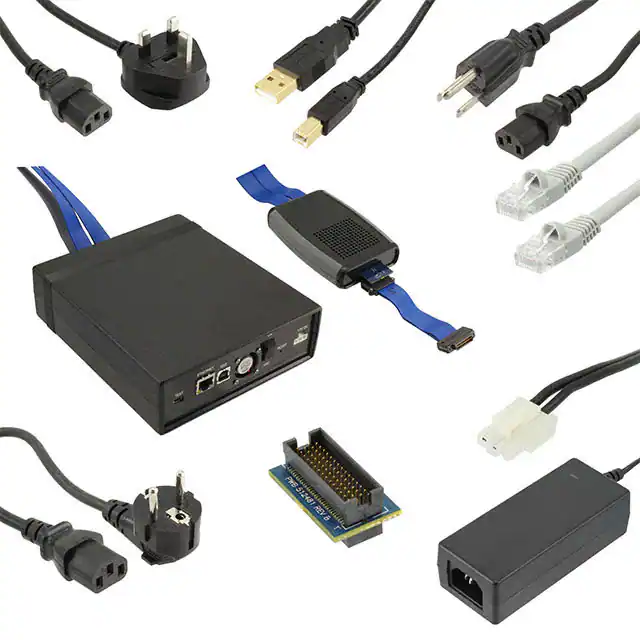
Trace Analyzer
User’s Guide
Literature Number: SPRUHM7B
March 2014
�Preface
About This Guide
Trace Analyzer is provided by Code Composer Studio (CCS) to enable non-intrusive debug and analysis
of system activity. The TI target device sends data about the target’s actions over a dedicated port. This
allows you to examine the history of the processor’s actions without affecting the real-time behavior of
the target application.
This document applies to the features supported in Trace Analyzer with CCS v6.0. Many of the features
described in this document are also provided as part of earlier versions of CCS.
No application code changes are required to support basic hardware trace functionality. Additional trace
configuration is possible through source code changes to instrument the target.
This document provides information about Trace Analyzer.
Intended Audience
This document is intended for users of Trace Analyzer.
This document assumes you have knowledge of embedded processor hardware concepts and the
capabilities of the processors available to your application. This document also assumes that you are
familiar with Code Composer Studio.
Notational Conventions
This document uses the following conventions:
•
When the pound sign (#) is used in filenames or directory paths, you should replace the # sign with
the version number of the release you are using. A # sign may represent one or more digits of a
version number.
•
Program listings, program examples, and interactive displays are shown in a mono-spaced font.
Examples use bold for emphasis, and interactive displays use bold to distinguish commands that
you enter from items that the system displays (such as prompts, command output, error messages,
etc.).
•
Square brackets ( [ and ] ) identify an optional parameter. If you use an optional parameter, you
specify the information within the brackets. Unless the square brackets are in a bold typeface, do not
enter the brackets themselves.
Documentation Feedback
If you have comments about this document, please provide feedback by using the link at the bottom of
the page. This link is for reporting errors or providing comments about a technical document. Using this
link to ask technical support questions will delay getting a response to you.
SPRUHM7B—March 2014
Submit Documentation Feedback
Preface
2
�www.ti.com
Trademarks
Trademarks
Registered trademarks of Texas Instruments include Stellaris and StellarisWare. Trademarks of Texas
Instruments include: the Texas Instruments logo, Texas Instruments, TI, TI.COM, C2000, C5000, C6000,
Code Composer Studio, Concerto, controlSUITE, DaVinci, DSP/BIOS, eXpressDSP, Grace, KeyStone,
MSP430, OMAP, RTDX, SPOX, TMS320, TMS320C2000, TMS320C5000, TMS320C6000, XDS, and
XDS560.
MS-DOS, Windows, and Windows NT are trademarks of Microsoft Corporation.
Linux is a registered trademark of Linus Torvalds.
All other brand, product names, and service names are trademarks or registered trademarks of their
respective companies or organizations.
March 19, 2014
SPRUHM7B—March 2014
Submit Documentation Feedback
Preface
3
�Contents
4
1
Overview of Trace Analyzer . . . . . . . . . . . . . . . . . . . . . . . . . . . . . . . . . . . . . . . . . . . . . . . . . . . . . . . . . . 7
1.1 Introduction to Hardware Trace Analysis . . . . . . . . . . . . . . . . . . . . . . . . . . . . . . . . . . . . . . . . . . . . . 8
1.2 Software and Hardware Requirements. . . . . . . . . . . . . . . . . . . . . . . . . . . . . . . . . . . . . . . . . . . . . . . 9
1.3 Types of Traces and Their Uses. . . . . . . . . . . . . . . . . . . . . . . . . . . . . . . . . . . . . . . . . . . . . . . . . . . 10
1.4 Trace Analysis Data Sources . . . . . . . . . . . . . . . . . . . . . . . . . . . . . . . . . . . . . . . . . . . . . . . . . . . . . 10
1.5 Concurrent Trace Sessions . . . . . . . . . . . . . . . . . . . . . . . . . . . . . . . . . . . . . . . . . . . . . . . . . . . . . . 10
1.6 Trace Analysis Configurations . . . . . . . . . . . . . . . . . . . . . . . . . . . . . . . . . . . . . . . . . . . . . . . . . . . . 11
1.7 Trace Analyzer Terminology . . . . . . . . . . . . . . . . . . . . . . . . . . . . . . . . . . . . . . . . . . . . . . . . . . . . . . 12
1.8 About this User Guide. . . . . . . . . . . . . . . . . . . . . . . . . . . . . . . . . . . . . . . . . . . . . . . . . . . . . . . . . . . 13
1.9 Learning More about Trace Analyzer . . . . . . . . . . . . . . . . . . . . . . . . . . . . . . . . . . . . . . . . . . . . . . . 13
2
Using Trace Analyzer . . . . . . . . . . . . . . . . . . . . . . . . . . . . . . . . . . . . . . . . . . . . . . . . . . . . . . . . . . . . . .
2.1 Running a Trace Configuration . . . . . . . . . . . . . . . . . . . . . . . . . . . . . . . . . . . . . . . . . . . . . . . . . . . .
2.2 Modifying Analysis Configuration Settings . . . . . . . . . . . . . . . . . . . . . . . . . . . . . . . . . . . . . . . . . . .
2.2.1 Receiver/Transport Settings . . . . . . . . . . . . . . . . . . . . . . . . . . . . . . . . . . . . . . . . . . . . . . .
2.2.2 Data Collection Settings. . . . . . . . . . . . . . . . . . . . . . . . . . . . . . . . . . . . . . . . . . . . . . . . . . .
2.2.3 Icons in Analysis Configuration Dialogs. . . . . . . . . . . . . . . . . . . . . . . . . . . . . . . . . . . . . . .
2.2.4 Advanced Settings for Configurations . . . . . . . . . . . . . . . . . . . . . . . . . . . . . . . . . . . . . . . .
2.3 Closing a Trace Configuration . . . . . . . . . . . . . . . . . . . . . . . . . . . . . . . . . . . . . . . . . . . . . . . . . . . .
2.4 Running Analyzers . . . . . . . . . . . . . . . . . . . . . . . . . . . . . . . . . . . . . . . . . . . . . . . . . . . . . . . . . . . . .
2.5 Working with Trace Analyzers . . . . . . . . . . . . . . . . . . . . . . . . . . . . . . . . . . . . . . . . . . . . . . . . . . . .
2.5.1 Managing Trace Analyzer Data Collection. . . . . . . . . . . . . . . . . . . . . . . . . . . . . . . . . . . . .
2.6 Viewing Source Code . . . . . . . . . . . . . . . . . . . . . . . . . . . . . . . . . . . . . . . . . . . . . . . . . . . . . . . . . . .
2.7 Working with Trace Data Files . . . . . . . . . . . . . . . . . . . . . . . . . . . . . . . . . . . . . . . . . . . . . . . . . . . .
2.7.1 Saving a Trace Data File . . . . . . . . . . . . . . . . . . . . . . . . . . . . . . . . . . . . . . . . . . . . . . . . . .
2.7.2 Saving a CSV Data File . . . . . . . . . . . . . . . . . . . . . . . . . . . . . . . . . . . . . . . . . . . . . . . . . . .
2.7.3 Opening a Trace Data File or a CSV File . . . . . . . . . . . . . . . . . . . . . . . . . . . . . . . . . . . . .
2.7.4 Opening a Binary Trace File . . . . . . . . . . . . . . . . . . . . . . . . . . . . . . . . . . . . . . . . . . . . . . .
2.7.5 Copying Trace Data to the Clipboard. . . . . . . . . . . . . . . . . . . . . . . . . . . . . . . . . . . . . . . . .
2.8 Working with User Configurations. . . . . . . . . . . . . . . . . . . . . . . . . . . . . . . . . . . . . . . . . . . . . . . . . .
2.8.1 Saving a User Configuration . . . . . . . . . . . . . . . . . . . . . . . . . . . . . . . . . . . . . . . . . . . . . . .
2.8.2 Running a User Configuration . . . . . . . . . . . . . . . . . . . . . . . . . . . . . . . . . . . . . . . . . . . . . .
2.8.3 Exporting a User Configuration . . . . . . . . . . . . . . . . . . . . . . . . . . . . . . . . . . . . . . . . . . . . .
2.8.4 Importing a User Configuration . . . . . . . . . . . . . . . . . . . . . . . . . . . . . . . . . . . . . . . . . . . . .
2.9 Setting Trace Viewer Preferences . . . . . . . . . . . . . . . . . . . . . . . . . . . . . . . . . . . . . . . . . . . . . . . . .
2.10 Viewing Diagnostics . . . . . . . . . . . . . . . . . . . . . . . . . . . . . . . . . . . . . . . . . . . . . . . . . . . . . . . . . . . .
14
15
16
16
18
18
18
18
19
20
20
22
24
24
25
26
26
28
28
28
28
28
28
29
29
3
Configurations and Analyzers . . . . . . . . . . . . . . . . . . . . . . . . . . . . . . . . . . . . . . . . . . . . . . . . . . . . . . .
3.1 Analysis Dashboard . . . . . . . . . . . . . . . . . . . . . . . . . . . . . . . . . . . . . . . . . . . . . . . . . . . . . . . . . . . .
3.2 Trace Viewer. . . . . . . . . . . . . . . . . . . . . . . . . . . . . . . . . . . . . . . . . . . . . . . . . . . . . . . . . . . . . . . . . .
3.3 Hardware Trace Configurations . . . . . . . . . . . . . . . . . . . . . . . . . . . . . . . . . . . . . . . . . . . . . . . . . . .
3.3.1 Function Profiling Configuration. . . . . . . . . . . . . . . . . . . . . . . . . . . . . . . . . . . . . . . . . . . . .
3.3.2 Statistical Function Profiling Configuration . . . . . . . . . . . . . . . . . . . . . . . . . . . . . . . . . . . .
3.3.3 Stall Profiling Configuration . . . . . . . . . . . . . . . . . . . . . . . . . . . . . . . . . . . . . . . . . . . . . . . .
3.3.4 Cache Analysis Configuration . . . . . . . . . . . . . . . . . . . . . . . . . . . . . . . . . . . . . . . . . . . . . .
30
31
32
36
37
38
39
40
Contents
SPRUHM7B—March 2014
Submit Documentation Feedback
�www.ti.com
Contents
3.3.5 Code Coverage Configuration . . . . . . . . . . . . . . . . . . . . . . . . . . . . . . . . . . . . . . . . . . . . . .
3.3.6 Memory Throughput Analysis Configuration . . . . . . . . . . . . . . . . . . . . . . . . . . . . . . . . . . .
3.3.7 Memory Transaction Logging Configuration . . . . . . . . . . . . . . . . . . . . . . . . . . . . . . . . . . .
3.3.8 Power and Clock Analysis Configuration . . . . . . . . . . . . . . . . . . . . . . . . . . . . . . . . . . . . . .
3.3.9 Data Variable Tracing Configuration . . . . . . . . . . . . . . . . . . . . . . . . . . . . . . . . . . . . . . . . .
3.3.10 Interrupt Profiling Configuration . . . . . . . . . . . . . . . . . . . . . . . . . . . . . . . . . . . . . . . . . . . . .
3.3.11 PC Trace Configuration . . . . . . . . . . . . . . . . . . . . . . . . . . . . . . . . . . . . . . . . . . . . . . . . . . .
3.3.12 Custom Core Trace Configuration . . . . . . . . . . . . . . . . . . . . . . . . . . . . . . . . . . . . . . . . . . .
3.3.13 Custom System Trace Configuration . . . . . . . . . . . . . . . . . . . . . . . . . . . . . . . . . . . . . . . . .
Trace Analyzer Views . . . . . . . . . . . . . . . . . . . . . . . . . . . . . . . . . . . . . . . . . . . . . . . . . . . . . . . . . . .
3.4.1 Function Profiler: Summary View. . . . . . . . . . . . . . . . . . . . . . . . . . . . . . . . . . . . . . . . . . . .
3.4.2 Function Profiler: Details View . . . . . . . . . . . . . . . . . . . . . . . . . . . . . . . . . . . . . . . . . . . . . .
3.4.3 Function Profiler: Per Call View . . . . . . . . . . . . . . . . . . . . . . . . . . . . . . . . . . . . . . . . . . . . .
3.4.4 Function Execution Graph . . . . . . . . . . . . . . . . . . . . . . . . . . . . . . . . . . . . . . . . . . . . . . . . .
3.4.5 Program Address vs. Cycle Graph . . . . . . . . . . . . . . . . . . . . . . . . . . . . . . . . . . . . . . . . . .
3.4.6 Code Coverage: Function Coverage . . . . . . . . . . . . . . . . . . . . . . . . . . . . . . . . . . . . . . . . .
3.4.7 Code Coverage: Line Coverage . . . . . . . . . . . . . . . . . . . . . . . . . . . . . . . . . . . . . . . . . . . .
3.4.8 Code Coverage: File Coverage . . . . . . . . . . . . . . . . . . . . . . . . . . . . . . . . . . . . . . . . . . . . .
3.4.9 Code Coverage: Instruction Coverage. . . . . . . . . . . . . . . . . . . . . . . . . . . . . . . . . . . . . . . .
3.4.10 Cache Event Profiler . . . . . . . . . . . . . . . . . . . . . . . . . . . . . . . . . . . . . . . . . . . . . . . . . . . . .
3.4.11 Statistical Function Profiler . . . . . . . . . . . . . . . . . . . . . . . . . . . . . . . . . . . . . . . . . . . . . . . .
3.4.12 Stall Cycle Profiler . . . . . . . . . . . . . . . . . . . . . . . . . . . . . . . . . . . . . . . . . . . . . . . . . . . . . . .
3.4.13 Memory Throughput Graph . . . . . . . . . . . . . . . . . . . . . . . . . . . . . . . . . . . . . . . . . . . . . . . .
3.4.14 Minimum Average Latency Graph . . . . . . . . . . . . . . . . . . . . . . . . . . . . . . . . . . . . . . . . . . .
3.4.15 EVE Analyzer Graph . . . . . . . . . . . . . . . . . . . . . . . . . . . . . . . . . . . . . . . . . . . . . . . . . . . . .
3.4.16 IVAHD Analyzer . . . . . . . . . . . . . . . . . . . . . . . . . . . . . . . . . . . . . . . . . . . . . . . . . . . . . . . . .
3.4.17 Logic Analyzer Graph . . . . . . . . . . . . . . . . . . . . . . . . . . . . . . . . . . . . . . . . . . . . . . . . . . . .
3.4.18 STM Statistics Graph . . . . . . . . . . . . . . . . . . . . . . . . . . . . . . . . . . . . . . . . . . . . . . . . . . . . .
3.4.19 PMI Analysis . . . . . . . . . . . . . . . . . . . . . . . . . . . . . . . . . . . . . . . . . . . . . . . . . . . . . . . . . . .
3.4.20 Data Variable Tracing . . . . . . . . . . . . . . . . . . . . . . . . . . . . . . . . . . . . . . . . . . . . . . . . . . . .
3.4.21 Interrupt Analyzer. . . . . . . . . . . . . . . . . . . . . . . . . . . . . . . . . . . . . . . . . . . . . . . . . . . . . . . .
41
43
43
44
45
45
46
47
47
48
49
50
51
52
53
54
56
57
58
59
60
61
62
63
64
64
65
66
67
71
72
4
Techniques for Using Views . . . . . . . . . . . . . . . . . . . . . . . . . . . . . . . . . . . . . . . . . . . . . . . . . . . . . . . . .
4.1 Special Techniques in Trace Analyzers . . . . . . . . . . . . . . . . . . . . . . . . . . . . . . . . . . . . . . . . . . . . .
4.2 Zoom (Graphs Only) . . . . . . . . . . . . . . . . . . . . . . . . . . . . . . . . . . . . . . . . . . . . . . . . . . . . . . . . . . . .
4.3 Measurement Markers (Graphs Only) . . . . . . . . . . . . . . . . . . . . . . . . . . . . . . . . . . . . . . . . . . . . . .
4.4 Bookmarks . . . . . . . . . . . . . . . . . . . . . . . . . . . . . . . . . . . . . . . . . . . . . . . . . . . . . . . . . . . . . . . . . . .
4.5 Groups and Synchronous Scrolling . . . . . . . . . . . . . . . . . . . . . . . . . . . . . . . . . . . . . . . . . . . . . . . .
4.6 Find . . . . . . . . . . . . . . . . . . . . . . . . . . . . . . . . . . . . . . . . . . . . . . . . . . . . . . . . . . . . . . . . . . . . . . . . .
4.7 Filter . . . . . . . . . . . . . . . . . . . . . . . . . . . . . . . . . . . . . . . . . . . . . . . . . . . . . . . . . . . . . . . . . . . . . . . .
4.8 Export . . . . . . . . . . . . . . . . . . . . . . . . . . . . . . . . . . . . . . . . . . . . . . . . . . . . . . . . . . . . . . . . . . . . . . .
4.9 Cursor and Scroll Lock . . . . . . . . . . . . . . . . . . . . . . . . . . . . . . . . . . . . . . . . . . . . . . . . . . . . . . . . . .
4.10 Column Settings and Display Properties . . . . . . . . . . . . . . . . . . . . . . . . . . . . . . . . . . . . . . . . . . . .
75
76
77
77
78
79
79
81
83
83
83
5
JavaScript APIs for Debug Server Scripting . . . . . . . . . . . . . . . . . . . . . . . . . . . . . . . . . . . . . . . . . . . .
5.1 Overview . . . . . . . . . . . . . . . . . . . . . . . . . . . . . . . . . . . . . . . . . . . . . . . . . . . . . . . . . . . . . . . . . . . . .
5.2 ScriptAnalysisSession Class. . . . . . . . . . . . . . . . . . . . . . . . . . . . . . . . . . . . . . . . . . . . . . . . . . . . . .
5.3 ScriptAnalysisSession Constructor . . . . . . . . . . . . . . . . . . . . . . . . . . . . . . . . . . . . . . . . . . . . . . . . .
5.4 Method Summary . . . . . . . . . . . . . . . . . . . . . . . . . . . . . . . . . . . . . . . . . . . . . . . . . . . . . . . . . . . . . .
5.5 Method Details . . . . . . . . . . . . . . . . . . . . . . . . . . . . . . . . . . . . . . . . . . . . . . . . . . . . . . . . . . . . . . . .
5.5.1 endAnalysis() . . . . . . . . . . . . . . . . . . . . . . . . . . . . . . . . . . . . . . . . . . . . . . . . . . . . . . . . . . .
84
85
86
86
87
89
89
3.4
SPRUHM7B—March 2014
Submit Documentation Feedback
Contents
5
�Contents
www.ti.com
5.5.2
5.5.3
5.5.4
5.5.5
5.5.6
5.5.7
5.5.8
5.5.9
5.5.10
5.5.11
5.5.12
5.5.13
5.5.14
5.5.15
5.5.16
A
exceptionThrown() . . . . . . . . . . . . . . . . . . . . . . . . . . . . . . . . . . . . . . . . . . . . . . . . . . . . . . .
exportDataToCSV() -- All Data Tables. . . . . . . . . . . . . . . . . . . . . . . . . . . . . . . . . . . . . . . .
exportDataToCSV() -- Specified Data Table . . . . . . . . . . . . . . . . . . . . . . . . . . . . . . . . . . .
exportDataToCSV() -- Specified Data Table with Range. . . . . . . . . . . . . . . . . . . . . . . . . .
getAnalysisList(). . . . . . . . . . . . . . . . . . . . . . . . . . . . . . . . . . . . . . . . . . . . . . . . . . . . . . . . .
getBufferByName() . . . . . . . . . . . . . . . . . . . . . . . . . . . . . . . . . . . . . . . . . . . . . . . . . . . . . .
getDataSet(). . . . . . . . . . . . . . . . . . . . . . . . . . . . . . . . . . . . . . . . . . . . . . . . . . . . . . . . . . . .
getName() . . . . . . . . . . . . . . . . . . . . . . . . . . . . . . . . . . . . . . . . . . . . . . . . . . . . . . . . . . . . .
importAnalysis() . . . . . . . . . . . . . . . . . . . . . . . . . . . . . . . . . . . . . . . . . . . . . . . . . . . . . . . . .
loadAnalysis() . . . . . . . . . . . . . . . . . . . . . . . . . . . . . . . . . . . . . . . . . . . . . . . . . . . . . . . . . .
runAnalysis() -- Run by Object. . . . . . . . . . . . . . . . . . . . . . . . . . . . . . . . . . . . . . . . . . . . . .
runAnalysis() -- Run by Name . . . . . . . . . . . . . . . . . . . . . . . . . . . . . . . . . . . . . . . . . . . . . .
runAnalyzer() . . . . . . . . . . . . . . . . . . . . . . . . . . . . . . . . . . . . . . . . . . . . . . . . . . . . . . . . . . .
setAnalysisProperty(). . . . . . . . . . . . . . . . . . . . . . . . . . . . . . . . . . . . . . . . . . . . . . . . . . . . .
terminate() . . . . . . . . . . . . . . . . . . . . . . . . . . . . . . . . . . . . . . . . . . . . . . . . . . . . . . . . . . . . .
89
90
90
91
92
92
92
93
93
93
94
94
95
95
96
Revision History . . . . . . . . . . . . . . . . . . . . . . . . . . . . . . . . . . . . . . . . . . . . . . . . . . . . . . . . . . . . . . . . . . . 97
Index . . . . . . . . . . . . . . . . . . . . . . . . . . . . . . . . . . . . . . . . . . . . . . . . . . . . . . . . . . . . . . . . . . . . . . . . . . . . . . . 98
6
Contents
SPRUHM7B—March 2014
Submit Documentation Feedback
�Chapter 1
Overview of Trace Analyzer
This chapter provides an introduction to Trace Analyzer’s capabilities.
Topic
Page
1.1
Introduction to Hardware Trace Analysis . . . . . . . . . . . . . . . . . . . . . . . 8
1.2
Software and Hardware Requirements . . . . . . . . . . . . . . . . . . . . . . . . . 9
1.3
Types of Traces and Their Uses . . . . . . . . . . . . . . . . . . . . . . . . . . . . . 10
1.4
Trace Analysis Data Sources . . . . . . . . . . . . . . . . . . . . . . . . . . . . . . . . 10
1.5
Concurrent Trace Sessions . . . . . . . . . . . . . . . . . . . . . . . . . . . . . . . . . 10
1.6
Trace Analysis Configurations . . . . . . . . . . . . . . . . . . . . . . . . . . . . . . 11
1.7
Trace Analyzer Terminology . . . . . . . . . . . . . . . . . . . . . . . . . . . . . . . . 12
1.8
About this User Guide . . . . . . . . . . . . . . . . . . . . . . . . . . . . . . . . . . . . . 13
1.9
Learning More about Trace Analyzer . . . . . . . . . . . . . . . . . . . . . . . . . 13
SPRUHM7B—March 2014
Submit Documentation Feedback
Overview of Trace Analyzer
7
�Introduction to Hardware Trace Analysis
1.1
www.ti.com
Introduction to Hardware Trace Analysis
Most software engineers spend a significant amount of time debugging and optimizing their applications.
Traditional emulators and simulation debugging tools uncover the majority of application bugs; but the
really hard-to-find intermittent issues sometimes evade developers. In real time systems, traditional stop
mode debugging techniques change the state of the system, making these bugs virtually invisible.
Performance measurements in a real-time environment are difficult, and often do not provide the
granularity needed to properly identify application performance issues.
Trace Analyzer is provided by Code Composer Studio (CCS) to enable non-intrusive debug and analysis
of system activity. The TI target device sends data about the target’s actions over a dedicated port. This
allows you to examine the history of the processor’s actions without affecting the real-time behavior of
the target application. No application code changes are required to support hardware trace.
Trace Analyzer can help detect hard-to-find problems (without stopping the processor) such as:
•
•
•
•
•
Race conditions between events
Pipeline stalls
Crashes from stack overflows
Runaway code
False interrupts without stopping the processor
Hardware trace has the following advantages over other types of tracing:
•
•
•
8
No changes to the application code are required.
The target does not need to be halted to gather data.
The real-time performance of your application is not affected by data collection.
Overview of Trace Analyzer
SPRUHM7B—March 2014
Submit Documentation Feedback
�www.ti.com
Software and Hardware Requirements
Trace can be used for both debugging and profiling. Trace makes it possible to debug difficult problems
where visibility to program execution, timing, code coverage, or CPU data access history is required.
Profiling can be used to identify bottlenecks in your application. Event trace can provide visibility to
specific memory or system events that may be causing performance issues.
Hardware trace is most powerful when you have a trace probe device connected to your target board to
perform the data collection for uploading to the host computer. For example, the XDS560V2 Pro Trace
can be connected to Texas Instrument’s KeyStone multicore DSPs, such as the 8-core TMS320C6678
or the 4-core TMS320C6670 Evaluation Module. In addition to acting as an emulator, the XDS560V2 Pro
Trace captures high-speed trace data exported from the pins of the TI board to which it is connected.
This document applies to the features supported in Trace Analyzer with CCS v6.0. There is no need to
install additional software. Many of the features described in this document are also provided as part of
earlier versions of CCS.
1.2
Software and Hardware Requirements
To use Trace Analyzer, you must have Code Composer Studio (CCS) installed on a host computer. The
hardware requirements for the host computer that runs CCS are provided in the CCS release notes.
In addition, you will need a target board. Hardware trace support is a feature of KeyStone multicore DSP
devices from Texas Instruments. These devices include the 4-core TMS320C6670 and the 8-core
TMS320C6678. Hardware trace is also supported for AM335x, OMAP3, OMAP4, OMAP5, Cortex-M3,
and Cortex-M4 devices.
Trace data can be collected through the following:
•
XDS capable Trace Receiver. The XDS560v2 Pro Trace handles
pin export of trace data and collects and stores trace data in the
external device. Buffer sizes are large; the XDS560v2 Pro Trace
supports up to 2 GB of trace buffer with up to 32 pins at 250 MHz
DDR. See Section 1.5 for limitations on multicore tracing with the
XDS560v2 Pro Trace. The XDS560v2 STM can be used to collect
System (STM) trace data, but not PC (CPU) trace data. The Trace
Analyzer tools in CCS allow you to manage the trace buffer size
and operation mode. Trace receivers are ideal for both debugging
and profiling.
•
XDS200 emulator. These JTAG emulators are available for
Cortex-M3 and Cortex-M4 devices. Use the SWO Trace transport
type with these emulators.
•
Embedded Trace Buffer (ETB). ETB is an on-chip circular
memory buffer that stores compressed trace information. Any
XDS-series emulator may be used with ETB data collection. Buffer
sizes are typically small (4-32 KB). Because of compression, the buffer can typically store 10,000 to
30,000 lines of program trace data. This buffer operates as a circular buffer, continuously capturing
trace information until data collection is halted. The primary use for ETB is debugging; profiling is
difficult with a small buffer. ETB data collection may be used remotely in field-deployed products to
capture exceptions, because a separate emulation device is not required. For some types of tracing,
it is possible to specify the address of a remote memory location where the target will store trace data.
ETB data can be read from the target using any emulator (XDS100, XDS200, XDS560, etc.).
SPRUHM7B—March 2014
Submit Documentation Feedback
Overview of Trace Analyzer
9
�Types of Traces and Their Uses
1.3
www.ti.com
Types of Traces and Their Uses
The following types of hardware tracing are used by Trace Analyzer:
•
Standard trace. This type traces program execution and data read/write. It uses the PC (program
counter) Trace technology, which is also called "CPU Trace." This type of tracing is specific to a single
core. The Function Profiling Configuration and PC Trace Configuration use Standard trace. This trace
type is supported for C6000 DSPs and Cortex-A, Cortex-M, and Cortex-R series ARM processors.
•
Event trace. This type traces events such as caching and stalls. It also uses the PC Trace
technology and is specific to a single core. The Stall Profiling Configuration and Cache Analysis
Configuration use Event trace. This trace type is supported for C6000 DSPs only.
•
System trace. Chip level system trace (STM) provides a SoC level, non-intrusive way to profile
interconnect traffic and interfaces such as DDR. On certain chips, STM also provides power and
clock profiling capability. System trace uses the System Trace Module (STM) to trace throughput,
latency, bus utilization, and related items. System-level activity is traced, not activity within a core.
The Memory Throughput Analysis Configuration and Custom System Trace Configuration use
System trace. This trace type is not supported for Cortex-M series ARM devices.
You can run only one live analysis that uses PC Trace (either for standard or event tracing) on a particular
core at a time. If you start a new analysis configuration that uses the same PC Trace resource, you will
be prompted to close the currently running analysis configuration that uses the same resource. The same
is true of analyses that use System Trace. See Concurrent Trace Sessions for details.
1.4
Trace Analysis Data Sources
Trace Analyzer can display trace data in tables and graphs from multiple data sources:
•
Connect to a device—you can connect to a device to capture and control the trace data obtained.
The name of the device is displayed on all analyzer titles. Collecting trace data does not affect the
real-time behavior of the application.
•
•
Trace data from a trace data file—load previously saved trace data from a trace data file (*.tdf).
•
Trace data from a CSV file—load previously saved trace data from a comma-separated values file.
This file usually contains a specific set of trace samples, with only the trace data fields of interest,
plus some customization of the trace display to show the data according to your preferences.
Trace data from a binary file—load previously saved data from a binary file (*.bin). This is a binary
file created by saving raw binary data from target memory. It does not contain information about the
application or target used to produce the file. You will need to specify that information when you open
the file.
See Working with Trace Data Files for more about off-line analysis using stored trace data files.
1.5
Concurrent Trace Sessions
You can have up to the following set of trace data sources open at the same time:
10
•
Several trace data files, binary trace files, and CSV files at once. Opening stored trace files is limited
only by the memory and processing limitations of your host computer.
•
•
One live analysis that uses System Trace.
If you are using an XDS560v2 Pro Trace receiver with a multicore device, you can run only one live
analysis that uses PC Trace at a time. PC Trace is run for a single core, and another PC Trace cannot
be run for another core at the same time.
Overview of Trace Analyzer
SPRUHM7B—March 2014
Submit Documentation Feedback
�www.ti.com
•
Trace Analysis Configurations
If you are using ETB trace with a multicore device, a separate live analysis that uses PC Trace can
be run for each core at the same time. Select the cores you want to trace in the Debug area before
running the trace analysis configuration. A separate Trace Viewer is opened for each core.
All of your current sessions, both live and from stored data files, are listed in the Tools > Hardware Trace
Analyzer menu and in the Analysis Dashboard.
1.6
Trace Analysis Configurations
To make it easy to start using Trace
Analyzer, several analysis
configurations are provided in the
Tools menu when you are
debugging with CCS. These
configurations are optimized for
various types of debugging and
profiling.
•
Function Profiling
Configuration. Opens the
Function Profiler: Summary
View. (Not available for CortexM)
•
Statistical Function Profiling
Configuration. Opens the
Statistical Function Profiler.
•
Stall Profiling Configuration.
Opens the Stall Cycle Profiler.
(Not available for Cortex-M)
•
Cache Analysis
Configuration. Opens the
Cache Event Profiler. (Not
available for Cortex-M)
•
Code Coverage Configuration. Opens the Code Coverage: Function Coverage view. (Not available
for Cortex-M)
•
Memory Throughput Analysis Configuration. Opens the Memory Throughput Graph and the
Minimum Average Latency Graph. (Not available for Cortex-M)
•
Memory Transaction Logging Configuration. Opens the Trace Viewer, from which a number of
memory-related analyzers can be opened. (Not available for Cortex-M)
•
•
•
•
•
•
Power and Clock Analysis Configuration. Opens the PMI Analysis feature. (OMAP only)
Data Variable Tracing Configuration. Opens the Data Variable Tracing feature. (Cortex-M only)
Interrupt Profiling Configuration. Opens the Interrupt Analyzer feature. (Cortex-M only)
PC Trace Configuration. Opens the Trace Viewer. (Not available for Cortex-M)
Custom Core Trace Configuration. Opens the Trace Viewer.
Custom System Trace Configuration. Opens the Trace Viewer. (Not available for Cortex-M)
SPRUHM7B—March 2014
Submit Documentation Feedback
Overview of Trace Analyzer
11
�Trace Analyzer Terminology
1.7
www.ti.com
Trace Analyzer Terminology
You should be familiar with the following terms when using this manual.
12
•
Trace Analyzer. A suite of host-side tools that use data captured from a hardware trace to provide
visibility into the real-time performance and behavior of target applications.
•
analysis configuration. A collection of Trace Analyzer settings that determine what data is
collected, analyzed and displayed. The analysis configurations provided by default with CCS are
"factory configurations." You can save custom Trace Analyzer settings as a "user configuration."
•
Analyzer. Also called an "analysis feature". Tools that may be run automatically by configurations
and/or can be run from the Trace Viewer to further analyze collected data.
•
absolute timestamp. The time difference between when the first trace record and the current record
was recorded.
•
CCS. Code Composer Studio. The integrated development environment (IDE) for TI's DSPs,
microcontrollers, and application processors.
•
circular buffering. Collecting data continuously, filling the buffer from the top to the bottom and then
starting back at the top again. The oldest data is overwritten with each new record.
•
•
core. An embedded processor. Also called a CPU.
•
Data Watchpoint and Trace (DWT). Trace source used to collect Data Variable Tracing and Interrupt
Profiling data on Cortex-M devices.
•
delta timestamp. The time difference between when the previous trace sample and the current
sample was recorded.
•
DVT. Data Visualization Technology. Provides a common platform to analyze and display data
collected from the target via technologies such as hardware trace, Unified Instrumentation (UIA), and
JTAG memory read. It is used by various parts of CCS, including Trace Analyzer, System Analyzer,
CCS Graphs, and Simulator Profile.
•
Embedded Trace Buffer (ETB). A buffer area on-chip where the trace data is stored, and read from
the chip later, at a slower rate.
•
•
exclusive cycles. Total number of cycles spent in a function, excluding child functions.
•
•
inclusive cycles. Total number of cycles spent in a function, including child function calls.
•
MADU. Minimum Addressable Data Unit. Also called MAU. The minimum sized data that can be
accessed by a particular core. Different architectures have different size MADUs. For the C6000
architecture, the MADU for both code and data is an 8-bit byte.
•
•
PC (Program Counter). Sometimes referred to as a program address.
CSV (Comma Separated Value) file. A comma-delimited output file type (*.csv filename extension)
that can be opened with Microsoft Excel or spreadsheets and text editors.
host. The processor that communicates with the target(s) to collect instrumentation data. For
example, a Microsoft Windows computer running Code Composer Studio.
JTAG. Joint Test Action Group. IEEE specification (IEEE 1149.1) for a serial interface used for
debugging integrated circuits.
pipeline stall. Event in which the instruction pipeline on the CPU has to wait and waste cycles. Trace
Analyzer identifies when the pipeline stalls happen and can name up to four stall names. Identifying
pipeline stalls and correcting them can have the greatest effect on optimizing an application.
Overview of Trace Analyzer
SPRUHM7B—March 2014
Submit Documentation Feedback
�www.ti.com
1.8
About this User Guide
•
relative timestamp. The time difference between a base time you selected and the time the current
sample was recorded. You manually set the selected base time.
•
stall. The execution pipeline does not advance to allow other activities to complete, for example,
servicing of a cache miss. See pipeline stall.
•
Serial Wire Output (SWO). Single-bit output format used to transmit data for Cortex-M devices with
XDS200 emulators.
•
SYS/BIOS. A real-time operating system for a number of TI's DSPs, microcontrollers, and application
processors. SYS/BIOS is the TI-RTOS Kernel component of TI-RTOS, which is available through the
CCS App Center.
•
target. A processor running target code. Generally this is an embedded processor such as a DSP,
ARM, or microcontroller.
•
TDF (Trace Data File). A binary Trace Data File with the *.tdf filename extension. This file can be reloaded into the Trace Viewer. It includes all binary Trace records, display settings, filtering conditions,
bookmarks, etc. associated with the original Trace recording.
About this User Guide
The remaining chapters in this manual cover the following topics:
1.9
•
•
Chapter 2, “Using Trace Analyzer“, provides steps for using various parts of Trace Analyzer.
•
Chapter 4, “Techniques for Using Views“, describes special techniques for using analysis features.
Chapter 3, “Configurations and Analyzers“, describes the analysis dialogs and analyzers available in
CCS.
Learning More about Trace Analyzer
To learn more about hardware tracing, see the Real-Time Hardware Trace and Analysis wiki page.
SPRUHM7B—March 2014
Submit Documentation Feedback
Overview of Trace Analyzer
13
�Chapter 2
Using Trace Analyzer
This chapter describes how to start data collection and analysis in Code Composer Studio. It also
describes how to use specific Trace Analyzer configuration dialogs and analyzers.
Topic
14
Page
2.1
Running a Trace Configuration . . . . . . . . . . . . . . . . . . . . . . . . . . . . . . 15
2.2
Modifying Analysis Configuration Settings . . . . . . . . . . . . . . . . . . . . 16
2.3
Closing a Trace Configuration . . . . . . . . . . . . . . . . . . . . . . . . . . . . . . . 18
2.4
Running Analyzers . . . . . . . . . . . . . . . . . . . . . . . . . . . . . . . . . . . . . . . . 19
2.5
Working with Trace Analyzers . . . . . . . . . . . . . . . . . . . . . . . . . . . . . . . 20
2.6
Viewing Source Code . . . . . . . . . . . . . . . . . . . . . . . . . . . . . . . . . . . . . . 22
2.7
Working with Trace Data Files . . . . . . . . . . . . . . . . . . . . . . . . . . . . . . . 24
2.8
Working with User Configurations . . . . . . . . . . . . . . . . . . . . . . . . . . . 28
2.9
Setting Trace Viewer Preferences . . . . . . . . . . . . . . . . . . . . . . . . . . . . 29
2.10
Viewing Diagnostics . . . . . . . . . . . . . . . . . . . . . . . . . . . . . . . . . . . . . . . 29
Using Trace Analyzer
SPRUHM7B—March 2014
Submit Documentation Feedback
�www.ti.com
2.1
Running a Trace Configuration
Running a Trace Configuration
Data collection for trace analysis is very configurable. To make it easy to start using Trace Analyzer,
several analysis configurations are provided with Trace Analyzer. These provided configurations are
optimized for various types of debugging and profiling.
To run a Trace Analyzer configuration, follow these steps:
1. Connect a target device that supports hardware trace to your host computer. See Software and
Hardware Requirements.
2. Build an application project in Code Composer Studio.
3. Choose File > New > Target Configuration File and create a CCS target configuration that
identifies the type of connection and target board you are using.
4. Click the Test Connection button in the target configuration view. Troubleshoot the connection if
necessary.
5. Choose View > Target Configurations. Find the target configuration you created in the User
Defined list. Right-click on this target configuration, and choose Launch Selected Connection.
6. In the CCS Debug perspective, right-click on a core or cores in the Debug area, and choose Connect
Target.
7. With the cores on which you want to run the application selected, click the
Run > Load > Load Program.
Load icon or choose
8. In the Load Program dialog, click Browse Project. Expand the tree to find the executable file you
built, and click OK.
9. If you are running a multicore application, make sure the core(s) you want to trace are selected in the
Debug area. See Concurrent Trace Sessions for issues regarding running traces for multiple cores.
SPRUHM7B—March 2014
Submit Documentation Feedback
Using Trace Analyzer
15
�Modifying Analysis Configuration Settings
www.ti.com
10. Choose a command from the Tools > Hardware Trace
Analyzer menu to open the configuration dialog for that
configuration. For example, if you choose Function
Profiling, you will see the Function Profiling Configuration
dialog.
11. In the Hardware Trace Analysis Configuration dialog, choose
the Transport Type (ETB, XDS560v2, Pro Trace, or SWO
Trace) that is correct for your hardware setup in the
configuration dialog. The transport type you select
determines what properties can be changed in the
Receiver/Transport Settings.
12. If you want more control over the behavior of the trace
analysis, modify the Data Collection Settings. Advanced
users may also do further configuration via the Advanced
Settings for Configurations. The defaults for these settings
provide a good starting point.
13. Click Start to run the analysis configuration. You will see the
Trace Viewer and any analyzer normally opened by the
analysis configuration you ran.
14. Click the
Resume icon to start the application and
collect trace data.
If you attempt to start a second Trace Analyzer configuration that uses the same trace type (CPU on the
same core or System), you see a warning that says the trace resource is already used. You can only run
one trace analysis configuration for a particular trace type at a time. See Concurrent Trace Sessions.
2.2
Modifying Analysis Configuration Settings
The Hardware Trace Analysis Configuration dialogs for various analyses have several options that are
the same or similar for all types of configurations. These shared options are grouped into the
Receiver/Transport Settings, Icons in Analysis Configuration Dialogs, and Advanced Settings for
Configurations. However, the Data Collection Settings are different for each configuration, so those
options are described separately in the topics for each configuration.
2.2.1
Receiver/Transport Settings
The Receiver/Transport Settings depend on what type of receiver you have selected in the Transport
Type column of the table in the configuration dialog. Transport options are:
16
•
•
ETB. The Embedded Trace Buffer is used as a transport.
•
•
Pro Trace. Supports the XDS560v2 Pro Trace receiver.
•
SWO Trace. Supports XDS200 JTAG emulators. Available only if you are connected to a Cortex-M3
or Cortex-M4 device.
ETB Remote Memory. Available for custom trace configurations only. Allows you to configure the
embedded trace buffer location and size.
560 V2 Trace. Supports the XDS560v2 STM JTAG emulator. Available only for analysis
configurations that use System Trace. This transport has smaller buffer sizes and fewer pins than the
Pro Trace.
Using Trace Analyzer
SPRUHM7B—March 2014
Submit Documentation Feedback
�www.ti.com
Modifying Analysis Configuration Settings
The settings available differ for each transport type. For example, if you select the Pro Trace receiver,
you can modify the settings that are active in the following figure:
The full list of Receiver/Transport Settings is as follows:
•
Buffer Type. Select Stop-on-full or Circular to determine whether the buffer holds the first full buffer
of data or the most recent data. (Pro Trace and 560 V2 Trace receivers only.) The trace buffer is
always circular for ETB.
•
Buffer Size. Select the amount of space to use for this trace buffer. (Pro Trace and 560 V2 Trace
receivers only.)
•
Buffer/IP Address. Specify either a starting address location or an IP address to indicate where the
Embedded Trace Buffer (ETB) should be stored. This option is used mainly in field-deployed
environments with the cToolsLib APIs for trace capture and ETB collection. (Only for ETB-Remote
Memory with Custom Core Trace and Custom System Trace Configurations.)
•
Buffer Size/Core ID. If you specified a starting address location in the Buffer/IP Address field,
specify the size of the Embedded Trace Buffer (ETB) here. If you specified an IP address in the
Buffer/IP Address field, specify the Core ID for the core on which the buffer should be stored. A
default value is used if you set only the Buffer/IP Address field. This option is used mainly in fielddeployed environments with the cToolsLib APIs for trace capture and ETB collection. (Only for ETB
Remote Memory with Custom Core Trace and Custom System Trace Configurations.)
•
Number of Pins. Select the number of pins to use on the connector between the receiver and the
target board. For PC Trace configurations, you can choose from 10 to 15 pins. For System Trace
configurations, you can choose 1, 2, or 4 pins. The default is the recommended choice. If you find
gaps in the trace buffer, you may try increasing the number of pins. (Pro Trace and 560 V2 Trace
receivers only.)
•
Encoding Type: Select the type of encoding in use by the emulator. The only option is UART. (SWO
Trace receivers only.)
•
COM Port: Specify the number of the COM (serial) port to which your XDS200 emulator is
connected. You can find this port by opening the Windows Device Manager (available from the
Control Panel or the System Properties dialog) and viewing the Ports (COM and LPT) list. (SWO
Trace receivers only.)
•
Synchronize trace collection with target run and halt. Leave this box checked if you want trace
collection to begin automatically when the target runs and halt automatically when the target halts (or
earlier if the trace buffer is full). If you uncheck this box, trace collection is controlled by the Start and
Stop commands in the Trace Viewer or by any Trace Range settings in the Data Collection Settings.
(Available for all receiver types except SWO Trace.)
SPRUHM7B—March 2014
Submit Documentation Feedback
Using Trace Analyzer
17
�Closing a Trace Configuration
www.ti.com
The Advanced Settings for Configurations allow you to control more details of the connection to the
receiver, such as whether to stall the CPU to prevent data loss and whether to use a small frame size.
2.2.2
Data Collection Settings
The options in the Data Collection Settings section of the Hardware Trace Analysis Configuration dialogs
are different for each provided analysis configuration. The options are described separately in the topics
for each analysis configuration.
2.2.3
Icons in Analysis Configuration Dialogs
The Hardware Trace Analysis Configuration dialogs provide the following buttons in the lower-right
corner:
Toggle context-sensitive Help for this configuration.
Restore the original settings for this configuration.
Save your modified configuration settings as a user configuration. You will be able to run this saved
configuration from the Tools > Hardware Trace Analysis menu. See Working with User Configurations.
If you run a user configuration, the following icons are also available:
Delete this configuration. (Note that you are not prompted to confirm that you want to delete the
configuration.)
Export these settings to a Zip file that can be imported as a user configuration.
2.2.4
Advanced Settings for Configurations
You can click the Advanced Settings button in any Hardware Trace Analysis Configuration dialog to
open the Advanced Properties dialog, which contains the details of how the trace receiver and the trace
data collection are configured. All configurations are actually stored as a combination of triggers and a
receiver configured within the Advanced Settings.
The details of what can be set are different for each type of receiver and trace. The settings are contained
in one or more "jobs" that respond to various types of triggers.
You can modify the settings in the right column to customize the configuration. If you are using the
Advanced Settings to customize the configuration, you may want to save the configuration for later reuse
as described in Working with User Configurations.
2.3
Closing a Trace Configuration
When you close the Trace Viewer, any analyzers that depend on that data are also closed. You are
prompted to choose whether to discard the data or cancel closing the Trace Viewer.
A trace analysis configuration and its analyzers can also be closed from the Analysis Dashboard and the
Tools > Hardware Trace Analysis menu.
You can close analyzers, such as the Cache Event Profiler, without discarding any data.
18
Using Trace Analyzer
SPRUHM7B—March 2014
Submit Documentation Feedback
�www.ti.com
2.4
Running Analyzers
Running Analyzers
In addition to opening analyzers (also called analysis features) by running an Analysis Configuration from
the Tools > Hardware Trace Analyzer menu, you can also use the following methods to open analyzers:
•
•
In the Trace Viewer, click the
Analyze pull-down and select an analyzer.
Right-click on the Trace Viewer area. From the context menu, choose Analyze and then an analyzer.
The following list tells how to run analyzers that use PC (CPU) Trace:
•
•
•
•
•
•
•
•
•
•
•
•
Function Profiler: Summary View. Opened by the Function Profiling Configuration.
Function Execution Graph. Open this graph from the
pull-down in the Trace Viewer.
Program Address vs. Cycle Graph. Open this graph from the
pull-down in the Trace Viewer.
Statistical Function Profiler. Opened by the Statistical Function Profiling Configuration.
Stall Cycle Profiler. Opened by the Stall Profiling Configuration.
Cache Event Profiler. Opened by the Cache Analysis Configuration.
Code Coverage: Function Coverage. Opened by the Code Coverage Configuration.
Code Coverage: Line Coverage. Opened by the Code Coverage Configuration.
Code Coverage: File Coverage. Opened by the Code Coverage Configuration.
Code Coverage: Instruction Coverage. Opened by the Code Coverage Configuration.
Data Variable Tracing. Opened by the Data Variable Tracing Configuration. (Cortex-M targets only)
Interrupt Analyzer. Opened by the Interrupt Profiling Configuration. (Cortex-M targets only)
The following list tells how to open analyzers that use System Trace:
•
•
•
•
•
•
•
Memory Throughput Graph. Opened by the Memory Throughput Analysis Configuration.
Minimum Average Latency Graph. Opened by the Memory Throughput Analysis Configuration.
EVE Analyzer Graph. Open this graph from the
IVAHD Analyzer. Open this from the
pull-down in the Trace Viewer.
Logic Analyzer Graph. Open this graph from the
STM Statistics Graph. Open this from the
pull-down in the Trace Viewer.
pull-down in the Trace Viewer.
pull-down in the Trace Viewer.
PMI Analysis. Opened by the Power and Clock Analysis Configuration. (OMAP targets only)
Running an analysis configuration downloads a subset of the data from the receiver or trace buffer, and
the associated analyzer processes it for display. When you run another analyzer from the Analyze menu
in the Trace Viewer, the second analyzer tries to process the data downloaded for the first analyzer in a
different way. In some cases, some data needed for the second analyzer may not have been collected.
For example, it is better to open the Cache Event Profiler analyzer by running the Cache Analysis
Configuration than by running the Function Profiling Configuration.
The Advanced Settings in the Hardware Trace Analysis Configuration dialog determine what types of
data is downloaded from the trace receiver. If you are creating your own user configurations, you can
cause the configuration to collect the data required to run multiple analyzers.
SPRUHM7B—March 2014
Submit Documentation Feedback
Using Trace Analyzer
19
�Working with Trace Analyzers
2.5
www.ti.com
Working with Trace Analyzers
The descriptions of the individual Trace Analyzer Views describe how to work with those windows within
CCS.
Analyzers provide a wide range of tools for finding the information you need within a large amount of data.
These tools include ways to zoom and make cycle time measurements in graphs and ways to set
bookmarks, find data, filter the data, and more.
For more information, see:
•
•
•
•
•
•
•
•
•
•
2.5.1
Section 4.1, Special Techniques in Trace Analyzers
Section 4.2, Zoom (Graphs Only)
Section 4.3, Measurement Markers (Graphs Only)
Section 4.4, Bookmarks
Section 4.5, Groups and Synchronous Scrolling
Section 4.6, Find
Section 4.7, Filter
Section 4.8, Export
Section 4.9, Cursor and Scroll Lock
Section 4.10, Column Settings and Display Properties
Managing Trace Analyzer Data Collection
When you start a trace analysis configuration, the Receiver/Transport Settings part of the configuration
dialog lets you set the following options that affect data collection:
•
Synchronize trace collection with target run and halt. Trace collection by the receiver will start
automatically when the target runs and halt when the target halts. Note that this synchronization is
subject to the any advanced settings that trigger trace collection based on address access or other
events.
•
Buffer Type. Controls whether the buffer stops collecting data from the target when it is full or acts
as a circular buffer. This option is only available if you are using a Pro Trace or 560 V2 receiver.
•
Buffer Size. Controls the size of the trace buffer. This option is only available if you are using a Pro
Trace or 560 V2 receiver.
You can re-open the configuration dialog to modify the settings without closing an analysis by clicking the
Analysis Properties icon in the toolbar of the Trace Viewer.
20
Using Trace Analyzer
SPRUHM7B—March 2014
Submit Documentation Feedback
�www.ti.com
Working with Trace Analyzers
You can manage Trace Analyzer data gathering using the following commands in the toolbar of the Trace
Viewer:
•
Start. Begins collecting a new buffer of data from the trace buffer. The records are displayed
sequentially in the Trace Viewer. Old data is overwritten. Trace recording starts automatically if any
of the following occur:
— An Analysis Configuration is run and data collection is set to start automatically.
— Target execution starts the Synchronize trace collection with target run and halt option is
enabled in the Analysis Configuration.
— The existing Analysis Configuration settings are modified and applied.
•
Stop. Halts trace data recording. Trace recording stops automatically if any of the following
occur:
— Target execution stops and the Synchronize trace collection with target run and halt option
is enabled in the Analysis Configuration.
— The target is disconnected.
— The trace buffer is full and the Buffer Type is set to Stop-on-full is set in the Analysis
Configuration.
— The existing Analysis Configuration settings are deleted.
•
Resume. Resumes trace data recording without deleting previously collected data. Appends
data to the end of the receiver buffer. Resume is not available if the current trace receiver buffer is full.
•
Scroll Lock lets you examine records as data is being collected without having the display jump
to the end whenever new records are added. See Cursor and Scroll Lock.
The right-click menu for the Trace Viewer provides the Freeze/Resume Update
command, which
halts and resumes updates. If you pause updates with this icon, data decoding continues in the
background.
If you reload your program or load a different program, the Trace Analyzer analyzers that are currently
open are automatically reconfigured to handle data from the new program.
SPRUHM7B—March 2014
Submit Documentation Feedback
Using Trace Analyzer
21
�Viewing Source Code
2.6
www.ti.com
Viewing Source Code
You can view the source code that corresponds to a record in the trace from the Trace Viewer for analysis
configurations that use PC Trace (either for Standard or Event tracing). The default configurations that
support source code viewing are the Function Profiling Configuration, Stall Profiling Configuration, Cache
Analysis Configuration, PC Trace Configuration, and Custom Core Trace Configuration.
You cannot view source code for analysis configurations that use System Trace (also called STM Trace).
Commands to control viewing of source code are provided in the Trace Viewer menu when you rightclick on a Trace Viewer.
By default, source code tracking is enabled in this menu. In addition the Windows > Preferences dialog
enables auto-discovery of source files by default as described in Setting Trace Viewer Preferences.
22
•
Open. Can be used to open a file that stores trace information in the *tdf, *.csv, or *.bin format. See
Working with Trace Data Files.
•
Set Program File. If you are viewing trace data by opening a Trace Data File (*.tdf), binary file (*.bin),
or a CSV file, choose this command to open a file dialog that lets you browse for the executable file
(*.out) that was used when the data was collected.
Using Trace Analyzer
SPRUHM7B—March 2014
Submit Documentation Feedback
�www.ti.com
Viewing Source Code
•
Set Source File Search Paths. By default, the path in the Filename column is used to find source
code files. If the source files cannot be found at that path, you can add additional projects and
directories that contain source code used by your application with this command. Click Add Folder
to browse for a directory path. Click Add Project to select additional CCS projects. Click the Up and
Down buttons to change the priority in case the same source file name occurs in two locations.
•
Select Overlay. If your application uses software overlays (code that shares the same run time
addresses) you can automatically or manually identify the overlay code.
•
View Source Code. To open the source code to the point that corresponds to a record in the trace,
right-click on a trace record in the Trace Viewer and choose Trace Viewer > View Source Code from
the pop-up menu. If the source code is not found, you should add folders to your source file search
path.
•
Source Code Tracking. Once you have a both a source code view and the Trace Viewer open, you
can synchronize the two views. If this command is enabled, you can click on a record in the Trace
Viewer to scroll the source code view to the corresponding line.
SPRUHM7B—March 2014
Submit Documentation Feedback
Using Trace Analyzer
23
�Working with Trace Data Files
2.7
www.ti.com
Working with Trace Data Files
The following file types can be saved and opened with Trace Analyzer:
•
Trace data file (*.tdf). Contains trace data as downloaded from the trace buffer. This data can be
viewed with multiple analyzers. You will also need the executable file (*.out) that was used to produce
the TDF file, but you do not need to load and run it on the target. You can create TDF files by clicking
the
Save icon in the toolbar of the Trace Viewer.
•
Binary trace file (*.bin). This is a binary file created by saving raw binary data from target memory.
It does not contain information about the application or target used to produce the file. You will need
to specify that information when you open the file.
•
CSV trace data file (*.csv). Stores the data in a display in a comma-separated values file. CSV data
exported from the Trace Viewer can be further processed so long as the appropriate columns were
exported. Data exported from an analyzer generally cannot be further processed. You do not need
the executable file in order to open a CSV file. You can create CSV files by right-clicking on any
analyzer and choosing Data > Export Selected or Data > Export All (see Saving a CSV Data File).
Note:
Trace data files (*.tdf) are not supported for Cortex-M devices.
A race data file (*.tdf) stores the following information:
•
•
•
•
•
•
•
•
•
All trace data records in the Trace Viewer
Column ordering and widths in the Trace Viewer
Column visibility, alignment, number display, and fonts in the Trace Viewer
Find and Filter settings and expressions
Target CPU information
Receiver type
Source code search paths
Path to the program file
Software overlay selections
A CSV file exported from the Trace Viewer or any analyzer stores a smaller amount of information stored.
The Trace Viewer display customization options are not stored. In addition, only the records that meet
the current filter criteria are saved in a CSV file. When you export the data, you can choose to omit
columns from the CSV file.
A binary file does not contain any information about how the application was run or the Trace Analyzer
settings. It contains only the raw binary data from memory.
2.7.1
Saving a Trace Data File
Note:
Trace data files (*.tdf) are not supported for Cortex-M devices.
To save a trace data file (*.tdf), click the
Save icon in the toolbar of the Trace Viewer or right-click
on the Trace Viewer and choose Save from the pop-up menu.
24
Using Trace Analyzer
SPRUHM7B—March 2014
Submit Documentation Feedback
�www.ti.com
Working with Trace Data Files
Browse to the location where you want to store the file, and click Save.
See Working with Trace Data Files for details on what information is stored in a trace data file.
The binary trace files (*.bin) used by Trace Analyzer can only be saved directly from the raw binary data
in target memory. The *.bin files used by RTOS Analyzer and System Analyzer do not store the same
type of trace data and cannot be used with Trace Analyzer.
2.7.2
Saving a CSV Data File
To save all the records in an analyzer to a comma-separated values file (*.csv), right-click on the Trace
Viewer or any analyzer and choose Data > Export All from the pop-up menu.
To save some of the records in the Trace Viewer or any tabular analyzer to a CSV file, select the rows
you want to save while holding down the Shift or Ctrl key. Then, right-click on the analyzer and choose
Data > Export Selected from the pop-up menu.
Choosing Export All or Export Selected opens the Export Data dialog.
Click Browse and provide the location and filename where you want to store the data.
If you are exporting data from a tabular analyzer, the Columns to export list contains all the columns
that are currently visible in the tabular analyzer. Any columns that are hidden are in the Columns not to
export list by default. You can select column names and use the Add and Remove buttons to control
whether they are exported. Use the Move buttons to control and the order of the columns in the CSV file.
SPRUHM7B—March 2014
Submit Documentation Feedback
Using Trace Analyzer
25
�Working with Trace Data Files
www.ti.com
If you are exporting data from a graph, all the columns needed to create the graph are exported by
default.
2.7.3
Note:
You must include the Load Address column in the CSV file if you want to import the file
back into Trace Analyzer.
Note:
You must include the Memory Event Binary, Stall Cycle Data Binary, Delta Cycles, and
Load Address columns if you want to perform profiling on trace data you save in the
CSV file.
Opening a Trace Data File or a CSV File
You can experiment with Trace Analyzer using stored trace data files. You do not need a target device
or emulator in order to analyze a trace data file with Trace Analyzer.
Note:
Trace data files (*.tdf) are not supported for Cortex-M devices.
For sample data files that can be used with Trace Analyzer see the Real-Time Hardware Trace and
Analysis wiki page.
To load a trace data file, follow these steps:
1. In CCS, move to CCS Debug mode. You do not need to build or load a project.
2. Choose the Tools > Hardware Trace Analyzer > Open File menu command.
3. In the Open Trace File dialog, choose the *.tdf or *.csv file type. See Working with Trace Data Files
for details about these file types. See Opening a Binary Trace File for how to open *.bin files.
Note:
When you load a trace data file (*.tdf) or a CSV trace data file, you may be asked to
specify the location of the program/symbol/COFF (*.out) file used to generate the data.
This allows Trace Analyzer to decode the trace and translate symbols.
4. Browse to the location where your trace file is located and select the file. Click Open.
5. In the Trace Viewer, click the
Analyze pull-down and select an analyzer to open. The
analyzer should be compatible with the type of trace data stored in the file.
2.7.4
Opening a Binary Trace File
If you created a binary trace file (*.bin) by saving the raw binary data in target memory to a file, you can
open it as follows:
1. In CCS, move to CCS Debug mode. You do not need to build or load a project.
2. Choose the Tools > Hardware Trace Analyzer > Open File menu command.
3. In the Open Trace File dialog, choose the *.bin file type.
4. Browse to the location where your trace file is located and select the file. Click Open.
26
Using Trace Analyzer
SPRUHM7B—March 2014
Submit Documentation Feedback
�www.ti.com
Working with Trace Data Files
5. You see a dialog that lets you provide information about the application and how it was run.
— Configuration. Lets you choose or create a configuration to reuse for other binary trace files for
this device or application.
— Program File(s). Browse for the *.out file that contains the application you ran when this binary
trace file was created. This field is required.
— Processor ID. Select the device family of the processor used to generate this binary trace file.
This field is required.
— Receiver. Select the trace receiver used to generate this binary trace file. This field is required.
— Device Key. If you are using System Trace (STM), you must specify a device key for the receiver.
— DCM Settings File. Browse to select an optional *.dcm file to configure the BIN2TDF utility,
which converts the binary trace file to a format usable by Trace Analyzer. See the BIN2TDF Utility
wiki page for details.
— Source Paths. Browse to select the directories that contain source code used in the application.
See Viewing Source Code.
— Overlay Settings File. If your application uses software overlays (code that shares the same run
time addresses), browse for a *.xml file that identifies the overlay code.
6. Click OK to load the trace data from the file.
SPRUHM7B—March 2014
Submit Documentation Feedback
Using Trace Analyzer
27
�Working with User Configurations
2.7.5
www.ti.com
Copying Trace Data to the Clipboard
To paste data from a tabular analyzer into a word processor or other program in CSV format, select the
rows you want to save while holding down the Shift or Ctrl key. Then, press Ctrl+C or right-click on the
analyzer and choose Copy from the pop-up menu. You can then paste that data into other software
applications.
2.8
Working with User Configurations
The analysis configurations provided with Trace Analyzer make it easy to start using trace analysis
without having to set up configurations. However, there are many powerful options available to further
customize configurations. For information about changing configuration settings, see Data Collection
Settings and Advanced Settings for Configurations.
If you make changes to an analysis configuration, you can save that modified configuration as a user
configuration and share it with other people.
2.8.1
Saving a User Configuration
To create a user configuration that contains changes you have made to the settings, click the
Save
this configuration icon in the Hardware Trace Analysis Configuration dialog. Type a name for the new
configuration and click Save. You do not need to specify a file name or location. The configuration is
saved as part of your CCS settings.
2.8.2
Running a User Configuration
To run a user configuration that you have saved or exported, choose the configuration from the Tools >
Hardware Trace Analyzer > User Configurations menu. You will see a Hardware Trace Analysis
Configuration dialog for this configuration.
When you run a user configuration, the following icons are also available in the Hardware Trace Analysis
Configuration dialog:
Delete this configuration. (Note that you are not prompted to confirm that you want to delete the
configuration.)
Export these configuration settings to a Zip file that can be imported as a user configuration.
2.8.3
Exporting a User Configuration
You can share user configurations with other people by exporting them to a Zip file that can be imported
by another CCS user.
To export a user configuration, click the
Export configuration icon in the Hardware Trace Analysis
Configuration dialog. Or, use the Tools > Hardware Trace Analyzer > User Configurations > Export
Configuration command in the CCS menus. Browse to specify the file name and location for the Zip file.
2.8.4
Importing a User Configuration
To import a user configuration, choose the Tools > Hardware Trace Analyzer > User Configurations
> Import Configuration command from the CCS menus. Browse to find the Zip file that contains the user
configuration you want to import.
28
Using Trace Analyzer
SPRUHM7B—March 2014
Submit Documentation Feedback
�www.ti.com
2.9
Setting Trace Viewer Preferences
Setting Trace Viewer Preferences
To set preferences for how the Trace Viewer behaves, choose Window > Preferences from the CCS
menus. Expand the tree and select the Code Composer Studio > Advanced Tools > Trace Viewer
category.
The options you can set are:
•
Disable auto-discovery of source files. Check this box if you do not want Trace Viewer to
automatically look for source files in the CCS project that contains the application you are running.
See Viewing Source Code.
•
Assign user-provided pseudo names for assembly routines. If you have an XML file that
provides names for your assembly routines, you can browse for that file here. It will be used to assign
names for assembly routines in function-related analyzers.
You will need to re-run the analysis configuration to restart the Trace Viewer so that these changes can
take effect.
2.10
Viewing Diagnostics
Right-click on a Trace Viewer and choose Trace Viewer > Diagnostics from the pop-up menu.
The Diagnostics Information dialog shows the following:
•
CPU Clock rate (for PC Trace) or Receiver Clock rate (for System trace). These values are shown
in MHz.
•
•
Trace Data Rate. This is the rate at which data is downloaded from the trace receiver.
Bandwidth. A large amount of data related to trace bandwidth usage is shown for PC Trace. There
is no bandwidth data available for System Trace.
SPRUHM7B—March 2014
Submit Documentation Feedback
Using Trace Analyzer
29
�Chapter 3
Configurations and Analyzers
This chapter describes how to use specific Trace Analyzer configuration dialogs and analyzers (also
called analysis features).
Topic
Page
3.1
Analysis Dashboard . . . . . . . . . . . . . . . . . . . . . . . . . . . . . . . . . . . . . . . 31
3.2
Trace Viewer . . . . . . . . . . . . . . . . . . . . . . . . . . . . . . . . . . . . . . . . . . . . . 32
3.3
Hardware Trace Configurations . . . . . . . . . . . . . . . . . . . . . . . . . . . . . . 36
3.4
Trace Analyzer Views . . . . . . . . . . . . . . . . . . . . . . . . . . . . . . . . . . . . . . 48
SPRUHM7B—March 2014
Submit Documentation Feedback
Configurations and Analyzers
30
�www.ti.com
3.1
Analysis Dashboard
Analysis Dashboard
The Analysis Dashboard provides an easy way to access and control all the analysis configurations and
analyzers you have opened.
The tree in the left column lists all the running analyses and their analyzers. It includes both analyses for
a connected target board and for trace data files you have opened. The Resource column shows the
source of the data for an analysis.
Double-click on an analyzer name in the Analysis column to switch to that pane in CCS.
Right-click on a Trace Viewer item to open a new analyzer from the Analyze menu.
You can uncheck the box in the Enable column to free the hardware channel resources associated with
that analysis. Clicking the
icon in the Properties column reopens the configuration dialog for a live
analysis and lets you modify the active settings.
The toolbar provides the following commands:
New Analysis lets you select an additional analysis to run. (You may need to close a running
analysis to start a new one on the target.)
Remove closes the selected analysis and frees any hardware resources it is using.
Remove All closes all the analyses that are running.
Expand All opens all nodes in the tree.
Contract All closes all nodes in the tree.
You can right-click on the top-level node for an analysis and choose Remove to close the Trace Viewer
and all its analyzers. You can right-click on a Trace Viewer row and choose other analyzers to open from
the Analyze menu.
SPRUHM7B—March 2014
Submit Documentation Feedback
Configurations and Analyzers
31
�Trace Viewer
3.2
www.ti.com
Trace Viewer
The Trace Viewer opens automatically whenever you start a live data collection session or open a trace
data or CSV file containing Trace Analyzer data. It contains the data downloaded from the trace buffer in
tabular form.
The columns shown depend on the analysis configuration you ran. You can add or hide columns in the
Trace Viewer by right-clicking and choosing Column Settings.
The status line below the Trace Viewer shows any warning messages and the current number of records
displayed. It also indicates whether the data collected has any gaps or data errors.
Trace Viewer Data Columns
The columns in the Trace Viewer can be arranged in any order by dragging the column header to a new
position. You can change which columns are shown by right-clicking on the Trace Viewer and choosing
Column Settings. The Column Settings dialog also lets you set the numerical display format, column
alignment, and text font.
The following table describes commonly used Trace Viewer columns for an analysis that uses PC Trace.
Additional fields may be shown depending on the advanced settings for the analysis configuration and
the target device family.
Trace Data Field
Description
Code
Opcode at this program address.
Cycle
Time stamp in number of cycles from the start of the trace.
Delta Cycles
Cycle difference between two consecutive trace samples. This reflects the number of cycles an
instruction took to execute or was stalled.
Disassembly
Disassembly of code associated with the program address.
End Address
End address of a function.
External Event
External event.
Filename
Source file where the function exists.
Function
Function to which the program address maps.
32
Configurations and Analyzers
SPRUHM7B—March 2014
Submit Documentation Feedback
�www.ti.com
Trace Viewer
Trace Data Field
Description
Line Number
Line number in the source code file associated with the program address.
Load Address
Contains the load address of the traced cycles as determined at compile time. The load address
differs from the program address only if the program execution includes a software overlay. If there
are no software overlays, the load address is identical to the program address.
Memory Event
Memory/cache event.
Memory Event
Names
Name of the memory event. For example, "L1P Miss".
Micro Secs
The time stamp in microseconds from the start of the trace.
Milli Secs
The time stamp in milliseconds from the start of the trace.
Nano Secs
The time stamp in nanoseconds from the start of the trace.
Program Address
Contains the address of the program counter of the traced cycles. (The program address differs
from the load address only if the program execution includes a software overlay. If there are no
software overlays, the program address is identical to the load address.)
Read Address
Address on the Data Address bus during a CPU read access.
Read Data
Data on the Data bus during a CPU read access.
Read Size In Bits
Size of the read access in bits.
Secs
The time stamp in seconds from the start of the trace.
Source
Source code corresponding to the program address.
Stall Cycle Data
Stall event qualifying the reason for a pipeline stall. Pipeline stalls are identified as such in the
Trace Status field.
Stall Event
Names
Name of the pipeline stall. For example, "L1P Miss Stall".
Start Address
Start address of a function.
Symbol Address
Same as the Program Address.
Target State
Descriptor
(Register)
CPU core register that embeds custom data into trace.
Trace Status
Status messages from the Trace Decoder. It includes the Decoder Error Messages.
Write Address
Address on the Data Address bus during a CPU write access.
Write Data
Data on the Data bus during a CPU write access.
Write Size In Bits
Size of the write access in bits.
XDS560T Status
Contains messages specific to the status of the attached receiver. The column header changes to
reflect the receiver name.
SPRUHM7B—March 2014
Submit Documentation Feedback
Configurations and Analyzers
33
�Trace Viewer
www.ti.com
The following table describes commonly used Trace Viewer columns for an analysis that uses System
Trace.
Trace Data Field
Description
Channel Number
Channel used for the software message (0 - 255).
Class
Description of the data value.
Data
Data value.
Data Message
Software message logged by the target program.
Delta Time
Time difference between the current and previous records.
Domain
The system component being traced or monitored.
Master ID
ID of the master that is the source of the record.
Master Name
Name of the master that is the source of the record.
Micro Secs
The time stamp in microseconds from the start of the trace.
Milli Secs
The time stamp in milliseconds from the start of the trace.
Module
The module of the master that is the source of the trace record.
Nano Secs
The time stamp in nanoseconds from the start of the trace.
Receiver Status
Contains messages specific to the status of the attached receiver.
Secs
The time stamp in seconds from the start of the trace.
Time
Time stamp in number of ticks from the start of the trace.
Trace Status
Status messages from the trace decoder. It includes the decoder error messages.
Trace Viewer Toolbar Icons
The Trace Viewer toolbar contains a number of icons that let you work with the trace data:
34
•
Analyze lets you open any of the analyzers for this Analysis Configuration—such as the
Function Execution Graph or the Cache Event Profiler.
•
Analysis Properties reopens the configuration dialog for a live analysis and lets you modify the
active settings. This icon is not available if your analysis source is a trace data file or CSV file.
•
Enable Grouping toggles grouping on and off (Shift+G). A "group" synchronizes the trace data
so that scrolling in one analyzer causes similar movement to happen automatically in another. By
default, all the analyzer for a particular trace analysis are grouped. See Section 4.5.
•
Bookmark Mode enables bookmarking. The next record you click in the Trace Viewer will be
highlighted in red. Jump to a bookmarked event by using the pull-down list next to the Bookmark
Mode icon. Choose Manage the Bookmarks from the pull-down list to open a dialog that lets you
rename or delete bookmarks. See Section 4.4.
Configurations and Analyzers
SPRUHM7B—March 2014
Submit Documentation Feedback
�www.ti.com
•
•
•
•
•
•
•
•
Trace Viewer
Auto Fit Columns sets the column widths to fit their current contents.
Save the current trace data to a trace data file (*.tdf).
Start,
Stop,
Resume control trace data collection as described in Section 2.5.1.
Find opens a dialog to search the trace data. See Section 4.6.
Filter the records to match a pattern by using the Set Filter Expression dialog. See Section 4.7.
Scroll Lock lets you examine records as data is being collected without having the display jump
to the end whenever new records are added. See Section 4.9.
Column Settings lets you control which columns are displayed and how they are shown. You
can use the dialog to change the alignment, font, and display format of a column (for example,
decimal, binary, or hex). See Section 4.10.
Row Count toggles the column that shows row numbers on and off.
Trace Viewer Right-Click Menu Commands
Right-click on the Trace Viewer to choose from a menu of
options. In addition to toolbar commands, you can use the
following additional commands from the right-click menu:
•
Column Settings. Opens a dialog to hide or display
columns, change column formatting, and modify the font.
•
•
Copy. Copies the selected row or rows to the clipboard.
•
Data > Export Selected. Lets you save the selected rows
to a CSV (comma-separated value) file. See Section 4.8.
•
Data > Export All. Lets you save all the rows to a CSV file.
For example, you might do this so that you can perform
statistical analysis on the data values.
•
•
Groups. Lets you select the group this Trace Viewer should belong to or create a new group.
•
Insert a Bookmark adds a highlight to the selected
rows and provides ways to quickly jump to marked
rows. See Section 4.4.
•
Trace Viewer provides commands to save the current
trace data to a trace data file (*.tdf), view the source
code executed when a record was generated, set
options related to viewing source code (see Section
2.6), and display trace diagnostics.
•
Analyze. Open one of the analyzers. See Section 3.4.
Freeze/Resume Update halts and resumes updates. See
Section 2.5.1.
Enable Grouping. Toggles grouping on and off (Shift+G). A "group" synchronizes trace data so that
scrolling in one analyzer causes similar movement to happen automatically in another. By default, all
the analyzers for a particular trace analysis are grouped. See Section 4.5.
SPRUHM7B—March 2014
Submit Documentation Feedback
Configurations and Analyzers
35
�Hardware Trace Configurations
3.3
www.ti.com
Hardware Trace Configurations
A hardware trace configuration is a collection of Hardware Trace Analyzer settings that determine what
data is collected, analyzed and displayed.
Data collection for trace analysis is very configurable. To make it easy to start using Trace Analyzer, the
following analysis configurations are provided. These default configurations are optimized for various
types of debugging and profiling.
•
Function Profiling Configuration. Opens the Function Profiler: Summary View. (Not available for
Cortex-M)
•
•
•
•
Statistical Function Profiling Configuration. Opens the Statistical Function Profiler.
•
Memory Throughput Analysis Configuration. Opens the Memory Throughput Graph and
Minimum Average Latency Graph graphs. (Not available for Cortex-M)
•
Memory Transaction Logging Configuration. Opens the Trace Viewer, from which you can open
a number of memory-related views. (Not available for Cortex-M)
•
Power and Clock Analysis Configuration. Opens the PMI Analysis feature, which includes several
views. (OMAP targets only)
•
•
•
•
•
Data Variable Tracing Configuration. Opens the Data Variable Tracing. (Cortex-M targets only)
Stall Profiling Configuration. Opens the Stall Cycle Profiler. (Not available for Cortex-M)
Cache Analysis Configuration. Opens the Cache Event Profiler. (Not available for Cortex-M)
Code Coverage Configuration. Opens the Code Coverage: Function Coverage view. (Not available
for Cortex-M)
Interrupt Profiling Configuration. Opens the Interrupt Analyzer. (Cortex-M targets only)
PC Trace Configuration. Opens the Trace Viewer only. (Not available for Cortex-M)
Custom Core Trace Configuration. Opens the Trace Viewer only.
Custom System Trace Configuration. Opens the Trace Viewer only. (Not available for Cortex-M)
In general, the Advanced Settings for a trace configuration define how the configuration connects to the
receiver, what data is collected, and what analyzers are opened in addition to the Trace Viewer. For
example, the Function Profiler configuration automatically runs the Function Profiler Analyzer.
There are some exceptions to the general statement above. The PC Trace configuration does not run
any analyzer, but you can run an analyzer after collecting data using the Analyzer pull-down in the Trace
Viewer. The Custom Core Trace and Custom System Trace configurations do not include data collection
settings or start an analyzer, because those are intended to be customized. The Open File command is
technically a configuration, but does not include a connection to a receiver or data collection settings.
The analysis configurations provided by default with CCS are "factory configurations." You can modify
the settings of these default configurations and save them as "user configurations." See Working with
User Configurations.
36
Configurations and Analyzers
SPRUHM7B—March 2014
Submit Documentation Feedback
�www.ti.com
3.3.1
Hardware Trace Configurations
Function Profiling Configuration
The Function Profiling analysis configuration collects address and timing data related to function
execution.
This configuration is not available for Cortex-M targets.
Running this analysis opens both the Trace Viewer and the Function Profiler: Summary View.
To run this analysis configuration, select the core(s) you want to analyze in the Debug view and choose
Tools > Hardware Trace Analyzer > Function Profiling from the CCS menus in the CCS Debug
perspective. You will see the Hardware Trace Analysis Configuration dialog for function profiling.
This analysis configuration performs a Standard Trace using the CPU Trace type (also called PC Trace).
If you want to use another configuration that uses the same trace type, you will be prompted to close this
analysis.
Select your trace receiver (ETB or Pro Trace) in the Transport Type column of the table. See Software
and Hardware Requirements for information about trace receivers.
The Receiver/Transport Settings and Icons in Analysis Configuration Dialogs are the same in all analysis
configurations. See Advanced Settings for Configurations for information about advanced configuration.
The Data Collection Settings area offers the following options:
•
Trace Range. By default functions are traced regardless of the memory address being executed. If
you want tracing to occur only when certain memory addresses are executed, you can use the
Range, Start at Address, End at Address, or Start and Stop at Addresses setting. The Range
setting performs tracing at any address within the specified range. The Start and Stop at Addresses
setting begins the trace only if the specific start address is executed, and stops tracing only if the
specific end address is executed.
If you are using the Start and Stop at Address option with a C66x target, the trace is paused when
the ending address is executed; it restarts if the starting address is executed again. For ARM targets,
the trace is stopped when the ending address is executed; it does not restart if the starting address
is executed again.
•
Start Address. Specify a starting address if you are using the Range, Start at Address, or Start and
Stop at Addresses option. The address you specify can be a hex-formatted address, a program
address symbol name (without a leading & sign), or a data symbol name (with a leading & sign).
•
End Address. Specify an ending address if you are using the Range, End at Address, or Start and
Stop at Addresses option. The address you specify can be a hex-formatted address, a program
address symbol name (without a leading & sign), or a data symbol name (with a leading & sign).
SPRUHM7B—March 2014
Submit Documentation Feedback
Configurations and Analyzers
37
�Hardware Trace Configurations
•
www.ti.com
Target OS. Selecting the operating system used by your application allows Trace Analyzer to collect
context switch information from the OS, for example, to determine which task is running. This allows
the Function Profiler to perform context aware profiling. Currently, the only Target OS option is TIRTOS. Selecting this option sets special triggers to monitor to location where SYS/BIOS stores the
current task ID.
The Analysis Settings area offers the following options:
•
Show TI Libraries. Check this box if you want functions in libraries provided by Texas Instruments
to be shown in the analysis. By default, TI functions are filtered out so that you can focus on profiling
your application. Functions are known to be in TI libraries if the symbol file contains an identifier or if
the internal function name begins with "ti_sysbios_", "ti_uia_", or "xdc_runtime_".
•
Profile Level. Choose the type of function profiling to trace:
— Exclusive. Does not include time spent in called functions in a function’s statistics.
— Inclusive. Does include time spent in called functions in a function’s statistics.
— Callee. Traces detailed information so that the Function Profiler: Details View can separately
profile each function that calls or is called by a function.
3.3.2
Statistical Function Profiling Configuration
The Statistical Function Profiling analysis configuration samples the program counter (PC) as a way of
determining the approximate percentage of execution time spent in each function.
This configuration is available for all supported targets.
Running this analysis opens the Trace Viewer and the Statistical Function Profiler analyzers.
To run this analysis configuration, select the core(s) you want to analyze and choose Tools > Hardware
Trace Analyzer > Statistical Function Profiling from the CCS menus in the CCS Debug perspective.
You will see the Hardware Trace Analysis Configuration dialog for statistical function profiling.
This analysis configuration performs a Standard Trace using the CPU Trace type (also called PC Trace).
If you want to use another configuration that uses the same trace type, you will be prompted to close this
analysis.
Select your trace receiver (ETB or Pro Trace) in the Transport Type column of the table. See Software
and Hardware Requirements for information about trace receivers.
The Receiver/Transport Settings and Icons in Analysis Configuration Dialogs are the same in all analysis
configurations. See Advanced Settings for Configurations for information about advanced configuration.
38
Configurations and Analyzers
SPRUHM7B—March 2014
Submit Documentation Feedback
�www.ti.com
Hardware Trace Configurations
The Data Collection Settings area offers the following option:
•
3.3.3
Sampling Interval. Specify how often you want to sample the program counter. By default, the
program counter is sampled every 1000 cycles. (For Cortex-M devices using the SWO Trace
transport, select an sampling interval from the list. The default is to sample every 1084 cycles.)
Because of the limited trace buffer size, there is a tradeoff between the sampling interval and the
duration of program execution you can sample. A shorter sampling interval will shorten the length of
program execution you can sample but may provide more accurate profile results for the execution
sampled. A longer sampling interval allows you to sample a longer program execution but may result
in less accurate profile results for the duration sampled. If your program is periodic, adjust the
sampling periods so that it does not synchronize with the same portions of program execution
repeatedly.
Stall Profiling Configuration
The Stall Profiling analysis counts the number of data and program cache stalls. This analysis is typically
used for performance optimization. It identifies stalls due to cache-misses or CPU pipeline stalls. It
measures the amount of cycles lost due to stalls and identifies the program locations where the stalls
occur.
This configuration is not available for Cortex-M targets.
Running this analysis opens both the Trace Viewer and the Stall Cycle Profiler.
The default analysis configuration traces L1P miss stalls, L1D read miss stalls, L1D write buffer full stalls,
and CPU pipeline stalls. You can modify the Advanced Settings to trace other stalls, including L1P wait
state stalls, L1D DMA conflicts, and more.
To run this analysis configuration, select the core(s) you want to analyze and choose Tools > Hardware
Trace Analyzer > Stall Profiling from the CCS menus in the CCS Debug perspective. You will see the
Hardware Trace Analysis Configuration dialog for stall profiling.
This analysis configuration performs an Event Trace using the CPU Trace type (also called PC Trace). If
you want to use another configuration that uses the same trace type, you will be prompted to close this
analysis.
Select your trace receiver (ETB or Pro Trace) in the Transport Type column of the table. See Software
and Hardware Requirements for information about trace receivers.
The Receiver/Transport Settings and Icons in Analysis Configuration Dialogs are the same in all analysis
configurations. See Advanced Settings for Configurations for information about advanced configuration.
SPRUHM7B—March 2014
Submit Documentation Feedback
Configurations and Analyzers
39
�Hardware Trace Configurations
www.ti.com
The Data Collection Settings area offers the following options:
•
Trace Range. By default the trace is performed regardless of the memory address being executed.
If you want tracing to occur only when certain memory addresses are executed, you can use the
Range, Start at Address, End at Address, or Start and Stop at Addresses setting. The Range
setting performs tracing at any address within the specified range. The Start and Stop at Addresses
setting begins the trace only if the specific start address is executed, and stops tracing only if the
specific end address is executed.
If you are using the Start and Stop at Address option with a C66x target, the trace is paused when
the ending address is executed; it restarts if the starting address is executed again. For ARM targets,
the trace is stopped when the ending address is executed; it does not restart if the starting address
is executed again.
3.3.4
•
Start Address. Specify a starting address if you are using the Range, Start at Address, or Start and
Stop at Addresses option. The address you specify can be a hex-formatted address, a program
address symbol name (without a leading & sign), or a data symbol name (with a leading & sign).
•
End Address. Specify an ending address if you are using the Range, End at Address, or Start and
Stop at Addresses option. The address you specify can be a hex-formatted address, a program
address symbol name (without a leading & sign), or a data symbol name (with a leading & sign).
Cache Analysis Configuration
The Cache Analysis configuration counts the number of cache events. This analysis is typically used for
performance optimization. It helps you identify cache misses that are causing performance problems.
This configuration is not available for Cortex-M targets.
Running this analysis opens both the Trace Viewer and the Cache Event Profiler.
To run this analysis configuration, select the core(s) you want to analyze and choose Tools > Hardware
Trace Analyzer > Cache Analysis from the CCS menus in the CCS Debug perspective. You will see the
Hardware Trace Analysis Configuration dialog for cache analysis.
This analysis configuration performs an Event Trace using the CPU Trace type (also called PC Trace). If
you want to use another configuration that uses the same trace type, you will be prompted to close this
analysis. Note that this configuration records no pipeline stall cycles. The values in the Cycle and Delta
Cycles column reflect the instructions’ execution time only.
Select your trace receiver (ETB or Pro Trace) in the Transport Type column of the table. See Software
and Hardware Requirements for information about trace receivers.
The Receiver/Transport Settings and Icons in Analysis Configuration Dialogs are the same in all analysis
configurations. See Advanced Settings for Configurations for information about advanced configuration.
40
Configurations and Analyzers
SPRUHM7B—March 2014
Submit Documentation Feedback
�www.ti.com
Hardware Trace Configurations
The Data Collection Settings area offers the following options:
•
Type. Select the type of cache misses you want to analyze. The default is Non-cacheable Data
Accesses. Other settings are L1P Cache Misses and L1D Cache Misses.
•
Trace Range, Start Address, and End Address. These fields have the same effects in this
configuration dialog as they do in other configuration dialogs. See Stall Profiling Configuration.
The Non-cacheable Analysis setting (default) collects:
•
•
L1D Read Miss Path A Hits External Non-Cacheable
L1D Read Miss Path B Hits External Non-Cacheable
The L1P Cache Miss Analysis setting collects:
•
•
•
L1P Read Miss Hits L2 SRAM
L1P Read Miss Hits L2 Cache
L1P Read Miss Hits External
The L1D Cache Miss Analysis setting collects:
•
•
•
•
3.3.5
L1D Read Miss Path A
L1D Read Miss Path B
Write Buffer Full Path A
Write Buffer Full Path B
Code Coverage Configuration
The Code Coverage analysis configuration collects data about which lines of code and functions have
been executed during a program run. You can use code coverage analysis to verify that your test cases
exercise all portions of your code. Metrics for function coverage and statement (line) coverage are
provided.
This configuration is not available for Cortex-M targets.
Running this analysis opens the Trace Viewer and the Code Coverage: Function Coverage analyzers.
From the Function Coverage view, you can open views for Code Coverage: Line Coverage, Code
Coverage: File Coverage, and Code Coverage: Instruction Coverage (if you enable it in the
configuration).
To run this analysis configuration, select the core(s) you want to analyze and choose Tools > Hardware
Trace Analyzer > Code Coverage from the CCS menus in the CCS Debug perspective. You will see the
Hardware Trace Analysis Configuration dialog for code coverage.
This analysis configuration performs a Standard Trace using the CPU Trace type (also called PC Trace).
If you want to use another configuration that uses the same trace type, you will be prompted to close this
analysis.
SPRUHM7B—March 2014
Submit Documentation Feedback
Configurations and Analyzers
41
�Hardware Trace Configurations
www.ti.com
Select your trace receiver (ETB or Pro Trace) in the Transport Type column of the table. See Software
and Hardware Requirements for information about trace receivers.
The Receiver/Transport Settings and Icons in Analysis Configuration Dialogs are the same in all analysis
configurations. See Advanced Settings for Configurations for information about advanced configuration.
The Data Collection Settings area offers the following options:
•
Trace Range, Start Address, and End Address. These fields have the same effects in this
configuration dialog as they do in other configuration dialogs. See Stall Profiling Configuration.
The Analysis Settings area offers the following options:
•
Merge coverage statistics over multiple data collections. By default, the statistics about code
coverage reflect only the current trace buffer retrieved from the trace receiver (ETB or Pro Trace). If
you want statistics accumulated over multiple buffers, check this box. Note that if the trace buffer fills
before you retrieve data, events will be missed and the code coverage information will be incomplete.
•
Highlight covered lines in source files. If you check this box, statements that were executed are
highlighted in green. Statements that were not identified as executed in the trace buffer are
highlighted in pink. Note that if the trace buffer fills before you retrieve data, events will be missed
and some lines that were actually executed may be highlighted in pink.
•
Show TI Libraries. Check this box if you want functions in libraries provided by Texas Instruments
to be shown in the analysis. By default, TI functions are filtered out so that you can focus on profiling
your application. Functions are known to be in TI libraries if the symbol file contains an identifier or if
the internal function name begins with "ti_sysbios_", "ti_uia_", or "xdc_runtime_".
•
Show Instruction Coverage View. If you need to view which lines in the assembly language
generated for your code are covered, check this box. Use the Code Coverage: Instruction Coverage
view to access this data. Be aware that tracing code coverage at the assembly level will increase the
processing time and the amount of trace data significantly.
Note that Code Coverage supports both optimized and non-optimized C/C++ code by basing its statistics
on the percent of instructions covered. Coverage based on "source lines" can be confusing when code
is compiled with optimization, because the compiler shifts code around in order to optimize it.
42
Configurations and Analyzers
SPRUHM7B—March 2014
Submit Documentation Feedback
�www.ti.com
3.3.6
Hardware Trace Configurations
Memory Throughput Analysis Configuration
The Memory Throughput Analysis configuration collects data to graph memory access throughput in
megabytes per second (MB/s) and the number of bus cycles spent waiting to access memory.
This configuration is not available for Cortex-M targets.
This analysis is typically used for performance optimization. It helps you identify cache misses that are
hurting performance, which bus master is hogging the bus to DDR, how much data is going to and from
the DDR and how long it takes to move the data, and how much time is being spent waiting for access
to memory.
Running this analysis opens the Trace Viewer, the Memory Throughput Graph, and the Minimum
Average Latency Graph. From the Trace Viewer, you can open the same set of views available through
the Memory Transaction Logging Configuration.
To run this analysis configuration, choose Tools > Hardware Trace Analyzer > Memory Throughput
Analysis from the CCS menus in the CCS Debug perspective. You will see the Hardware Trace Analysis
Configuration dialog for this analysis. (You do not need to select core(s) in the Debug view before running
this analysis.)
This analysis configuration uses the System Trace type (also called STM Trace). If you want to use
another configuration that uses the same trace type, you will be prompted to close this analysis.
Select your trace receiver (ETB or Pro Trace) in the Transport Type column of the table. See Software
and Hardware Requirements for information about trace receivers.
The Receiver/Transport Settings and Icons in Analysis Configuration Dialogs are the same in all analysis
configurations. See Advanced Settings for Configurations for information about advanced configuration.
The Data Collection Settings area offers the following options:
•
3.3.7
Transaction Filter. Select the types of memory access to trace. The default is Read and Writes.
Other settings are Only Reads and Only Writes.
Memory Transaction Logging Configuration
The Memory Transaction Logging configuration collects data that allows you to graph and analyze
various types of memory access.
This configuration is not available for Cortex-M targets.
Running this analysis opens the Trace Viewer. From this viewer, you can open the EVE Analyzer Graph,
IVAHD Analyzer, Logic Analyzer Graph, Memory Throughput Graph, Minimum Average Latency Graph,
PMI Analysis, and STM Statistics Graph views.
SPRUHM7B—March 2014
Submit Documentation Feedback
Configurations and Analyzers
43
�Hardware Trace Configurations
www.ti.com
To run this analysis configuration, choose Tools > Hardware Trace Analyzer > Memory Transaction
Logging from the CCS menus in the CCS Debug perspective. You will see the Hardware Trace Analysis
Configuration dialog for this analysis. (You do not need to select core(s) in the Debug view before running
this analysis.)
This analysis configuration uses the System Trace type (also called STM Trace). If you want to use
another configuration that uses the same trace type, you will be prompted to close this analysis.
Select your trace receiver (ETB or Pro Trace) in the Transport Type column of the table. See Software
and Hardware Requirements for information about trace receivers.
The Receiver/Transport Settings and Icons in Analysis Configuration Dialogs are the same in all analysis
configurations. See Advanced Settings for Configurations for information about advanced configuration.
The Data Collection Settings area offers the following options:
•
3.3.8
Transaction Filter. Select the types of memory access to trace. The default is Read and Writes.
Other settings are Only Reads and Only Writes.
Power and Clock Analysis Configuration
The Power and Clock Analysis configuration collects data from the Power Management Instrumentation
(PMI) and Clock Management Instrumentation (CMI) modules. These modules provide state monitoring
on a sample window basis. This analysis is typically used for power management testing and
performance optimization.
This configuration is available for OMAP targets only.
Running this analysis opens the Trace Viewer and the PMI Analysis analyzer, which provides a number
of views.
To run this analysis configuration, choose Tools > Hardware Trace Analyzer > Power and Clock
Analysis from the CCS menus in the CCS Debug perspective. You will see the Hardware Trace Analysis
Configuration dialog for this analysis. (You do not need to select core(s) in the Debug view before running
this analysis.)
This analysis configuration uses the System Trace type (also called STM Trace). If you want to use
another configuration that uses the same trace type, you will be prompted to close this analysis.
Select your trace receiver (ETB or Pro Trace) in the Transport Type column of the table. See Software
and Hardware Requirements for information about trace receivers.
The Receiver/Transport Settings and Icons in Analysis Configuration Dialogs are the same in all analysis
configurations. See Advanced Settings for Configurations for information about advanced configuration.
There are no Data Collection Settings for the Power and Clock Analysis.
44
Configurations and Analyzers
SPRUHM7B—March 2014
Submit Documentation Feedback
�www.ti.com
3.3.9
Hardware Trace Configurations
Data Variable Tracing Configuration
This configuration traces read and write accesses of a variable and shows a graph of the variable’s value
vs. time. Running this analysis opens the Trace Viewer and the Data Variable Tracing analyzer.
This configuration uses the Cortex-M Data Watchpoint and Trace (DWT) trace source, and is available
for Cortex-M targets only. It requires a connection through an XDS200 emulator and the SWO Trace
transport type.
To run this analysis configuration, select the core(s) you want to analyze and choose Tools > Hardware
Trace Analyzer > Data Variable Tracing from the CCS menus in the CCS Debug perspective. You will
see the Hardware Trace Analysis Configuration dialog for data variable tracing.
Select your trace receiver (SWO Trace) in the Transport Type column of the table. See Software and
Hardware Requirements for information about trace receivers.
The Receiver/Transport Settings and Icons in Analysis Configuration Dialogs are the same in all analysis
configurations. See Advanced Settings for Configurations for information about advanced configuration.
The Data Collection Settings area offers the following options:
•
3.3.10
Variable Address. Specify the address of the variable you want to trace. For example, to trace a
variable called myVar, type &myVar.
Interrupt Profiling Configuration
This configuration traces interrupt entries and exits and time spent in each interrupt. It provides a graph
of interrupt execution vs. time and detail and summary views showing execution times and statistics.
Running this analysis opens the Trace Viewer and the Interrupt Analyzer analyzer.
This configuration uses the Cortex-M3/M4 Data Watchpoint and Trace (DWT) trace source, and is
available for Cortex-M targets only. It requires a connection through an XDS200 emulator and the SWO
Trace transport type.
To run this analysis configuration, select the core(s) you want to analyze and choose Tools > Hardware
Trace Analyzer > Interrupt Polling from the CCS menus in the CCS Debug perspective. You will see
the Hardware Trace Analysis Configuration dialog for interrupt polling.
Select your trace receiver (ETB or Pro Trace) in the Transport Type column of the table. See Software
and Hardware Requirements for information about trace receivers.
SPRUHM7B—March 2014
Submit Documentation Feedback
Configurations and Analyzers
45
�Hardware Trace Configurations
www.ti.com
The Receiver/Transport Settings and Icons in Analysis Configuration Dialogs are the same in all analysis
configurations. See Advanced Settings for Configurations for information about advanced configuration.
There are no Data Collection Settings for this configuration:
3.3.11
PC Trace Configuration
The PC Trace analysis configuration collects address and timing data related to function execution. This
analysis is typically used for debugging. It helps you figure out what happened leading up to a crash or
why memory is being corrupted.
This configuration is not available for Cortex-M targets.
Running this analysis opens only the Trace Viewer.
To run this analysis configuration, select the core(s) you want to analyze and choose Tools > Hardware
Trace Analyzer > PC Trace from the CCS menus in the CCS Debug perspective. You will see the
Hardware Trace Analysis Configuration dialog for PC tracing.
This analysis configuration performs a Standard Trace using the CPU Trace type (also called PC Trace).
If you want to use another configuration that uses the same trace type, you will be prompted to close this
analysis.
Select your trace receiver (ETB or Pro Trace) in the Transport Type column of the table. See Software
and Hardware Requirements for information about trace receivers.
The Receiver/Transport Settings and Icons in Analysis Configuration Dialogs are the same in all analysis
configurations. See Advanced Settings for Configurations for information about advanced configuration.
The Data Collection Settings area offers the following options (which are the same as those for Function
Profiling Configuration):
•
46
Trace Range, Start Address, and End Address. These fields have the same effects in this
configuration dialog as they do in other configuration dialogs. See Stall Profiling Configuration.
Configurations and Analyzers
SPRUHM7B—March 2014
Submit Documentation Feedback
�www.ti.com
3.3.12
Hardware Trace Configurations
Custom Core Trace Configuration
The Custom Core Trace analysis configuration collects trace data for a single core as configured by the
target application. The trace can be configured by the target application, or you can add trigger jobs to
the configuration with the Advanced Settings.
This configuration is available for all supported targets.
Running this analysis opens only the Trace Viewer.
To run this analysis configuration, select the core(s) you want to analyze and choose Tools > Hardware
Trace Analyzer > Custom Core Trace from the CCS menus in the CCS Debug perspective. You will see
the Hardware Trace Analysis Configuration dialog for PC tracing.
This analysis configuration uses the CPU Trace type (also called PC Trace). If you want to use another
configuration that uses the same trace type, you will be prompted to close this analysis.
Select your trace receiver (ETB or Pro Trace) in the Transport Type column of the table. See Software
and Hardware Requirements for information about trace receivers.
The Receiver/Transport Settings and Icons in Analysis Configuration Dialogs are the same in all analysis
configurations. See Advanced Settings for Configurations for information about advanced configuration.
There is no Data Collection Settings area for the Custom Core Trace analysis.
3.3.13
Custom System Trace Configuration
The Custom System Trace analysis configuration collects System trace data as configured by the target
application. The trace can be configured by the target application, or you can add trigger jobs to the
configuration with the Advanced Settings. This analysis is typically used for monitoring and debugging of
STM software messages and STM hardware events.
This configuration is not available for Cortex-M targets.
Running this analysis opens only the Trace Viewer.
To run this analysis configuration, select the core(s) you want to analyze and choose Tools > Hardware
Trace Analyzer > Custom System Trace from the CCS menus in the CCS Debug perspective. You will
see the Hardware Trace Analysis Configuration dialog for System tracing.
This analysis configuration uses the System Trace type (also called STM Trace). If you want to use
another configuration that uses the same trace type, you will be prompted to close this analysis.
Select your trace receiver (ETB or Pro Trace) in the Transport Type column of the table. See Software
and Hardware Requirements for information about trace receivers.
The Receiver/Transport Settings and Icons in Analysis Configuration Dialogs are the same in all analysis
configurations. See Advanced Settings for Configurations for information about advanced configuration.
There is no Data Collection Settings area for the Custom System Trace analysis.
SPRUHM7B—March 2014
Submit Documentation Feedback
Configurations and Analyzers
47
�Trace Analyzer Views
3.4
www.ti.com
Trace Analyzer Views
An "analyzer" is a tool that may be run automatically by a configuration or manually from the Trace Viewer
to further analyze collected data. Analyzers are not just views; they perform further processing on the
data (and therefore take time to run). Analyzers are also called "analysis features."
The following analyzers are provided by Trace Analyzer.
•
Function Profiler: Summary View. Opened by the Function Profiling Configuration. Includes
Function Profiler: Summary View, Function Profiler: Details View, and Function Profiler: Per Call View
views, which you can open from the
pull-down. (Not available for Cortex-M)
•
Function Execution Graph. Open this graph from the
analysis that uses PC Trace. (Not available for Cortex-M)
•
Program Address vs. Cycle Graph. Open this graph from the
for an analysis that uses PC Trace. (Not available for Cortex-M)
•
Code Coverage: Function Coverage. Opened by the Code Coverage Configuration. (Not available
for Cortex-M)
•
Code Coverage: Line Coverage. Open this view from the
Function Coverage view. (Not available for Cortex-M)
pull-down in the Code Coverage:
•
Code Coverage: File Coverage. Open this view from the
Function Coverage view. (Not available for Cortex-M)
pull-down in the Code Coverage:
•
Code Coverage: Instruction Coverage. Open this view from the
Coverage: Function Coverage view. (Not available for Cortex-M)
•
•
•
•
Cache Event Profiler. Opened by the Cache Analysis Configuration. (Not available for Cortex-M)
•
Minimum Average Latency Graph. Opened by the Memory Throughput Analysis Configuration.
(Not available for Cortex-M)
•
•
•
Data Variable Tracing. Opened by the Data Variable Tracing Configuration. (Cortex-M targets only)
pull-down in the Trace Viewer for an
pull-down in the Trace Viewer
pull-down in the Code
Statistical Function Profiler. Opened by the Statistical Function Profiling Configuration.
Stall Cycle Profiler. Opened by the Stall Profiling Configuration. (Not available for Cortex-M)
Memory Throughput Graph. Opened by the Memory Throughput Analysis Configuration. (Not
available for Cortex-M)
Interrupt Analyzer. Opened by the Interrupt Profiling Configuration. (Cortex-M targets only)
EVE Analyzer Graph. Opened through the Memory Transaction Logging Configuration. You can
open this graph from the
pull-down in the Trace Viewer. (Not available for Cortex-M)
•
IVAHD Analyzer. Opened through the Memory Transaction Logging Configuration. You can open
this graph from the
pull-down in the Trace Viewer. (Not available for Cortex-M)
•
Logic Analyzer Graph. Opened through the Memory Transaction Logging Configuration. You can
open this graph from the
pull-down in the Trace Viewer. (Not available for Cortex-M)
•
STM Statistics Graph. Opened through the Memory Transaction Logging Configuration. You can
open this graph from the
pull-down in the Trace Viewer. ((Not available for Cortex-M)
•
PMI Analysis. Opened through the Memory Transaction Logging Configuration. You can open this
graph from the
pull-down in the Trace Viewer. Also opened by the Power and Clock Analysis
Configuration. (OMAP targets only)
See Running Analyzers for ways to open analyzers and Working with Trace Analyzers for ways to use
analyzers.
48
Configurations and Analyzers
SPRUHM7B—March 2014
Submit Documentation Feedback
�www.ti.com
3.4.1
Trace Analyzer Views
Function Profiler: Summary View
To open this view, run the Function Profiling Configuration. By default, the Summary view opens. Use
the
Views pull-down to open the Function Profiler: Summary View and Function Profiler: Details
View.
This analyzer is not available for Cortex-M targets.
This analyzer provides a table of data for each of the functions run during trace data collection. The
information provided includes statistics for the number of CPU cycles and pipeline stalls per function.
The Function Profiling Configuration allows you to choose whether you want this analysis to include TI
libraries and what level function execution statistics should be traces. The levels are:
— Exclusive. Does not include time spent in called functions in a function’s statistics.
— Inclusive. Does include time spent in called functions in a function’s statistics.
— Callee. Traces detailed information so that the Function Profiler: Details View can separately
profile each function that calls or is called by a function.
Click on a column heading to sort the records by that statistic. Click again to reverse the order.
The columns available in this analyzer are as follows:
•
•
•
•
Function. Name and calling syntax for the function.
•
Incl. The percent of all CPU cycles spent executing this function, including time spent executing
functions called by this function.
•
Stalls. The percent of all CPU cycles spent in a pipeline stall. A pipeline stall is an event in which the
instruction pipeline CPU has to wait and waste cycles. Identifying pipeline stalls and correcting them
can have the greatest effect on optimizing an application.
•
Excl Avg, Excl Total. The average and total number of CPU cycles for this function, not including
time spent executing functions called by this function.
•
Incl Avg, Incl Total. The average and total number of CPU cycles for this function, including time
spent executing functions called by this function.
•
Stalls Avg, Stalls Total. The average and total number of CPU cycles spent in a pipeline stall in this
function.
Calls. Number of times a function was called.
Partial Calls. Number of times a function was called but did not run to completion.
Excl. The percent of all CPU cycles spent executing this function, not including time spent executing
functions called by this function.
SPRUHM7B—March 2014
Submit Documentation Feedback
Configurations and Analyzers
49
�Trace Analyzer Views
www.ti.com
See Also
•
•
•
•
•
•
3.4.2
Section 4.1, Special Techniques in Trace Analyzers
Section 4.4, Bookmarks
Section 4.5, Groups and Synchronous Scrolling
Section 4.6, Find
Section 4.7, Filter
Section 4.8, Export
Function Profiler: Details View
To open this view, run the Function Profiling Configuration. By default, the Summary view opens. Use
the
Views pull-down to open the Details view. Other views for Function Profiling are Function
Profiler: Summary View and Function Profiler: Per Call View.
This view is not available for Cortex-M targets.
The Function Profiling Configuration allows you to choose whether you want this analysis to include TI
libraries and the level of function execution to trace. If you want to see the Callers and Callees as shown
in the following figure, choose Callee as the Profile Level in the Analysis Settings of the Function Profiling
Configuration.
The Details view provides a tree view that lets you expand a list of the functions that called and were
called by each function that executed. The table includes columns similar to those in the Function Profiler:
Summary View. In addition, the filename, start address, and end address for each function are listed.
Note that the Incl (%) column shows the total time spent in a callee function relative to the total time spent
in the caller function. For example, suppose function A() calls function B(), which calls function C(). If the
inclusive number of CPU cycles is 200 for function A(), 20 for function B(), and 10 for function C(), then
the Incl % for function B() is 10% relative to its caller. The Incl % for function C() is 50% relative to its caller.
See Also
•
•
•
•
•
•
50
Section 4.1, Special Techniques in Trace Analyzers
Section 4.4, Bookmarks
Section 4.5, Groups and Synchronous Scrolling
Section 4.6, Find
Section 4.7, Filter
Section 4.8, Export
Configurations and Analyzers
SPRUHM7B—March 2014
Submit Documentation Feedback
�www.ti.com
3.4.3
Trace Analyzer Views
Function Profiler: Per Call View
To open this view, run the Function Profiling Configuration. By default, the Summary view opens. Use
the
Views pull-down to open the Per Call view. Other views for Function Profiling are Function
Profiler: Summary View and Function Profiler: Details View.
This analyzer provides a table of data for each of the functions run during trace data collection. The
information provided includes statistics for the number of CPU cycles and pipeline stalls per function.
The Function Profiling Configuration allows you to choose whether you want this analysis to include TI
libraries and the level of function execution to trace.
The Per Call view provides a list of all function calls that occurred with the time (in cycles) when the
function was entered and exited and the number of cycles used for exclusive and inclusive execution.
See Also
•
•
•
•
•
•
Section 4.1, Special Techniques in Trace Analyzers
Section 4.4, Bookmarks
Section 4.5, Groups and Synchronous Scrolling
Section 4.6, Find
Section 4.7, Filter
Section 4.8, Export
SPRUHM7B—March 2014
Submit Documentation Feedback
Configurations and Analyzers
51
�Trace Analyzer Views
3.4.4
www.ti.com
Function Execution Graph
To open this graph, run the Function Profiling Configuration and then use the
in the Trace Viewer to open the graph.
Analyze pull-down
This analyzer is not available for Cortex-M targets.
The graph shows what function is executing vs. the cycle count. It can be used to measure the number
of cycles between operations. Notice that the graph does not indicate when functions are entered and
exited.
Click the + sign next to the Function item next to the y-axis to expand the list of functions. If the graph
has a large number of functions, you can right-click on the graph and select Display Properties, choose
the State/Event Categories tab, and deselect functions you want to omit from the graph. See Section
4.10 for details.
Use the zoom in and out icons as needed to view the portion of the program that interests you. You can
use your mouse to select a region on the x-axis for zooming in. See Section 4.2 for details.
By default, all analyzers that share data are grouped. You can click on a point in the execution graph to
scroll the Trace Viewer to the record for that cycle. Likewise, you can click on a record in the Trace Viewer
to scroll the execution graph to that cycle. See Section 4.5 for details.
To measure the number of cycles between two points on the graph, right-click on the graph and select
Insert Measurement Mark. Then click on the graph to create the first mark. Use the same command to
create a second mark. Notice that the upper-right corner of the graph shows the cycle numbers for both
marks and the difference between the two. You can hold down the Shift key and use your mouse to move
the marks. See Section 4.3 for details.
See Also
•
•
•
•
52
Section 4.4, Bookmarks
Section 4.6, Find
Section 4.7, Filter
Section 4.8, Export
Configurations and Analyzers
SPRUHM7B—March 2014
Submit Documentation Feedback
�www.ti.com
3.4.5
Trace Analyzer Views
Program Address vs. Cycle Graph
You can open this graph by running the PC Trace Configuration or the Function Profiling Configuration
and then using the
Analyze pull-down in the Trace Viewer to open this graph.
This analyzer is not available for Cortex-M targets.
This graph shows what address was executed vs. the cycle count.
See Also
•
•
•
•
•
•
•
Section 4.2, Zoom (Graphs Only)
Section 4.3, Measurement Markers (Graphs Only)
Section 4.4, Bookmarks
Section 4.5, Groups and Synchronous Scrolling
Section 4.6, Find
Section 4.7, Filter
Section 4.8, Export
SPRUHM7B—March 2014
Submit Documentation Feedback
Configurations and Analyzers
53
�Trace Analyzer Views
3.4.6
www.ti.com
Code Coverage: Function Coverage
You can open the Function Coverage analyzer by running the Code Coverage Configuration. Use the
Views pull-down to open the other views: Line Coverage, File Coverage, and Instruction
Coverage (if you chose to include it in the configuration dialog).
This analyzer is not available for Cortex-M targets.
This analyzer provides information about functions that have or have not been executed. This analysis
is typically used for determining whether a test does a good job of exercising the code in the application.
It also helps you debug code by identifying which code is being executed.
Click on a column heading to sort the records by that statistic. Click again to reverse the order.
The columns shown in this analyzer are as follows:
•
•
•
Filename. Path to source file where the function exists.
Function. Name and calling syntax for the function.
Instrs Covered (%). The percentage of executable lines in the function that have been executed.
Note that Code Coverage supports both optimized and non-optimized C/C++ code by basing its statistics
on the percent of instructions covered. Coverage based on "source lines" can be confusing when code
is compiled with optimization, because the compiler shifts code around in order to optimize it.
These statistics reflect the records in all trace buffers accumulated for this application run if you toggle
the
icon on or checked the Merge coverage statistics over multiple data collections box when
you ran the configuration. Otherwise, they reflect only records in the current trace buffer.
If you toggle the
icon on or checked the box to Highlight covered lines in source files when you
ran the configuration, statements that were fully or partially executed are highlighted in green in source
files. Statements that were not identified as executed in the trace buffer are highlighted in pink. Non-
54
Configurations and Analyzers
SPRUHM7B—March 2014
Submit Documentation Feedback
�www.ti.com
Trace Analyzer Views
executable statements, including declarations and comments, are not highlighted. Note that if the trace
buffer fills before you retrieve data, events will be missed and some lines that were actually executed may
be highlighted in pink.
To see the source code, you can jump from a row in the Trace Viewer to the corresponding line in the
source code by right-clicking on a Trace Viewer row and choosing Trace Viewer > View Source Code
from the right-click menu (see Section 2.6).
See Also
•
•
•
•
•
•
Section 4.1, Special Techniques in Trace Analyzers
Section 4.4, Bookmarks
Section 4.5, Groups and Synchronous Scrolling
Section 4.6, Find
Section 4.7, Filter
Section 4.8, Export
SPRUHM7B—March 2014
Submit Documentation Feedback
Configurations and Analyzers
55
�Trace Analyzer Views
3.4.7
www.ti.com
Code Coverage: Line Coverage
To open the Line Coverage analyzer, run the Code Coverage Configuration. Then use the
pull-down in the Code Coverage: Function Coverage view to open the Line Coverage view.
Views
This analyzer is not available for Cortex-M targets.
This analyzer provides information about lines of code that have or have not been executed. This
analysis is typically used for determining whether a test does a good job of exercising the code in the
application. It also helps you debug code by identifying which code is being executed.
Click on a column heading to sort the records by that value. Click again to reverse the order.
If you toggle the
icon on or checked the box to Highlight covered lines in source files when you
ran the configuration, statements that were fully or partially executed are highlighted in green in source
files. Statements that were not identified as executed in the trace buffer are highlighted in pink. Nonexecutable statements, including declarations and comments, are not highlighted. Note that if the trace
buffer fills before you retrieve data, events will be missed and some lines that were actually executed may
be highlighted in pink.
To see the source code, you can jump from a row in the Trace Viewer to the corresponding line in the
source code by right-clicking on a Trace Viewer row and choosing Trace Viewer > View Source Code
from the right-click menu (see Section 2.6).
56
Configurations and Analyzers
SPRUHM7B—March 2014
Submit Documentation Feedback
�www.ti.com
Trace Analyzer Views
For a statement that spans multiple lines, the line number shown is the first line of the statement.
The columns shown in this analyzer are as follows:
•
•
•
•
Filename. Path to source file where the line of code exists.
Function. Name and calling syntax for the function that contains this line of code.
Line Number. Line number in source file for which this row reports coverage statistics.
Covered. Shows YES or NO to indicate whether this line was executed.
These statistics reflect the records in all trace buffers accumulated for this application run if you toggle
the
icon on or checked the Merge coverage statistics over multiple data collections box when
you ran the configuration. Otherwise, they reflect only records in the current trace buffer.
See Also
•
•
•
•
•
•
3.4.8
Section 4.1, Special Techniques in Trace Analyzers
Section 4.4, Bookmarks
Section 4.5, Groups and Synchronous Scrolling
Section 4.6, Find
Section 4.7, Filter
Section 4.8, Export
Code Coverage: File Coverage
To open the File Coverage analyzer, run the Code Coverage Configuration. Then use the
pull-down in the Code Coverage: Function Coverage view to open the File Coverage view.
Views
This analyzer is not available for Cortex-M targets.
This analyzer provides information about code coverage on a per file basis. This type of analysis is
typically used for determining whether a test does a good job of exercising the code in the application. It
also helps you debug code by identifying which code is being executed.
Click on a column heading to sort the records by that value. Click again to reverse the order.
The columns shown in this analyzer are as follows:
•
•
Filename. Path to source file where the line of code exists.
Instrs Covered (%). The percentage of instructions in this file that have been executed.
SPRUHM7B—March 2014
Submit Documentation Feedback
Configurations and Analyzers
57
�Trace Analyzer Views
www.ti.com
Note that Code Coverage supports both optimized and non-optimized C/C++ code by basing its statistics
on the percent of instructions covered. Coverage based on "source lines" can be confusing when code
is compiled with optimization, because the compiler shifts code around in order to optimize it.
See Also
•
•
•
•
•
•
3.4.9
Section 4.1, Special Techniques in Trace Analyzers
Section 4.4, Bookmarks
Section 4.5, Groups and Synchronous Scrolling
Section 4.6, Find
Section 4.7, Filter
Section 4.8, Export
Code Coverage: Instruction Coverage
To open the Instruction Coverage analyzer, run the Code Coverage Configuration. Check the box in the
Analysis Settings to Show Instruction Coverage View. Use the
Views pull-down in the Code
Coverage: Function Coverage view to open the Instruction Coverage view.
Be aware that tracing code coverage at the assembly level increases processing time and the amount of
trace data significantly.
This analyzer is not available for Cortex-M targets.
This analyzer provides information about assembly code coverage on a per line basis. This type of
analysis is typically used for determining whether a test does a good job of exercising the code in the
application. It also helps you debug code by identifying which code is being executed.
Click on a column heading to sort the records by that value. Click again to reverse the order.
The columns shown in this analyzer are as follows:
58
•
•
•
Filename. Path to source file where the line of code exists.
•
•
•
Address. The address for this assembly line in code storage.
Function. Name and calling syntax for the function that contains this line of code.
Line Number. Line number in C or other source file. Note that one line of C code is likely to result in
at least several lines of assembly language.
Disassembly. The equivalent assembly language instruction.
Covered. Shows YES or NO to indicate whether this line of assembly language was executed.
Configurations and Analyzers
SPRUHM7B—March 2014
Submit Documentation Feedback
�www.ti.com
Trace Analyzer Views
See Also
•
•
•
•
•
•
3.4.10
Section 4.1, Special Techniques in Trace Analyzers
Section 4.4, Bookmarks
Section 4.5, Groups and Synchronous Scrolling
Section 4.6, Find
Section 4.7, Filter
Section 4.8, Export
Cache Event Profiler
You can open this analyzer by running the Cache Analysis Configuration.
This analyzer is not available for Cortex-M targets.
This analyzer provides a table of counts of cache events. This analysis is typically used for performance
optimization. It helps you identify cache misses that are causing performance problems.
Click on a column heading to sort the records by that statistic. Click again to reverse the order.
The columns available in this analyzer are determined by the cache events that were traced. You can
change these events in the Cache Analysis Configuration.
See Also
•
•
•
•
•
•
•
•
TMS320C66x DSP Cache User’s Guide (SPRUGY8)
TMS320C6000 DSP Cache User’s Guide (SPRU656)
Section 4.1, Special Techniques in Trace Analyzers
Section 4.4, Bookmarks
Section 4.5, Groups and Synchronous Scrolling
Section 4.6, Find
Section 4.7, Filter
Section 4.8, Export
SPRUHM7B—March 2014
Submit Documentation Feedback
Configurations and Analyzers
59
�Trace Analyzer Views
3.4.11
www.ti.com
Statistical Function Profiler
You can open this analyzer by running the Statistical Function Profiling Configuration.
This analyzer periodically samples the program counter (PC) as a way of determining the approximate
percentage of execution time spent in each function.
When you start this configuration, you can specify how often you want to sample the program counter.
By default, the program counter is sampled every 1000 cycles. Because of the limited trace buffer size,
there is a tradeoff between the sampling interval and the duration of program execution you can sample.
A shorter sampling interval will shorten the length of program execution you can sample but may provide
more accurate profile results for the execution sampled. A longer sampling interval allows you to sample
a longer program execution but may result in less accurate profile results for the duration sampled. If your
program is periodic, adjust the sampling periods so that it does not synchronize with the same portions
of program execution repeatedly.
Click on a column heading to sort the records by that statistic. Click again to reverse the order.
The columns available in this analyzer are as follows:
•
•
Function. Name of the function.
•
•
Filename. Name of source file where the function exists.
Times Encountered. The number of times an address belonging to this function was sampled during
the sampling session.
Function Percentage. The percentage of trace buffer records that reference this function. This
generally corresponds with the percentage of execution time spent in this function. Note that these
percentages are an approximation based on sampling the program counter at a regular interval.
See Also
•
•
•
•
•
•
60
Section 4.1, Special Techniques in Trace Analyzers
Section 4.4, Bookmarks
Section 4.5, Groups and Synchronous Scrolling
Section 4.6, Find
Section 4.7, Filter
Section 4.8, Export
Configurations and Analyzers
SPRUHM7B—March 2014
Submit Documentation Feedback
�www.ti.com
3.4.12
Trace Analyzer Views
Stall Cycle Profiler
You can open this analyzer by running the Stall Profiling Configuration.
This analyzer is not available for Cortex-M targets.
This analyzer provides a table showing the number of data and program cache stalls. This analyzer is
typically used for performance optimization. It identifies stalls due to cache-misses and CPU pipeline
stalls. It measures the amount of cycles lost due to stalls and identifies the program locations where the
stalls occur.
The columns available in this analyzer are determined by the stall events that were traced. Click on a
column heading to sort the records by that statistic. Click again to reverse the order.
The columns available in this analyzer are as follows (the types of stalls may differ for your device):
•
•
•
•
•
•
Filename. Name of source file where the function exists.
Function. Name and calling syntax for the function.
L1P Stalls Total. Number of L1P stalls that occurred.
L1D Read Miss Stalls Total. Number of L1D read miss stalls that occurred.
Write Buffer Full Stalls Total. Number of times a stall occurred because a write buffer was full.
Other Stalls Total. Number of other stalls that occurred.
See Also
•
•
•
•
•
•
Section 4.1, Special Techniques in Trace Analyzers
Section 4.4, Bookmarks
Section 4.5, Groups and Synchronous Scrolling
Section 4.6, Find
Section 4.7, Filter
Section 4.8, Export
SPRUHM7B—March 2014
Submit Documentation Feedback
Configurations and Analyzers
61
�Trace Analyzer Views
3.4.13
www.ti.com
Memory Throughput Graph
You can open this graph by running the Memory Throughput Analysis Configuration.
This analyzer is not available for Cortex-M targets.
This graph shows the memory throughput in MB transferred per second over time. Click on the legend
to highlight a data set for the bus master selected in the analysis configuration or all bus masters.
If Trace Analyzer knows the clock frequency, you can change the units on the x-axis of this graph to
seconds. Right-click on the view, and choose Display Properties. Choose the Axes category. Use the
Display format and Unit fields to select the unit and format you want to display. If Trace Analyzer does
not know the clock frequency, only ticks are supported. For example, the ETB receiver does not provide
the clock frequency.
Callouts in this graph identify events in the example that affect the throughput rate.
See Also
•
•
•
•
•
•
•
62
Section 4.2, Zoom (Graphs Only)
Section 4.3, Measurement Markers (Graphs Only)
Section 4.4, Bookmarks
Section 4.5, Groups and Synchronous Scrolling
Section 4.6, Find
Section 4.7, Filter
Section 4.8, Export
Configurations and Analyzers
SPRUHM7B—March 2014
Submit Documentation Feedback
�www.ti.com
3.4.14
Trace Analyzer Views
Minimum Average Latency Graph
You can open this graph by running the Memory Throughput Analysis Configuration.
This analyzer is not available for Cortex-M targets.
This graph shows the number of CP_tracer bus cycles required over time. Only one data set is shown
because the counter counts all accesses together.
If Trace Analyzer knows the clock frequency, you can change the units on the x-axis of this graph to
seconds. Right-click on the view, and choose Display Properties. Choose the Axes category. Use the
Display format and Unit fields to select the unit and format you want to display. If Trace Analyzer does
not know the clock frequency, only ticks are supported. For example, the ETB receiver does not provide
the clock frequency.
See Also
•
•
•
•
•
•
•
Section 4.2, Zoom (Graphs Only)
Section 4.3, Measurement Markers (Graphs Only)
Section 4.4, Bookmarks
Section 4.5, Groups and Synchronous Scrolling
Section 4.6, Find
Section 4.7, Filter
Section 4.8, Export
SPRUHM7B—March 2014
Submit Documentation Feedback
Configurations and Analyzers
63
�Trace Analyzer Views
3.4.15
www.ti.com
EVE Analyzer Graph
Open this graph by opening the Memory Transaction Logging Configuration. Use the
pull-down in the Trace Viewer to open this graph. The Scope graph is shown by default.
Analyze
You can then use the
Views pull-down to open the various views available for the EVE Analyzer.
Detail, Summary, Segment Time Plot, and Overall Time Plot views are available.
This analyzer is not available for Cortex-M targets.
See Also
•
•
•
•
•
•
•
3.4.16
Section 4.2, Zoom (Graphs Only)
Section 4.3, Measurement Markers (Graphs Only)
Section 4.4, Bookmarks
Section 4.5, Groups and Synchronous Scrolling
Section 4.6, Find
Section 4.7, Filter
Section 4.8, Export
IVAHD Analyzer
Open this graph by opening the Memory Transaction Logging Configuration. Use the
pull-down in the Trace Viewer to open this graph. The Scope graph is shown by default.
You can then use the
Analyze
Views pull-down to open the various views available for this Analyzer.
This analyzer is not available for Cortex-M targets.
See Also
•
•
•
•
•
•
64
Section 4.1, Special Techniques in Trace Analyzers
Section 4.4, Bookmarks
Section 4.5, Groups and Synchronous Scrolling
Section 4.6, Find
Section 4.7, Filter
Section 4.8, Export
Configurations and Analyzers
SPRUHM7B—March 2014
Submit Documentation Feedback
�www.ti.com
3.4.17
Trace Analyzer Views
Logic Analyzer Graph
Open this graph by opening the Memory Transaction Logging Configuration. Use the
pull-down in the Trace Viewer to open this graph.
Analyze
This analyzer is not available for Cortex-M targets.
The Logic Analyzer shows messages and events on a timeline. The labels on the y-axis identify the
master name, domain, and class of each data set.
The Type value determines which Event Source Name row holds the values for each record’s Data
Message field. (Throughout this description of the Logic Analyzer, the Data value is used in place of Data
Message if the Data Message field is empty). Within a row, the Data Message is graphed in each row vs.
the time. See STM Statistics Graph for a description of the calculation for each event source.
If Trace Analyzer knows the clock frequency, you can change the units on the x-axis to seconds. Rightclick on the view, and choose Display Properties. Choose the Axes category. Use the Display format
and Unit fields to select the unit and format you want to display. If Trace Analyzer does not know the clock
frequency, only ticks are supported. For example, the ETB receiver does not provide the clock frequency.
The Msg value is mapped to the graph's Message presentation type. If you see a black "M" icon, hover
your mouse over on the icon to see the corresponding data value of the Data Message field.
•
Events are mapped using the graph's Shape presentation type. By default, they are small circles with
a color that corresponds to the event value in the Data Message field.
•
•
•
•
States are plotted as a continuous line with a color for the state value in the Data Message field.
Values are plotted as wide hexagons with the Data Message field value inside.
Addresses are mapped to the Value presentation type and show address values in wide hexagons.
Waveforms are plotted as a 0/1 digital step waveform based on the value of Data Message field.
See Also
•
•
•
•
•
•
•
Section 4.2, Zoom (Graphs Only)
Section 4.3, Measurement Markers (Graphs Only)
Section 4.4, Bookmarks
Section 4.5, Groups and Synchronous Scrolling
Section 4.6, Find
Section 4.7, Filter
Section 4.8, Export
SPRUHM7B—March 2014
Submit Documentation Feedback
Configurations and Analyzers
65
�Trace Analyzer Views
3.4.18
www.ti.com
STM Statistics Graph
Open this graph by opening the Memory Transaction Logging Configuration. Use the
pull-down in the Trace Viewer to open this graph.
You can then use the
analyzer.
Analyze
Views pull-down to open the Summary and Detail views available for this
This analyzer is not available for Cortex-M targets.
This graph shows various throughput and utilization statistics vs. milliseconds.
Click on the legend to highlight a data set. The data sets plotted in this graph are:
66
•
Bus throughput in MB per second. This is calculated by dividing the throughput counter by a sliding
time window.
•
Bus throughput in MB per second for the bus selected in the advanced settings of the analysis
configuration. This is calculated by dividing the throughput counter by a sliding time window.
•
Average access size in bytes per cycle. This is calculated by dividing the throughput counter by the
number of accesses granted.
•
Bus utilization in millions of transactions per second. This is calculated by dividing the number of
accesses granted by a sliding time window.
•
Bus contention as a percentage. This is calculated by dividing the accumulated wait time by a sliding
time window.
Configurations and Analyzers
SPRUHM7B—March 2014
Submit Documentation Feedback
�www.ti.com
•
Trace Analyzer Views
Minimum average latency in cycles per transaction. This is calculated by dividing the number of
accessed granted.
If Trace Analyzer knows the clock frequency, you can change the units on the x-axis of this graph to
seconds. Right-click on the view, and choose Display Properties. Choose the Axes category. Use the
Display format and Unit fields to select the unit and format you want to display. If Trace Analyzer does
not know the clock frequency, only ticks are supported. For example, the ETB receiver does not provide
the clock frequency.
The graph view is shown by default. You can open summary and detailed tabular views from the STM
Statistics views pull-down menu in the toolbar.
See Also
•
•
•
•
•
•
•
3.4.19
Section 4.1, Special Techniques in Trace Analyzers
Section 4.4, Bookmarks
Section 4.5, Groups and Synchronous Scrolling
Section 4.6, Find
Section 4.7, Filter
Section 4.8, Export
Section 4.10, Column Settings and Display Properties
PMI Analysis
The Power Management Instrumentation (PMI) and Clock Management Instrumentation (CMI) modules
provide state monitoring on a sample window basis.
Open this graph by opening the Memory Transaction Logging Configuration. Use the
pull-down in the Trace Viewer to open this graph.
You can then use the
Analyze
Views pull-down to open the various views available for this analyzer.
This configuration is available for OMAP targets only.
The PMI Profile is shown by default. The PMI Profile shows the Power (PM) and Clock (CM1) state
profiles. For each module, three kinds of data are shown:
•
•
The percentage time spent in each state
The distribution is shown in a bar chart
SPRUHM7B—March 2014
Submit Documentation Feedback
Configurations and Analyzers
67
�Trace Analyzer Views
•
www.ti.com
A detailed statistics summary that includes the Count, Min, Max, Average, and Totals.
This analyzer provides a number of ways to view this data. You can open the PMCM Scope, CM activity,
OPP voltage, and Log views from the PMI Analyzer views pull-down menu in the toolbar.
The CM Activity graph shows the CM activity ratio vs. time:
68
Configurations and Analyzers
SPRUHM7B—March 2014
Submit Documentation Feedback
�www.ti.com
Trace Analyzer Views
The PMCM Scope view provides a graphical view of the states of the modules vs. time:
The OPP Voltage graph shows the OPP voltage in millivolts vs. time:
SPRUHM7B—March 2014
Submit Documentation Feedback
Configurations and Analyzers
69
�Trace Analyzer Views
www.ti.com
The PMI CMI Log provides a tabular view of the data collected by this analyzer:
See Also
•
•
•
•
•
•
•
•
•
70
Section 4.1, Special Techniques in Trace Analyzers
Section 4.2, Zoom (Graphs Only)
Section 4.3, Measurement Markers (Graphs Only)
Section 4.4, Bookmarks
Section 4.5, Groups and Synchronous Scrolling
Section 4.6, Find
Section 4.7, Filter
Section 4.8, Export
Section 4.10, Column Settings and Display Properties
Configurations and Analyzers
SPRUHM7B—March 2014
Submit Documentation Feedback
�www.ti.com
3.4.20
Trace Analyzer Views
Data Variable Tracing
This analyzer traces read and write accesses of a variable. This analyzer gets data from the CortexM3/M4 Data Watchpoint and Trace (DWT) source. It is available for Cortex-M targets only. It requires a
connection through an XDS200 emulator and the SWO Trace transport type.
You can open this analyzer by running the Data Variable Tracing Configuration. The Graph view opens
by default. Use the
Views pull-down to open the Detail view.
This analyzer provides a graph showing a variable’s value vs. time. The variable’s values after each write
access are shown in this graph.
See the Trace Viewer for the actual variable values in the form of a table.
The graph view is shown by default. You can open a detail view like the following from the Data Trace
views pull-down menu in the toolbar. The variable’s values after each write access are shown in the detail
view. See the Trace Viewer for both read and write accesses.
SPRUHM7B—March 2014
Submit Documentation Feedback
Configurations and Analyzers
71
�Trace Analyzer Views
www.ti.com
The columns in the Data Trace detail view are:
•
•
•
•
Time. Time stamp in number of ticks from the start of the trace.
•
Value. New value of this variable at this point in the program execution.
Access. Indicates whether the variable was read or written.
Address. The address of the variable.
Variable. Identifies the variable. If the variable name is unknown, the name is listed as "Variable 0".
The Trace Viewer calls unknown variables "Comp0" (for hardware comparator).
See Also
•
•
•
•
•
•
•
3.4.21
Section 4.2, Zoom (Graphs Only)
Section 4.3, Measurement Markers (Graphs Only)
Section 4.4, Bookmarks
Section 4.5, Groups and Synchronous Scrolling
Section 4.6, Find
Section 4.7, Filter
Section 4.8, Export
Interrupt Analyzer
This analyzer traces interrupt entries and exits and time spent in each interrupt. This analyzer uses the
Cortex-M3/M4 Data Watchpoint and Trace (DWT) trace source, and is available for Cortex-M targets
only. It requires a connection through an XDS200 emulator and the SWO Trace transport type.
You can open this analyzer by running the Interrupt Profiling Configuration. The Graph and Summary
views open by default. Use the
Views pull-down to open the Detail view.
The Graph view shows interrupt execution vs. time:
Interrupts are identified by their interrupt number. Green bars indicate that an interrupt function was
running. Red bars indicate that an interrupt was preempted by another interrupt function. You can expand
the node for an interrupt to see separate rows for interrupt execution and preemption.
72
Configurations and Analyzers
SPRUHM7B—March 2014
Submit Documentation Feedback
�www.ti.com
Trace Analyzer Views
The Summary view shows statistics about the execution of each interrupt:
The columns in the Summary view are as follows:
•
•
•
Name. The number of this interrupt.
•
Incl Count Max. The maximum number of ticks used to execute this interrupt function, including any
time when the interrupt was preempted.
•
Incl Count Average. The average number of ticks used to execute this interrupt function, including
any time when the interrupt was preempted.
•
Incl Count Total. The total number of ticks used to execute all runs of this interrupt function, including
any time when the interrupt was preempted.
•
Excl Count Min. The minimum number of ticks used to execute this interrupt function, excluding any
time when the interrupt was preempted.
•
Excl Count Max. The maximum number of ticks used to execute this interrupt function, excluding
any time when the interrupt was preempted.
•
Excl Count Average. The average number of ticks used to execute this interrupt function, excluding
any time when the interrupt was preempted.
•
Excl Count Total. The total number of ticks used to execute all runs of this interrupt function,
excluding any time when the interrupt was preempted.
Count. The number of times this interrupt was executed.
Incl Count Min. The minimum number of ticks used to execute this interrupt function, including any
time when the interrupt was preempted.
The Detail view shows timing information for interrupt execution:
SPRUHM7B—March 2014
Submit Documentation Feedback
Configurations and Analyzers
73
�Trace Analyzer Views
www.ti.com
The columns in the Detail view are as follows:
•
•
Name. The number of this interrupt.
•
End Time. Time stamp in number of ticks from the start of the trace when this interrupt finished
running.
•
Incl Count. Number of ticks between the start and end of the interrupt execution, including time when
the interrupt was preempted.
•
Excl Count. Number of ticks between the start and end of the interrupt execution, excluding time
when the interrupt was preempted.
Start Time. Time stamp in number of ticks from the start of the trace when this interrupt was
triggered.
See Also
•
•
•
•
•
•
•
•
74
Section 4.1, Special Techniques in Trace Analyzers
Section 4.2, Zoom (Graphs Only)
Section 4.3, Measurement Markers (Graphs Only)
Section 4.4, Bookmarks
Section 4.5, Groups and Synchronous Scrolling
Section 4.6, Find
Section 4.7, Filter
Section 4.8, Export
Configurations and Analyzers
SPRUHM7B—March 2014
Submit Documentation Feedback
�Chapter 4
Techniques for Using Views
This chapter describes how to use the many tools provided by the trace analyzers.
Topic
75
Page
4.1
Special Techniques in Trace Analyzers . . . . . . . . . . . . . . . . . . . . . . . 76
4.2
Zoom (Graphs Only) . . . . . . . . . . . . . . . . . . . . . . . . . . . . . . . . . . . . . . . 77
4.3
Measurement Markers (Graphs Only) . . . . . . . . . . . . . . . . . . . . . . . . . 77
4.4
Bookmarks . . . . . . . . . . . . . . . . . . . . . . . . . . . . . . . . . . . . . . . . . . . . . . . 78
4.5
Groups and Synchronous Scrolling . . . . . . . . . . . . . . . . . . . . . . . . . . 79
4.6
Find. . . . . . . . . . . . . . . . . . . . . . . . . . . . . . . . . . . . . . . . . . . . . . . . . . . . . 79
4.7
Filter . . . . . . . . . . . . . . . . . . . . . . . . . . . . . . . . . . . . . . . . . . . . . . . . . . . . 81
4.8
Export . . . . . . . . . . . . . . . . . . . . . . . . . . . . . . . . . . . . . . . . . . . . . . . . . . . 83
4.9
Cursor and Scroll Lock . . . . . . . . . . . . . . . . . . . . . . . . . . . . . . . . . . . . . 83
4.10
Column Settings and Display Properties . . . . . . . . . . . . . . . . . . . . . . 83
Techniques for Using Views
SPRUHM7B—March 2014
Submit Documentation Feedback
�Special Techniques in Trace Analyzers
4.1
www.ti.com
Special Techniques in Trace Analyzers
Trace Analyzer provides three types of data views for working with collected data. Each type of data view
has some power techniques you can use to navigate, analyze, and find points of interest. The sections
that follow provide help on using the special techniques available in these data views.
•
•
•
Table Views are used to display data in a table.
Line Graphs are used for x/y plotting, mainly for viewing changes of a variable against time.
DVT Graphs depict state transitions and events against time. Groups of related states form a
timeline for a core or thread. Different types of data are assigned different colors.
Special techniques provided for these view types are as follows:
•
Views pull-down lets you open additional views of this data. For example, you can open the
Summary or Detail view from a Graph view.
•
Groups and Synchronous Scrolling causes several views to scroll so that data from the same
time is shown. See Section 4.5.
•
•
•
•
•
•
•
•
•
•
Measurement Markers (graphs only) measure distances in a graph. See Section 4.3.
Bookmarks highlight certain rows and provide ways to quickly jump to marked rows. See
Section 4.4.
Zoom (graphs only) adjusts the scaling of the graph. See Section 4.2.
Auto Fit (tables only) adjusts table column widths to display complete values.
Find lets you search using a field value or expression. See Section 4.6.
Filter lets you display only data that matches a pattern you specify using the Set Filter
Expression dialog. See Section 4.7.
Scroll Lock controls scrolling due to updates. See Section 4.9.
Column Settings lets you control which columns are displayed and how they are shown. See
Section 4.10.
Tree Mode toggles between flat and tree mode on y-axis labels in the Execution Graph.
Data > Export (in the right-click menu) sends selected data to a CSV file. See Section 4.8.
Also see page 3–34 for additional descriptions of toolbar icons, including those shown only in the Trace
Viewer.
76
Techniques for Using Views
SPRUHM7B—March 2014
Submit Documentation Feedback
�www.ti.com
4.2
Zoom (Graphs Only)
Zoom (Graphs Only)
Zooming is only available in graph views. You can zoom in or out on both the x- and y-axis in line graphs.
For DVT graphs (like the Execution Graph), you can only zoom on the x-axis.
You can zoom using any of these methods:
Using the Mouse
•
•
Hold down the Alt key and drag the mouse to select an area on the graph to expand.
•
Click on the x-axis legend area below the graph and use your mouse scroll wheel to zoom in or out.
Drag the mouse to the left or below the graph where the axis units are shown (without holding the Alt
key) to select a range to expand.
Using the Keyboard
•
•
Press Ctrl + to zoom in.
Press Ctrl - to zoom out.
Using the Toolbar
•
The Zoom In toolbar icon increases the graph resolution to provide more detail. It uses the zoom
direction and zoom factor set in the pull-down.
•
The Zoom Out toolbar icon decreases the graph resolution to provide more detail. It uses the
zoom direction and zoom factor set in the pull-down.
•
•
The Reset Zoom toolbar icons resets the zoom level of the graph to the original zoom factor.
The Select Zoom Options pull-down next to the Reset Zoom icon lets you select the zoom
factor and directions of the zoom for a line graph. By default, zooming affects both the x- and y-axis
and zooms by a factor of 2. You can choose options in this pull-down to apply zooming to only one
axis or to zoom by factors of 4, 5, or 10.
Note:
4.3
When you use the keyboard, scroll-wheel, or toolbar icons for zooming, the cursor
position is used as the center for zooming. If there is no current cursor position, the
center of the graph is used. To set a cursor position, click on the point of interest on the
graph area. This places a red line or cross-hair on the graph, which is used for zooming.
Measurement Markers (Graphs Only)
Use the
Measurement Marker Mode toolbar icon to add a measurement marker line to a graph. A
measurement marker line identifies the data value at a location and allows you to measure the distance
between multiple locations on a graph.
Click the icon to switch to Measurement mode. Then, you see marker lines as you move the mouse
around the graph. You can click on the graph to add a marker at that position. You stay in the "add
marker" mode until you add a marker or click the Measurement Marker icon again.
The legend area above the graph shows the X and Y values of markers. Right-click inside the graph to
enable or disable the Legend from the shortcut menu.
SPRUHM7B—March 2014
Submit Documentation Feedback
Techniques for Using Views
77
�Bookmarks
www.ti.com
If you create multiple measurement markers, the legend also shows the distance (or delta) between
consecutive data points. For example, as:
X2-X1 = 792
Y1-Y2 = 2.4
To add a marker, move the mouse to a location on the graph, right-click and select Insert Measurement
Mark.
To move a marker to a different location on the graph, hold down the Shift key and drag a marker to a
new location.
To remove a marker from the graph, right-click on the graph, select Remove Measurement Mark and
click on an individual marker. Or, double-click on a measurement marker to remove it. To remove all the
markers, right-click on the graph and select Remove All Measurement Marks.
The pull-down menu to the right of the Measurement Marker icon allows you to select the following
marker modes:
4.4
•
•
Freeform is the default mode, which lets you add a marker line at any point on the graph.
•
X-axis/Y-axis/Both determines whether placing a marker adds lines that intersect the x-axis, the yaxis, or both axes.
Snap to Data forces you to add markers only at data points. When you move the mouse over the
graph in this mode, you see circles on the four closest data points and a dot on the closest data point.
Click on the graph to add a marker at the closest data point.
Bookmarks
Use the
Bookmarks toolbar icon to create a bookmark on any data point of a graph or table. The
bookmark will be displayed as a vertical red dashed line in a graph or a row with a red background in a
table.
You can use the pull-down next to the
icon to jump to a previously created bookmark. Each bookmark
is automatically assigned an ID string. A bookmarks applies only to the view in which you created it.
Choose Manage the Bookmarks from the pull-down list to open a dialog that lets you rename or delete
bookmarks.
78
Techniques for Using Views
SPRUHM7B—March 2014
Submit Documentation Feedback
�www.ti.com
4.5
Groups and Synchronous Scrolling
Groups and Synchronous Scrolling
You can group data views together based on common data such as time values. Grouped views are
scrolled synchronously to let you easily navigate to interesting points. For example, if you run the
Function Profiling configuration, the Trace Viewer and the Function Profiler View are automatically
grouped together. If you click on a function execution in the graph, the Trace Viewer scrolls to the record
for that cycle.
To enable grouping, toggle on the
View with Group icon on the toolbar. Then, simply move the
cursor in a grouped table or on a graph as you normally would.
You can use the pull-down menu to define multiple view groups.
In graphs you can use the
Align Horizontal Center and Align Horizontal Range icons to
determine whether this view should be grouped according to the center value currently displayed on the
x-axis or the full range of values displayed on the x-axis.
4.6
Find
Click
to open a dialog that lets you locate a record containing a particular string in one of the fields
or a record whose fields satisfy a particular expression. Clicking Find repeatedly moves you through the
data to each instance of the desired value or string.
The Use Field tab is best for simple searches that compare a field value using common operators such
as ==, Export All or Data > Export Selected from the
right-click menu.
4. In the Save As dialog, browse for the location where you want to save the file and type a filename.
Click Save.
5. Open the file you created using a spreadsheet or other software program. Alternately, you can later
reopen the CSV file in a Trace Analyzer session as described in Section 2.7.3.
4.9
Cursor and Scroll Lock
Data views scroll to the end whenever new data is received. If you click on a point in a graph or table
while data is updating, automatic scrolling is stopped, even though data is still being added at to the end.
To continue scrolling to the end automatically, toggle off the
Note that if you have enabled grouping (the
scrolling of grouped views.
Scroll Lock button on the toolbar.
icon is toggled on), the scroll lock icon does not lock the
Use the
Freeze Update command in the right-click menu to freeze the data updates and automatic
refreshing completely.
4.10
Column Settings and Display Properties
Right-click on the Trace Viewer or a tabular view and choose Column Settings. You can choose which
columns to make visible in the table by checking boxes for those fields. For most views, you can choose
how each column should be formatted (for example, as binary, decimal, hex, or time), how to justify (align)
the column, the font for the column, and whether to display a vertical bar corresponding to the size of the
value.
Right-click on a Trace Analyzer graph view and choose Display Properties. For DVT graphs, such as
the Function Execution Graph (but not line graphs, such as the Program Address vs. Cycle Graph), you
can choose which channels (rows or data sets) to make visible in the graph by checking boxes for those
fields. For all types of graphs, Display Properties provides various ways to control how a graph is
displayed.
SPRUHM7B—March 2014
Submit Documentation Feedback
Techniques for Using Views
83
�Chapter 5
JavaScript APIs for Debug Server Scripting
This chapter provides API reference material for use in writing JavaScript code for Debug Server
Scripting (DSS) that runs Trace Analyzer configurations and exports the data to a CSV file.
Topic
Page
5.1
Overview . . . . . . . . . . . . . . . . . . . . . . . . . . . . . . . . . . . . . . . . . . . . . . . . 85
5.2
ScriptAnalysisSession Class . . . . . . . . . . . . . . . . . . . . . . . . . . . . . . . . 86
5.3
ScriptAnalysisSession Constructor . . . . . . . . . . . . . . . . . . . . . . . . . . 86
5.4
Method Summary . . . . . . . . . . . . . . . . . . . . . . . . . . . . . . . . . . . . . . . . . 87
5.5
Method Details . . . . . . . . . . . . . . . . . . . . . . . . . . . . . . . . . . . . . . . . . . . . 89
SPRUHM7B—March 2014
Submit Documentation Feedback
JavaScript APIs for Debug Server Scripting
84
�www.ti.com
5.1
Overview
Overview
Debug Server Scripting (DSS) is a set of cross-platform APIs that access the CCS Debug Server. These
APIs allow scripting with Java or a scripting language such as JavaScript (via Rhino), Perl, Python, and
TCL. JavaScript is the preferred scripting language for use with DSS. Such scripting is run outside the
full CCS GUI environment.
DSS is divided into two main API categories—Debug Server (DS) and DVT (Data Visualization Toolkit).
You use the DS APIs to start a debugging session and connect to the target. Trace Analyzer is part of
the DVT category, which provides APIs for formatting and exporting collected profiling data. Trace
Analyzer provides APIs that allow trace data to be collected, analyzed with DSS, and stored in a CSV file.
General reference documentation for DSS is provided within the CCS installation in the
…\ccsv5\ccs_base\scripting\doc directory. For details, see the Debug Server Scripting wiki page.
Packages to Import:
To use JavaScript with DSS, your script will first need to import the packages provided with CCS that will
be used in the script. For example:
importPackage(Packages.com.ti.debug.engine.scripting)
importPackage(Packages.com.ti.ccstudio.scripting.environment)
importPackage(Packages.com.ti.dvt.engine.scripting)
importPackage(Packages.com.ti.dvt.analysis.traceviewer.activity)
Standard packages such as the following will likely also be needed:
importPackage(Packages.java.lang)
importPackage(Packages.java.io)
importPackage(Packages.java.util)
Typical Session Steps:
A typical simple analysis session involves the following steps performed with JavaScript after you set up
the target and debugger:
1. Open a session.
2. Run a pre-defined trace analysis configuration.
3. Export data to CSV file(s).
4. Close the session.
Example:
analysisSession = dvtServer.openAnalysisSession();
analysis = analysisSession.runAnalysis("My PC Trace");
debugSession.target.run();
debugSession.target.halt();
Sleep(10000);
analysisSession.exportDataToCSV("TraceViewer#0/Trace Viewer",
"c:/PCTrace.csv", null);
analysisSession.endAnalysis(analysis);
Example JavaScript files are provided within the CCS installation in the
…\ccsv5\ccs_base\scripting\examples\DVTExamples directory. The PC_Trace.js file contains code
similar to the previous code snippet.
SPRUHM7B—March 2014
Submit Documentation Feedback
JavaScript APIs for Debug Server Scripting
85
�ScriptAnalysisSession Class
5.2
www.ti.com
ScriptAnalysisSession Class
ScriptAnalysisSession is a wrapper class for scripting AFF.
Inheritance:
public class ScriptAnalysisSession
•
extends ScriptSession, which
— extends java.lang.Object
•
•
implements java.beans.ExceptionListener
package path: com.ti.dvt.engine.scripting.ScriptAnalysisSession
Nested Class:
static class ScriptAnalysisSession.ScriptAnalysis
Typical Usage:
analysis = analysisSession.loadAnalysis("_analysisName_");
analysisSession.setAnalysisProperty(analysis, "_propertyName_", value);
...
analysisSession.setAnalysisProperty(analysis, "_propertyName_", value);
analysisSession.runAnalysis(analysis);
...
analysisSession.exportDataToCSV("_dataTableName_", "_fileName_", "_listOfFields_");
analysisSession.endAnalysis(analysis);
5.3
ScriptAnalysisSession Constructor
public ScriptAnalysisSession(ScriptingEnvironment env,
ScriptServer server)
Parameters:
env - The scripting environment returned by ScriptingEnvironment.instance().
server - The debug server returned by ScriptingEnvironment.getServer()
Throws:
ScriptingException
86
JavaScript APIs for Debug Server Scripting
SPRUHM7B—March 2014
Submit Documentation Feedback
�www.ti.com
5.4
Method Summary
Method Summary
Methods Implemented by ScriptAnalysisSession Class
void endAnalysis(ScriptAnalysisSession.ScriptAnalysis analysis)
End and unload an analysis. See endAnalysis().
void exceptionThrown(java.lang.Exception e)
See exceptionThrown().
void exportDataToCSV(java.lang.String fileName)
Export all data tables to CSV files. See exportDataToCSV() -- All Data Tables.
void exportDataToCSV(java.lang.String dataTable, java.lang.String fileName,
java.lang.String fields)
Export specified data table to a CSV file. See exportDataToCSV() -- Specified Data Table.
void exportDataToCSV(java.lang.String dataTable, java.lang.String fileName, java.lang.String fields, int start, int length)
Export specified data table with range to CSV file. See exportDataToCSV() -- Specified Data Table
with Range.
java.util.ArrayList getAnalysisList()
Get a list of available analysis. See getAnalysisList().
com.ti.dvt.datamodel.core.Buffer getBufferByName(java.lang.String name)
Get the named DVT Buffer object. See getBufferByName().
java.util.ArrayList getDataSet()
Get the analysis' generated data set, a list of data table names. See getDataSet().
java.lang.String getName()
Get the name of this analysis session. See getName().
void importAnalysis(java.lang.String zipFile)
Import an analysis into current installation. See importAnalysis().
ScriptAnalysisSession.ScriptAnalysis loadAnalysis(java.lang.String analysisName)
Load an analysis into current analysis session. See loadAnalysis().
SPRUHM7B—March 2014
Submit Documentation Feedback
JavaScript APIs for Debug Server Scripting
87
�Method Summary
www.ti.com
void runAnalysis(ScriptAnalysisSession.ScriptAnalysis analysis)
Run a loaded analysis by object. See runAnalysis() -- Run by Object.
ScriptAnalysisSession.ScriptAnalysis runAnalysis(java.lang.String analysisName)
Load and run an analysis by name, use all default properties. See runAnalysis() -- Run by Name.
void runAnalyzer(ScriptAnalysisSession.ScriptAnalysis analysis,
java.lang.String name, java.lang.String buffer)
Run an analysis feature on top of an analysis. See runAnalyzer().
void setAnalysisProperty(ScriptAnalysisSession.ScriptAnalysis analysis,
java.lang.String property, java.lang.Object value)
Set analysis property. See setAnalysisProperty().
void terminate()
Terminate this analysis session. See terminate().
Methods Inherited from java.lang.Object Class
•
•
•
•
•
•
•
88
equals
getClass
hashCode
notify
notifyAll
toString
wait
JavaScript APIs for Debug Server Scripting
SPRUHM7B—March 2014
Submit Documentation Feedback
�www.ti.com
5.5
Method Details
Method Details
ScriptAnalysisSession implements the following classes.
5.5.1
endAnalysis()
End and unload an analysis.
endAnalysis(ScriptAnalysisSession.ScriptAnalysis analysis)
Parameters:
analysis - The analysis object.
Returns:
void
Throws:
ScriptingException
Example:
analysisSession.endAnalysis(analysis);
5.5.2
exceptionThrown()
Specified by exception.
exceptionThrown(java.lang.Exception e)
Parameters:
e - The exception.
Returns:
void
Thrown in:
java.beans.ExceptionListener
SPRUHM7B—March 2014
Submit Documentation Feedback
JavaScript APIs for Debug Server Scripting
89
�Method Details
5.5.3
www.ti.com
exportDataToCSV() -- All Data Tables
Export all data tables to CSV files. If more than one data tables available, the table name will be inserted
in the file name.
exportDataToCSV(java.lang.String fileName)
Parameters:
fileName - The full path file name to be saved.
Returns:
void
Throws:
java.io.IOException ScriptingException
5.5.4
exportDataToCSV() -- Specified Data Table
Export specified data table to a CSV file.
exportDataToCSV(java.lang.String dataTable,
java.lang.String fileName,
java.lang.String fields)
Parameters:
dataTable - The data source table.
fileName - The CSV file name. Null = use dataTable name.
fields - A list of fields (columns) to export, separated by ',', ':' or ';'. Null = All.
Returns:
void
Throws:
java.io.IOException ScriptingException
90
JavaScript APIs for Debug Server Scripting
SPRUHM7B—March 2014
Submit Documentation Feedback
�www.ti.com
Method Details
Examples:
analysisSession.exportDataToCSV("TraceViewer#0/Trace Viewer",
cwd + "/" + "C66_0_PCTrace.csv", null);
_mainLog = "TraceViewer#0/Trace Viewer";
_csvFile = _cwd + "/" + "TraceFile.csv";
_filter1 = "Cycle, Program Address";
analysisSession.exportDataToCSV(_mainLog, _csvFile, _filter1);
_traceLog
= "TraceViewer#0/Trace Viewer";
_csvFileTrace
= _cwd + "/" + "TraceMemoryThroughput_Trace.csv";
analysisSession.exportDataToCSV(_traceLog, _csvFileTrace, null);
_profileSummary = "MemoryThroughput#0/MemoryThroughput";
_csvFileProfile = _cwd + "/" + "TraceMemoryThroughput_Graph.csv";
analysisSession.exportDataToCSV(_profileSummary, _csvFileProfile, null);
5.5.5
exportDataToCSV() -- Specified Data Table with Range
Export specified data table with range to CSV file.
exportDataToCSV(java.lang.String dataTable,
java.lang.String fileName,
java.lang.String fields,
int start,
int length)
Parameters:
dataTable - The data source table.
fileName - The CSV file name. Null = use dataTable name.
fields - A list of fields (columns) to export, separated by ',', ':' or ';'. Null = All.
start - The start index of export range.
length - The export range length.
Returns:
void
Throws:
java.io.IOException ScriptingException
SPRUHM7B—March 2014
Submit Documentation Feedback
JavaScript APIs for Debug Server Scripting
91
�Method Details
5.5.6
www.ti.com
getAnalysisList()
Get a list of available analyses.
java.util.ArrayList getAnalysisList()
Parameters:
none
Returns:
A list of analyses.
Throws:
ScriptingException
5.5.7
getBufferByName()
Get the named DVT Buffer object.
com.ti.dvt.datamodel.core.Buffer getBufferByName(java.lang.String name)
Parameters:
name - Name of buffer.
Returns:
DVT buffer or null.
Throws:
none
5.5.8
getDataSet()
Get the analysis' generated data set, a list of data table names.
java.util.ArrayList getDataSet()
Parameters:
none
Returns:
A list of available data tables.
Throws:
ScriptingException
Example:
buffs = analysisSession.getDataSet();
92
JavaScript APIs for Debug Server Scripting
SPRUHM7B—March 2014
Submit Documentation Feedback
�www.ti.com
5.5.9
Method Details
getName()
Get the name of this analysis session.
java.lang.String getName()
Parameters:
none
Returns:
Analysis session name.
Throws:
ScriptingException
5.5.10
importAnalysis()
Import an analysis into current installation. Once imported, the analysis can be use as other factory
prepared ones.
importAnalysis(java.lang.String zipFile)
Parameters:
zipFile - ZIP file name.
Returns:
void
Throws:
ScriptingException
5.5.11
loadAnalysis()
Load an analysis into current analysis session. The returned object can be used as handle for property
setting.
ScriptAnalysisSession.ScriptAnalysis loadAnalysis(java.lang.String analysisName)
Parameters:
analysisName - analysis name.
Returns:
The created analysis object.
Throws:
ScriptingException
Example:
analysis = analysisSession.loadAnalysis("PC Trace");
SPRUHM7B—March 2014
Submit Documentation Feedback
JavaScript APIs for Debug Server Scripting
93
�Method Details
5.5.12
www.ti.com
runAnalysis() -- Run by Object
Run a loaded analysis by object. See loadAnalysis().
runAnalysis(ScriptAnalysisSession.ScriptAnalysis analysis)
Parameters:
analysis - The loaded analysis.
Returns:
void
Throws:
ScriptingException
Example:
analysis = analysisSession.loadAnalysis("PC Trace");
...
analysisSession.runAnalysis(analysis);
5.5.13
runAnalysis() -- Run by Name
Load and run an analysis by name, use all default properties.
ScriptAnalysisSession.ScriptAnalysis runAnalysis(java.lang.String analysisName)
Parameters:
analysisName - analysis name.
Returns:
The created analysis object.
Throws:
ScriptingException
94
JavaScript APIs for Debug Server Scripting
SPRUHM7B—March 2014
Submit Documentation Feedback
�www.ti.com
5.5.14
Method Details
runAnalyzer()
Run an analysis feature on top of an analysis.
runAnalyzer(ScriptAnalysisSession.ScriptAnalysis analysis,
java.lang.String name,
java.lang.String buffer)
Parameters:
analysis - The analysis object.
name - The name of analyzer to be applied.
buffer - The name of data buffer. Null means use the default.
Returns:
void
Throws:
ScriptingException
Example:
_mainLog = "TraceViewer#0/Trace Viewer";
analysisSession.runAnalyzer(_analysis, "Function Profiler", _mainLog);
5.5.15
setAnalysisProperty()
Set analysis property.
setAnalysisProperty(ScriptAnalysisSession.ScriptAnalysis analysis,
java.lang.String property,
java.lang.Object value)
Parameters:
analysis - The analysis object obtained from loadAnalysis().
property - The property name.
value - The property value.
Returns:
void
Throws:
ScriptingException
Examples:
analysisSession.setAnalysisProperty(analysis, "cpu", dsC66_0.getName());
analysisSession.setAnalysisProperty(analysis, "receiver", "ETB");
SPRUHM7B—March 2014
Submit Documentation Feedback
JavaScript APIs for Debug Server Scripting
95
�Method Details
5.5.16
www.ti.com
terminate()
Terminate this analysis session.
terminate()
Parameters:
none
Returns:
void
Throws:
ScriptingException
96
JavaScript APIs for Debug Server Scripting
SPRUHM7B—March 2014
Submit Documentation Feedback
�Appendix A
SPRUHM7B—March 2014
Revision History
Table A–1 lists significant changes made since the previous version of this document.
Table A–1. Revision History
Chapter
Location
Preface
Additions/Modifications/Deletions
This document applies to CCS software version 6.0.
Using Trace
Analyzer
Section 2.7.4
You can open a binary trace file saved from the raw binary data in target memory.
Using Trace
Analyzer
Section 2.8
Importing, exporting, and deleting user configuration has been moved to a
submenu in the Tools > Hardware Trace Analyzer menu.
Configurations
and Analyzers
Section 3.2
Configurations
and Analyzers
Section 3.2
The status line below views shows any warning messages and whether the data
collected has any gaps or data errors.
Configurations
and Analyzers
Section 3.3.1
The Exclusive Function Profiler has been changed to the Function Profiler and you
can configure it to perform Inclusive, Exclusive, or Callee tracing.
Configurations
and Analyzers
Section 3.3.1
The Function Profiling Configuration allows you to specify the Target OS, whether
you want to show TI libraries, and the profile level.
Configurations
and Analyzers
Section 3.3.3
Section 3.3.4
Section 3.3.5
The trace range options have been added to the Stall Profiling, Cache Analysis,
and Code Coverage configurations.
Configurations
and Analyzers
Section 3.3.5
The Code Coverage Configuration allows you to specify whether you want to show
TI libraries and enable the Instruction Coverage view.
Configurations
and Analyzers
Section 3.3.7
A Memory Transaction Logging Configuration has been added.
Configurations
and Analyzers
Section 3.4.1
The columns and display in the Function Profiler Summary view have been
improved.
Configurations
and Analyzers
Section 3.4.2
Section 3.4.3
Details and Per Call views have been added for the Function Profiler.
Configurations
and Analyzers
Section 3.4.6
Code Coverage profiling is now based on the percentage of instructions covered in
order to provide support for optimized code coverage.
Configurations
and Analyzers
Section 3.4.8
A Code Coverage: File Coverage view has been added.
Configurations
and Analyzers
Section 3.4.9
A Code Coverage: Instruction Coverage view has been added.
Configurations
and Analyzers
Section 3.4.20
The type of access, the address, and the variable name are shown in the Data
Trace Detail view.
Configurations
and Analyzers
Section 4.1
Pull-down View lists in analyzers now use the
SPRUHM7B—March 2014
Submit Documentation Feedback
Pull-down Analyzer lists in the Trace Viewer now use the
icon.
icon.
Revision History
97
�Index
560 V2 Trace transport
16
A
C
absolute timestamp 12
access size 66
address graph 53
Advanced Properties dialog 18
Advanced Settings button 18
AM335x 9
analysis configuration, trace
closing 18
definition 12
exporting 28
importing 28
modifying 16
opening 19
provided 11
running 15
saving 28
Analysis Dashboard 31
analysis feature
see analyzers 12
Analysis Properties command 20, 34
analysis views
see analyzers 19
Analyze menu 34, 35
analyzers, trace
closing 18
list of 48
opening 19, 48
using 20
APIs for trace 84, 85
assembly, viewing routine pseudonames
Auto Fit Columns command 35
C6670 9
C6678 9
Cache Analysis configuration 40
Cache Event Profiler 59
cache miss 43
calculations
System trace 66
Calls column 49
CCS
definition 12
requirements 9
Channel Number column 34
circular buffering 12
Class column 34
Clock Management Instrumentation (CMI)
CMI analysis 44
Code column 32
Code Coverage
Function Coverage analyzer 54
Line Coverage analyzer 56, 57, 58
Code Coverage configuration 38, 41
Column Settings
analyzers 76
command 35, 83
Trace Viewer 32
COM Port field 17
concurrent trace sessions 10
configuration, trace analysis
closing 18
exporting 28
importing 28
modifying 16
provided 11, 36
running 15, 28
saving 28
user defined 28
Copy command 35
core
definition 12
selecting multiple 10, 15
Cortex-M3 9
Cortex-M4 9
Coverage column 57, 58
CP_tracer bus cycles 63
CPU cycles 49, 51
CPU Trace 10
CSV file 10, 24
concurrent sessions 10
copying to clipboard 28
B
BIN file 10
binary trace data file 10
Binary trace file 24
Bookmark Mode command
bookmarks 34, 78
Buffer Size field 17, 20
Buffer Type field 17, 20
bus contention 66
bus cycles 63
bus utilization 66
78
SPRUHM7B—March 2014
Submit Documentation Feedback
29
44
Index
98
�www.ti.com
exporting 35, 83
information stored 24
opening 26
saving 25
scripting outside CCS 84
Custom Core Trace configuration 47
Custom System Trace configuration 47
Cycle column 32
D
Dashboard, Analysis 31
Data Collection settings 18
data collection, trace 20
Data column 34
Data Export command 35
Data field 65
Data Message column 34, 65
data sources 10
Data Trace view 71
configuration 45
Data Variable Tracing view 71
Data Visualization Toolkit (DVT) 85
Data Watchpoint and Trace (DWT) 12
Debug Server Scripting (DSS) 85
definitions 12
Delta Cycles column 32
Delta Time column 34
delta timestamp 12
diagnostics, trace data 29
Disassembly column 32
Display Properties command 52, 83
DMA conflicts 39
Domain column 34
DVT
APIs 85
definition 12
graph views 76
E
Embedded Trace Buffer (ETB) 9
definition 12
remote buffer 17
emulator 9
Enable Grouping command 34, 35
Encoding Type field 17
End Address column 32
End Address field 37, 40
endAnalysis() method 89
ETB Remote Memory transport 16
ETB trace 9
concurrent sessions 11
setting 16
EVE Analysis graph 64
Event trace 10
exceptionThrown() method 89
exclusive cycles 12
execution graph, trace 52
Export Data command 25, 35, 83
Export Data dialog 25
SPRUHM7B—March 2014
Submit Documentation Feedback
exportDataToCSV() method
External Event column 32
90, 91
F
file
CSV 10
opening CSV file 26
trace data file 10
Filename column 32, 54, 57, 58, 60, 61
Filter command 35, 81
Find command 35, 79
Freeze Update command 21, 35
Function column 32, 49, 54, 57, 58, 60
Function Coverage analyzer 54
Function Execution graph 52
Function Percentage column 60
Function Profiler 49, 50, 51
Function Profiling configuration 37
G
getAnalysisList() method 92
getBufferByName() method 92
getDataSet() method 92
getName() method 93
glossary 12
Groups command 35, 79
H
hardware interrupt profiling 72
Hardware Trace Analyzer menu 11, 16
Highlight covered lines field 42
host
definition 12
requirements 9
I
icons
Analysis Dashboard 31
Trace Analysis Configuration dialogs 18
Trace Viewer 34
views 76
importAnalysis() method 93
inclusive cycles 12
Insert a Bookmark command 35
Insert Measurement Mark command 52
Inst exec count column 57
interrupt profiling 45, 72
Interrupt Profiling view 72
ISR profiling 72
IVAHD Analyzer 64
J
JavaScript scripting 84
Index
99
�www.ti.com
JTAG
definition
Trace Analyzer
P
K
KeyStone multicore DSP family 9
L
L1D read miss stall 39, 61
L1D write buffer full stall 39
L1P miss stall 39, 61
latency graph 63
Line Coverage analyzer 56, 57, 58
Line Number column 33, 57, 58
live analysis 10
concurrent sessions 10
Load Address column 33
loadAnalysis() method 93
Logic Analyzer graph 65
M
MADU
definition 12
Manage the Bookmarks command 34
Marker Mode icon 77
Master ID column 34
Master Name column 34
measurement markers 77
Memory Event column 33
Memory Throughput Analysis configuration 43
Memory Throughput graph 62
Memory Transaction Logging configuration 43
Merge coverage statistics field 42
Micro Secs column 33, 34
Milli Secs column 33, 34
Minimum Average Latency graph 63
Module column 34
multicore
ETB trace 11
Pro Trace 10
selecting core to trace 15
target devices 9
N
Nano Secs column 33, 34
Number of Pins field 17
O
OMAP3 9
OMAP4 9
OMAP5 9
Open File command 26
overlay source code 23
overview
100
8
12
Index
PC (program counter) 12
PC Trace 10
PC Trace configuration 46
Percentage column 54
pipeline stall 12
analysis configuration 39
per function 49, 51
PMI Analysis 44, 67
Power and Clock Analysis configuration 44
Power Management Instrumentation (PMI) 44
Preferences dialog
Trace Viewer settings 29
Pro Trace 9
setting 16
target configuration file 15
program address 12
Program Address column 33
Program Address vs. Cycle graph 53
program counter 12
R
Read Address column 33
Read Data column 33
Read Size In Bits column 33
real-time behavior 10
Receiver Status column 34
Receiver/Transport settings 16
regular expression 80
relative timestamp 13
reload program 21
requirements 9
Resume trace collection 21
Resume Update command 35
Row Count command 35
runAnalysis() method 94
runAnalyzer() method 95
S
Sampling Interval field 39
scaling graph 77
ScriptAnalysisSession class 86
Scroll Lock command 21, 35
scrolling 83
synchronously 79
Secs column 33, 34
Select Overlay command 23
Serial Wire Output (SWO) 13
session
managing 21
Set Program File command 22
Set Source File Search Paths command
setAnalysisProperty() method 95
Source Code Tracking command 23
source code, viewing 22
23
SPRUHM7B—March 2014
Submit Documentation Feedback
�www.ti.com
preferences 29
search path 23
Source column 33
spreadsheet, further analysis 83
Stall Cycle Profiler 61
Stall Event Names column 33
Stall Profiling configuration 39
stall, pipeline 12
Standard trace 10
Start Address column 33
Start Address field 37, 40
Start trace collection command 21
statistical analysis 35
Statistical Function Profiler 60
STM Statistics graph 66
STM trace 10
Stop trace collection 21
SWO Trace transport 16
Symbol Address column 33
Synchronize trace collection with target run and halt
synchronizing views 79
SYS/BIOS
definition 13
System trace 10
System Trace Module (STM) 10
T
table views 76
target
definition 13
target configuration file 15
Target OS
function profiling 38
Target State Descriptor (Register) column
tasks
Trace Analyzer 14
TDF file 10, 24
definition 13
terminate() method 96
terminology 12
throughput
calculations 66
Time column 34
Time field 72
Times Encountered column 60
timestamp
absolute 12
delta 12
relative 13
TMS320C6670 9
TMS320C6678 9
toolbar icons
Analysis Dashboard 31
Trace Viewer 34
views 76
Trace Analyzer
definition 12
trace buffer
size 9
trace data file 10, 24
SPRUHM7B—March 2014
Submit Documentation Feedback
concurrent sessions 10
information stored 24
opening 26
saving 24
Trace Range field 37, 40
trace receiver 9
Trace Status column 33, 34
Trace Viewer 32
closing 18
data columns 32
preferences 29
right-click menu 35
source code viewing 22
toolbar icons 34
Trace Viewer command 35
Transaction Filter field 43, 44, 45
Transport Type field 16
17, 20
U
user configuration 28
deleting 28
exporting 28
importing 28
running 28
saving 28
V
33
Variable field 72
variable tracing 45, 71
View Source Code command
views
see analyzers 19
views, types 76
23
W
wiki pages 13
Write Address column 33
Write Buffer Full Stall 61
Write Data column 33
Write Size In Bits column 33
WriteData field 72
X
XDS200 emulator 9
XDS560T Status column 33
XDS560v2 Pro Trace 9
concurrent sessions 10
target configuration file 15
Z
zooming
77
Index
101
�IMPORTANT NOTICE
Texas Instruments Incorporated and its subsidiaries (TI) reserve the right to make corrections, modifications, enhancements,
improvements, and other changes to its semiconductor products and services per JESD46C and to discontinue any product or
service per JESD48B. Buyers should obtain the latest relevant information before placing orders and should verify that such
information is current and complete. All semiconductor products are sold subject to TI's terms and conditions of sale supplied at
the time of order acknowledgment.
TI warrants performance of its components to the specifications applicable at the time of sale, in accordance with the warranty
in TI’s terms and conditions of sale of semiconductor products. Testing and other quality control techniques are used to the extent
TI deems necessary to support this warranty. Except where mandated by applicable law, testing of all parameters of each
component is not necessarily performed.
TI assumes no liability for applications assistance or the design of Buyers’ products. Buyers are responsible for their products
and applications using TI components. To minimize the risks associated with Buyers’ products and applications, Buyers should
provide adequate design and operating safeguards.
TI does not warrant or represent that any license, either express or implied, is granted under any patent right, copyright, mask
work right, or other intellectual property right relating to any combination, machine, or process in which TI components or services
are used. Information published by TI regarding third-party products or services does not constitute a license to use such products
or services or a warranty or endorsement thereof. Use of such information may require a license from a third party under the
patents or other intellectual property of the third party, or a license from TI under the patents or other intellectual property of TI.
Reproduction of significant portions of TI information in TI data books or data sheets is permissible only if reproduction is without
alteration and is accompanied by all associated warranties, conditions, limitations, and notices. TI is not responsible or liable for
such altered documentation. Information of third parties may be subject to additional restrictions.
Resale of TI components or services with statements different from or beyond the parameters stated by TI for that component or
service voids all express and any implied warranties for the associated TI component or service and is an unfair and deceptive
business practice. TI is not responsible or liable for any such statements.
Buyer acknowledges and agrees that it is solely responsible for compliance with all legal, regulatory and safety-related requirements concerning its products, and any use of TI components in its applications, notwithstanding any applications-related information or support that may be provided by TI. Buyer represents and agrees that it has all the necessary expertise to create and
implement safeguards which anticipate dangerous consequences of failures, monitor failures and their consequences, lessen
the likelihood of failures that might cause harm and take appropriate remedial actions. Buyer will fully indemnify TI and its
representatives against any damages arising out of the use of any TI components in safety-critical applications.
In some cases, TI components may be promoted specifically to facilitate safety-related applications. With such components, TI’s
goal is to help enable customers to design and create their own end-product solutions that meet applicable functional safety
standards and requirements. Nonetheless, such components are subject to these terms.
No TI components are authorized for use in FDA Class III (or similar life-critical medical equipment) unless authorized officers of
the parties have executed a special agreement specifically governing such use.
Only those TI components which TI has specifically designated as military grade or “enhanced plastic” are designed and intended
for use in military/aerospace applications or environments. Buyer acknowledges and agrees that any military or aerospace use
of TI components which have not been so designated is solely at the Buyer's risk, and that Buyer is solely responsible for
compliance with all legal and regulatory requirements in connection with such use.
TI has specifically designated certain components which meet ISO/TS16949 requirements, mainly for automotive use. Components which have not been so designated are neither designed nor intended for automotive use; and TI will not be responsible
for any failure of such components to meet such requirements.
Products
Applications
Audio
Amplifiers
www.ti.com/audio
amplifier.ti.com
Automotive and Transportation
Communications and Telecom
www.ti.com/automotive
www.ti.com/communications
Data Converters
DLP® Products
dataconverter.ti.com
www.dlp.com
Computers and Peripherals
Consumer Electronics
www.ti.com/computers
www.ti.com/consumer-apps
DSP
Clocks and Timers
dsp.ti.com
www.ti.com/clocks
Energy and Lighting
Industrial
www.ti.com/energy
www.ti.com/industrial
Interface
Logic
interface.ti.com
logic.ti.com
Medical
Security
www.ti.com/medical
www.ti.com/security
Power Mgmt
Microcontrollers
power.ti.com
microcontroller.ti.com
Space, Avionics and Defense
Video & Imaging
www.ti.com/space-avionics-defense
www.ti.com/video
TI E2E Community
e2e.ti.com
RFID
www.ti-rfid.com
OMAP Mobile Processors www.ti.com/omap
Wireless Connectivity
www.ti.com/wirelessconnectivity
Mailing Address: Texas Instruments, Post Office Box 655303 Dallas, Texas 75265
Copyright © 2014, Texas Instruments Incorporated
�