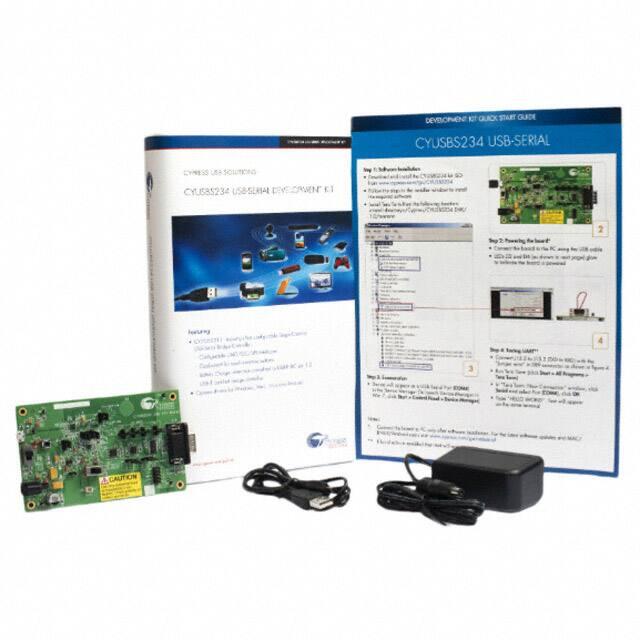
CYUSBS234
USB-Serial Development Kit Guide
Doc. # 001-86632 Rev. **
Cypress Semiconductor
198 Champion Court
San Jose, CA 95134-1709
Phone (USA): 800.858.1810
Phone (Intnl): +1.408.943.2600
http://www.cypress.com
�Copyrights
© Cypress Semiconductor Corporation, 2013. The information contained herein is subject to change without notice. Cypress
Semiconductor Corporation assumes no responsibility for the use of any circuitry other than circuitry embodied in a Cypress
product. Nor does it convey or imply any license under patent or other rights. Cypress products are not warranted nor
intended to be used for medical, life support, life saving, critical control or safety applications, unless pursuant to an express
written agreement with Cypress. Furthermore, Cypress does not authorize its products for use as critical components in lifesupport systems where a malfunction or failure may reasonably be expected to result in significant injury to the user. The
inclusion of Cypress products in life-support systems application implies that the manufacturer assumes all risk of such use
and in doing so indemnifies Cypress against all charges.
Any Source Code (software and/or firmware) is owned by Cypress Semiconductor Corporation (Cypress) and is protected by
and subject to worldwide patent protection (United States and foreign), United States copyright laws and international treaty
provisions. Cypress hereby grants to licensee a personal, non-exclusive, non-transferable license to copy, use, modify, create
derivative works of, and compile the Cypress Source Code and derivative works for the sole purpose of creating custom software and or firmware in support of licensee product to be used only in conjunction with a Cypress integrated circuit as specified in the applicable agreement. Any reproduction, modification, translation, compilation, or representation of this Source
Code except as specified above is prohibited without the express written permission of Cypress.
Disclaimer: CYPRESS MAKES NO WARRANTY OF ANY KIND, EXPRESS OR IMPLIED, WITH REGARD TO THIS MATERIAL, INCLUDING, BUT NOT LIMITED TO, THE IMPLIED WARRANTIES OF MERCHANTABILITY AND FITNESS FOR A
PARTICULAR PURPOSE. Cypress reserves the right to make changes without further notice to the materials described
herein. Cypress does not assume any liability arising out of the application or use of any product or circuit described herein.
Cypress does not authorize its products for use as critical components in life-support systems where a malfunction or failure
may reasonably be expected to result in significant injury to the user. The inclusion of Cypress’ product in a life-support systems application implies that the manufacturer assumes all risk of such use and in doing so indemnifies Cypress against all
charges.
Use may be limited by and subject to the applicable Cypress software license agreement.
CapSense® is a registered trademark of Cypress Semiconductor Corp. All other trademarks or registered trademarks referenced herein are property of the respective corporations.
Flash Code Protection
Cypress products meet the specifications contained in their particular Cypress PSoC Data Sheets. Cypress believes that its
family of PSoC products is one of the most secure families of its kind on the market today, regardless of how they are used.
There may be methods, unknown to Cypress, that can breach the code protection features. Any of these methods, to our
knowledge, would be dishonest and possibly illegal. Neither Cypress nor any other semiconductor manufacturer can guarantee the security of their code. Code protection does not mean that we are guaranteeing the product as ‘unbreakable’.
Cypress is willing to work with the customer who is concerned about the integrity of their code. Code protection is constantly
evolving. We at Cypress are committed to continuously improving the code protection features of our products.
CYUSBS234 USB-Serial Development Kit Guide, Doc. # 001-86632 Rev. **
2
�Contents
Safety Information
1. Introduction
1.1
1.2
1.3
1.4
1.5
1.6
1.7
15
Default Switch and Jumper Settings ..........................................................................16
USB-Serial Enumeration............................................................................................17
USB-Serial Configuration on Windows OS ................................................................19
3.3.1 Connecting CYUSBS234 DVK to Cypress USB-Serial Configuration Utility..19
3.3.2 USB Configuration .........................................................................................21
3.3.3 UART Configuration .......................................................................................25
3.3.3.1 Test Procedure for CYUSBS234 DVK Configured as UART...........28
3.3.3.2 Throughput Determination ...............................................................30
3.3.4 I2C Configuration ...........................................................................................32
3.3.4.1 Test Procedure for CYUSBS234 DVK Configured as I2C ...............35
3.3.5 SPI Configuration ...........................................................................................38
3.3.5.1 Test Procedure for CYUSBS234 DVK Configured as SPI...............42
3.3.6 CapSense Configuration ................................................................................45
3.3.6.1 Test Procedure for CYUSBS234 DVK Configured for CapSense ...49
3.3.7 Battery Charger Detection (BCD) Configuration ............................................52
3.3.7.1 Test Procedure for CYUSBS234 DVK Configured for BCD.............54
3.3.8 CYUSBS234 DVK Restore Default Configuration Settings............................56
4. Hardware
4.1
4.2
4.3
11
CYUSBS234 DVK Software ......................................................................................11
Install Hardware.........................................................................................................14
Uninstall Software......................................................................................................14
3. Kit Operation
3.1
3.2
3.3
7
Kit Contents .................................................................................................................7
Getting Started.............................................................................................................8
Additional Learning Resources....................................................................................8
Technical Support........................................................................................................8
Document History ........................................................................................................9
Documentation Conventions .......................................................................................9
Abbreviations .............................................................................................................10
2. Software Installation
2.1
2.2
2.3
5
59
Board Details .............................................................................................................59
Theory of Operation...................................................................................................61
Functional Description ...............................................................................................62
4.3.1 Features .........................................................................................................62
4.3.2 Power-Supply System....................................................................................63
4.3.3 LEDs ..............................................................................................................64
CYUSBS234 USB-Serial Development Kit Guide, Doc. # 001-86632 Rev. **
3
�Contents
4.3.4
4.3.5
4.3.6
4.3.7
4.3.8
USB Connector ..............................................................................................65
Serial Communication Block (SCB) ...............................................................66
4.3.5.1 SCB Jumpers...................................................................................66
4.3.5.2 RS-232 Interface..............................................................................67
4.3.5.3 I2C Interface ....................................................................................69
4.3.5.4 SPI Interface ....................................................................................69
4.3.5.5 GPIO Header ...................................................................................70
CapSense Button ...........................................................................................70
Battery Charger Detection..............................................................................71
Reset Switch ..................................................................................................72
5. Additional Information
5.1
A. Appendix
A.1
A.2
A.3
A.4
74
Using USB-Serial on a Mac OS .................................................................................74
5.1.1 Using CYUSBS234 DVK in Communications Device Class (CDC) Mode .....74
5.1.2 Using the CYUSBS234 DVK board in Vendor Mode .....................................75
76
Schematic ..................................................................................................................76
CY7C65211 USB-Serial Design Guidelines ..............................................................81
Troubleshooting Guide .............................................................................................84
Bill of Materials (BoM) ...............................................................................................86
CYUSBS234 USB-Serial Development Kit Guide, Doc. # 001-86632 Rev. **
4
�Safety Information
Regulatory Compliance
The CYUSBS234 USB-Serial Development kit is intended for use as a development platform for hardware or
software in a laboratory environment. The board is an open-system design, which does not include a shielded
enclosure. This kit may cause interference to other electrical or electronic devices in close proximity. In a
domestic environment, this product may cause radio interference. In such cases, take adequate preventive
measures. Also, do not use this board near any medical equipment or RF devices.
Attaching additional wiring to this product or modifying the product operation from the factory default may affect
its performance and cause interference with other apparatus in the immediate vicinity. If such interference is
detected, suitable mitigating measures must be taken.
.
The CYUSBS234 contains electrostatic discharge (ESD) sensitive devices.
Electrostatic charges readily accumulate on the human body and any
equipment, and can discharge without detection. Permanent damage may
occur on devices subjected to high-energy discharges. Cypress recommends
proper ESD precautions to avoid performance degradation or loss of
functionality. Store unused CYUSBS234 boards in the protective shipping
package.
End-of-Life / Product Recycling
This kit has an end-of-life cycle after five years from the year of manufacturing
mentioned on the back of the box. Contact your nearest recycler for discarding
the kit.
CYUSBS234 USB-Serial Development Kit Guide, Doc. # 001-86632 Rev. **
5
�Safety Information
General Safety Instructions
ESD Protection
ESD can damage boards and associated components. Cypress recommends that you perform procedures only
at an ESD workstation. If an ESD workstation is not available, use appropriate ESD protection by wearing an
antistatic wrist strap attached to the chassis ground (any unpainted metal surface) on the board when handling
parts.
Handling Boards
CYUSBS234 boards are sensitive to ESD. Hold the board only by its edges. After removing the board from its
box, place it on a grounded, static-free surface. Use a conductive foam pad if available. Do not slide the board
over any surface.
.
Using Batteries
Use only the recommended rechargeable Li-ion battery. Check the polarity of the
battery connector before connecting to the board.
CYUSBS234 USB-Serial Development Kit Guide, Doc. # 001-86632 Rev. **
6
�1.
Introduction
Thank you for your interest in the CYUSBS234 USB-Serial Development Kit (DVK). This DVK is
designed as an easy-to-use kit, showcasing the unique features of Cypress's CY7C65211 USBSerial bridge controller. This device includes CapSense®, Cypress's leading capacitive touchsensing technology, and the Battery Charger Detection (BCD) feature, which is compliant with the
USB Implementers Forum (USB-IF) Battery Charging Specification. This kit includes EEPROMs to
demonstrate I2C and SPI, an RS-232 line-driver for UART, a CapSense touch button, and a Lithium
ion (Li+) battery charger circuit.
CY7C65211 is the first full-speed USB-Serial bridge controller that offers a single-channel
configurable serial interface (UART/I2C/SPI). The controller also features BCD and capacitive touch
sensing at low suspend-state currents of 5 uA. The controller is offered in a 4x4-mm, 24-pin QFN
package to meet the dimensional requirements of portable devices.
1.1
Kit Contents
The CYUSBS234 kit contains the following items:
■
CYUSBS234 DVK board
■
Quick start guide
■
USB standard-A to micro-B cable
■
Jumper wires
■
Extra jumpers
■
5-V power supply adapter
■
CY7C65211-24LTXI sample silicon chips
CYUSBS234 USB-Serial Development Kit Guide, Doc. # 001-86632 Rev. **
7
�Introduction
Figure 1-1. Kit Contents
Inspect the contents of the kit; if you find any part missing, contact your nearest Cypress sales office
for assistance or go to www.cypress.com/go/support.
1.2
Getting Started
This kit guide helps you get acquainted with the CYUSBS234 DVK. The Software
Installation chapter on page 11 provides step-by-step instructions to install the CYUSBS234 DVK
software. The Kit Operation chapter on page 15 describes how the kit operates, and explains how to
configure the CY7C65211 USB-Serial bridge controller using the Cypress USB-Serial Configuration
Utility. The Hardware chapter on page 59 discusses the kit hardware. The Additional
Information chapter on page 74 explains how to run the CYUSBS234 kit on a Mac OS.
The Appendix chapter on page 76 provides the schematics, layout, bill of materials (BoM),
troubleshooting guidelines, and board layout design guidelines for the CY7C65211 USB-Serial
bridge controller.
1.3
Additional Learning Resources
Visit the USB-Serial web page, www.cypress.com/go/usbserial for additional learning resources in
the form of datasheets and application notes.
1.4
Technical Support
For assistance, go to www.cypress.com/go/support or contact our customer support at +1 (800) 5414736 Ext. 8 (in the USA) or +1 (408) 943-2600 Ext. 8 (International).
CYUSBS234 USB-Serial Development Kit Guide, Doc. # 001-86632 Rev. **
8
�Introduction
1.5
1.6
Document History
Revision
PDF Creation
Date
Origin of
Change
**
09/12/2013
MVTA
Description of Change
Initial version of kit guide.
Documentation Conventions
Table 1-1. Document Conventions for Guides
Convention
Usage
Courier New
Displays file locations, user entered text, and source code:
C:\ ...cd\icc\
Italics
Displays file names and reference documentation:
For example, CYUSBS234 USB DVK.cysusb
[Bracketed, Bold]
Displays keyboard commands in procedures:
[Enter] or [Ctrl] [C]
File > Open
Represents menu paths:
File > Open > New Project
Bold
Displays commands, menu paths, and icon names in procedures:
Click the File icon and then click Open.
Times New Roman
Displays an equation:
2+2=4
Text in gray boxes
Describes cautions or unique functionality of the product.
CYUSBS234 USB-Serial Development Kit Guide, Doc. # 001-86632 Rev. **
9
�Introduction
1.7
Abbreviations
The following table lists the abbreviations used in this kit guide.
Abbreviation
BCD
Definition
battery charger detection
CDC
communications device class
CDP
charging downstream port
CPHA
clock phase
CPOL
clock polarity
CTS
clear to send
DCD
data carrier detect
DCP
dedicated charging port
DSR
data set ready
DTR
data terminal ready
DVK
development kit
ESD
electrostatic discharge
I2C
Inter Integrated Circuit
LDO
low drop-out
PC
personal computer
PID
product ID
RI
ring indicator
RTS
request to send
SCB
serial communication block
SDP
standard downstream port
SPI
serial peripheral interface
SSN
slave select n
UART
universal asynchronous receiver transmitter
USB
universal serial bus
VID
vendor ID
CYUSBS234 USB-Serial Development Kit Guide, Doc. # 001-86632 Rev. **
10
�2.
2.1
Software Installation
CYUSBS234 DVK Software
Follow these steps to install the CYUSBS234 DVK software:
1. Download and install the CYUSBS234 DVK software from www.cypress.com/go/CYUSBS234.
The CYUSBS234 DVK software is available in two different installer formats for download:
a. CYUSBS234 Kit ISO: This file is a complete package, stored in a CD-ROM image format that
can be used to create a CD, or extract using ISO extraction programs, such as WinZip or
WinRAR. This file includes all the required software, utilities, drivers, hardware files, and user
documents.
b. CYUSBS234 Kit Setup: This installation package contains the files related to the kit. It does
not include the Windows installer, Microsoft .NET Framework, and Visual C++ redistributable
packages. If these packages are not on your computer, the installer automatically downloads
and installs them from the Internet.
2. Run cyautorun.exe to start the installation process.
3. Click Install CYUSBS234 DVK to start the installation, as shown in Figure 2-1.
Figure 2-1. Kit Installer Startup Screen
CYUSBS234 USB-Serial Development Kit Guide, Doc. # 001-86632 Rev. **
11
�Software Installation
4. Select the folder to install the CYUSBS234 DVK-related files. Choose the directory and click
Next.
Figure 2-2. Default Path for DVK Installation
5. The CYUSBS234 Kit ISO installer automatically installs the required software, if it is not present
on your computer. The CYUSBS234 Kit Setup installer directs you to download the required software from the Internet.
6. Select the installation type. The drop-down menu has two options: Typical (installs all the
required features) and Custom. Click Next after you select the installation type.
Figure 2-3. Installation Type Options
CYUSBS234 USB-Serial Development Kit Guide, Doc. # 001-86632 Rev. **
12
�Software Installation
7. Read the Cypress License Agreement and make a selection based on the terms of the license
agreement. Click Next to continue the installation.
Figure 2-4. Cypress License Agreement
8. When the installation begins, a list of packages appears on the installation page. A green check
mark appears adjacent to every package after successful installation. If a message from
Windows Security appears, accept the Always trust software from Cypress Semiconductor
option and click Install.
Figure 2-5. Installation Page
CYUSBS234 USB-Serial Development Kit Guide, Doc. # 001-86632 Rev. **
13
�Software Installation
9. Enter your contact information or select the Continue Without Contact Information check box.
Click Finish to complete the CYUSBS234 DVK installation.
Figure 2-6. CYUSBS234 DVK Installation Complete
10.After the installation is complete, the kit contents are available at the following location:
\Cypress\CYUSBS234 DVK\1.0\
2.2
Install Hardware
This kit does not require any additional hardware installation.
2.3
Uninstall Software
You can uninstall the CYUSBS234 DVK software using one of the following methods:
1. Go to Start > All Programs > Cypress > Cypress Update Manager; click the Uninstall button.
2. Go to Start > Control Panel > Programs and Features; select the program CYUSBS234
DVK 1.0 Rev** from the list and click the Uninstall/Change button.
CYUSBS234 USB-Serial Development Kit Guide, Doc. # 001-86632 Rev. **
14
�3.
Kit Operation
The CYUSBS234 kit demonstrates the features of the CY7C65211 USB-Serial bridge controller. The
CYUSBS234 DVK board is designed to work at 5 V. Figure 3-1 shows an image of the board with
references to the onboard components.
Figure 3-1. CYUSBS234 DVK Board
#BUUFSZ
$IBSHFS�*$�6�
*�$
&&130.�6�
3FTFU�4XJUDI�48�
$BQ4FOTF
-&%�%�
$:�$�����
64#�4FSJBM
$BQ4FOTF®
#VUUPO�#�
4$#� 4FSJBM�$PNNVOJDBUPO�#MPDL
$POåHVSBUJPO�+VNQFST
+��
�+��
�+��
�+��
64#�.JDSP�#
$POOFDUPS�+�
1PXFS�4XJUDI
48�
%#��$POOFDUPS
+��
1PXFS�-&%T
%��BOE�%�
34���
-JOF�%SJWFS�6�
%$
1PXFS�+BDL�+�
#BUUFSZ
$POOFDUPS�#)�
41*
&&130.�6�
#BUUFSZ
4XJUDI�48�
CYUSBS234 USB-Serial Development Kit Guide, Doc. # 001-86632 Rev. **
(1*0�)FBEFS�+��
15
�Kit Operation
3.1
Default Switch and Jumper Settings
The switches and jumpers on the CYUSBS234 DVK board are shipped with default settings for the
USB bus-powered mode, serial interface in the UART mode, and CapSense functionality. The board
is powered by the PC or the hub when it is connected by a USB standard-A to micro-B cable.
Figure 3-2 and Table 3-1 provide the default configuration settings for the switches and jumpers.
Figure 3-2. Default Jumper and Switch Settings
J29
J4, J8, J7 J28
J17, J19, J21, J20
SW1
J23
J3 TP10 SW2
J18, J22
Table 3-1. Default Settings
Switch/Jumper
Position/Pins to be
Shorted
SW1
Position 2-3
Power supply selection switch set to bus-powered operation
SW2
Position 2-3
Battery power cut-off
J3
OPEN
VBAT LED
J4
1 and 2
Battery charge enable control pin #0 (BCD0)
J7
1 and 2
Bus detect
J8
1 and 2
Battery charge enable control pin #1 (BCD1)
J17
2 and 4
SCB configured for UART
J18
1 and 2
SCB configured for UART
J19
2 and 4
SCB configured for UART
J20
2 and 4
SCB configured for UART
J21
2 and 4
SCB configured for UART
J22
1 and 2
J23
Open
J28
2 and 3
CapSense watershield feature disabled
J29
1 and 2
VBUS detection
Function
SCB configured for UART
GPIO header
CYUSBS234 USB-Serial Development Kit Guide, Doc. # 001-86632 Rev. **
16
�Kit Operation
3.2
USB-Serial Enumeration
The CYUSBS234 DVK board connects to the PC by a USB standard-A to micro-B cable. The board
enumerates as a composite USB device.
Follow these steps for device enumeration:
1. To power up the board:
a. Self-powered mode - Set SW1 to position 1-2 and connect the 5-V power-supply adapter to
J1 on the board.
b. Bus-powered mode - Set the switch SW1 to position 2-3.
2. Connect the USB standard-A to micro-B cable to the PC and J2 on the board.
3. The PC detects the board and the software driver is automatically bound to the USB device.
Note If the driver installation is unsuccessful, run setup.exe from the following folders with administrative privileges:
\Cypress\CYUSBS234 DVK\1.0\driver\cyusb3
\Cypress\CYUSBS234 DVK\1.0\driver\cyusbserial
For more information, refer to the Cypress USB-Serial Driver Installation Guide at the following location: \Cypress\CYUSBS234 DVK\1.0\documentation\
Figure 3-3. Install Location of cyusb3 Driver
Figure 3-4. Install Location of cyusbserial Driver
Note If a "Welcome to the Found New Hardware Wizard" message appears, select the Yes, this
time only option and click Next to continue the installation.
4. When the software drivers are successfully bound, the board enumeration is complete. The
board appears as a composite device in the device manager of the Windows OS (to launch the
device manager in Windows 7, go to Start > Control Panel > Device Manager), as shown in
Figure 3-5.
■
USB-Serial Adapter under CypressUSBConsoleWindowsDriver
CYUSBS234 USB-Serial Development Kit Guide, Doc. # 001-86632 Rev. **
17
�Kit Operation
■
USB Serial Port (COM#) under Ports (COM & LPT)
■
USB-Serial (Single Channel) Vendor MFG under Universal Serial Bus controllers
Figure 3-5. CYUSBS234 DVK Enumeration as Single UART in Device Manager
CYUSBS234 USB-Serial Development Kit Guide, Doc. # 001-86632 Rev. **
18
�Kit Operation
3.3
USB-Serial Configuration on Windows OS
Using the Cypress USB-Serial Configuration Utility, you can configure the onboard CY7C65211
USB-Serial bridge controller as a USB-UART bridge, a USB-I2C bridge, or a USB-SPI bridge. You
can also use this utility to configure the CY7C65211 device for CapSense and BCD functionality
according to your requirements. The following sections provide detailed descriptions about the
device features and configurations.
By default, the CYUSBS234 DVK board is configured for the USB-UART bridge and CapSense functionality.
3.3.1
Connecting CYUSBS234 DVK to Cypress USB-Serial Configuration Utility
Follow these steps to connect the device using the Cypress USB-Serial Configuration Utility:
1. Connect the USB standard-A to micro-B cable to your PC and the J2 connector on the board.
2. Set switch SW1 to position 2-3 for bus-powered operation.
3. Run the configuration utility from Start > All Programs > Cypress > CYUSBS234 DVK > USB
Serial Configuration Utility.
For a detailed description about the configuration utility, refer to the USB-Serial Configuration Utility User Guide at the following location:
\Cypress\CYUSBS234 DVK\1.0\documentation
4. The following figure shows the startup screen of the Cypress USB-Serial Configuration Utility.
Figure 3-6. Configuration Utility Startup Screen
CYUSBS234 USB-Serial Development Kit Guide, Doc. # 001-86632 Rev. **
19
�Kit Operation
5. Click the Select Target tab. Select the device from the drop-down menu and click Connect.
Figure 3-7. Configuration Utility Select Target Tab
Note The “version” number shown in Figure 3-7 may vary depending upon the latest firmware
version on the USB-Serial bridge controller.
6. A new tab with the connected device's default settings appears, as shown in Figure 3-8. This tab
allows you to modify the device configuration settings, which you can program into the device.
Figure 3-8. Configuration Utility USB Tab
CYUSBS234 USB-Serial Development Kit Guide, Doc. # 001-86632 Rev. **
20
�Kit Operation
3.3.2
USB Configuration
The USB tab shows the current values of the board’s configurable USB and system parameters. Follow these steps to view and modify the parameters for the USB configuration:
1. Follow steps 1 to 6 in the section Connecting CYUSBS234 DVK to Cypress USB-Serial Configuration Utility on page 19 to connect the board to the Cypress USB-Serial Configuration Utility.
2. Click the USB tab.
Figure 3-9. Configuration Utility USB Tab
3. You can configure the following USB parameters using the Cypress USB-Serial Configuration
Utility:
a. Vendor ID (VID)
b. Product ID (PID)
c. Power Mode (bus-powered or self-powered)
d. bMaxPower
e. Remote wake-up and Suspend
f. Manufacturer string
g. Product string
h. Serial number
■
Vendor ID (VID) and Product ID (PID)
Default value: 0x04B4 and 0x0002
A 2-byte vendor ID and product ID must be set in hexadecimal format. The VID and PID options
cannot be zero or empty. The Cypress VID/PID is programmed by default. To change this,
uncheck the Use Cypress VID/PID option. Enter the VID and press the [Tab] or [Enter] key to
enable and enter the PID.
CYUSBS234 USB-Serial Development Kit Guide, Doc. # 001-86632 Rev. **
21
�Kit Operation
■
Power Mode
Default value: Bus powered
The USB power mode can be set to either self-powered or bus-powered mode.
■
bMaXPower
Default Value: 100 mA
The USB device current requirement value can be set in the range 1 to 500 mA in steps of 2 mA
units in bus-powered mode and 0 mA to 500 mA in steps of 2 mA units in self-powered mode.
■
Remote Wake-up and Suspend
Default value for Remote wake-up: Enabled
Default value for Suspend: Enabled
Default value for Power Enable: Not enabled (for this board)
Click the Configure button (next to Remote Wake-up and Suspend in the USB tab) to enable or
disable Remote wake-up and Suspend.
Figure 3-10. Configure Remote Wake-up and Suspend Window
Configurable options:
❐
Remote wake-up: When enabled, this option can be used to wake up the USB host from suspend state remotely from the attached device. By checking the Invert Polarity box, polarity of
the wake-up pin can be inverted. J23.6 (GPIO header) on this board is a wake-up pin. To test
the Remote wake-up functionality, follow this procedure:
a. Connect the Remote wake-up pin (J23.6) to GND (J23.10) using the provided jumper wire.
b. Connect the CYUSBS234 DVK board to a PC using USB standard A to micro-B cable.
c. Set the PC into sleep mode. When the PC enters sleep mode, the USB host on the PC side
suspends the connected CYUSBS234 DVK board.
d. By default, the Remote wake-up pin is active high. Disconnect the Remote wake-up pin
(J23.6) from GND (J23.10) and touch TP10 (V3P3), as shown in Figure 3-2. If the Invert
Polarity option is selected, then connect the pin to GND to wake up the USB host from the
Suspend state.
❐
Suspend: By checking this box, the Suspend option is enabled. When the USB bus enters the
Suspend state, the suspend pin is asserted. By checking the Invert Polarity box, polarity of
the Suspend pin can be inverted. J23.4 (GPIO header) on this board is a suspend pin.
❐
Power enable: The Power enable function is enabled by assigning a GPIO from the dropdown menu. When the USB-Serial bridge is configured by the host, this GPIO is asserted. In
bus-powered embedded systems, to meet the USB 2.0 Specification requirements during
Unconfigured and Suspend states, this pin can be used as a notification to control the power
to the system. Refer to the Configuration Utility User Guide for more details about these
options.
CYUSBS234 USB-Serial Development Kit Guide, Doc. # 001-86632 Rev. **
22
�Kit Operation
Test Procedure for Suspend and Power Enable Pin.
a. Connect the CYUSBS234 DVK board to a PC using USB standard A to micro-B cable.
b. Set the PC into sleep mode.
c. Check the Suspend pin (J23.4) and Power Enable pin (selected GPIO which comes on external header J23) using a digital multimeter or digital storage oscilloscope. The Suspend pin
goes low and Power enable pin goes high during sleep mode. (By default, the invert polarity is
disabled. If the invert polarity is enabled, the Suspend pin goes high during sleep mode.)
d. Wake up the PC using the Remote wake-up feature described in page 22, or using any other
device such as a mouse or keyboard connected to the PC. When the PC becomes active, the
Suspend pin goes high and power enable pin goes low.
■
Manufacturer string
Default value: Cypress Semiconductor
The Manufacturer string can be a value of up to 32 characters.
■
Product string
Default value: USB-Serial (Single Channel)
The Product string can be a value of up to 32 characters.
■
Serial number string
Default value: NULL (No serial number)
Select the check box to enter the serial number, which can be a value of up to 32 characters. If
you do not require the serial number, deselect the check box.
System
The Configurable options are:
a. VBUS voltage is 3.3 V
b. VDDD voltage is less than 2 V
c. Enable manufacturing interface
d. I/O Level
e. I/O Mode
f. Program button
g. Disconnect button
■
VBUS voltage is 3.3 V
Default value: Unchecked
This option must be checked if the VBUS pin is supplied with 3.3 V, and unchecked if the VBUS
pin is supplied with 5 V. The board is designed only for 5-V VBUS operation. This option must
always be unchecked for the board. The CY7C65211 device supports VBUS voltage range from
3.15 V to 5.25 V.
■
VDDD voltage is less than 2 V
Default value: Unchecked
The board is designed only for 5-V operation. This option must always be unchecked for the
board. The CY7C65211 device supports VDDD voltage range from 1.71 V to 5.5 V.
■
Enable manufacturing interface
Default value: Checked
This option enables an additional vendor class manufacturing mode interface for reprogramming
the device. For more information, refer to the Enable Manufacturing Interface section in the
Cypress USB-Serial Configuration Utility User Guide.
CYUSBS234 USB-Serial Development Kit Guide, Doc. # 001-86632 Rev. **
23
�Kit Operation
■
I/O level
Default value: CMOS
You can set the device's GPIO logic levels to either CMOS or LVTTL.
■
I/O Mode
Default value: Fast
You can set the device's GPIO edge transitions to either fast or slow for EMI considerations. For
more information, refer to the GPIO AC Specifications table in the datasheet.
■
Program button
After configuring all the device settings, the updated configuration settings must be programmed
to the device. To program the device, click the Program button.
■
Disconnect button
Click this button to disconnect the DVK from the configuration utility.
4. After configuring the USB and system parameters, click the Program button to save the changed
USB parameters. On successful programming, the “Program Succeeded” message appears.
Click OK to continue.
5. Click the Disconnect button to disconnect the board from the configuration utility.
6. Press the reset switch SW3 on the board. The controller is reinitialized with the new parameters
and the board re-enumerates, as shown in Figure 3-5 on page 18.
CYUSBS234 USB-Serial Development Kit Guide, Doc. # 001-86632 Rev. **
24
�Kit Operation
3.3.3
UART Configuration
The CYUSBS234 DVK board is configured for the UART interface by default. The board can act as a
USB-UART bridge to transfer and receive data between the device and the PC via terminal communication software, such as Hyperterminal or Tera Term.
Follow these steps to view and modify the parameters for the UART configuration:
1. Follow steps 1 to 6 of the section Connecting CYUSBS234 DVK to Cypress USB-Serial Configuration Utility on page 19 to connect the board to the Cypress USB-Serial Configuration Utility.
2. Click the SCB tab. Select UART as the SCB mode from the drop-down menu.
Figure 3-11. Configuration Utility SCB Configuration Tab
3. Click the Configure button, as shown in Figure 3-11, to configure the UART parameters.
Figure 3-12. UART Configuration parameters
CYUSBS234 USB-Serial Development Kit Guide, Doc. # 001-86632 Rev. **
25
�Kit Operation
You can configure the following UART parameters by using the Cypress USB-Serial Configuration
Utility:
a. Baud Rate
b. Type
c. Data Width
d. Stop Bits
e. Parity
f. Drop packets on RX error
g. Disable CTS and DSR pull-up during suspend
■
Baud Rate
Default value: 115200
You can set the baud rate for the UART in an editable drop-down combo box that lists the predefined, standard baud rates. You can also enter a specific baud rate in the combo box. The minimum and maximum baud rates supported by this board are 300 bps and 1 Mbps, respectively.
The CY7C65211 device supports 3 Mbps, but the board limits the baud rate to 1 Mbps, due to the
limitation of the RS-232 line driver (U5).
■
Type
Default value: 6 pin
You can set the UART type to:
a. 2 pin (RXD and TXD pins)
b. 4 pin (RXD, TXD, RTS, and CTS pins)
c. 6 pin (RXD, TXD, RTS, CTS, DSR, and DTR pins)
■
Data Width
Default value: 8 bits
You can set the UART data width to either 7 bits or 8 bits.
■
Stop Bits
Default value: 1 bit
You can set the number of UART stop bits to either 1 bit or 2 bits.
■
Parity
Default value: None
You can set the parity for the UART data transfer to either None, Odd, Even, Mark, or Space.
■
Drop packets on RX errors
Default value: Unchecked
This parameter defines the behavior of the UART when an error is detected in the packet
received (RX packet/byte). When this option is selected, the data packet/byte in the RX buffer is
discarded.
■
Disable CTS and DSR pull-up during suspend
Default value: Checked
In an embedded system, this parameter can be checked to reduce system current consumption
during Suspend state. This parameter disables CTS and DSR pull-up resistors in Suspend state
to meet USB 2.0 Specification current requirements.
4. Click OK to close the Configure UART Settings window and return to the SCB tab.
5. Select CDC as the protocol in the drop-down menu.
CYUSBS234 USB-Serial Development Kit Guide, Doc. # 001-86632 Rev. **
26
�Kit Operation
6. Notification LEDs are set to None, by default. The notification LED pins are brought out on the
external GPIO header J23. You can configure any GPIO as a notification LED by clicking the
Configure button next to “Notification LED” in the SCB tab and connect an external LED to the
assigned GPIO pin on the GPIO header J23.
7. After configuring the UART interface, click the Program button to save the changed SCB settings
onto the controller. On successful programming, the “Program Succeeded” message appears.
Click OK to continue.
8. Click the Disconnect button to disconnect the board from the configuration utility.
9. Press the reset switch SW3 on the board. The controller is reinitialized with the new parameters
and the board re-enumerates, as shown in Figure 3-13.
Figure 3-13. CYUSBS234 DVK Board Enumeration as USB-UART Controller in Device Manager
10.The Cypress USB-Serial Configuration Utility is displayed, as shown in Figure 3-7 on page 20.
CYUSBS234 USB-Serial Development Kit Guide, Doc. # 001-86632 Rev. **
27
�Kit Operation
3.3.3.1
Test Procedure for CYUSBS234 DVK Configured as UART
1. To test the functionality of the UART interface, set up the jumpers as listed in Table 3-3 and
shown in Figure 3-14 and Figure 3-15.
Table 3-2. Jumper Settings
Jumper
Pins to be Shorted
J17
2 and 4
SCB_2 (Pin#21) configured for UART RTS
Function
J18
1 and 2
SCB_0 (Pin#1) configured for UART RXD
J19
2 and 4
SCB_1 (Pin#20) configured for UART DSR
J20
2 and 4
SCB_3 (Pin#22) configured for UART CTS
J21
2 and 4
SCB_4 (Pin#23) configured for UART TXD
J22
1 and 2
SCB_5 (Pin#2) configured for UART DTR
J29
1 and 2
VBUS selection
Figure 3-14. SCB UART Jumpers
1
SPI
5
3
Pin #21
(SCB_2)
GPIO
HEADER
U
S
B
S
E
R
I
A
L
1
2
4
UART
J17
UART
J18
I2C
3
Pin #1
(SCB_0)
1
2
Pin #20
(SCB_1)
3
B
R
I
D
G
E
1
SPI
C
O
N
T
R
O
L
L
E
R
2
GPIO
HEADER
5
2
3
Pin #22
(SCB_3)
1
2
Pin #23
(SCB_4)
GPIO
HEADER
3
1
2
GPIO
HEADER
4
UART
J19
SPI
GPIO
HEADER
4
UART
J20
I2C
GPIO
HEADER
4
UART
J21
UART
J22
SPI
3
Pin #2
(SCB_5)
CYUSBS234 USB-Serial Development Kit Guide, Doc. # 001-86632 Rev. **
28
�Kit Operation
Figure 3-15. VBUS Selection Jumper
2. To check the functionality of the UART, you can perform a quick loopback test by interconnecting
the DB9 connector pins with the jumper wires as follows:
❐
J15.3-J15.2 (TXD of SCB to RXD of SCB)
❐
J15.4-J15.6 (DTR of SCB to DSR of SCB)
❐
J15.7-J15.8 (RTS of SCB to CTS of SCB)
Figure 3-16. Connection for Loopback Test
3. Open an instance of the serial emulation terminal, such as Tera Term, which you can install from
the following location:
/Cypress/CYUSBS234 DVK/1.0/teraterm
CYUSBS234 USB-Serial Development Kit Guide, Doc. # 001-86632 Rev. **
29
�Kit Operation
4. In the Tera Term: New Connection window, click Serial and select USB Serial Port (COM#), as
shown in Figure 3-17. Click OK.
Note To change the UART parameters, go to Setup > Serial Port in the Tera Term terminal.
Figure 3-17. Tera Term Connection
5. Connecting TXD to RXD enables the data to flow from the UART transmitter to the receiver,
which is displayed on the same terminal, as shown in Figure 3-18. This test procedure validates
the functioning of the USB-UART bridge. If the local echo option is enabled, then the entered
data appears twice on the terminal.
Note To enable the local echo option, go to Setup > Terminal. In the “Tera Term: Terminal Setup"
window; check the Local echo box.
Figure 3-18. Tera Term Application: Loopback Test Output
Note This screenshot is captured without enabling Local echo.
3.3.3.2
Throughput Determination
Throughput is the average rate of successful data transfer over the UART channel. It is measured in
bits/second. A PC application can be used to determine the throughput of an USB-Serial bridge controller. The CY7C65211 device supports 3 Mbps, but the actual reported throughput on a PC applica-
CYUSBS234 USB-Serial Development Kit Guide, Doc. # 001-86632 Rev. **
30
�Kit Operation
tion (Tera Term) will be less than 1 Mbps, due to RS-232 line driver limitation, protocol overhead, and
PC application latency.
Follow these steps to determine the throughput of the USB-Serial bridge controller:
1. In the Tera Term window, go to Setup > Serial Port:
a. Enter ‘1000000’ in the Baud rate drop-down combo box.
b. Select Hardware in the Flow control drop-down menu.
c. Click OK
2. Go to Setup > Terminal > Receive and select CR+LF. Click OK to continue.
3. Go to File menu. Select Send File from the drop-down menu, as shown in Figure 3-19.
Figure 3-19. Sending the File
4. Select a file to be sent through USB Serial Port (COM#). After the file is selected, the data transfer starts and the window is displayed, as shown in Figure 3-20.
5. Number of bytes transferred per second determines throughput. The "Tera Term :Send File" window shows effective data throughput in Bytes/sec; multiply this value by 8 to get the throughput in
bits/sec. Again, multiply this value by 2 to get the unidirectional throughput.
Figure 3-20. Throughput Determination
CYUSBS234 USB-Serial Development Kit Guide, Doc. # 001-86632 Rev. **
31
�Kit Operation
3.3.4
I2C Configuration
You can configure the CYUSBS234 DVK board for the I2C serial interface to function as a USB-I2C
bridge. The onboard I2C EEPROM (operating in I2C slave mode) can be connected to the USBSerial bridge controller, CY7C65211, to read and write data. The USB-Serial Test Utility can be used
to read, write, and verify the contents of EEPROM from the PC. The Test Utility software is available
as part of the CYUSBS234 kit installer.
Follow these steps to view and modify the parameters for the I2C configuration:
1. Follow steps 1 to 6 in the section Connecting CYUSBS234 DVK to Cypress USB-Serial Configuration Utility on page 19 to connect the board to the Cypress USB-Serial Configuration Utility.
2. Click the SCB tab. Select I2C as the SCB mode from the drop-down menu.
Figure 3-21. SCB Configuration Tab
3. Click the Configure button, as shown in Figure 3-21, to configure the I2C settings.
Figure 3-22. I2C Configuration Settings
CYUSBS234 USB-Serial Development Kit Guide, Doc. # 001-86632 Rev. **
32
�Kit Operation
You can configure the following I2C parameters by using the Cypress USB-Serial Configuration
Utility:
a. Frequency
b. Mode
c. Use as wake-up source (Slave mode only)
d. Slave Address (Slave mode only)
e. Enable clock stretching (Slave mode only)
■
Frequency
Default value: 100 kHz
You can set the operating frequency of the I2C master/slave from 1 kHz to 400 kHz in the dropdown menu.
■
Mode
Default value: Master
You can configure the I2C mode to either a master or a slave. To support the slave mode, contact
Cypress Technical Support.
■
Slave Address
Default value: 2
This option is available only in the I2C slave mode. The I2C slave address can be from 2 to 126
(in decimal) in increments of 2.
■
Enable clock stretching
Default value: Unchecked
This option is available only in I2C slave mode. You can use this option when there is a mismatch
between the master and the slave clock frequency. Both master and slave can operate at the
same frequency by enabling clock stretching.
■
Use as wake-up source
Default value: Disabled
This option is available only in I2C slave mode. USB-Serial bridge controller as I2C slave can be
used as remote wake-up source to wake-up the USB host.
4. Click OK to close the Configure I2C Settings window and return to the SCB tab.
5. Select Vendor as the protocol in the drop-down menu.
6. Notification LEDs are set to None, by default for this board. The notification LED pins are brought
out on the external GPIO header J23. You can configure any GPIO as a notification LED by clicking the Configure button next to "Notification LED" in the SCB tab and connect an external LED
to the assigned GPIO pin on the GPIO header J23.
7. After configuring the I2C interface, click the Program button to save the changed SCB settings.
On successful programming, the "Program Succeeded" message appears. Click OK to continue.
8. Click the Disconnect button to disconnect the board from the configuration utility.
9. Press the reset switch SW3 on the board. The controller is reinitialized with the new parameters
and the board re-enumerates, as shown in Figure 3-23.
CYUSBS234 USB-Serial Development Kit Guide, Doc. # 001-86632 Rev. **
33
�Kit Operation
Figure 3-23. CYUSBS234 DVK Enumeration as USB-Serial Bridge Controller in Device Manager
10.The Cypress USB-Serial Configuration Utility is displayed, as shown in Figure 3-7 on page 20.
CYUSBS234 USB-Serial Development Kit Guide, Doc. # 001-86632 Rev. **
34
�Kit Operation
3.3.4.1
Test Procedure for CYUSBS234 DVK Configured as I2C
1. To test the functionality of the I2C interface, set up the jumpers as listed in Table 3-3 and shown
in Figure 3-24 and Figure 3-25.
Table 3-3. Jumper Settings
Jumper
Pins to be Shorted
J17
2 and 3
SCB_2 (Pin#21) configured for I2C SCL
Function
J20
2 and 3
SCB_3 (Pin#22) configured for I2C SDA
J29
1 and 2
VBUS selection
Figure 3-24. SCB I2C Jumpers
Figure 3-25. VBUS Selection
CYUSBS234 USB-Serial Development Kit Guide, Doc. # 001-86632 Rev. **
35
�Kit Operation
2. Run the USB Serial Test Utility from Start > All Programs > Cypress > CYUSBS234 DVK >
USBSerialTestUtility.
3. To use the default Cypress PID, change the Product ID to 0004.
Note The user has the option to enter custom Vendor ID and Product ID.
Figure 3-26. Test Utility (VID and PID Selection)
4. The test utility lists the interfaces available on the board for the I2C interface. Click OK.
Figure 3-27. Test Utility (change of PID)
CYUSBS234 USB-Serial Development Kit Guide, Doc. # 001-86632 Rev. **
36
�Kit Operation
5. Enter an EEPROM page address within the range specified in the text box (0x0 to 0xFF) and
click the Write data button. The status bar at the bottom of window displays the status of the
data.
Figure 3-28. Test Utility Data Transfer
6. Click the Read & verify data button. When the written and read back data are the same, the
“Data verification successful” message appears.
Figure 3-29. Test Utility Data Transfer Verification
CYUSBS234 USB-Serial Development Kit Guide, Doc. # 001-86632 Rev. **
37
�Kit Operation
7. Click OK. The "Data verification successful" message appears at the bottom of the window.
Figure 3-30. Test Utility Successful Data Transfer Verification
3.3.5
SPI Configuration
You can configure the CYUSBS234 DVK board for the SPI serial interface to function as a USB-SPI
bridge. The onboard SPI EEPROM (operating in the SPI slave mode) can be connected to the
CY7C65211 USB-Serial bridge controller, to read and write data. The USB-Serial Test Utility provided can be used to read, write and verify data from the PC. The Test Utility software is available as
part of the CYUSBS234 kit installer.
Follow these steps to view and modify the parameters for the SPI configuration:
1. Follow steps 1 to 6 in the section Connecting CYUSBS234 DVK to Cypress USB-Serial Configuration Utility on page 19 to connect the board to the Cypress USB-Serial Configuration Utility.
CYUSBS234 USB-Serial Development Kit Guide, Doc. # 001-86632 Rev. **
38
�Kit Operation
2. Click the SCB tab. Select SPI as the SCB mode from the drop-down menu.
Figure 3-31. Configuration Utility SCB Configuration Tab
3. Click the Configure button, as shown in Figure 3-31, to configure the SPI settings.
Figure 3-32. SPI Configuration Settings
You can configure the following SPI parameters by using the Cypress USB-Serial Configuration
Utility:
a. Frequency
b. Data width
c. SPI mode
d. Use as wake-up source (slave mode only)
e. Protocol
f. Enable select precede (TI Protocol only)
CYUSBS234 USB-Serial Development Kit Guide, Doc. # 001-86632 Rev. **
39
�Kit Operation
g. CPHA and CPOL mode (Motorola Protocol only)
h. SSN Toggle mode (Motorola Protocol only)
i. Bit order
■
Frequency
Default Value: 1 MHz
You can set the SPI operating frequency from 1 kHz to 3 MHz with increments of 1 Hz.
■
Data width
Default Value: 8 bits
You can set the SPI data width from 4 bits to 16 bits in the drop-down menu.
■
SPI mode
Default value: Master
You can configure the SPI mode to either a master or a slave. To support the slave mode, contact
Cypress Technical Support.
■
Use as Wake-up source
Default value: Disabled
This parameter is applicable only when the SPI mode is set to Slave.
■
Protocol
Default value: Motorola
You can select one of the three SPI protocols:
■
❐
Motorola
❐
Texas Instruments
❐
National Semiconductors
Enable Select Precede
Default status: Disabled
This parameter is applicable only when the SPI protocol is set to TI.
■
CPHA and CPOL mode
Default Value: Both Low
The CPHA (Clock Phase) and CPOL (Clock Polarity) parameters are available only when the SPI
protocol is set to Motorola.
You can set the CPOL and CPHA values to either Low or High from the drop-down menu.
■
SSN Toggle mode
Default value: Continuous
This option is available only when the Protocol is set to Motorola.
You can set the SSN (Slave Select n) toggle mode to either Frame or Continuous. SPI EEPROM
on the board supports only “Continuous” SSN Toggle mode.
■
Bit Order
Default value: MSB first
You can set the bit order to either MSB first or LSB first.
Note Refer to the SPI Mode section in the Cypress USB-Serial Configuration Utility User Guide
for more information.
4. Click OK to close the Configure SPI Settings window and return to the SCB tab.
5. Select Vendor as the protocol in the drop-down menu.
CYUSBS234 USB-Serial Development Kit Guide, Doc. # 001-86632 Rev. **
40
�Kit Operation
6. Notification LEDs are set to None, by default for this board. The notification LED pins are brought
out on the external GPIO header J23. You can configure any GPIO as a notification LED by
clicking the Configure button next to "Notification LED" in the SCB tab and connect an external
LED to the assigned GPIO pin on the GPIO header J23.
7. After configuring the SPI interface, click the Program button to save the changed SCB settings.
On successful programming, the "Program Succeeded" message appears. Click OK to continue.
8. Click the Disconnect button to disconnect the board from the configuration utility.
9. Press the reset switch SW3 on the board. The controller is reinitialized with the new parameters
and the board re-enumerates, as shown in Figure 3-33.
Figure 3-33. CYUSBS234 DVK Enumerates as USB-Serial Bridge Controller in Device Manager
10.The Cypress USB-Serial Configuration Utility is displayed, as shown in Figure 3-7.
CYUSBS234 USB-Serial Development Kit Guide, Doc. # 001-86632 Rev. **
41
�Kit Operation
3.3.5.1
Test Procedure for CYUSBS234 DVK Configured as SPI
1. To test the functionality of the SPI interface, set up the jumpers as listed in Table 3-4 and shown
in Figure 3-34 and Figure 3-35.
Table 3-4. Jumper Settings
S.No
Jumper
Pins to be Shorted
1
J17
2 and 5
SCB_2 (Pin#21) configured for SPI MISO
Function
2
J19
2 and 3
SCB_1 (Pin#20) configured for SPI SSEL
3
J20
2 and 5
SCB_3 (Pin#22) configured for SPI MOSI
4
J21
2 and 3
SCB_4 (Pin#23) configured for SPI SCLK
5
J29
1 and 2
VBUS selection
Figure 3-34. SCB SPI Jumpers
Figure 3-35. VBUS Selection
2. Run the USB Serial Test Utility from Start > All Programs > Cypress > CYUSBS234 DVK >
USBSerialTestUtility.
3. To use the default Cypress PID, change the Product ID to 0004.
CYUSBS234 USB-Serial Development Kit Guide, Doc. # 001-86632 Rev. **
42
�Kit Operation
Note The user has the option to enter custom Vendor ID and Product ID.
Figure 3-36. Test Utility (VID and PID Selection)
4. The test utility lists the interfaces available on the board for the SPI interface. Click OK.
Figure 3-37. Test Utility (PID Change)
CYUSBS234 USB-Serial Development Kit Guide, Doc. # 001-86632 Rev. **
43
�Kit Operation
5. Enter an EEPROM Page address within the range specified in the text box (0x0 to 0x3FF) and
click the Write data button. The status bar at the bottom of window displays the status of the
write data operation.
Figure 3-38. Test Utility Data Transfer
6. Click the Read & verify data button. When the data that is written and read back are identical, a
data verification successful message appears.
Figure 3-39. Test Utility Data Transfer Verification
CYUSBS234 USB-Serial Development Kit Guide, Doc. # 001-86632 Rev. **
44
�Kit Operation
7. Click OK. The “Data Verification successful” message appears at the bottom of the window.
Figure 3-40. Test Utility Successful Data Transfer
3.3.6
CapSense Configuration
The CY7C65211 USB-Serial bridge controller supports the configurable CapSense functionality, providing best-in-class signal-to-noise ratio (SNR) and water tolerance. This device supports
SmartSense™ Auto-Tuning of the CapSense parameters and does not require manual tuning.
SmartSense Auto-tuning compensates for printed circuit board (PCB) variations and device process
variations. The CYUSBS234 DVK board has one CapSense button to evaluate the CapSense functionality.
Follow these steps to view and modify the parameters for the CapSense configuration:
1. Follow steps 1 to 6 in the section Connecting CYUSBS234 DVK to Cypress USB-Serial Configuration Utility on page 19 to connect the board to the Cypress USB-Serial Configuration Utility.
2. Click the CapSense®/BCD/GPIO tab. Click the Configure button next to Enable/Disable
CapSense®.
CYUSBS234 USB-Serial Development Kit Guide, Doc. # 001-86632 Rev. **
45
�Kit Operation
Figure 3-41. CapSense/BCD/GPIO Configuration Tab
3. To enable the CapSense functionality, check the Enable CapSense option. Set Buttons Needed
to 1, because this board supports one CapSense button denoted as B1 that is assigned to GPIO
11. Assign this GPIO to Input Sense GPIO from the drop-down menu adjacent to Button 1, as
shown in Figure 3-42.
Figure 3-42. CapSense Configuration Editor
CYUSBS234 USB-Serial Development Kit Guide, Doc. # 001-86632 Rev. **
46
�Kit Operation
You can configure the following CapSense parameters by using the Cypress USB-Serial
Configuration Utility:
a. Enable CapSense
b. Use as wake-up source
c. Debounce
d. Scan Rate
e. Water Shield
f. Output activity LED
g. Buttons needed
h. Input Sense GPIO
i. Activity LED GPIO
j. Sensitivity
k. Select encoded output GPIO
l. Auto Assign (Not applicable to this board)
■
Enable CapSense
Check this box to enable the CapSense block in the device.
■
Use as wake-up source
Check this box to wake up the USB-Serial bridge controller from low-power mode when the
CapSense button is touched.
■
Debounce
Default Value: 1
Debounce value defines the number of scan cycles (scan rate x number of buttons) a button
press needs to be detected by the device before a button press status is reported. For example, if
the debounce value is set to two, the device reports a button press status only when it detects the
button press for two continuous scan cycles. Debounce ensures that high-frequency high-amplitude noise does not cause false detection of a pressed button. The debounce value can be set to
any value between 1 and 5. By default, the debounce value is set to 1.
■
Scan rate
Default value: 1 ms
Scan rate is the delay (in ms) between two button scans. For example, if the device has three
CapSense buttons and scan rate set to 2 ms, each button will be scanned once every 6 ms. Scan
rate can be set to any value between 1 ms and 5 ms. By default, the scan rate is set to 1 ms.
■
Water shield
Default value: Disabled
You can enable the waterproofing feature by selecting any GPIO from the drop-down menu.
When this feature is enabled, water droplets on the CapSense button will not be considered as
finger touch. The waterproofing design uses a concept called “shield”, which is a conductor
placed around the sensors and is connected to a designated shield pin on the device. The shield
must be connected to ground by setting jumper J28 to position 2-3 when not used. In the
CYUSBS234 board, GPIO 01 is used for water shield operation and the recommended value of
sensitivity is 0.2 pF for waterproofing operation. Set the jumper J28 to position 1-2 and press the
reset switch SW3 on the board to test the waterproofing operation.
■
Output activity LED
Default value: None
CYUSBS234 USB-Serial Development Kit Guide, Doc. # 001-86632 Rev. **
47
�Kit Operation
The output activity LED is an indicator for CapSense button touch. You can configure the LED for
no indication by setting it to None; one LED for every button by setting it to Individual; or a common LED for more than one CapSense button.
■
Buttons Needed
Default value: 1
This option defines the number of buttons required for a CapSense operation. This device supports five buttons but the board supports one CapSense button.
■
Input Sense GPIO
This option assigns the GPIO to a CapSense button. On this board, the CapSense button is
assigned to GPIO 11 for button B1.
■
Activity LED GPIO
Default value: None
This option assigns the GPIO used for the LED indication of the CapSense function. The LED will
glow when the assigned CapSense button is touched. On this board, the LED is assigned to
GPIO 10.
■
Sensitivity
Default value: 0.2 pF
This option selects the sensitivity of the CapSense button to detect finger touch. You can set the
sensitivity to a value between 0.1 pF to 0.4 pF in increments of 0.1 pF. The recommended value
for this board is 0.2 pF.
■
Select encoded output GPIO
This option selects the GPIOs that generate a binary-encoded output for an assigned CapSense
button. On this board, the encoded output is assigned to GPIO 10 for B1.
■
Auto assign
This option automatically assigns the GPIOs from the available free pool of GPIOs.
4. Click OK to close the Configure CapSense® window and return to the CapSense®/BCD/GPIO
tab.
5. After configuring CapSense, click the Program button to save the changed CapSense settings.
On successful programming, the "Program Succeeded" message appears. Click OK to continue.
6. Click the Disconnect button to disconnect the board from the configuration utility.
7. Press the reset switch SW3 on the board. The controller is reinitialized with the new parameters
and the board re-enumerates, as shown in Figure 3-43.
Figure 3-43. USB-Serial Bridge Controller Enumeration in Device Manager
8. The Cypress USB-Serial Configuration Utility is displayed, as shown in Figure 3-7.
CYUSBS234 USB-Serial Development Kit Guide, Doc. # 001-86632 Rev. **
48
�Kit Operation
3.3.6.1
Test Procedure for CYUSBS234 DVK Configured for CapSense
1. To test the functionality of the CapSense, set up the jumper as listed in Table 3-5 and shown in
Figure 3-44 and Figure 3-45.
Table 3-5. Jumper Settings
Jumper
J28
J29
Pins to be shorted
2 and 3
1 and 2
Function
Waterproofing disabled—Shield is connected to GND
VBUS Selection
Figure 3-44. CapSense Jumper
Figure 3-45. VBUS Selection
2. On the board, press the CapSense button B1. The LED D7 glows.
3. To validate CapSense using the Cypress USB-Serial Configuration Utility, follow these steps:
❐
Click the Launch button next to Validate CapSense®.
CYUSBS234 USB-Serial Development Kit Guide, Doc. # 001-86632 Rev. **
49
�Kit Operation
Figure 3-46. CapSense Validation
❐
Select the Button Specific Validation view from the drop-down menu and click the Load
view button.
Figure 3-47. CapSense Button-specific Validation
❐
Select 1 for button B1 from the drop-down menu against the select button. Select the RAW
count vs Baseline graph from the drop-down menu. For more information about the options
in this window, refer to the Configuration Utility User Guide.pdf.
❐
The CapSense validation window displays a blue line, which indicates the raw counts without
finger touch called the “baseline”. During this event, the button status is OFF.
CYUSBS234 USB-Serial Development Kit Guide, Doc. # 001-86632 Rev. **
50
�Kit Operation
Figure 3-48. Raw Counts Without Finger Touch
❐
Touch button B1 with a finger. The CapSense validation window displays a red line, which
indicates the raw Counts. During this event, the button status is ON.
Figure 3-49. CapSense Finger Touch Output
CYUSBS234 USB-Serial Development Kit Guide, Doc. # 001-86632 Rev. **
51
�Kit Operation
3.3.7
Battery Charger Detection (BCD) Configuration
The battery charger detection logic in the CY7C65211 device will detect the source of power on the
USB port and provides indication over the BCD0 and BCD1 GPIOs.
Follow these steps to view and modify the parameters for BCD configuration:
1. Follow steps 1 to 6 in the section Connecting CYUSBS234 DVK to Cypress USB-Serial Configuration Utility on page 19 to connect the board to the Cypress USB-Serial Configuration Utility.
2. Click the CapSense®/BCD/GPIO tab. Click the Configure button next to Battery Charge Detect
(BCD) to launch the Configure BCD window.
Figure 3-50. CapSense/BCD/GPIO Configuration Tab
CYUSBS234 USB-Serial Development Kit Guide, Doc. # 001-86632 Rev. **
52
�Kit Operation
3. To enable the BCD functionality, check the Enable BCD option. On this board, BCD1 GPIO 10 is
shared by both CapSense and BCD. Disable the CapSense feature (see CapSense Configuration on page 45 for details), if it is already enabled to test the BCD feature of the controller. Assign
GPIO 09, GPIO 10, and GPIO 08 to BCD0, BCD1, and Bus Detect pins for this board, using the
drop-down menu shown in Figure 3-51.
Figure 3-51. BCD Configuration Settings
Note The dead/no battery condition is not supported by the CY7C65211 USB-Serial bridge controller.
Configuring the BCD1 and BCD0 drive mode to High in the BCD mode is not a valid condition for
this board. If this condition is enabled, the battery charger IC enters into the Suspend mode.
You can configure the following BCD parameters by using the Cypress USB-Serial Configuration
Utility:
a. Enable BCD
b. BCD0
c. BCD1
d. Bus Detect
e. BCD Drive mode
■
Enable BCD
Check this option to enable the BCD block in the device.
■
BCD0 and BCD1
You can assign GPIOs to BCD0 and BCD1 from the drop-down menu according to the requirements of the battery charging IC (refer to the battery charging IC datasheet for the truth table).
■
Bus Detect
The Bus Detect pin is used to detect the presence of 5 V on VBUS. You must assign a GPIO to
the Bus Detect pin from the drop-down menu to detect the USB connection.
■
BCD Drive mode
The board has a battery charging IC to charge the Li-Ion battery (not included) at various levels,
based on the status of BCD0 and BCD1. A truth table must be designed to meet the battery
charging current drawn by the battery-charging IC, depending on the source of the USB power.
The battery-charging IC, MAX8856, on the board sets the charging current, as provided in truth
table in Table 3-6.
CYUSBS234 USB-Serial Development Kit Guide, Doc. # 001-86632 Rev. **
53
�Kit Operation
Table 3-6. BCD Drive Mode Truth Table
BCD0/EN1#
BCD1/EN2#
MODE
0
0
100 mA
0
1
500 mA
1
0
750 mA
1
1
Suspend
Note Depending on the battery-charging IC that you select, the truth table provided in Table 3-6
will change. You must select a battery-charging IC with two control pins to interface with the USBSerial bridge controller.
4. Click OK to close the Configure BCD window and return to the CapSense®/BCD/GPIO tab.
5. After configuring the BCD, click the Program button to save the changed BCD settings. On successful programming, the "Program Succeeded" message appears. Click OK to continue.
6. Click the Disconnect button to disconnect the board from the configuration utility.
3.3.7.1
Test Procedure for CYUSBS234 DVK Configured for BCD
1. To test the functionality of the BCD, set up the jumpers as listed in Table 3-7 and shown in
Figure 3-52 and Figure 3-53.
Table 3-7. Jumper Settings
Jumper
Pins to be Shorted
Function
J4
1 and 2
Battery charge enabled - BCD0
J7
1 and 2
Bus detect
J8
1 and 2
Battery charge enabled - BCD1
J29
1 and 2
VBUS Selection
Figure 3-52. BCD Jumpers
CYUSBS234 USB-Serial Development Kit Guide, Doc. # 001-86632 Rev. **
54
�Kit Operation
Figure 3-53. VBUS Selection
2. Press the reset switch SW3 on the board. The controller is reinitialized with the new parameters
and the board re-enumerates as shown in Figure 3-54.
Figure 3-54. USB-Serial Bridge Controller Enumeration in Device Manager
3. The Cypress USB-Serial Configuration Utility is displayed, as shown in Figure 3-7.
WARNING The SW2 switch should be in position 2-3 before connecting the battery. Use only the
recommended rechargeable Li-ion battery. Check the polarity of the battery connector before
connecting to the board.
4. Connect a rechargeable Li-ion battery (not supplied with the board) to the battery connector BH1.
This board has been tested with a Tenergy Li-Ion 18650 3.7V 2600 mAh rechargeable battery
(MPN: 30011-02).
5. Set SW2 in position 1-2.
6. The battery will charge when its voltage is below the nominal voltage (3.7 V), which is indicated
by the LED D5.
Note The Li-Ion battery is not provided with the CYUSBS234 DVK board.
7. Set the SW2 switch to position 2-3 and disconnect the battery.
CYUSBS234 USB-Serial Development Kit Guide, Doc. # 001-86632 Rev. **
55
�Kit Operation
3.3.8
CYUSBS234 DVK Restore Default Configuration Settings
The CYUSBS234 DVK board features the CY7C65211 USB-Serial bridge controller, which is factory-programmed for USB-UART bridge and CapSense functionalities. You can reconfigure the
device using the Cypress USB-Serial Configuration Utility to meet specific requirements that overwrites the factory configuration.
To restore the board to the factory settings, follow these steps:
1. Follow steps 1 to 6 in the section Connecting CYUSBS234 DVK to Cypress USB-Serial Configuration Utility on page 19 to connect the board to the Cypress USB-Serial Configuration Utility.
2. Click File > Open Configuration from > Disk, as shown in Figure 3-55.
Figure 3-55. Select Configuration Window
Note The "Restore Default Settings" option will restore the silicon's default settings, which is different
from the board default settings.
3. Select the default configuration file from the following location:
\Cypress\CYUSBS234 DVK\1.0\default factory settings\CYUSBS234 USB DVK.cyusb
CYUSBS234 USB-Serial Development Kit Guide, Doc. # 001-86632 Rev. **
56
�Kit Operation
Figure 3-56. Select Default Configuration File Window
4. After successfully loading the configuration file, the message “Configuration settings were successfully loaded from the file” appears. Click OK to continue.
Figure 3-57. Load Configuration
CYUSBS234 USB-Serial Development Kit Guide, Doc. # 001-86632 Rev. **
57
�Kit Operation
5. Click Program to update the configuration settings. On successful programming, the "Program
Succeeded” message appears. Click OK to continue.
6. Click Disconnect to disconnect the board from the configuration utility and press the reset switch
SW3 on the board.
7. The Cypress USB-Serial Configuration Utility is displayed as shown in Figure 3-7; the board enumerates as shown in Figure 3-5.
CYUSBS234 USB-Serial Development Kit Guide, Doc. # 001-86632 Rev. **
58
�4.
4.1
Hardware
Board Details
The CYUSBS234 DVK board consists of the following components:
■
CY7C65211 USB-Serial bridge controller
■
Power-supply system
■
USB connector
■
Serial communication block
❐
SCB jumpers
❐
RS-232 line driver for UART Interface
❐
I2C EEPROM for I2C Interface
❐
SPI EEPROM for SPI Interface
❐
GPIO Header
■
CapSense button
■
Li-Ion battery charger
■
Reset switch
■
LEDs
CYUSBS234 USB-Serial Development Kit Guide, Doc. # 001-86632 Rev. **
59
�Hardware
Figure 4-1. CYUSBS234 DVK Board
#BUUFSZ
$IBSHFS�*$�6�
*�$
&&130.�6�
3FTFU�4XJUDI�48�
$BQ4FOTF
-&%�%�
$:�$�����
64#�4FSJBM
$BQ4FOTF®
#VUUPO�#�
4$#� 4FSJBM�$PNNVOJDBUPO�#MPDL
$POåHVSBUJPO�+VNQFST
+��
�+��
�+��
�+��
64#�.JDSP�#
$POOFDUPS�+�
1PXFS�4XJUDI
48�
%#��$POOFDUPS
+��
1PXFS�-&%T
%��BOE�%�
34���
-JOF�%SJWFS�6�
%$
1PXFS�+BDL�+�
#BUUFSZ
$POOFDUPS�#)�
41*
&&130.�6�
#BUUFSZ
4XJUDI�48�
CYUSBS234 USB-Serial Development Kit Guide, Doc. # 001-86632 Rev. **
(1*0�)FBEFS�+��
60
�Hardware
4.2
Theory of Operation
This section provides the block-level description of the CYUSBS234 DVK board.
Figure 4-2. Hardware Block Diagram
RESET
DC Power
Jack
(J1)
DC
Regulator
DP
Micro B
USB
Connector
(J2)
DM
VBUS
USB
UART
LEVEL
TRANSLATOR
CY7C65211
LI-ION
Battery
Battery
Charger
IC
BCD
SCB
B1
CAPSENSE
JUMPER
SELECTOR
I2C
SPI
DB9
Connector
(J15)
I2C
EEPROM
SPI
EEPROM
The CY7C65211 is a full-speed USB-Serial bridge controller that offers a configurable serial channel
for UART/I2C/SPI interface. This device also integrates the industry-leading CapSense technology
(for touch-sensitive key switches) and the USB-IF Battery Charging specification ver. 1.2 (to detect
the power source on the USB port). This device is a fixed-function controller, which does not require
any changes to the firmware on the embedded products, because the parameters of the controller
and serial channels can be modified using an easy-to-use Cypress USB-Serial Configuration Utility.
The CYUSBS234 DVK board communicates through the USB to configure the CY7C65211 USBSerial bridge controller. The board can function as a USB to UART/I2C/SPI bridge. This board also
showcases the CapSense and BCD functionalities. The board has a RS-232 line driver, I2C
EEPROM, and SPI EEPROM to demonstrate the USB-UART, USB-I2C, and USB-SPI bridge functionalities respectively. This board has a set of jumpers that must be configured according to the
UART/I2C/SPI functionality. For more information about the jumpers, see SCB Jumpers on page 66.
The board has a reset switch, which connects to the XRES pin of the CY7C65211 USB-Serial bridge
controller and a touch-sensitive button to demonstrate CapSense. This board also has a batterycharging IC to charge the Li-ion battery, which is connected to the battery connector to demonstrate
BCD.
You can power the board from a USB standard-A to micro-B cable, DC power supply, or battery. This
board is designed to work at 5 V. The board has two switches; switch SW1 is used to select either
self-powered or bus-powered mode and switch SW2 is used to connect the external Li-ion battery to
the battery charging circuit.
CYUSBS234 USB-Serial Development Kit Guide, Doc. # 001-86632 Rev. **
61
�Hardware
4.3
Functional Description
This DVK uses the CY7C65211 USB-Serial bridge controller, a full-speed USB controller that
enables seamless PC connectivity for peripherals with serial interfaces, such as UART, SPI, and
I2C. CY7C65211 also integrates CapSense and BCD-compliant with the USB Battery Charging
Specification, Rev. 1.2. It integrates a voltage regulator, an oscillator, and flash memory for storing
configuration parameters, offering a cost-effective solution. The CY7C65211 devices supports buspowered and self-powered modes and enables efficient system power management with suspend
and remote wake-up signals. It is available in a 24-pin QFN package. For more information, refer to
the USB-Serial web page at www.cypress.com/go/usbserial and the USB-Serial datasheet.
4.3.1
Features
■
■
USB 2.0-certified, Full-Speed (12 Mbps)
❐
Supports communication driver class (CDC), personal health care device class (PHDC), and
vendor-specific drivers
❐
BCD compliant with USB Battery Charging Specification, Rev. 1.2 (Peripheral Detect only)
❐
Integrated USB termination resistors
Single-channel configurable UART interface
❐
Data rates up to 3 Mbps
❐
256 bytes for each transmit and receive buffer
❐
Data format:
7 to 8 data bits
1 to 2 stop bits
■
■
■
❐
No parity, even, odd, mark, or space parity
❐
Supports parity, overrun, and framing errors
❐
Supports flow control using Clear To Send (CTS), Request To Send (RTS), Data Terminal
Ready (DTR), Data Set Ready (DSR)
Single-channel configurable SPI interface
❐
Master/slave up to 3 MHz
❐
Data width: 4 bits to 16 bits
❐
256 bytes for each transmit and receive buffer
❐
Supports Motorola, TI, and National Semiconductor SPI modes
Single-channel configurable I2C interface
❐
Master/slave up to 400 kHz
❐
256 bytes each transmit and receive buffer
❐
Supports multi-master I2C
CapSense
❐
SmartSense Auto-tuning enabled
CYUSBS234 USB-Serial Development Kit Guide, Doc. # 001-86632 Rev. **
62
�Hardware
4.3.2
Power-Supply System
The power-supply system on this board is designed to be powered-up from one of the following input
sources:
■
External 5-V DC power supply (Self-powered operation)
■
Power from USB bus (Bus-powered operation)
■
Battery power supply
The USB-Serial bridge controller on this board is powered by 3.3 V. The onboard Low Drop Out regulator provides the required 3.3 V, with input from one of the above sources.
■
■
■
The board is powered by 5-V DC power supply when:
❐
5-V DC power supply is plugged in DC power jack (J1)
❐
SW1 is set to position 1-2
❐
SW2 can be set to any position
The board is powered by USB power supply when:
❐
USB standard-A to micro-B cable is plugged in micro-B connector(J2)
❐
SW1 is set to position 2-3
❐
SW2 can be set to any position
The board is powered from the battery power supply when:
❐
Li-ion rechargeable battery is connected in BH1 connector.
❐
SW2 is set to position 1-2
❐
SW1 is set to position 2-3
VBUS Battery
Charger
L3
IC
DC
Power
Jack
Switch
(SW1)
USB
Figure 4-3. Power Supply Block Diagram
Switch
(SW2)
LDO
MAX3245
3.3V
CY7C65211
I2C
EEPROM
D1
SPI
EEPROM
CYUSBS234 USB-Serial Development Kit Guide, Doc. # 001-86632 Rev. **
63
�Hardware
4.3.3
LEDs
The CYUSBS234 DVK board has six LEDs. D2 and D4 LEDs indicate the power status. The D7 LED
indicates CapSense finger touch on button B1, the D5 LED indicates battery charging operation, and
D8 and D10 LEDs indicate the activity on the TXD and RXD lines of the UART.
Figure 4-4. LED D2 (5-V Power Supply Status)
Figure 4-5. LED D4 (3.3-V Power Supply Status)
Figure 4-6. LED D5 (Battery Charging Indication)
Figure 4-7. LED D7 (CapSense Touch Indication)
CYUSBS234 USB-Serial Development Kit Guide, Doc. # 001-86632 Rev. **
64
�Hardware
Figure 4-8. LEDs D8 and D10 (Tx and Rx Activity Indication)
4.3.4
USB Connector
A USB standard micro-B connector is used on the board. The shield of this USB connector is connected to the ground and two inductors (L3 and L4) are placed on VBUS and GND pins to reduce
the noise from power supply lines. ESD protection is provided on the D+, D–, and VBUS lines.
Figure 4-9. USB Connector
CYUSBS234 USB-Serial Development Kit Guide, Doc. # 001-86632 Rev. **
65
�Hardware
4.3.5
Serial Communication Block (SCB)
The CY7C65211 USB-Serial bridge controller integrates an SCB block that can be configured for
UART, I2C or SPI interfaces. The board incorporates an RS-232 line driver (U5) and a DB-9 connector (J15) to evaluate the UART functionality. EEPROM (U7) and EEPROM (U8) are used to evaluate
the I2C and SPI functionalities on the CYUSBS234 DVK respectively. As an option, these onboard
devices can be disconnected (using J17-J22) and the serial interface signals can be made available
on header J23 for external connectivity.
4.3.5.1
SCB Jumpers
This board has six SCB jumpers: J17, J18, J19, J20, J21, and J22.These jumpers must be configured for USB to UART/I2C/SPI operation. These jumpers are grouped as 3/4/5 pins configurations.
Table 4-1 provides the jumper configuration details.
Table 4-1. Jumper Configuration for SCB(UART/I2C/SPI/GPIO)
Functionality
J17
UART
2-4
I2C
2-3
SPI
2-5
GPIO Header
2-1
J18
2-1
J19
2-4
J20
2-4
J21
2-4
J22
2-1
2-3
2-3
2-3
2-5
2-3
2-1
2-1
2-1
CYUSBS234 USB-Serial Development Kit Guide, Doc. # 001-86632 Rev. **
2-3
66
�Hardware
Figure 4-10. SCB Jumpers
1
SPI
5
U
S
B
S
E
R
I
A
L
1
4
UART
J17
UART
J18
I2C
2
3
Pin #1
(SCB_0)
1
GPIO
HEADER
2
Pin #20
(SCB_1)
1
SPI
4
5
2
1
4
GPIO
HEADER
J20
GPIO
HEADER
3
1
UART
I2C
2
Pin #23
(SCB_4)
J19
GPIO
HEADER
3
Pin #22
(SCB_3)
UART
SPI
3
B
R
I
D
G
E
C
O
N
T
R
O
L
L
E
R
2
3
Pin #21
(SCB_2)
GPIO
HEADER
GPIO
HEADER
2
4
UART
J21
UART
J22
SPI
3
Pin #2
(SCB_5)
4.3.5.2
RS-232 Interface
This board has a RS-232 line driver and a DB9 connector for RS-232 interface, with a maximum
baud rate of 1 Mbps (limited by the RS-232 line driver). The board includes two LED indicators: D10
for RXD and D8 for TXD activity.
CYUSBS234 USB-Serial Development Kit Guide, Doc. # 001-86632 Rev. **
67
�Hardware
Figure 4-11. RS-232 Interface
CYUSBS234 USB-Serial Development Kit Guide, Doc. # 001-86632 Rev. **
68
�Hardware
4.3.5.3
I2C Interface
The CY7C65211 USB-Serial bridge controller's SCB pins can be configured for I2C.These pins are
brought out on jumpers J17 and J20 to provide I2C interface. The board has a dedicated I2C slave
EEPROM to evaluate the I2C interface. The CY7C65211 USB-Serial bridge controller is configured
as an I2C master. The I2C pins (SCL and SDA) can be brought out on the external header J23 by
putting the jumper on position 1-2 of J17 and J20.
Figure 4-12. I2C Interface
4.3.5.4
SPI Interface
The CY7C65211 USB-Serial bridge controller's SCB pins can be configured for SPI.These pins are
brought out on jumpers J17, J19, J20, and J21 to provide a SPI interface. The board has a dedicated
SPI slave EEPROM to evaluate the SPI interface. The CY7C65211 USB-Serial bridge controller is
configured as a SPI master. The SPI pins (SSEL, MISO, MOSI, and SCLK) can be brought out on
the external header J23 by putting the jumper on position 1-2 of J17, J19, J20, and J21.
Figure 4-13. SPI Interface
CYUSBS234 USB-Serial Development Kit Guide, Doc. # 001-86632 Rev. **
69
�Hardware
4.3.5.5
GPIO Header
The CY7C65211 USB-Serial bridge controller's SCB pins can be configured as GPIO. These pins
are brought out on external header J23. Seven pins on this header (J23.1, J23.2, J23.3, J23.5,
J23.7, J23.8, and J23.9) can be used as I/O pins and the two pins J23.4 and J23.6 have fixed functions for "Suspend" and "Wakeup". See USB Configuration on page 21 for more details on Suspend
and Wakeup. J23.10 on the GPIO header is the GND pin.
Figure 4-14. GPIO Header
Table 4-2. GPIO Headers
CY7C65211
Pin
4.3.6
Default
Configuration
UART
Configuration
1
SCB_0
RXD
20
SCB_1
DSR#
SPI
Configuration
I2C
Configuration
External
Configuration
GPIO_6
SSEL_OUT
GPIO_2
21
SCB_2
RTS#
MISO_IN
SCL_OUT
GPIO_3
22
SCB_3
CTS#
MOSI_OUT
SDA
GPIO_4
23
SCB_4
TXD
SCLK_OUT
2
SCB_5
DTR#
GPIO_5
GPIO_7
CapSense Button
The board has one CapSense touch button B1, which is connected to GPIO_11 and a Cmod (modulation) capacitor connected to pin GPIO_0. This board hardware supports the waterproofing feature
of CapSense. When the waterproofing feature is enabled, the water droplets on the sensor will not
be sensed. This helps to prevent any accidental sensing of the button due to water droplets.
Waterproofing feature enables a shield electrode to compensate for the water drops influence on the
sensor at the hardware level. This electrode is located around the sensing electrodes. When water
film is present on the device overlay surface, the coupling between the shield and sensing electrodes is increased. The shield electrode allows to reduce the influence of parasitic capacitance,
which gives more dynamic range for processing sense capacitance changes. This shield must be
connected to a designated shield pin on the device to function or must be connected to the ground
when not used. On the board, the shield can be connected to the designated shield pin (GPIO_1) by
setting jumper J28 (position 1-2) and can be connected to ground by setting jumper J28 (position 23). Refer to the CapSense Design Guide for further details related to CapSense.
CYUSBS234 USB-Serial Development Kit Guide, Doc. # 001-86632 Rev. **
70
�Hardware
Figure 4-15. CapSense Schematic
4.3.7
Battery Charger Detection
The CY7C65211 USB-Serial bridge controller integrates battery charging detection, which is compliant with the USB-IF Battery Charging Specification, Rev 1.2. This device detects the source of power
on the USB port and provides voltage indication (logic high or logic low) over BCD0 and BCD1 pins
to select the different battery charging modes. The BCD0 and BCD1 pins are connected to EN1#
and EN2# of the battery charging IC MAX8856. Depending on the BCD0 and BCD1 logic, the different charging modes are selected, as given in Table 4-3. The board is designed with a Li- ion battery
charger IC (MAX8856) that has two logic inputs (EN1#, EN2#) to control the amount of current
drawn from the USB source to charge the battery. For more details about the battery charger operation, refer to the chip (MAX8856) datasheet.
Table 4-3 shows the amount of current drawn in different modes by the battery charging IC.
Table 4-3. MAX 8856 (Battery Charging IC) BCD Drive Modes
EN1#
EN2#
MODE
0
0
100 mA
0
1
500 mA
1
0
750 mA
1
1
Suspend
CYUSBS234 USB-Serial Development Kit Guide, Doc. # 001-86632 Rev. **
71
�Hardware
Figure 4-16. Battery Charger Circuit
4.3.8
Reset Switch
The reset switch is connected to the XRES pin of the CY7C65211 USB-Serial bridge controller and
is used to reset the device. A reset is required when a new set of configuration parameters are programmed.
CYUSBS234 USB-Serial Development Kit Guide, Doc. # 001-86632 Rev. **
72
�Hardware
Figure 4-17. Reset Schematic
CYUSBS234 USB-Serial Development Kit Guide, Doc. # 001-86632 Rev. **
73
�5.
5.1
Additional Information
Using USB-Serial on a Mac OS
Note The CYUSBS234 DVK board should be configured for USB to UART, I2C, or SPI on Windows
OS before using on Mac OS.
5.1.1
Using CYUSBS234 DVK in Communications Device Class (CDC) Mode
The CY7C65211 USB-Serial bridge controller automatically binds to the AppleUSBCDC driver,
which is the CDC class driver in Mac OS X.
Follow these steps to use the CDC mode for Cypress USB-Serial UART on a Mac OS:
1. Connect the CYUSBS234 DVK board to Mac. The Mac CDC class driver (AppleUSBCDC) automatically binds to the device. After the driver successfully binds, a device node is created as /
dev/tty.usbmodem.
2. Install a standard terminal emulator, such as SerialTools to test the UART functionality of the
device. SerialTools is available in the Apple App Store.
3. Open the SerialTools application. In the Serial port option, select the Cypress USB-Serial UART
device node created in step 1.
Figure 5-1. Connecting USB-Serial in SerialTools
4. Configure the UART settings, such as baud rate, stop bits, data width, and parity.
5. For simple loopback tests, short the RXD and TXD pins on the DVK.
CYUSBS234 USB-Serial Development Kit Guide, Doc. # 001-86632 Rev. **
74
�Additional Information
6. Click Connect to start communication with the device.
7. Type Cypress in the text field. Because the local echo is always enabled in the SerialTools application, the entered characters will be displayed twice.
Figure 5-2. SerialTools Application: Loopback Test Output
5.1.2
Using the CYUSBS234 DVK board in Vendor Mode
Follow these steps to use the CYUSBS234 DVK board in the Vendor mode on a Mac OS.
1. Download the latest USB-Serial SDK for Mac from www.cypress.com/go/usbserial.
2. Follow the steps listed in the README file provided in the software development kit (SDK) to
compile and install the library.
3. When the library is installed, execute the test utility (CyUSBSerialTestUtility) to verify the communication with the CYUSBS234 DVK board.
4. For a detailed API description, refer to CyUSBSerial API Documentation.pdf in the /common/doc folder of the SDK.
CYUSBS234 USB-Serial Development Kit Guide, Doc. # 001-86632 Rev. **
75
�CYUSBS234 USB-Serial Development Kit Guide, Doc. # 001-86632 Rev. **
A
B
C
D
5
PJ-102AH
J1
1
3
2
5V DC INPUT
TP15
C2
10UF_16V
+ C3
TP18
R48
1
VSYS
0R
3
1
2
2
SPDT_SWITCH
1101M2S3CQE2
C&K Components
3
1
SW1
C4
100uF_10V
+
EXTERNAL DC - 5V
2
3
4
ADJ/NC
VOUT
NCP694H33HT1G
NCP694H33HT1G
ON Semiconductor
GND
CE
VIN
U2
1
5
C8
0R
4.7UF_16V
R50
2.2UF_NL
C43
C44
1.Label all the Jumpers with prompt net names.
1
4
3
4.Add Four #4-40 mounting holes at board corner.
3.Power Trace minimum width should be 40 mil.
2.Provide 3X spacing between digital traces.
+
C6
1
TP19
+ C7
C45
TP10
LTST-C190KG
D4
R2
68R
330uF_10V_NL
100uF_10V_NL
330uF_10V
+ C5
VIN
0.1UF_NL 0.01UF_NL
V3p3
GENERAL LAYOUT NOTE
0R
TP9
3.3V@1A LDO REGULATOR
+
V5p0_JACK
SPDT SWITCH
TP17
1
22uF_25V
R49
+
4.7UF_16V
C9
VIN
330uF_25V
SK44BL-TP
C1
D1
3
2
Date:
Size
B
Title
1
Friday, May 24, 2013
POWER SUPPLIES
Document Number
630-60114-01
1
Sheet
CYUSBS234 USB TO SERIAL DVK BOARD
2
CYPRESS SEMICONDUCTOR © 2013
Place the GND test points
across 4 corners of the board.
TP14
TP13
TP12
TP11
GND TEST POINTS
LTST-C190KG
D2
180R
R1
2
1
4
1
5
1
of
6
Rev
B
A
B
C
D
A.1
1
A.
Appendix
Schematic
The schematic for CYUSBS234 DVK board is available at http://www.cypress.com/go/CYUSBS234.
Figure A-1. Schematic
76
�CYUSBS234 USB-Serial Development Kit Guide, Doc. # 001-86632 Rev. **
A
B
C
D7
19.6K_1%
R11
10K_1%
R10
R13
1
2
2
2PIN JUMPER
J4
LAYOUT NOTES
270R
2PIN JUMPER
J8
1
2
2PIN JUMPER
J7
4
{6} SCB_5
{6} SCB_4
{6} SCB_3
{6} SCB_2
{6} SCB_1
{6} SCB_0
5
4
5. Hatching Details: Typical hatching for the
ground fill is 25 percent on the top layer (7 mil
line, 45 mil spacing) and 17 percent on the bottom
layer (7 mil line, 70 mil spacing).
4. Capsense button to ground spacing should be 20mil.
3. Hatching around capsense button is needed.
2. No plane or trace under capsense button
in any layer.
BCD1_GPIO_10
2
23
22
21
20
1
6
5
18
0.01UF_16V
C17
24
4
CMOD
0.1UF_16V
C15
VDDD
1UF_16V
C10
12
BCD0_GPIO_9
2.2nF
C41
2.2UF_16V
C14
3
CY7C65211-24LTXI
SCB_5_GPIO_7
SCB_4_GPIO_5
SCB_3_GPIO_4
SCB_2_GPIO_3
SCB_1_GPIO_2
SCB_0_GPIO_6
GPIO_10
GPIO_9
GPIO_8
GPIO_0
VDDD
VCCD
U1
3
XRES
WAKEUP
SUSPEND
GPIO_1
GPIO_11
USBDM
USBDP
VBUS
VSSD1
VSSD2
VSSD3
VSSA
EPAD
14
9
8
19
7
11
10
15
3
13
16
17
25
C47
1
WAKEUP {6}
3
1
2
TP6
SUSPEND {6}
10pF_NL
B1
100K_NL
R64
Sensor
2
R7
Shield
0.1UF_16V
C46
J28
2
SHIELD
0R
3
1
B1
B2
A1
A2
SW3
EVQ-PAC07K
2
J29
VSYS
VBUS
1
R63
0R
Friday, May 24, 2013
1
Sheet
3
CYUSBS234 DEVICE CONNECTION
Document Number
630-60114-01
CYUSBS234 USB TO SERIAL DVK BOARD
CYPRESS SEMICONDUCTOR © 2013
PART_NUMBER = EVQ-PAC07K
C26
Manufacturer = Panasonic
0.01UF_16V
R12
100R
Date:
Size
B
Title
V3p3
CAPSENSE BUTTON 10MM ROUND
CAPSENSE 1
WATERSHIELD
560R
RESET#
R14
USB_DM {4}
USB_DP {4}
CYUSBS234 DEVICE CONNECTION
BUSDETECT_GPIO_8
10UF_16V
+ C16
1. Capsense pin should be 10mm dia.
COUT0
LTST-C190KG
{4} BCD1_EN
{4} BCD0_EN
1
L2
BLM21PG221SN1D
BCD0_GPIO_9
BCD1_GPIO_10 {6}
VBUS
V3p3
BUSDETECT_GPIO_8
D
5
of
6
Rev
B
A
B
C
D
Figure A-2. Schematic
77
�CYUSBS234 USB-Serial Development Kit Guide, Doc. # 001-86632 Rev. **
A
B
C
D
DP
VBUS
DM
4
5
6
3
1
2
D+
D-
USBLC6-2
USBLC6-2SC6
ST Micro.
IO2A
G
+
4.7uF / 25V
5
4
4. VBUS trace width should be minimum 20mil.
3. Add ground vias near the USB differential
vias for Z-Axis reference.
2. USB 90 ohm differential pairs should be
routed with ground reference.
1. Place U4 closer to J2.
3
2
C18
IO1A
U4
VBUS
1
BLM21PG221SN1D
L4
BLM21PG221SN1D
USB_VBUS
L3
1
LAYOUT NOTES
USB - MICRO B
DX4R005J91R1500
JAE Electronics
GND
SHIELD1
SHIELD2
J2
USB MICRO-B
TP16
USB TO UART
4
IO2B
V
IO1B
4
5
6
0.1UF_16V
C25
R66
R67
0R
0R
USB_DM {3}
USB_DP {3}
R5
100K
C22
TP2
68R
4.7UF_16V
0.1UF_16V
R3
V3p3
C19
VBUS
23.58K
R8
D5
C20
TP1
R65
SETI
LTST-C190KG
0.1UF_16V
0R
15
11
8
12
7
6
4
3
MAX8856ETD+T
MAX8856ETD+T
Maxim Integrated
EPAD
GND
GATE
SETI
POK
CHG
VL
IN
U3
THM
BAT2
BAT1
SYS2
SYS1
EN1
EN2
R47
0R_NL
5
2
1
14
13
10
R29
V3p3
9
R33
V3p3
R46
R26
91K
0R
3
2
Date:
Size
B
Title
1
30011-02
BH1
0530470210
Friday, May 24, 2013
PMIC, MICRO USB CKT
1
Sheet
CYUSBS234 USB TO SERIAL DVK BOARD
Document Number
630-60114-01
4
of
6
Rev
B
Tenergy Li-Ion 18650 3.7V 2600mAh
Rechargeable Battery w/ PCB & Molex
Connector
CYPRESS SEMICONDUCTOR © 2013
2.Place NTC Thermistor R25 in close proximity to
Battery to monitor the Battery Temperature
D6
LTST-C190KG
J3
2PIN JUMPER
180R
R9
VBAT
BATTERY CIRCUIT
3
SPDT_SWITCH
Low ESR
22uF
2
SW2
C42
4.7uF / 25V_NL
+
VSYS
1
Battery part no:
22uF
V3p3
+
+ C24
VBAT
C21
4.7uF / 25V
0R
4.7K
BCD0_EN {3}
4.7K
BCD1_EN {3}
+ C23
0R
R25
47K_1%
R52
TP3
R51
R54
4.7K_NL
R53
4.7K_NL
PMIC CIRCUIT
2
1.Load the resistor R46 by default, if temperature sensing
is not required remove R46 and load R47.
NOTE:
3
1
2
1
2
5
A
B
C
D
Figure A-3. Schematic
78
�A
B
C
D
{6} TxD_OUT
D10
{6} RxD_OUT
LTST-C193KGKT-5A
V3p3
D8
R16
5
R18
LTST-C193KGKT-5A
V3p3
C27
TP7
TP40_SMD
{6} CTS#_OUT
{6} DSR#_OUT
270R
{6} RTS#_OUT
{6} DTR#_OUT
270R
0.1UF_16V
C33
0.1UF_16V
C29
0.1UF_16V
21
15
16
17
18
19
20
12
13
14
2
1
24
28
INVALID
R5OUT
R4OUT
R3OUT
R2OUT
R1OUT
R2OUTB
T3IN
T2IN
T1IN
C2-
C2+
C1-
C1+
U5
V3p3
26
VCC
22
V-
V+
4
23
8
7
6
5
4
11
10
9
3
27
C30
0.1UF_16V
C34
0.1UF_16V
4
MAX3245EEUI+
FORCEON
R5IN
R4IN
R3IN
R2IN
R1IN
T3OUT
T2OUT
T1OUT
FORCEOFF
CTS# {5}
DSR# {5}
RxD {5}
RTS# {5}
DTR# {5}
TxD {5}
4.7K_NL
R56
4.7K
R55
V3p3
4.7K_NL
R58
4.7K
R57
V3p3
{5} DTR#
{5} CTS#
{5} TxD
{5} RTS#
{5} RxD
{5} DSR#
11
5
9
4
8
3
7
2
6
1
3
DB9M
182-009-113R531
Norcomp Inc
G1
RI
DTR
CTS
TX
RTS
RX
DSR
DCD
J15
3
R21
{6} SCLK_IN_OUT
{6} MOSI_IN_OUT
{6} MISO_IN_OUT
{6} SSEL_IN_OUT
V3p3
V3p3
A2
A1
A0
U7
24LC128
7
6
24LC128-I/SM
WP
SCL
SDA
5
0.1UF_16V
C38
R44
2.2K
2.2K
0R
R23
R24
V3p3
SCL_IN_OUT {6}
SDA {6}
2
10K
6
5
2
1
HOLD
W
7
3
0.1UF_16V
R20
10K
R22
10K
V3p3
1
Friday, May 24, 2013
UART,EEPROM FOR SCB
Document Number
630-60114-01
1
Sheet
CYUSBS234 USB TO SERIAL DVK BOARD
5
CYPRESS SEMICONDUCTOR © 2013
M95M02-DRMN6TP
M95M02-DRMN6TP
STMicroelectronics
Date:
Size
B
Title
C
D
Q
S
U8
C37
V3p3
SPI EEPROM FOR SCB
3
2
1
V3p3
I2C EEPROM FOR SCB
2
8
VCC
GND
4
UART PORT FOR SCB
GND
25
8
VCC
VSS
G3
G2
10
CYUSBS234 USB-Serial Development Kit Guide, Doc. # 001-86632 Rev. **
4
5
of
6
Rev
B
A
B
C
D
Figure A-4. Schematic
79
�CYUSBS234 USB-Serial Development Kit Guide, Doc. # 001-86632 Rev. **
A
B
C
D
5
5
J20
5
4
3
1
3
MOSI_IN_OUT {5}
CTS#_OUT {5}
SDA {5}
SCB_3_GPIO_4
SCB_0_GPIO_6
RxD_OUT {5}
SCB_1
SCB_2
SCB_3
SCB_4
SCB_5
SCB_1
SCB_2
SCB_3
SCB_4
SCB_5
20
21
22
23
2
NOTE:
SCB_0
SCB_0
CONFIGURATION
DEFAULT
5PIN JUMPER
NAME
2
2
1
1
PIN
24-QFN
{3} SCB_3
{3} SCB_0
J18
SPI
SCLK_IN_OUT {5}
TxD_OUT {5}
SCB_4_GPIO_5
SSEL_IN_OUT {5}
DSR#_OUT {5}
SCB_1_GPIO_2
SCLK_OUT
MOSI_OUT
MISO_IN
SSEL_OUT
2
SDA
SCL_OUT
4
1
5
2
4
3
3
J17
5
4
3
1
2
SCB_5_GPIO_7
DTR#_OUT {5}
EXTERNAL HEADER
3
1
MISO_IN_OUT {5}
RTS#_OUT {5}
SCL_IN_OUT {5}
SCB_2_GPIO_3
GPIO_7
GPIO_5
GPIO_4
GPIO_3
GPIO_2
GPIO_6
CONFIGURATION4
J22
5PIN JUMPER
CONFIGURATION3
I2C
{3} SCB_5
{3} SCB_2
3
The Pins of 5 pin Header J17 and
J20 should be placed as shown in
the below figure
DTR#
TxD
CTS#
RTS#
DSR#
RxD
3
4
1
3
4
1
CONFIGURATION2
4PIN JUMPER
2
J21
4PIN JUMPER
2
CONFIGURATION1
UART
{3} SCB_4
{3} SCB_1
J19
JUMPER CONFIG FOR SCB
4
2
2
Date:
Size
B
Title
9
7
5
3
1
10
8
6
4
2
HEADER 5X2
J23
P1.1
BCD1_GPIO_10 {3}
WAKEUP {3}
SUSPEND {3}
SCB_5_GPIO_7
Friday, May 24, 2013
1
Sheet
GPIO HDR,JUMPER FOR SCB
Document Number
630-60114-01
CYUSBS234 USB TO SERIAL DVK BOARD
6
CYPRESS SEMICONDUCTOR © 2013
SCB_4_GPIO_5
P0.5
SCB_2_GPIO_3
P0.3
SCB_3_GPIO_4
SCB_1_GPIO_2
P0.2
P0.4
SCB_0_GPIO_6
P1.0
GPIO HEADER
1
of
6
P1.4
Rev
B
A
B
C
D
Figure A-5. Schematic
80
�A.2
CY7C65211 USB-Serial Design Guidelines
This section explains the design guidelines for using the CY7C65211 USB-Serial bridge controller:
■
The CY7C65211 silicon can operate from 1.71 V to 5.5 V.
■
Short the VCCD pin to the VDDD pin when the operating voltage (VDDD) is from 1.71 V to
1.89 V.
■
Connect a 1-uF decoupling capacitor between the VCCD pin and ground when the operating voltage is greater than 2 V.
■
Place decoupling capacitors close to VDDD pins. In this board, C14, C15, C16, and C17 are the
decoupling capacitors that are placed close to the VDDD pins. C10 is a 1-uF capacitor to be
placed close to the VCCD pin, as shown in Figure A-6.
Figure A-6. Decaps and CMOD Capacitor Placement
■
The CY7C65211 USB-Serial bridge controller has an exposed pad (EPad) in the bottom that
must be connected to the GND pad on the PCB.
■
An active low 1-µs pulse width is required to reset the CY7C65211 USB-Serial bridge controller.
■
Do not provide pull-up resistors on SPI pins, except SSEL.
■
Provide pull-up resistors on I2C pins.
■
USB traces (DP/DM) should be routed with 90-Ohms impedance.
■
USB differential traces (DP/DM) should be routed with solid reference plane.
■
ESD protection device must be placed closer to the USB connector.
■
In the BCD interface, the bus detect signal should be connected with a resistor divider network
from VBUS. Refer to the Application Examples section in the CY7C65211 datasheet for recommended values.
■
No plane or traces should be present under CapSense buttons in any layer.
■
The CapSense pad should have 10- mm diameter.
■
The CapSense button-to-ground spacing should be 20 mils.
■
The typical hatching for the ground fill is 25% on the top layer (7-mil trace, 45-mil spacing) and
17% on the bottom layer (7-mil trace, 70-mil spacing).
■
Ensure that the solder mask is enabled for CapSense pads.
■
The CapSense trace and the water shield trace should be 7 mils in thickness.
CYUSBS234 USB-Serial Development Kit Guide, Doc. # 001-86632 Rev. **
81
�■
Route the CapSense trace in the gnd layer (inner layer) of the bottom layer, so that it is isolated
from the external noise. On the top layer, because the traces are exposed, bringing a hand near
the trace causes false triggers.
■
The hatched GND should be extended along the full length of the CapSense trace routing.
■
The CapSense trace should have a 560-ohms resistor that must be placed close to the silicon.
■
The CMOD capacitor (2.2 nF) must be placed close to the silicon pin.
■
The CMOD capacitor should be of Chip-On-Glass (COG) type.
■
Make sure there is no test point or headers on the CapSense and CMOD traces.
■
The gap between the ground and the sensor pad should be equal to the overlay thickness, but
not less than 0.5 mm and not more than 2 mm.
■
There must not be any solid ground around or beneath the sensor pad and sensor traces. Solid
ground increases the sensor capacitance.
■
The CapSense button shape should be a solid round pattern or a rectangle with curved edges.
■
The button-to-button spacing must be 8 mm.
■
The via hole size on the CapSense trace must be 10 mil. A maximum of 2 vias are allowed on the
CapSense trace.
For more information, refer to Getting Started with CapSense at the Cypress website.
The following figures show the typical CapSense interface circuit and layout:
Figure A-7. CapSense Interface Circuit
Figure A-8. CapSense Layout - Top Layer
CYUSBS234 USB-Serial Development Kit Guide, Doc. # 001-86632 Rev. **
82
�Figure A-9. CapSense Layout - GND Layer
Figure A-10. CapSense Layout - Power Layer
Figure A-11. CapSense Layout - Bottom Layer
CYUSBS234 USB-Serial Development Kit Guide, Doc. # 001-86632 Rev. **
83
�A.3
Troubleshooting Guide
Table A-1. Troubleshooting Guide
Problem
The CYUSBS234 DVK
board does not power up in
BUS powered mode. Power
ON LED, D2 (5V) and D4
(3.3V) do not light up.
Possible cause
Possible solution
USB Cable is not connected
to PC.
Connect the USB cable.
PC does not power up the
USB port.
Connect on a different USB port.
Use different USB cable. Or use the Self power
mode and connect 5-V DC power supply provided with the kit.
Check the voltage on the D2 LED (TP17) is 5 V
Power ON LED is faulty.
and the voltage on D4 LED (TP10) is 3.3 V
Check the voltage output from power supply
The CYUSBS234 DVK
adapter. It should be approximately
board does not power up in Power adapter is faulty.
5-V DC. If the power adapter is faulty, use the
Self power mode. Power ON
USB to power the board.
LED (D2 - 5V, D4 - 3.3V)
Check the voltage on the D2 LED (TP17) is 5 V
does not light up.
Power ON LED is faulty.
and the voltage on D4 LED (TP10) is 3.3 V
Run setup.exe in following location:
a.\Cypress\CYUSB
USB driver is not bound to
S234 DVK\1.0\driver\cyusb3
the DVK.
The CYUSBS234 DVK
b.\Cypress\CYUSB
board does not enumerate.
S24 DVK\1.0\driver\cyusbserial
Set the jumper J29 to 1-2. Set J7 jumper if the
Jumper J29 is not fitted.
device is configured for BCD.
One of these jumpers (J17,
Set the jumpers as mentioned in the section
J18, J19, J20, J21 and J22) 3.3.3.1 Test Procedure for CYUSBS234 DVK
is not set correctly for UART Configured as UART on page 28 of this kit
configuration.
guide.
SCB configured as UART
Load CYUSBS234 USB DVK.cyusb,
does not work.
supplied with the kit. Refer to the section 3.3.8
UART is not properly configCYUSBS234 DVK Restore Default Configuraured.
tion Settings on page 56. Press the RESET
switch to update the new configuration.
One of these jumpers (J17
Set the jumpers as mentioned in the section
and J20) is not set correctly 3.3.4.1 Test Procedure for CYUSBS234 DVK
for I2C configuration.
Configured as I2C on page 35 of this kit guide.
SCB configured as I2C does
Load cyusbs234 i2c config.cyusb supplied with
not work.
the kit. Refer to the section 3.3.8 CYUSBS234
I2C is not properly configured DVK Restore Default Configuration Settings on
page 56. Press the RESET switch to update the
new configuration.
SCB configured as SPI
does not work.
USB cable is faulty
One of these jumpers (J17,
J19, J20, and J21) is not set
correctly for SPI configuration.
Set the jumpers as mentioned in the section
3.3.5.1 Test Procedure for CYUSBS234 DVK
Configured as SPI on page 42 of this kit guide.
SPI is not properly configured.
Load CYUSBS234 SPI_BCD.cyusb
supplied with the kit. Refer to the section 3.3.8
CYUSBS234 DVK Restore Default Configuration Settings on page 56. Press the RESET
switch to update the new configuration.
CYUSBS234 USB-Serial Development Kit Guide, Doc. # 001-86632 Rev. **
84
�Table A-1. Troubleshooting Guide (continued)
Problem
Possible cause
Possible solution
Jumper J28 is not set correctly for CapSense configuration.
Set the jumper J28 in 2-3 for normal CapSense
operation, and in 1-2 for water proofing operation.
CapSense is not properly
configured.
Load CYUSBS234 USB DVK.cyusb,
supplied with the kit. Refer to section 3.3.8
CYUSBS234 DVK Restore Default Configuration Settings on page 56. Press the RESET
switch to update the new configuration.
One of these jumpers (J4, J7,
and J8) is not set correctly for
BCD configuration. Position
of the SW2 is not correct.
Set the jumpers as mentioned in section 3.3.6.1
Test Procedure for CYUSBS234 DVK Configured for CapSense on page 49. Set SW2 to
position 2-3.
Battery is dead.
Replace the battery.
CapSense button does not
work.
Battery charging does not
work.
Test utility does not work.
(Test utility hangs after write
data operation)
Load CYUSBS234 SPI_BCD.cyusb supplied
with the kit. Refer to section 3.3.8 CYUSBS234
BCD is not configured corDVK Restore Default Configuration Settings on
rectly.
page 56. Press the RESET switch to update the
new configuration.
Set the jumpers as mentioned in “Test Procedure for CYUSBS234 DVK Configured as SPI”
SPI or I2C configuration
on page 42 and “Test Procedure for
jumpers are not set correctly.
CYUSBS234 DVK Configured as I2C” on
page 35.
CYUSBS234 USB-Serial Development Kit Guide, Doc. # 001-86632 Rev. **
85
�A.4
Bill of Materials (BoM)
Table A-2. Bill of Materials
Item
Qty
1
1
2
1
Reference
600-60114-01
REV**
BH1
Description
CONN HEADER 2POS 1.25MM VERT TIN
Manufacturer
Mfr Part Number
Cypress Semiconduc600-60114-01 REV**
tor
Molex Inc
0530470210
3
1
C1
CAP ALUM 330UF 25V 20% SMD
Panasonic
4
1
C2
CAP TANT 22UF 25V 20% 2917
Kemet
T496X226M025AT
5
2
C3,C16
CAP TANT 10UF 16V 20% 1206
AVX Corporation
TAJA106M016RNJ
6
1
C4
CAP TANT 100UF 10V 20% 1210
AVX Corporation
TAJB107M010RNJ
7
1
C7
CAP TANT 330UF 10V 10% 2917
AVX Corporation
TAJD337K010RNJ
8
3
C8,C9,C19
CAP CER 4.7UF 16V 10% X5R 0603
Taiyo Yuden
EMK107ABJ475KA-T
9
1
C10
CAP CER 1UF 16V 20% X5R 0402
TDK Corporation
C1005X5R1C105M
10
1
TDK Corporation
C1608X5R1C225K/0.80
11
12
Yageo
CC0402KRX7R7BB104
PCB, CYUSBS234 USB-Serial Board
EEE-1EA331UP
12
2
C14
CAP CER 2.2UF 16V 10% X5R 0603
C15,C20,C22,C
25,C27,C29,C3
CAP CER 0.1UF 16V 10% X7R 0402
0,C33,C34,C37
,C38,C46
C17,C26
CAP CER 10000PF 16V 10% X7R 0402
Kemet
C0402C103K4RACTU
13
2
C18,C21
CAP TANT 4.7UF 25V 20% 1206
Kemet
T491A475M025AT
14
2
C23,C24
CAP CER 22UF 10V 10% X7R 1206
15
1
C41
CAP CER 2200PF 50V 5% NP0 0603
16
1
Murata
GRM31CR71A226KE15L
Murata Electronics
GRM1885C1H222JA01D
North America
Micro Commercial Co SK44BL-TP
17
5
18
2
D1
DIODE SCHOTTKY 4A 40V SMB
D2,D4,D5,D6,D
LED GREEN CLEAR 0603 SMD
7
D8,D10
LED GREEN RECT CLEAR 0603
19
1
J1
CONN PWR JACK 2.1X5.5MM HIGH CUR
CUI Inc
PJ-102AH
20
1
J2
CONN RCPT 5POS R/A MICRO USB
JAE Electronics
DX4R005J91R1500
Lite-On Inc
LTST-C190KGKT
Lite-On Inc
LTST-C193KGKT-5A
21
4
J3,J4,J7,J8
CONN HEADER 2POS .100" SNGL GOLD
Samtec Inc
TSW-102-08-G-S
22
1
J15
CONN DB9 MALE .318" R/A NICKEL
Norcomp Inc
182-009-113R531
23
2
Samtec Inc
TSW-105-08-G-S
24
4
Samtec Inc
TSW-103-08-G-S
25
2
J17,J20
CONN HEADER 5POS .100" SNGL GOLD
J18,J22,J28,J2
CONN HEADER 3POS .100" SNGL GOLD
9
J19,J21
CONN HEADER 4POS .100" SNGL GOLD
Samtec Inc
TSW-104-08-G-S
26
1
J23
CONN HEADER 10POS .100" DL GOLD
Samtec Inc
TSW-105-08-G-D
27
3
L2,L3,L4
FERRITE CHIP 220 OHM 0805
Murata
BLM21PG221SN1D
28
2
R1,R9
RES 180 OHM 1/10W 5% 0603 SMD
Vishay Dale
CRCW0603180RJNEA
RES 68.0 OHM 1/8W 1% 0805 SMD
Panasonic
ERJ-6ENF68R0V
29
2
R2,R3
30
1
Vishay/Dale
CRCW0603100KJNEA
31
10
Panasonic
ERJ-3GEY0R00V
32
1
R5
RES 100K OHM 1/10W 5% 0603 SMD
R7,R44,R46,R4
8,R49,R50,R51 RES 0.0 OHM 1/10W 0603 SMD
,R52, R63,R65
R8
RES 23.7K OHM 1/10W 1% 0603 SMD
Panasonic
ERJ-3EKF2372V
33
1
R10
RES 10.0K OHM 1/10W 1% 0603 SMD
Panasonic
ERJ-3EKF1002V
34
1
R11
RES 19.6K OHM 1/10W 1% 0603 SMD
ERJ-3EKF1962V
35
1
R12
RES 100 OHM 1/8W 1% 0603 SMD
36
3
R13,R16,R18
RES 270 OHM 1/10W 5% 0603 SMD
Panasonic
Stackpole Electronics
Inc
Panasonic
ERJ-3GEYJ271V
37
1
R14
RES 560 OHM 1/10W 1% 0603 SMD
Panasonic
ERJ-3EKF5600V
38
3
R20,R21,R22
RES 10.0K OHM 1/10W 1% 0603 SMD
Panasonic
ERJ-3EKF1002V
39
2
R23,R24
RES 2.2K OHM 1/10W 5% 0603 SMD
Panasonic
ERJ-3GEYJ222V
CYUSBS234 USB-Serial Development Kit Guide, Doc. # 001-86632 Rev. **
RNCP0603FTD100R
86
�Table A-2. Bill of Materials (continued)
Item
Qty
Reference
Description
THERMISTOR NTC 47K 1% 0603
Manufacturer
Mfr Part Number
Vishay BC Components
Panasonic
ERJ-3EKF9102V
Panasonic
ERJ-3EKF4701V
40
1
R25
41
1
42
4
43
2
R26
RES 91.0K OHM 1/10W 1% 0603 SMD
R53,R54,R55,R
RES 4.70K OHM 1/10W 1% 0603 SMD
57
R66,R67
RES 0.0 OHM 1/10W JUMP 0402 SMD
44
2
SW1,SW2
45
1
46
6
47
4
SW3
SWITCH TACTILE SPST-NO 0.02A 15V
TP6,TP10,TP1
6,TP17,TP18,T TEST POINT PC MINI .040"D RED
P19
TP11,TP12,TP1
TEST POINT PC MINI .040"D Black
3,TP14
48
1
U1
USB-Serial Dual Channel UART/I2C/SPI bridge with Cypress SemiconducCY7C65211-24LTXI
CapSense and BCD
tor
49
1
U2
IC REG LDO 3.3V 1A SOT-89-5
ON Semiconductor
50
1
U3
IC BATT CHARGER LI+ 1CELL 14TDFN
Maxim Integrated
MAX8856ETD+T
51
1
U4
IC ESD PROTECTION LO CAP SOT23-6
STMicroelectronics
USBLC6-2SC6
MAX3245EEUI+
SWITCH SLIDE MINI SPDT PCMNT SLV
NTCS0603E3473FHT
Panasonic
ERJ-2GE0R00X
C&K Components
1101M2S3CQE2
Panasonic
EVQ-PAC07K
Keystone Electronics
5000
Keystone Electronics
5001
NCP694H33HT1G
52
1
U5
IC TXRX RS-232 1MBPS SD 28TSSOP
Maxim Integrated
53
1
U7
IC EEPROM 128KBIT 400KHZ 8SOIC
Microchip Technology 24LC128-I/SM
54
1
U8
IC EEPROM SPI BUS 2MB 8SOIC
STMicroelectronics
M95M02-DRMN6TP
No Load Components
55
1
B1
56
1
C5
CAP TANT 100UF 10V 20% 1210
AVX Corporation
TAJB107M010RNJ
57
1
C6
CAP TANT 330UF 10V 10% 2917
AVX Corporation
TAJD337K010RNJ
58
1
C42
CAP TANT 4.7UF 25V 20% 1206
Kemet
T491A475M025AT
59
1
C43
CAP CER 2.2UF 16V 10% X5R 0603
TDK Corporation
C1608X5R1C225K/0.80
60
1
C44
CAP CER 0.1UF 16V 10% X7R 0402
Yageo
CC0402KRX7R7BB104
61
1
C45
CAP CER 10000PF 16V 10% X7R 0402
Kemet
C0402C103K4RACTU
62
1
Kemet
C0402C100K5GACTU
63
4
Panasonic
ERJ-3EKF4701V
64
1
C47
CAP CER 10PF 50V 10% NP0 0402
R29,R33,R56,R
RES 4.70K OHM 1/10W 1% 0603 SMD
58
R47
RES 0.0 OHM 1/10W 0603 SMD
Panasonic
ERJ-3GEY0R00V
65
1
Vishay/Dale
CRCW0603100KJNEA
66
6
R64
RES 100K OHM 1/10W 5% 0603 SMD
TP1,TP2,TP3,T
P7,TP9,TP15
Richco Plastic Co
RBS-35BK
Install On Bottom of PCB As Close To Corners As Possible
71
4
Bumpers
BUMPER CLEAR.370X.19" CYLINDER
Special Jumper Installation Instructions
72
11
NA
Headers and Wire Housings MINI JUMPER GF 13.5
Kobiconn
CLOSE TYPE BLACK
151-8030-E
Caution LBL
Bag and Tag
73
1
Caution Label
"Caution: Use only recommended rechargeable Liion Battery. Check polarity of battery connector."
74
1
ESD Label
LBL, PCBA Anti-Static Warning, 10mm X 10mm
Cypress Semiconduc899-60014-01
tor
75
1
PCBA Label
LBL for PCBA 121-60096-01, with barcode
Cypress Semiconductor
CYUSBS234 USB-Serial Development Kit Guide, Doc. # 001-86632 Rev. **
87
�