RFM products are now
Murata Products
LPR2430 Series Developer’s Kits Quick Start Guide
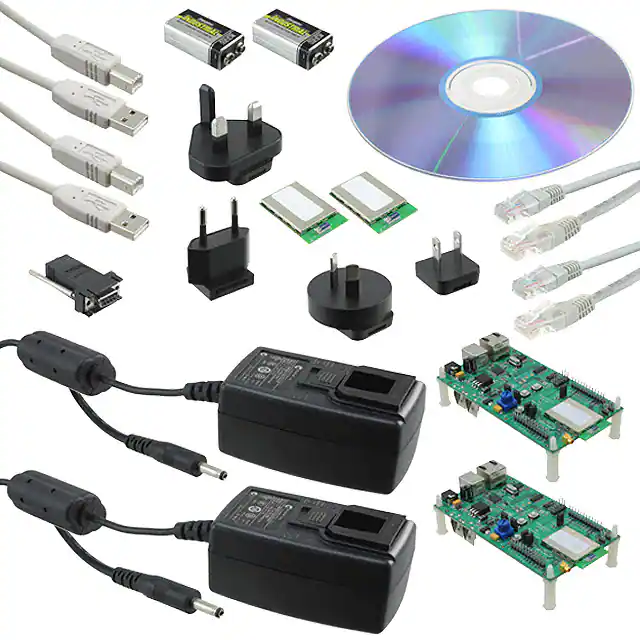
Items Supplied in a Kit:
·
·
·
·
·
·
·
Four LPR2430, LPR2430A, LPR2430ER, or LPR2430ERA radios, two of which are installed on
developer boards, labeled Base and Remote
Two patch antennas, and two dipole antennas with MMCX to SMA-R adaptor cables, LPR2430 and
LPR2430ER only (antennas are built into the LPR2430A and LPR2430ERA radios)
Two 9 V wall-plug power suppliers, 120/240 VAC, plus two 9 V batteries
Two RJ-11 cables with DB-9F adaptors, LPR2430 and LPR2430ER kits
Two Cat 5 Ethernet cables with RJ-45/DB-9F adaptors, LPR2430A and LPR2430ERA kits
Two A/B USB cables
One LPR2430DK/LPR2430ADK/LPR2430ERDK/LPR2430ERADK documentation and software CD
Figure 1
©2010-2015 by Murata Electronics N.A., Inc.
LPR2430 Series (R) 01/29/15
Figure 2
1 of 4
www.murata.com
�Additional Items Needed:
·
One PC with Microsoft Windows XP or Vista Operating System
Developer Kit Setup and Testing:
1. Observe ESD precautions when handling the LPR2430 series developer boards. The developer
boards can be powered with either the 9 V wall-plug power supplies or the 9 V batteries. If using the
wall-plug power supplies, install an AC plug on each supply and connect the power supplies to the
developer boards. See Figure 1 for the location of the power connector. Do not plug in the power
supplies at this time. If using the batteries, do not install them yet.
2. For the LPR2430 and LPR2430ER kits, referring to Figures 1 and 2, install a patch antenna on each
developer board antenna connector. The antenna “snaps” onto the connector with moderate pressure. Antennas are built into the radio modules for the LPR2430A and LPR2430ERA kits.
3. As shown in Figure 1, there are two serial connectors on the developer boards. The RJ-45 or RJ-11
connector provides an RS232 interface. The USB connector provides an optional interface. Labels
on the bottom of the boards indicate which board is the Base and which is the Remote.
4a. If the PC has a serial port, use one of the Cat 5 cables with an RJ-45/DB-9F adaptor or one of the
RJ-11 cables to make a connection to the Base. Then power up the Base by plugging in the power
supply or installing the battery. If using a USB connection, follow step 4b instead of 4a.
4b. The USB interface is based on an FT232RL serial-to-USB converter IC manufactured by FTDI. The
FT232RL driver files are located in the i386 and AMD64 folders on the kit CD, and the latest version
of the drivers can be downloaded from the FTDI website, www.ftdichip.com. The drivers create a
virtual COM port on the PC. Power up the Base by plugging in its power supply or installing a battery.
Figure 3
©2010-2015 by Murata Electronics N.A., Inc.
LPR2430 Series (R) 01/29/15
2 of 4
www.murata.com
�Then connect the Base to the PC with one of the USB A/B cables. The PC will find the new USB
hardware and open a driver installation window. Enter the letter of the PC drive holding the kit CD and
click Continue. The installation dialog will run twice to complete the driver installations.
5. Copy LPRDemo2 from the Programs folder on the kit CD to a convenient folder on the PC. This
program runs using ordinary Window’s resources and does not require any framework installations,
registry entries, etc., to run. Start LPRDemo2. The start-up window is shown in Figure 3 above.
Figure 4
6. Click on the Connect button in the lower left of the main LPRDemo2 window to open the Comm
Port Settings dialog window, as shown in Figure 4. Set the Baudrate to 9600 b/s. Set the Comm Port
to match the serial port connected to the Base, either the RS232 serial port or the USB virtual serial
port. Then click OK to activate the serial connection.
Figure 5
©2010-2015 by Murata Electronics N.A., Inc.
LPR2430 Series (R) 01/29/15
3 of 4
www.murata.com
�7. At this point the program will collect and display data from the Base under Current Settings on the left
side of the main window, as shown in Figure 5.
Figure 6
8. Next power up the Remote by plugging in its power supply or installing a battery. Click on the Poll I/O
tab. Figure 6 shows the Poll I/O screen. Select the Remote’s network address, 0001, in the Network Address drop-down box for Radio 1. If the address is not present, wait a few seconds to give the
remote time to register with the base.
9. Click on the Start button. Data from the Remote will be displayed under Radio 1, including bar graphs
of received signal strength (RSSI), and percent of successful requests-replies (%). Note that turning
the pot on the Remote developer board will change the Potentiometer (ADC1) reading, and holding
Switch 0 down will change the Switch 0 (GPIO0) state to 0. Setting LED 0 (GPIO2) to a 1 state will
turn on LED 0. The developer kit is now ready for use.
10. If any difficulty is encountered in setting up your LPR2430 series developer kit, contact RFM’s
module technical support group. The phone number is +1.678.684.2000. Phone support is available
from 8:30 AM to 5:30 PM US Eastern Time Zone, Monday through Friday. The E-mail address for
module technical support is tech_sup@rfm.com.
Windows XP and Vista are registered trademarks of Microsoft Corporation.
©2010-2015 by Murata Electronics N.A., Inc.
LPR2430 Series (R) 01/29/15
4 of 4
www.murata.com
�
很抱歉,暂时无法提供与“LPR2430ERADK”相匹配的价格&库存,您可以联系我们找货
免费人工找货