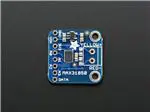
Adafruit 1-Wire Thermocouple Amplifier MAX31850K
Created by lady ada
https://learn.adafruit.com/adafruit-1-wire-thermocouple-amplifier-max31850k
Last updated on 2022-12-01 02:08:50 PM EST
©Adafruit Industries
Page 1 of 23
�Table of Contents
Overview
3
Pinouts
6
•
•
•
•
Power Pins
Address Pins
Data Pin
Themocouple Breakout
Assembly
8
• Prepare the header strip:
• Add the breakout board:
• And Solder!
Wiring and Test
•
•
•
•
•
•
•
External power
Parasitic Power
Download Arduino libraries
External vs Parasite power
Writing your own sketch
The Address pinouts
More about OneWire and DallasTemp
Downloads
•
•
•
•
11
22
More Reading!
Datasheets & Files
Schematic
Fabrication Print
©Adafruit Industries
Page 2 of 23
�Overview
Thermocouples are very sensitive, requiring a good amplifier with a coldcompensation reference. So far we've carried the very nice MAX31855 which is an SPI
interface thermocouple amplifier. The '855 is great but if you have a lot of
thermocouples to measure it isn't terribly easy to use. That's why we are also carrying
the new '850 model from Maxim - it's a "1-Wire" thermocouple amp which can have
any number of breakouts on a single shared I/O line.
©Adafruit Industries
Page 3 of 23
�The MAX31850K does everything for you, and can be easily interfaced with any
microcontroller that has 1-Wire support. This breakout board has the chip itself, a 3.3V
regulator with 10uF bypass capacitors all assembled and tested. This board can be
used with 'parasitic power' - where the power is on the data line - or with 'local power'
where the power for the converter comes in on the Vin Pin.
Please note: this board does not have level shifting on the 3V Data line - we did this
on purpose so that it can be used in parasitic mode. The data line must be level
shifted to 3V - our 4-channel shifter works wonderfully for level shifting 1-Wire (http://
adafru.it/757) and you only need one at the '1-Wire host' for all thermocouples on the
shared data line.
The MAX31850K data format is very similar to that of the well known 1-Wire DS18B20
temp sensor but it is not drop in compatible without code changes to check for the
new '1 Wire family' type. We have adapted the classic Arduino OneWire () and DallasTe
mp () libraries to be MAX31850 compatible, so please click on those links to grab our
libraries.
©Adafruit Industries
Page 4 of 23
�Comes with a 2 pin terminal block (for connecting to the thermocouple), 4.7K data line
pullup resistor, and pin header (to plug into any breadboard or perfboard). Goes great
with our 1m K-type thermocouple (http://adafru.it/270). Not for use with any other kind
of thermocouple, K type only!
• Works with any K type thermocouple
• Will not work with any other kind of thermocouple other than K type
• -270°C to +1370°C output in 0.25 degree increments
• Internal temperature reading
• 3.3 to 5v power supply. Data line is 3V only
• 1-Wire interface allows any number of thermocouple amps on a single data line
©Adafruit Industries
Page 5 of 23
�Pinouts
The MAX31850K breakout is not too complicated, we'll go thru all the pins so you can
be familiar with them!
There's two breakout sides, the left side has the power and data lines. On the right
side, theres a terminal block breakout for connecting up a thermocouple wireset.
Power Pins
There are three power pins: VIN GND 3V3
• GND is the common ground line. You will need to connect this to both your
power ground and microcontroller 'data reference' ground. If you are using '1Wire' parasitic power you still need to connect this to your microcontroller
• VIN is 3-5V power in if you are not using parasitic power. If you want to power
the sensor, connect up 3-5V DC power here, the MAX31850 will automagically
switch to external power instead of parasitic power
• 3V3 This is the 3.3V output from the onboard regulator - you can get up to
100mA from it. It is only used if you are externally powering. In parasitic mode, it
is unused and there will be no voltage available
Address Pins
The A0 A1 A2 A3 pins are address pins. Please note these do not affect the 1-Wire
'fixed address'! These pins set bits that can be read from the 'configuration' register.
©Adafruit Industries
Page 6 of 23
�These are used in case you have up to 16 different boards and you want to identify
which is which without having to look up which has what address since the 1Wire
address is burned into ROM. They are by default shorted to ground. You can tie them
to 3.3V by cutting the back traces between the 3-way jumpers and then soldering the
jumper the 'other' way or tying the pins to 3V or GND.
Data Pin
Ah finally the data pin. This is a '1-Wire' device so all data is transmitted and received
on a single pin which is pretty cool. It is also possible for the microcontroller to provid
e power to the sensor on this line - triple duty! This pin is 3V logic level, and must be
connected to a 3V output pin. Arduino's are not 3V, they're 5V so a level shifter is
required, see the next pages for details.
A 4.7K resistor must be connected between this pin and 3V3 power. For parasitic
power, the resistor lives over on the microcontroller side of the data line. For externalpower it can be on either side of the data line.
Themocouple Breakout
The other side of the board has a breakout for a 3.5mm terminal block, included in
the mini kit. Use the screw terminal to connect to the thermocouple as thermocouple
wires cannot be soldered to!
©Adafruit Industries
Page 7 of 23
�Remember, this kit is for K-type thermocouples only!
Assembly
Prepare the header strip:
Cut the strip to length if necessary. It will
be easier to solder if you insert it into a
breadboard - long pins down.
Add the breakout board:
Place the breakout board over the pins so
that the short pins poke through the
breakout pads
©Adafruit Industries
Page 8 of 23
�And Solder!
Be sure to solder all 5 pins for reliable
electrical contact.
(For tips on soldering, be sure to check out
our Guide to Excellent Soldering ()).
©Adafruit Industries
Page 9 of 23
�Now you can do the terminal block, this is
what you'll use to attach the thermocouple
since you cannot solder to thermocouples
The terminal block goes on the top with
the open ends pointing out
Solder the two pads as you did with the
plain header. They're quite large and
require a lot of solder
©Adafruit Industries
Page 10 of 23
�Insert the thermocouple wires and tighten
down the clamps with a small Phillips or
flat screwdriver
That's it! you are now ready to wire and
test
Wiring and Test
In this step we'll wire up the assembled breakout board to an Arduino. Any 1-Wire
capable microcontroller can be used but we have example code for Arduino only.
©Adafruit Industries
Page 11 of 23
�You can wire up 1-Wire devices in two modes parasitic powered and externally
powered
• Parasitic power lets you have all data and power on a single data line + ground
wire. Its more minimal but we believe it is a little more sensitive to power
fluctuations
• Externally powered has data on the single data line + ground wire, and then a
separate power supply. It requires more wires but we think it is more stable in
readings.
BOTH require level shifting on the data line if you are connecting up to a 5V
microcontroller like an Arduino. If you are using a 3V logic microcontroller, you can
skip the 4-channel level shifter we have in these images
We show 2 sensor boards in these photos, but you can connect as many as you like,
1-Wire supports any number of shared devices on a single data line.
External power
In this wiring style, each board is powered externally. Connect:
1. GND to the Arduino Ground pin (black wires)
2. Vin to the Arduino 5V pin (can also connect to an external battery of 3-5VDC)
(red wires)
3. Data shared connection to A1 on the level converter (green wire)
4. A single 4.7K resistor connects from the shared data line to 3V
5. B1 of the level converter connects to Arduino #2 (blue wire)
6. Level shifter HV connects to Arduino 5V (red wire)
7. Level shifter LV connects to Arduino 3V (yellow wire)
©Adafruit Industries
Page 12 of 23
�Click to see a bigger wiring photo
Parasitic Power
Alternatively you can use parasitic power to connect up MAX31850's - to do that
basically follow the above except do not connect the VIN wires on the breakout
boards
1. GND to the Arduino Ground pin (black wires)
2. Vin does not get connected
3. Data shared connection to A1 on the level converter (green wire)
4. A single 4.7K resistor connects from the shared data line to 3V
5. B1 of the level converter connects to Arduino #2 (blue wire)
6. Level shifter HV connects to Arduino 5V (red wire)
7. Level shifter LV connects to Arduino 3V (yellow wire)
If you have the sensor far from the Arduino, you can extend the Data and GND lines
going to each sensor by up to 10 meters!
©Adafruit Industries
Page 13 of 23
�Click to see a bigger wiring photo
Download Arduino libraries
For 1-Wire devices, we'll be using the OneWire library and a modified version of the D
allasTemp library (Dallas was the name of the original company making 1-Wire devices,
Maxim bought them later)
The original version of the DallasTemp library doesn't have support for the MAX31850,
so we had to modify it! If you're having difficulty sensing the breakout sensors make
sure you have completely removed any old copies of the libraries from your libraries a
nd replaced them with ours
Start by downloading both OneWire () and DallasTemp () libraries from
the GitHub repositories, or better yet, just click these buttons here:
Download OneWire Library
Rename the uncompressed folder OneWire. Check that the OneWire folder contains
OneWire.cpp and OneWire.h and an examples folder
Place the OneWire library folder your sketchbookfolder/libraries/ folder. You may need
to create the libraries subfolder if its your first library. Restart the IDE. You can figure
out your sketchbookfolder by opening up the Preferences tab in the Arduino IDE.
©Adafruit Industries
Page 14 of 23
�If you're not familiar with installing Arduino libraries, please visit our tutorial: All About
Arduino Libraries ()!
Download MAX31850 DallasTemp
Library
Rename the uncompressed folder DallasTemp. Check that the DallasTemp folder
contains DallasTemperature.cpp and DallasTemperature.h and an examples folder
(you can ignore other files in the archive).
Place the DallasTemp library folder in your sketchbookfolder/libraries/ folder like you
did with OneWire - and restart the IDE
Now you are ready to run the DallasTemp multiple example from the File->Examples>DallasTemp->multiple menu. Upload this sketch to your Arduino
OK now open up the serial console
First up, you should see how many sensors were detected. In our case its 2
©Adafruit Industries
Page 15 of 23
�Also whether parasite power is being used or not, its on the third line
©Adafruit Industries
Page 16 of 23
�You'll also see the device addresses, these are the unique 64-bit addresses for each
sensor. You have a promise from Maxim that they will never recycle these numbers!
All MAX31850 sensors start with 3B which is the family address. You can see the
temperature printed out afterwards
©Adafruit Industries
Page 17 of 23
�Note that this address is not connected to the ADDR pins on the breakout! those are
different address pins. You cannot change the 64-bit address, its permanently burned
into the chip!
External vs Parasite power
Here is the same setup under external power. The temperature is much closer to the
true temp (room temp, about 72 degrees F) because the power supply is more stable.
If you are using parasite power you may need to calculate the temperature offset
(calibrating the sensor) to get the true sensor at the location.
©Adafruit Industries
Page 18 of 23
�Writing your own sketch
OneWire and DallasTemp are very powerful but for most people, they just want to get
temperatures printed out in their project!
Here is some super-basic code based on the Simple example to handle any number
of sensors, simply printing out the temperature and the last two bytes of the unique ID
number. You can see we figure out how many sensors are attached with
sensors.getDeviceCount()
which will let us know the # of connected sensors, and then can get the temperature
from each one starting from index #0 up with
sensors.getTempCByIndex(index #)
The index #'s will always be sorted by address number so every time you start, the
index #0 sensor will be the same as last time you started up. If you swap the sensors
with another breakout, the index # may change so that's when you would have to
check the code to figure out whether the index #'s are different
#include <OneWire.h>
#include <DallasTemperature.h>
©Adafruit Industries
Page 19 of 23
�// Data wire is plugged into port 2 on the Arduino
#define ONE_WIRE_BUS 2
// Setup a oneWire instance to communicate with any OneWire devices (not just Maxim/
Dallas temperature ICs)
OneWire oneWire(ONE_WIRE_BUS);
// Pass our oneWire reference to Dallas Temperature.
DallasTemperature sensors(&oneWire);
DeviceAddress addr;
void setup(void)
{
// start serial port
Serial.begin(9600);
Serial.println("Dallas Temperature IC Control Library Demo");
// Start up the library
sensors.begin();
}
void loop(void)
{
// call sensors.requestTemperatures() to issue a global temperature
// request to all devices on the bus
Serial.print("Requesting temperatures...");
sensors.requestTemperatures(); // Send the command to get temperatures
Serial.println("DONE");
for (uint8_t s=0; s < sensors.getDeviceCount(); s++) {
// get the unique address
sensors.getAddress(addr, s);
// just look at bottom two bytes, which is pretty likely to be unique
int smalladdr = (addr[6] << 8) | addr[7];
Serial.print("Temperature for the device #"); Serial.print(s);
Serial.print(" with ID #"); Serial.print(smalladdr);
Serial.print(" is: ");
Serial.println(sensors.getTempCByIndex(s));
}
}
The Address pinouts
So if you're wondering how you can read those address pins, you can do so but the
DallasTemp library doesn't support it, instead, you'll have to go with the lower-level O
neWire library.
Open up the OneWire->MAX31850_Temperature example and load it into your
Arduino.
Please Note - this example uses pin 10 instead of pin 2, for consistancy with the
other OneWire examples. Either change OneWire ds(10); to OneWire ds(2); or
switch your wiring
On the back of your MAX31850 breakout, cut the pads between the jumpers
©Adafruit Industries
Page 20 of 23
�. You can solder the jumpers on the back but we'll be showing wiring with colored
wires. In this case, we connect A2 to 3V and the rest to ground, That will make a
binary address of 0100 = 0x4
Now if you open up the serial console you should see the OneWire example code
print out the data, address and temperature of the sensor. If you mess with the Ax
wires you'll see this address value change from 0x00 to 0x0F. This can be a good
way to deal with 'hot-swapping' in sensors with unique ROM addresses
©Adafruit Industries
Page 21 of 23
�More about OneWire and DallasTemp
Arduino Playground has some good resources on OneWire at http://
playground.arduino.cc/Learning/OneWire () and PJRC has documented it as well over
at http://www.pjrc.com/teensy/td_libs_OneWire.html ()
Downloads
More Reading!
• Maxim has some great notes on running 1-Wire devices over long distances http:
//www.maximintegrated.com/app-notes/index.mvp/id/148 ()
• Arduino Playground has some good resources on OneWire at http://
playground.arduino.cc/Learning/OneWire () and PJRC has documented it as well
over at http://www.pjrc.com/teensy/td_libs_OneWire.html ()
Datasheets & Files
• MAX31850 datasheet ()
• Fritzing object in the Adafruit Fritzing library ()
• EagleCAD PCB files on GitHub ()
©Adafruit Industries
Page 22 of 23
�Schematic
Fabrication Print
©Adafruit Industries
Page 23 of 23
�