Page 1 of 25
P
M
A
Getting Started with the AutoDriver
CONTR IBUTORS:
S F U P T OW N M A K E R
Introduction
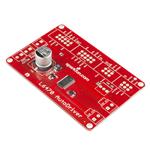
The AutoDriver board is based on the STMicro L6470 dSPIN stepper motor
driver. This powerful chip allows you to control a stepper motor with a
voltage from 8-45V at 3Arms over an SPI connection. Compared to
traditional step/direction motor controllers, it offers a number of advantages:
• The L6470 tracks the current position of the motor, so the application
level doesn’t have to.
• “Fire-and-forget” motion control, which allows the application to
continue working while the motor autonomously completes the
desired motion.
• Acceleration and deceleration curves without complex software
algorithms.
• Microstepping for extra smooth movements.
�Page 2 of 25
• Configurable currents for acceleration, deceleration, run, and hold,
which give greater control to the user over power consumption.
• SPI interface, which allows for a greater number of motors to be
driven from a single processor.
The primary disadvantage of the L6470 is that it requires a great deal more
configuration and adds software complexity to your system. This hookup
guide will attempt to relieve some of that difficulty.
Suggested Reading
Before you get started, you may want to look at these other tutorials to get
you headed in the right direction:
• SPI - The Serial Peripheral Interface is the means by which the
L6470 chip, and therefore the AutoDriver board, communicates with
the system master CPU.
• Motors - Understanding stepper motors is important to driving them.
• Installing an Arduino Library - The AutoDriver has an Arduino library;
if you don’t already know how to install a new library, check out this
tutorial to get you pointed in the right direction.
Hardware
The AutoDriver board is designed to be easily integrated into a project,
even with multiple boards. Here’s a brief tour of the hardware and how to
connect it up.
The Board
As you can see above, there are several connectors on the board. Let’s
take them one at a time:
�Page 3 of 25
• Communications in - where the SPI, clock, and logic level power
enter the board. That can be either from the system CPU or from a
prior AutoDriver board. By default, the AutoDriver expects a power
supply input here, but that power supply is not the supply to the
motors and should not exceed 5V. Designed for a 2x5 .1" shrouded
connector, and to be connected by a 2x5 ribbon cable.
• Communications out - SPI, clock, and logic power out to the next
AutoDriver. Designed for a 2x5 .1" shrouded connector, and to be
connected by a 2x5 ribbon cable.
• Control signal in - metasignals for input and output to and from the
AutoDriver. Chip select, optional step clock, and reset inputs come in
here, and open-drain busy and error flag signals go back to the
previous board. Designed for a 2x3 .1" shrouded header and to be
connected by a 2x3 ribbon cable.
• Control signal out - passes the common control signals on to the
next AutoDriver. Note that chip select is not passed from one board
to the next; obviously we want only one board to be selected at a
time. Designed for a 2x3 .1" shrouded header and to be connected
by a 2x3 ribbon cable.
• Switch input - the L6470 can accept input from switches to provide
for a hard-stop limit switch or a configurable user interrupt. We’ll
cover that later. Sized for a 3.5mm screw terminal.
• Power input - two connectors with two terminals each for power and
ground to make connecting multiple boards to one power supply
easy. This is the motor power input and is sized for a 3.5mm screw
terminal.
• A and B winding outputs - the L6470 is designed to work with a
bipolar stepper motor or a unipolar or universal stepper motor
configured as a bipolar. One winding should be connected to each of
these terminals, although it doesn’t matter which winding connects to
which terminal (other than to determine which direction is considered
“forward”).
• ADC input/potentiometer footprint - this footprint can be populated
with a 200k potentiometer to provide for motor supply voltage
correction, to ensure a constant drive current across varying supply
voltages. Highly optional, but we put the footprint there, just in case.
An Example Connection to a RedBoard
�Page 4 of 25
Later in this tutorial, we will show you how to hook up two AutoDriver
boards to a RedBoard. For that example, you’ll need two AutoDriver Boards
along with the following:
AutoDriver Hookup Guide SparkFun Wish List
RedBoard - Programmed with Arduino
DEV-11575
At SparkFun we use many Arduinos and we're always looking for the…
Arduino and Breadboard Holder
DEV-11235
We've been prototyping for a long time on these awesome little plasti…
Breadboard - Translucent Self-Adhesive (Red)
PRT-11317
**Description**: How could anyone improve on the clear plastic bread…
(2) Stepper Motor with Cable
ROB-09238
This is a simple, but very powerful stepper motor with a 4-wire cable a…
Jumper Wires Standard 7" M/M Pack of 30
PRT-11026
If you need to knock up a quick prototype there's nothing like having a…
(2) Jumper Wires Premium 6" M/F Pack of 10
PRT-09140
This is a SparkFun exclusive! These are 155mm long jumpers termin…
(2) Break Away Headers - Straight
PRT-00116
A row of headers - break to fit. 40 pins that can be cut to any size. Us…
(2) Ribbon Crimp Connector - Breadboad Friendly (2x5, Fe…
PRT-10965
This 2x5 crimp connector snaps onto a 10-pin ribbon cable to form a…
(3) Ribbon Crimp Connector - 10-pin (2x5, Female)
PRT-10650
�Page 5 of 25
These 2x5 crimp connectors can be snapped onto 10-wire ribbon cabl…
(3) Ribbon Crimp Connector - 6-pin (2x3, Female)
PRT-10651
Ribbon
Cable - 10 wire (15ft)
These 2x3 crimp connectors can be snapped onto 6-wire ribbon cable…
CAB-10647
Ribbon cable is really helpful in situations where you need to make a l…
Ribbon Cable - 6 wire (15ft)
CAB-10646
Ribbon cable is really helpful in situations where you need to make a l…
(3) 2x5 Pin Shrouded Header
PRT-08506
Simple shrouded 10-pin connector. Good for preventing cable connec…
(3) 2x3 Pin Shrouded Header
PRT-10877
Simple shrouded 6-pin connector. Good for preventing cable connecti…
(9) Screw Terminals 3.5mm Pitch (2-Pin)
PRT-08084
Screw Terminals with 3.5mm pitch pins. Comes in 2 or 3 positions an…
Wall Adapter Power Supply - 12VDC 600mA
TOL-09442
This is a high quality AC to DC 'wall wart' which produces a regulated…
DC Barrel Jack Adapter - Female
PRT-10288
This adapter allows you to connect a barrel jack connector to bare wir…
Hook-Up Wire - Assortment (Stranded, 22 AWG)
PRT-11375
An assortment of colored wires: you know it's a beautiful thing. Six diff…
Test Hardware Assembly
Here’s a step-by-step guide for assembling the parts used for the rest of the
guide. If you have your own hardware, feel free to skip this part, but it’s not
a bad exercise to get you up to speed and make sure that your hardware is
in a “known good” state before you begin writing code.
I’m going to take a few liberties with the basics here and assume that you’re
capable of assembling the RedBoard/Breadboard holder on your own, and
that you can put the headers and screw terminal blocks on the AutoDriver
boards without help. Pay attention to the orientation of the shrouded
headers on the AutoDriver – if you get them lined up properly, it’ll help
�Page 6 of 25
ensure that the signal routing through the ribbon cables is proper later on.
Also note the single pin for the chip select, near the control signal in
header. You’ll need that later on.
I’ve also made a base plate to hold my AutoDriver boards in place; mine is
fancy laser-cut acrylic, but you can hot glue the boards to a piece of
cardboard or even just leave them loose, depending on your personal
preferences and tool availability.
Assembling the ribbon cables
You can use pre-assembled ribbon cables, but, as we don’t sell preassembled 6-conductor cables nor ribbon cables terminated in breadboardfriendly connections, I’m going to cover assembling the necessary cables
here.
The easiest way to crimp the connectors to the end of the cable is to use a
workbench vise; alternatively a pair of channel lock or vise-grip type pliers
works well. In a pinch, you can use body weight and any flat surface; it
takes quite a lot of pressure to push the connectors shut, however. Don’t
squeeze too hard, or you’ll break the plastic.
Start by cutting your ribbon cable pieces. A pair of scissors works great for
this, although it’ll be rough on them, so don’t use your sewing scissors! To
keep our images concise, I’m using really short ribbons for these pictures.
Feel free to make yours as long as necessary, although cables longer than
a foot or two may cause signal integrity issues, which may affect the
operation of your system.
Make sure that there are no little pieces of wire protruding from the end of
the ribbon cable – those can really ruin your day.
Now we need to crimp connectors onto the ends of each cable. We’ll start
with the breadboard-friendly ends; those are the hardest. Note that we’re
using the 2x5 connector for both the 10- and 6-conductor cables, since we
don’t sell a 2x3 breadboard-friendly end.
Insert the ribbon cable into the connector as shown below. For the 2x3,
make sure that you’ve got the ribbon cable all the way to the top edge!
�Page 7 of 25
Before you apply pressure to crimp the connector closed, you need
something to prevent the pins from being smashed in the process. A pencil
fits between the pins perfectly.
Next, we’ll want to crimp on one of the other connectors. See the image
below for proper orientation; crimping this in place is much easier because
it doesn’t have pins to be damaged.
Finally, assemble the additional connectors to the ends of the other ribbon
cables, as shown below. Orientation of the connector is important, as the
keying on the shrouded headers forces them into the proper orientation
only if the cables are assembled right!
�Page 8 of 25
Pay careful attention to the orientation of the keying tab relative to the blue
wire!
The 10-conductor wires go together just like these, except using the black
wire as reference.
Wiring up the stepper motors
As mentioned earlier, there are two screw terminals on the board for
connecting the motor. Each one should have one coil of the motor
connected to it; if you’re not sure of how your stepper motor’s wires are
connected, you can use a multimeter to figure it out. Two wires connected
to the same coil should show a very low resistance (on the order of a few
ohms) between them.
Once you’ve identified the pairs of wires, connect one pair to the ‘A’ screw
terminal and the other to the ‘B’ screw terminal. The order of the wires isn’t
terribly important yet, as the order determines the direction in which the
motor turns, not whether it turns or not.
�Page 9 of 25
The above picture shows the order I’ve selected for our medium stepper
motors. It’s probably a good idea to use the same wire order on both
boards, so the relative direction of both motors is the same. If you need the
direction to be opposite for the two motors (say, to drive the wheels of a
robot), you can simply reverse the order of one pair of wires.
Connecting the boards
If all your ribbon cables are properly assembled, the rest of this should be a
snap. Start by inserting the breadboard-friendly ends into the breadboard.
You’ll be making connections on both sides of the connector, so it helps to
pre-bend the ribbon to a right angle with the breadboard.
Here’s a little wiring diagram of how the connections to the breadboard
connectors should be made from the RedBoard or Arduino.
That’s the hardest part. Now all you need to do is connect the ribbon cables
to the AutoDriver boards.
�Page 10 of 25
The last thing you’ll need is a connection between the second board’s chip
select pin and the RedBoard. Check it out:
Connecting the Power Supply
Finally, connect up the power. All you need is a four pieces of hookup wire
with bared ends. Here’s a picture of the power connections all wired up:
It’s generally a good idea to hook up the power to the RedBoard and logic
circuitry before you power the AutoDrivers; do note that you can’t access
the AutoDriver boards via SPI until BOTH parts are powered, however.
Arduino Library - Configuration
�Page 11 of 25
To make your life a little easier, we’ve developed a fairly comprehensive
library for configuring and controlling the AutoDriver. On this page, we’ll go
through the various commands in the library and the impact they have on
the operation of the AutoDriver board.
As mentioned earlier, the AutoDriver requires more configuration to operate
than standard “step/direction” type stepper motor drivers. We’ve provided
functions to make configuring the registers in the L6470 chip much easier
than it might otherwise be. Here they are, in no particular order.
Downloading the Library
The library is hosted on GitHub, along with the other design files associated
with the AutoDriver board. To install the library and example code to your
computer, download this zip file and copy the entire “Libraries” directory into
your Arduino Sketchbook. That will put everything in the right place.
Initialization functions
There are two initialization functions (or “constructors”, in C++ class-speke)
provided for the AutoDriver library. You must invoke one of them to create
an instance of class AutoDriver before you can use the board.
AutoDriver(int CSPin, int resetPin, int busyPin);
AutoDriver(int CSPin, int resetPin);
The two constructors provided allow you to specify which pins the particular
AutoDriver boards are connected to. It is assumed that you will connect at
least the reset and chip select pins; connecting the busy pin is optional, as
the busyCheck() function will check either the pin state or the device’s
internal register to determine if the AutoDriver is busy or not.
These functions also initialize all the other SPI pins and hardware as
appropriate; there is no need to invoke the SPI library or configure the SPI
pins. It is, however, recommended that you use pin 10 as a chip select pin,
since that pin must remain an output at all times in order for the library to
function properly (this is a requirement of the SPI peripheral in the chip and
cannot be changed).
Setting Basic Chip Parameters
There are many different parameters which must be set for the AutoDriver
to function properly. These are stored in RAM on the AutoDriver and must
be configured after every power cycle or chip reset.
Some of these parameters must be set for the chip to operate successfully;
those parameters are described here.
void configSyncPin(byte pinFunc, byte syncSteps);
�Page 12 of 25
The BUSY pin on the AutoDriver actually has two possible functions: it can
indicate when the board is BUSY (usually indicating that a motion
command is underway and has not yet completed) or it can be used to
output a sync signal for counting full motor steps with an external device.
There are constants defined for the two parameters: the first can be either
BUSY_PIN or SYNC_PIN . If SYNC_PIN is passed, the second parameter
should be one of the following:
• SYNC_FS_2 - two pulses on sync pin per full step of motor
• SYNC_FS - one pulse per full step
• SYNC_XFS - where X can be 2, 4, 8, 16, 32, or 64, and X indicates the
number of full steps between pulses on the sync pin
If BUSY_PIN is passed, the second paramater should be zero.
void configStepMode(byte stepMode);
The AutoDriver is capable of microstepping, wherein the output signal is
PWMed to create a pseudo-sine wave output which makes the transition
from one step to the next less jerky. There are 8 possible microstep
options, and defines have been provided for selecting between them:
• STEP_FS - Full-step mode; microstepping disabled
• STEP_FS_X - Enable microstepping with X microsteps per full step. X
can be 2, 4, 8, 16, 32, 64, or 128.
Note that enabling microstepping has no effect on motion commands or
sync pulse outputs; it is not possible to move less than one full step.
Microstepping simply makes the transition between steps smoother.
void setMaxSpeed(float stepsPerSecond);
Provide an upper limit to the speed the driver will attempt to reach.
Attempts to exceed this speed will result in motion being completed at this
speed. The value established by this command will also be the value used
for motion commands such as goTo() where no speed parameter is
provided.
void setMinSpeed(float stepsPerSecond);
The minimum speed is slowest speed the motor will run. If low speed
optimization is enabled (see below), minimum speed is automatically zero,
and the special low-speed waveform optimization will be used until
minimum speed is reached. Defaults to zero.
void setFullSpeed(float stepsPerSecond);
�Page 13 of 25
If microstepping is enabled, this parameter sets the speed above which
microstepping is disabled and the driver engages full step mode.
void setAcc(float stepsPerSecondPerSecond);
void setDec(float stepsPerSecondPerSecond);
Set the acceleration/deceleration curves to be used. The maximum value
for this is 29802; above that, the AutoDriver will not use any curve at all.
void setOCThreshold(byte threshold);
Sets the level at which an overcurrent event occurs. There are 16 different
options; all take the format OC_XmA , where X is the limit and can be any of
these values: 375, 750, 1125, 1500, 1875, 2250, 2625, 3000, 3375, 3750,
4125, 4500, 4875, 5250, 5625, or 6000.
void setPWMFreq(int divisor, int multiplier);
There’s a separate internal clock for the PWM frequency used by the chip
when microstepping or when KVAL settings (more on these later) call for a
reduction in current. This frequency is 31.3kHz (nominal, when using the
internal 16MHz clock), and is adjusted by the divisor and multiplier sent to
this function. Again, we’ve created a set of defines for the possible values:
• For divisor, define syntax is PWM_DIV_X , where X can be any value
1-7.
• For multiplier, define syntax is PWM_MUL_X , where X can be 0_625
(for 0.625), 0_75 (for 0.75), 0_875, 1, 1_25, 1_5, 1_75, or 2.
It’s a good idea to keep the frequency above 20kHz or so, to avoid
annoying those in close proximity to the device, as lower frequencies can
cause an audible ring or buzz.
void setSlewRate(int slewRate);
The slew rate is the slope of the voltage change coming out of the driver.
There are three options here: 180V/us, 290V/us, and 530V/us. Higher slew
rates increase the torque at higher speeds, at the risk of increased
electromagnetic emissions, which may or may not matter to you. The
defines for this are SR_180V_us , SR_290V_us , SR_530V_us .
void setOCShutdown(int OCShutdown);
�Page 14 of 25
By default, the drive transistors in the L6470 chip will shutdown on an
overcurrent event to prevent damage to motor and driver. This can be
disabled by passing the define OC_SD_DISABLE to this function, and reenabled by passing OC_SD_ENABLE .
void setOscMode(int oscillatorMode);
This is one of the more important of the basic parameters. By default, the
chip will run at 16MHz on its internal oscillator, and that suffices for most
applications. However, in a situation where more than one AutoDriver is
being used in a circuit, it’s best to drive all of the boards from a common
clock, so the motors will remain synchronized. That clock source can be
either an external clock fed to the first chip and then passed along to
subsequent chips, or it can be the internal clock source of the first chip,
passed along to later devices. There are rather a lot of possible options
here; we’ve created a verbose set of constants to help you select the right
one:
• INT_16MHZ - Use the internal 16MHz oscillator, with no output on the
OSCOUT line.
• INT_16MHZ_OSCOUT_2MHZ - Internal 16MHz, 2MHz on OSCOUT.
Default.
• INT_16MHZ_OSCOUT_4MHZ - Internal 16MHz, 4MHz on OSCOUT.
• INT_16MHZ_OSCOUT_8MHZ - Internal 16MHz, 8MHz on OSCOUT.
• INT_16MHZ_OSCOUT_16MHZ - Internal 16MHz, 16MHz on OSCOUT.
Recommended for the first AutoDriver in a system with more than
one AutoDriver.
• EXT_8MHZ_XTAL_DRIVE - External 8MHz crystal. Not recommended.
• EXT_16MHZ_XTAL_DRIVE - External 16MHz crystal. Not recommended.
• EXT_24MHZ_XTAL_DRIVE - External 24MHz crystal. Not recommended.
• EXT_32MHZ_XTAL_DRIVE - External 32MHz crystal. Not recommended.
• EXT_8MHZ_OSCOUT_INVERT - 8MHz clock to OSCIN. Inverted OSCIN
on OSCOUT.
• EXT_16MHZ_OSCOUT_INVERT - 16MHz clock to OSCIN. Inverted
OSCIN on OSCOUT. Recommended for subsequent boards in a
multi-board system.
• EXT_24MHZ_OSCOUT_INVERT - 24MHz clock to OSCIN. Inverted
OSCIN on OSCOUT.
• EXT_32MHZ_OSCOUT_INVERT - 32MHz clock to OSCIN. Inverted
OSCIN on OSCOUT.
Two things of note regarding the osciallator settings: first, if you select an
invalid setting (for example, an external crystal in a system with no crystal),
the AutoDriver board will stop responding. Because the settings are stored
in RAM, however, a reset or power cycle of the chip will restore it to
operation, allowing you to change your program to a supported clock mode.
�Page 15 of 25
Second, the frequency specified in this is used by the library to convert
user-friendly units to units the chip understands. Using any frequency
besides 16MHz will result in scale errors when setting speeds in steps per
second, acceleration in steps per second per second, etc.
Advanced Chip Parameters
void setVoltageComp(int vsCompMode);
Voltage compensation attempts to keep the motor’s behavior consistent
across varying supply voltage. This is not as straightforward as it sounds,
and users wanting to employ this functionality are urged to consider page
34 of the L6470 datasheet.
The defines to enable or disable this are VS_COMP_ENABLE and
VS_COMP_DISABLE .
void setSwitchMode(int switchMode);
The switch input on the AutoDriver mode can be made to do one of two
things: hard-stop the motor (for limit switch functionality), or perform userbased functions by exposing the switch mode to the user through an
internal register. The constants to select between the modes are
SW_HARD_STOP and SW_USER .
void
void
void
void
setAccKVAL(byte kvalInput);
setDecKVAL(byte kvalInput);
setRunKVAL(byte kvalInput);
setHoldKVAL(byte kvalInput);
The KVAL settings allow you to impose a global scaling on the current used
for the four conditions listed above. The input ranges from 0-255, or 0% to
100% in steps of approximately .4%. This can be a good way to reduce the
power consumption of your system if the full torque provided by 100%
current operation is not required.
void setLoSpdOpt(boolean enable);
Low-speed optimization attempts to improved the zero-crossing of the
driving sine wave at low speeds. When low-speed optimization is enabled
( true passed to this function), the value set for minimum speed above
becomes the speed at which low-speed optimization is no longer applied.
When disabled (default, or false passed to this function), the minimum
speed value is the lowest speed the driver will attempt to use.
Arduino Library - Operation
�Page 16 of 25
Having covered configuring the board to run, let’s talk about the commands
that actually cause it to perform operations. One common parameter
through all of these commands is dir . Any command which calls for dir
can have passed to it either FWD or REV . So long as all of your motors are
wired up the same, those values will produce the same rotation in all
motors. If you find yourself dissatisfied with the rotational direction
produced by the FWD and REV constants, the best course of action is to
reverse the order of the wires on ONE winding on the motor in question.
That will reverse the direction the motor spins.
Any motion will begin at the value defined by the setMinSpeed() function
(unless low-speed optimization is enabled, in which case, the motion starts
at 0 steps/s and low-speed optimization is used until MIN_SPEED is
reached), and will use both the acceleration and deceleration curve values
to reach the final speed.
Basic Operations
void resetDev();
Equivalent to toggling the reset pin, but performed through an internal
software register control on the L6470 chip. If you don’t want to use a pin
for reset, this option is for you.
void busyCheck();
Returns a 1 if the board is “busy”, i.e., executing a motion command, or a 0
if not. If the current instance of the AutoDriver board was defined with a
busyPin, it checks that pin; otherwise, it reads the internal STATUS register
on the board to see if the driver is busy or not.
void run(byte dir, float stepsPerSec);
Turns the motor either FWD or REV at stepsPerSecond rate, forever. The
BUSY flag will remain asserted until motion is stopped by either issuing a
hard stop or a soft stop.
void move(byte dir, unsigned long numSteps);
Turn the motor FWD or REV by numSteps full steps. numSteps is internally
limited to 22 bits and is unsigned. The motor will use the acceleration profile
as mentioned above, and the top speed of the motor during the motion will
be the speed set with the setMaxSpeed() function.
void softStop();
�Page 17 of 25
Stop the motor using the value set in the setDec() function. Motor will
come to a nice, gentle halt.
void hardStop();
Stop the motor with “infinite” deceleration. Motor will lurch to a very rapid
grinding halt. Good for emergency stops.
void softHiZ();
Execute a soft stop, then put the motor drivers into a high-impedance state
where no current flows through the windings. Note that this means the
motor will turn freely!
void hardHiZ()
Execute a hard stop, followed by setting the drivers to high-impedance.
Position Operations
There are two registers in the L6470 which can be used for absolute
position tracking and motion commands: ABS_POS and MARK. These
functions use those registers to provide for motion based on the current and
desired position of the motor, measured in steps.
long getPos();
The ABS_POS register in the L6470 chip on the AutoDriver contains a 22bit signed value (-2097152 to 2097151 steps) tracking the position of the
motor. This register starts at 0 on power up or reset. getPos() returns the
current value of that register. It is automatically incremented during moves
of FWD direction, and decremented during moves of REV direction.
void resetPos();
Zero out the ABS_POS register, resetting home to the current location.
void setMark(long newMark)
Create a new MARK, which can be used as a shortcut for some motion
commands. The value in MARK can also be automatically set by some
events (such as activity on the switch input), if the device is configured
properly. Same limits as set forth in the getPos() function above.
void setPos(long newPos)
�Page 18 of 25
Set the current position to a new, arbitrary value. Same limits as set forth in
the getPos() function above.
void goTo(long pos)
From the current position, move in the shortest possible direction to the
position passed by the user. Same limits as set forth in the getPos()
function above.
void goToDir(byte dir, long pos);
Similar to goTo() , but with a specified direction. Same limits as set forth in
the getPos() function above.
void goHome();
Similar to goTo(0) but requires less time to send via SPI. If a direction is
required, use goToDir() instead.
Advanced motion operations
void stepClock(byte dir);
Put the device in a “step-per-pulse” mode, where pulses on the STCK line
will cause the motor to move one step in the direction indicated by dir .
The ABS_POS register will update, and microstepping will be used to move
the motor.
void goUntil(byte action, byte dir, float stepsPerSec);
Start the motor moving, according to the acceleration profile, either FWD or
REV , at stepsPerSec rate, until a switch even occurs. When the switch
event occurs, one of two things happens, based on the value passed to
action : if RESET_ABSPOS is sent to action , the ABS_POS register is reset
to zero. If COPY_ABSPOS is sent, the ABS_POS register is copied into the
MARK register.
Either way, once the signal is received, either a hard stop or a soft stop will
occur. The mode is determined by the setSwitchMode() function: passing
SW_HARD_STOP to setSwitchMode() results in a hardstop, while passing
SW_USER results in a soft stop.
void releaseSw(byte action, byte dir);
�Page 19 of 25
Move the motor at minimum speed until the switch is released, then hard
stop and perform action in the same manner as goUntil() (i.e., copy
ABS_POS into MARK or reset ABS_POS).
Parameter Access
Because we understand that you may want to do things the hard way,
we’ve included two extra functions which provide full access to the
parameter registers documented in the datasheet.
void setParam(byte param, unsigned long value);
unsigned long getParam(byte param);
Both can be used to arbitrarily read and write the exact contents of the
registers in the datasheet. Names for the registers as described in the
datasheet have been defined for use here, as well.
int getStatus();
Returns the current contents of the STATUS register on the L6470 chip.
This is a good communications sanity check because on boot, the value will
be 0x2E88.
Example
Having covered the hardware setup and the use of the library, all that
remains is to provide an example sketch for the AutoDriver board.
This sketch allows you to play music by controlling the step rate of your
motor. The default song it plays is the first part of “Want You Gone” by
Jonathon Coulton. I’m only including the main file and the support functions
here; the notes.h and wantYouGone() function files are available on the
board’s GitHub page.
�Page 20 of 25
If you skipped over the Test Hardware Assembly page, and just want to
hook up an AutoDriver to an Arduino or RedBoard as easily as possible,
see the above diagram. You’ll need to change the example sketch to
remove references the boardB , however, and to not use the busy pin.
Because of the size and complexity of this sketch, it has been broken
into several files. Please be sure you have all the files downloaded!
�Page 21 of 25
Setup() and Loop()
#include
#include "notes.h"
// Test sketch for the L6470 AutoDriver library. This program
instantiates three
// AutoDriver boards and uses them to play Jonathon Coulto
n's "Want You Gone" from
// the Portal 2 soundtrack. In a more general sense, it adds
support for playing
// music with stepper motors. Not all notes can be played, o
f course at too high
// a steps/sec rate, the motors will slip and dogs and cats w
ill live together.
// Create our AutoDriver instances. The parameters are pin num
bers in
// Arduinospeke for CS and reset.
AutoDriver boardA(10, 6);
AutoDriver boardB(9, 6);
void setup()
{
Serial.begin(9600);
Serial.println("Hello world");
dSPINConfig();
}
// loop() waits for a character any character and then play
s the song.
void loop()
{
if (Serial.available() !=0)
{
Serial.read();
Serial.println("Play it!");
wantYouGone();
Serial.println("Done playing!");
}
}
In the main file, you can see that there’s not much going on. We initiate two
AutoDriver boards (as befits our hardware test setup described earlier), call
a configuration function, then wait around for a user to request us to play
the music.
�Page 22 of 25
Support Functions
�Page 23 of 25
// Support functions.
#define NOTE_DIVISOR 2 // My cheesy way of reducing the note
frequencies to a range
// that doesn't cause the motor to sl
ip. I *could* rewrite
// the wantYouGone() function to chan
ge the notes, but that
// would be a lot of work.
int stepDir = 1; // Direction flipping bit. Rather tha
n all going one way,
// they change directions. It looks c
ooler.
// To play a note, we start the motor spinning at the note's f
requency in steps/s.
// The run() function automagically calculates the appropriat
e value to feed to the
// dSPIN part based on the desired steps/s.
void playNote(int note, int duration)
{
if (stepDir == 1) boardA.run(FWD, note/NOTE_DIVISOR);
else boardA.run(REV, note/NOTE_DIVISOR);
if (stepDir == 1) boardB.run(REV, note/NOTE_DIVISOR);
else boardB.run(FWD, note/NOTE_DIVISOR);
delay(duration);
stepDir*=1;
boardA.softStop();
boardB.softStop();
while (boardA.busyCheck());
}
// This is the configuration function for the two dSPIN part
s. Read the inline
// comments for more info.
void dSPINConfig(void)
{
boardA.configSyncPin(BUSY_PIN, 0);// BUSY pin low during ope
rations;
// second paramter ignore
d.
boardA.configStepMode(STEP_FS); // 0 microsteps per step
boardA.setMaxSpeed(10000); // 10000 steps/s max
boardA.setFullSpeed(10000); // microstep below 10000 s
teps/s
boardA.setAcc(10000); // accelerate at 10000 ste
ps/s/s
�Page 24 of 25
boardA.setDec(10000);
boardA.setSlewRate(SR_530V_us); // Upping the edge speed i
ncreases torque.
boardA.setOCThreshold(OC_750mA); // OC threshold 750mA
boardA.setPWMFreq(PWM_DIV_2, PWM_MUL_2); // 31.25kHz PWM fre
q
boardA.setOCShutdown(OC_SD_DISABLE); // don't shutdown on OC
boardA.setVoltageComp(VS_COMP_DISABLE); // don't compensate
for motor V
boardA.setSwitchMode(SW_USER); // Switch is not hard stop
boardA.setOscMode(INT_16MHZ_OSCOUT_16MHZ); // for boardA, w
e want 16MHz
// internal osc, 16MHz ou
t. boardB and
// boardC will be the sam
e in all respects
// but this, as they wil
l bring in and
// output the clock to ke
ep them
// all in phase.
boardA.setAccKVAL(255); // We'll tinker with thes
e later, if needed.
boardA.setDecKVAL(255);
boardA.setRunKVAL(255);
boardA.setHoldKVAL(32); // This controls the holdi
ng current; keep it low.
boardB.configSyncPin(BUSY_PIN, 0);// BUSY pin low during ope
rations;
// second paramter ignore
d.
boardB.configStepMode(STEP_FS); // 0 microsteps per step
boardB.setMaxSpeed(10000); // 10000 steps/s max
boardB.setFullSpeed(10000); // microstep below 10000 s
teps/s
boardB.setAcc(10000); // accelerate at 10000 ste
ps/s/s
boardB.setDec(10000);
boardB.setSlewRate(SR_530V_us); // Upping the edge speed i
ncreases torque.
boardB.setOCThreshold(OC_750mA); // OC threshold 750mA
boardB.setPWMFreq(PWM_DIV_2, PWM_MUL_2); // 31.25kHz PWM fre
q
boardB.setOCShutdown(OC_SD_DISABLE); // don't shutdown on OC
boardB.setVoltageComp(VS_COMP_DISABLE); // don't compensate
for motor V
boardB.setSwitchMode(SW_USER); // Switch is not hard stop
�Page 25 of 25
boardB.setOscMode(EXT_16MHZ_OSCOUT_INVERT); // for boardB, w
e want 16MHz
// external osc source, 1
6MHz out.
boardB.setAccKVAL(255); // We'll tinker with thes
e later, if needed.
boardB.setDecKVAL(255);
boardB.setRunKVAL(255);
boardB.setHoldKVAL(32); // This controls the holdi
ng current; keep it low.
}
The supportFunctions file has a good example of the settings used to
configure the AutoDriver boards for this application, as well as a nice
example of using the run() and softStop() functions to control the
motion of the motor.
Resources and Going Further
You should be well on your way to plenty of projects that use stepper
motors. Here are some resources to help you on your way.
• stMicro’s official L6470 page - Includes some app notes and example
code for other environments
• AutoDriver GitHub repository - All the latest board and code files for
the product.
Here are some other motor related products and hookup guides for you to
check out.
• MiniMoto Hookup
• RedBot Hookup
https://learn.sparkfun.com/tutorials/getting-started-with-the-autodriver?_ga=1.110711299.725293211.14237... 2/12/2015
�