Page 1 of 10
Easy Driver Hook-up Guide
Introduction
The Easy Driver gives you the capability to drive bipolar stepper motors
between 150mA to 700mA per phase.
Materials Required
To follow along with this tutorial, we recommend you have access to the
following materials.
Easy Driver Hook-Up Guide SparkFun Wish List
Stepper Motor with Cable
ROB-09238
This is a simple, but very powerful stepper motor with a 4-wire cable a…
Female Headers
PRT-00115
Single row of 40-holes, female header. Can be cut to size with a pair…
SparkFun RedBoard - Programmed with Arduino
DEV-12757
At SparkFun we use many Arduinos and we're always looking for the…
Jumper Wires Premium 6" M/M - 20 AWG (10 Pack)
PRT-11709
Jumper wires are awesome. Just a little bit of stranded core wire with…
You can either solder directly to the Easy Driver, or use headers for
attaching power supplies, motors, etc. The best option for you will be
dependent on your application.
Suggested Reading
�Page 2 of 10
If you aren’t familiar with the following concepts, we recommend reviewing
them before beginning to work with the Easy Driver.
•
•
•
•
•
•
Installing the Arduino IDE
How to Power Your Project
Battery Technologies
How to Solder
Working with Wire
Motor Basics
Hardware Overview
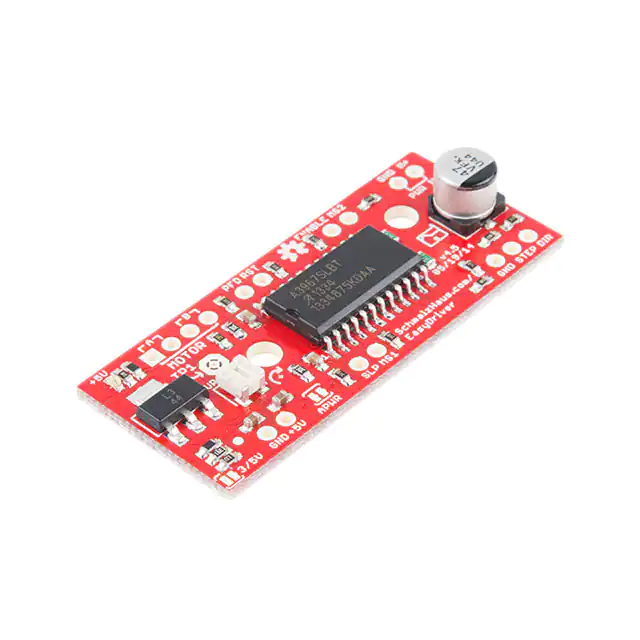
The Easy Driver is designed by Brian Schmalz, and is designed around the
A3967 IC. This IC enables you to drive bipolar stepper motors that are 4, 6,
or 8-wire configurations. The board can either work with 3.3V or 5V
systems, making it extremely versatile. Two mounting holes on-board give
the user the option to mechanically stabilize the Easy Driver.
Pin Descriptions
Let’s take a look at all of the pins broken out from the A3967 IC on the Easy
Driver.
Board Top Pins
If you look across the top of the board, you will see several pins.
They function as follows:
• Coil A+ - H-Bridge 2 Output A. Half of connection point for bi-polar
stepper motor coil A.
• Coil A- - H-Bridge 2 Output B. Half of connection point for bi-polar
stepper motor coil A.
• Coil B+ - H-Bridge 1 Output A. Half of connection point for bi-polar
stepper motor coil B.
• Coil B- - H-Bridge 1 Output B. Half of connection point for bi-polar
stepper motor coil B.
• PFD - Voltage input that selects output current decay mode. If PFD >
0.6Vcc, slow decay mode is activated. If PFD < 0.21Vcc, fast decay
mode is activated. Mixed decay occurs at 0.21Vcc< PFD < 0.6Vcc.
• RST - Logic Input. When set LOW, all STEP commands are ignored
and all FET functionality is turned off. Must be pulled HIGH to enable
STEP control.
• ENABLE -Logic Input. Enables the FET functionality within the motor
driver. If set to HIGH , the FETs will be disabled, and the IC will not
drive the motor. If set to LOW , all FETs will be enabled, allowing
motor control.
• MS2 -Logic Input. See truth table below for HIGH/LOW functionality.
• GND - Ground.
• M+ - Power Supply. 6-30V, 2A supply.
Bottom Board Pins
There are also pins across the bottom of the board. Their functions are
described below.
• GND - Ground.
• 5V -Output. This pin can be used to power external circuitry. 70mA
max is required for Easy Driver functionality.
�Page 3 of 10
• SLP - Logic Input. When pulled LOW , outputs are disabled and power
consumption is minimized.
• MS1 - Logic Input. See truth table below for HIGH/LOW functionality.
• GND - Ground.
• STEP -Logic Input. Any transition on this pin from LOW to HIGH will
trigger the motor to step forward one step. Direction and size of step
is controlled by DIR and MSx pin settings. This will either be 0-5V or
0-3.3V, based on the logic selection.
• DIR -Logic Input. This pin determines the direction of motor rotation.
Changes in state from HIGH to LOW or LOW to HIGH only take effect
on the next rising edge of the STEP command. This will either be
0-5V or 0-3.3V, based on the logic selection.
Microstep Select Resolution Truth Table
MS1
MS2
Microstep Resolution
L
L
Full Step (2 Phase)
H
L
Half Step
L
H
Quarter Step
H
H
Eigth Step
Solder Jumpers
There are two solder jumpers on board. These provide the following
features to the user:
• 3/5V - This jumper allows the user to set the configuration of VCC
between 3.3V or 5V. With the jumper open, VCC will be 5V. If the
jumper is closed, VCC is 3.3V.
• APWR - This jumper allows the user to source Vcc on the 5V/GND
pins to external hardware.
Potentiometer
The potentiometer on board is included to allow users the ability to select
the max current provided to the motor. It ranges from 150mA to 750mA.
This will require you to be aware what current range your motor can handle
– check the motor’s data sheet for the current settings.
If you can’t find this information, have no fear – you can still find the proper
setting for the potentiometer. First, set it to the lowest setting of the
potentiometer. Keep in mind that the potentiometer is delicate, so be careful
to not force the potentiometer past the mechanical stops when turning it.
Once you have the motor being driven at a slow, yet steady speed, slowly
�Page 4 of 10
turn the potentiometer and pay attention to the motor’s behavior. You
should find a sweet spot where the motor doesn’t skip or jerk between
steps.
Hardware Hookup
Connect Motor Coil Wires
You will need to determine the wire pairs for each coil on the motor you
plan to use. The most reliable method to do this is to check the datasheet
for the motor.
Coil wire diagram from the datasheet our NEMA 16 Stepper Motor with
Cable.
However, if you are using a 4-wire or 6-wire stepper motor, it is still possible
to determine the coil wire pairs without the datasheet.
For a 4-wire motor, take one wire and check its resistance against each of
the three remaining wires. Whichever wire shows the lowest resistance
against the first wire is the pair mate. The remaining two wires should show
similar resistance between the two of them.
For a 6-wire motor, you will need to determine which of three the wires go
together for one coil. Pick one wire, and test this against all other wires.
Two wires should show some resistance between them and the first wire
picked, while the other three will show no connection at all. Once the three
wires for one coil have been determined, find two of the three that show the
highest resistance between them. These will be your two coil wires. Repeat
for the second group of three wires.
Once you have determined the coil wire pairs, you will need to attach them
to the Easy Driver. The first coil pair should be plugged into Coil A+ and
Coil A-, while the second coil pair plugs into Coil B+ and Coil B-. There is
no polarity on the coils, so you don’t need to worry about plugging in a coil
backwards on the board. In our example, we are using a 4-coil motor. The
connections between the Big Easy Driver and motor are as follows.
Easy Driver → Motor
•
•
•
•
A+ → Green Wire
A- → Red Wire
B+ → Blue Wire
B- → Yellow Wire
Note: Do not connect or disconnect the motor while the Easy
Driver is powered.
Connect a Power Supply
�Page 5 of 10
Once your motor is connected, you can then connect a power supply to the
Big Easy Driver. You can use any kind of power supply (desktop, wall
adapter, battery power, etc.), but verify that whatever choice you go with is
capable of providing up to 2A and falls in the range of 6V to 30V.
Connect the power supply to M+ and GND. REMEMBER to disconnect
the power before connecting/disconnecting your motor.
Connect a Microcontroller
For this example, we will be using the SparkFun RedBoard. However, any
microcontroller that works at 3.3V or 5V logic and has digital I/O with PWM
capability will work for this example.
Here are the following pin connections for our example.
RedBoard → Easy Driver
•
•
•
•
•
D2 → STEP
D3 → DIR
D4 → MS1
D5 → MS2
D6 → ENABLE
Final Circuit
Once you have everything connected, your circuit should look like the
following:
Arduino Code
Basic Arduino Code Example
Now that you have the hardware hooked up and ready to go, it’s time to get
the code uploaded. First, download the example sketch.
EA S Y D RI V ER D EM O S K E T C H D O W N L O A D
For the most up-to-date code available, please check the GitHub repository.
If you need a reminder as to how to install an Arduino library, please check
out our tutorial here.
The first section of the sketch defines all of the pin connections between the
Redboard and the Easy Driver. It also sets these pins as outputs, and puts
them to the proper logic levels to begin driving the motor.
�Page 6 of 10
//Declare pin functions on Redboard
#define stp 2
#define dir 3
#define MS1 4
#define MS2 5
#define EN 6
//Declare variables for functions
char user_input;
int x;
int y;
int state;
void setup() {
pinMode(stp, OUTPUT);
pinMode(dir, OUTPUT);
pinMode(MS1, OUTPUT);
pinMode(MS2, OUTPUT);
pinMode(EN, OUTPUT);
resetEDPins(); //Set step, direction, microstep and enable p
ins to default states
Serial.begin(9600); //Open Serial connection for debugging
Serial.println("Begin motor control");
Serial.println();
//Print function list for user selection
Serial.println("Enter number for control option:");
Serial.println("1. Turn at default microstep mode.");
Serial.println("2. Reverse direction at default microstep mo
de.");
Serial.println("3. Turn at 1/8th microstep mode.");
Serial.println("4. Step forward and reverse directions.");
Serial.println();
}
One thing worth noting is that the code also initializes the serial connection
at 9600bps. This enables the user (you!) to control the motor’s functionality
and debug your circuit if needed.
The main loop of the code is pretty simple. The RedBoard scans the serial
port for input from the user. When it is received, it’s compared to the four
possible functions for the motor, which are triggered from user input. If no
valid input is received, the RedBoard prints an error over the serial port.
After the requested function is completed, the pins on the Easy Driver are
reset to the defaults.
�Page 7 of 10
//Main loop
void loop() {
while(Serial.available()){
user_input = Serial.read(); //Read user input and trigge
r appropriate function
digitalWrite(EN, LOW); //Pull enable pin low to allow mo
tor control
if (user_input =='1')
{
StepForwardDefault();
}
else if(user_input =='2')
{
ReverseStepDefault();
}
else if(user_input =='3')
{
SmallStepMode();
}
else if(user_input =='4')
{
ForwardBackwardStep();
}
else
{
Serial.println("Invalid option entered.");
}
resetEDPins();
}
}
The first of the four functions this demo sketch enables is a basic example
to show the motor spinning in one direction. The direction pin is held LOW ,
which for our sketch, we define as the ‘forward’ direction. The sketch then
transitions the step pin HIGH , pauses, and then pulls it LOW . Remember,
the motor only steps when the step pin transitions from LOW to HIGH , thus
we have to switch the state of the pin back and forth. This is repeated 1000
times, and then the RedBoard requests more user input to determine the
next motor activity.
//Default microstep mode function
void StepForwardDefault()
{
Serial.println("Moving forward at default step mode.");
digitalWrite(dir, LOW); //Pull direction pin low to move "fo
rward"
for(x= 1; x